
1. Увод
The i-tec USB-C Quattro Docking Station is designed to expand the connectivity of your USB-C enabled laptop or tablet, allowing for connection of up to four external displays, multiple USB peripherals, Gigabit Ethernet, and audio devices. It also provides up to 85W Power Delivery to charge your host device. This manual provides detailed instructions for setting up, operating, and maintaining your docking station.
2. Садржај пакета
Молимо вас да проверите да ли се у вашем пакету налазе све доле наведене ставке:
- i-tec USB-C Quattro Docking Station
- Повер Адаптер
- Повер Цабле
- УСБ-Ц на УСБ-Ц кабл
- Водич за брзи почетак

Слика 2.1: Package Contents. The image displays the docking station, its power adapter, a power cable, and a quick setup guide.
3. Производ је готовview
Familiarize yourself with the ports and indicators on your i-tec USB-C Quattro Docking Station.
3.1 Предња плоча

Слика 3.1: Front Panel. This image shows the front of the docking station with a power button, microphone input jack, headphone output jack, one USB-C data port, and one USB 3.0 port.
- Дугме за напајање: Да бисте укључили/искључили докинг станицу.
- Microphone Jack (3.5mm): Повежите микрофон.
- Утичница за слушалице (3.5 мм): Повежите слушалице или звучнике.
- УСБ-Ц порт за податке: За повезивање USB-C периферних уређаја.
- УСБ 3.0 порт: For connecting USB 3.0/2.0 peripherals.
3.2 Задња плоча

Слика 3.2: Rear Panel. This image displays the rear of the docking station, featuring the DC 20V power input, USB-C PD host connection, two DisplayPort outputs, two HDMI outputs, a Gigabit Ethernet (LAN) port, and four additional USB 3.0 ports.
- ДЦ 20В Улаз за напајање: Повежите испоручени адаптер за напајање.
- USB-C PD Host Port: Connect to your laptop/tablet for data, video, and power delivery.
- 2x DisplayPort: Connect external monitors via DisplayPort cables.
- 2к ХДМИ: Connect external monitors via HDMI cables.
- GLAN (RJ-45) Port: Повежите се на жичану мрежу.
- 4x USB 3.0 порта: Connect USB 3.0/2.0 peripherals.
4. Упутства за подешавање
Follow these steps to set up your i-tec USB-C Quattro Docking Station:
- Прикључите напајање: Connect the power adapter to the DC 20V input on the rear of the docking station, then plug the power cable into a wall outlet.
- Повежите се са хост уређајем: Use the provided USB-C to USB-C cable to connect the docking station's USB-C PD Host Port to your laptop's USB-C port. Ensure your laptop's USB-C port supports DisplayPort Alternate Mode and Power Delivery for full functionality.
- Повежите екстерне екране: Connect your monitors to the DisplayPort and/or HDMI ports on the rear of the docking station. You can connect up to four displays simultaneously.
- Повежите периферне уређаје: Plug your USB devices (keyboard, mouse, external drives) into the available USB 3.0 or USB-C data ports. Connect an Ethernet cable to the GLAN port for wired network access. Connect headphones/speakers and a microphone to the respective audio jacks on the front panel.
- Укључено: Press the power button on the front of the docking station. Your operating system should automatically detect the connected devices.
- Инсталација драјвера (ако је потребно): For optimal performance or specific features, visit ввв.и-тец.цз/сетуп to download and install any required drivers for your operating system.
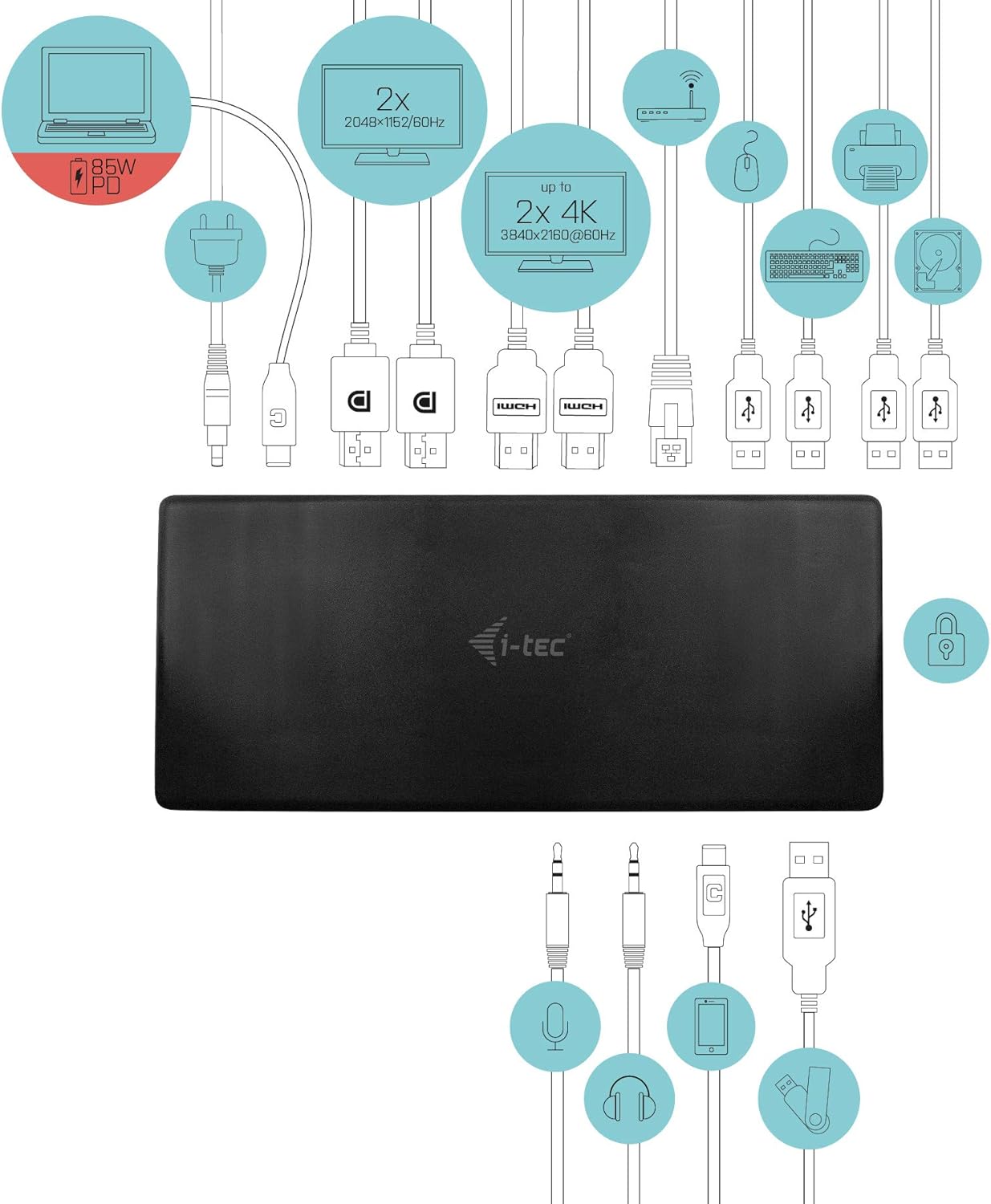
Слика 4.1: Connection Diagram. This diagram shows the various connections to the docking station, including power, host laptop, multiple monitors (DisplayPort and HDMI), Ethernet, and USB peripherals like a mouse, keyboard, and external storage.
5. Упутство за употребу
Once set up, your docking station provides enhanced functionality for your workspace.
5.1 Конфигурација вишеструког екрана
The docking station supports up to four external displays. You can configure these displays in various modes (extended, mirrored) through your operating system's display settings.
- Резолуције: Supports up to 2x 2048x1152@60Hz and 2x 4K/60Hz, depending on your host device's capabilities and display connections.
- Виндовс: Right-click on the desktop, select 'Display settings' to arrange and configure your monitors.
- мацОС: Go to 'System Preferences' > 'Displays' to adjust settings.

Слика 5.1: Four-Display Setup Example. This image illustrates a workstation with a laptop connected to the docking station, driving four external monitors simultaneously, showcasing a multi-tasking environment.
5.2 Испорука напајања
The USB-C PD Host Port provides up to 85W of power to charge your connected laptop or tablet, eliminating the need for a separate power adapter for your host device.
5.3 УСБ повезивање
Utilize the 5x USB 3.0 ports and 1x USB-C data port for connecting various peripherals such as external hard drives, USB flash drives, keyboards, mice, and printers. USB 3.0 ports offer high-speed data transfer.
5.4 Гигабит Етхернет
The GLAN RJ-45 port provides a stable and high-speed wired internet connection (10/100/1000 Mbps), which is often more reliable than Wi-Fi.
5.5 Аудио функционалност
Connect your headphones, speakers, or microphone to the 3.5mm audio jacks on the front panel for integrated audio input and output.

Слика 5.2: Productivity Setup. This image shows a professional desk environment where the docking station facilitates a multi-monitor setup for enhanced productivity, displaying various applications and data across four screens.
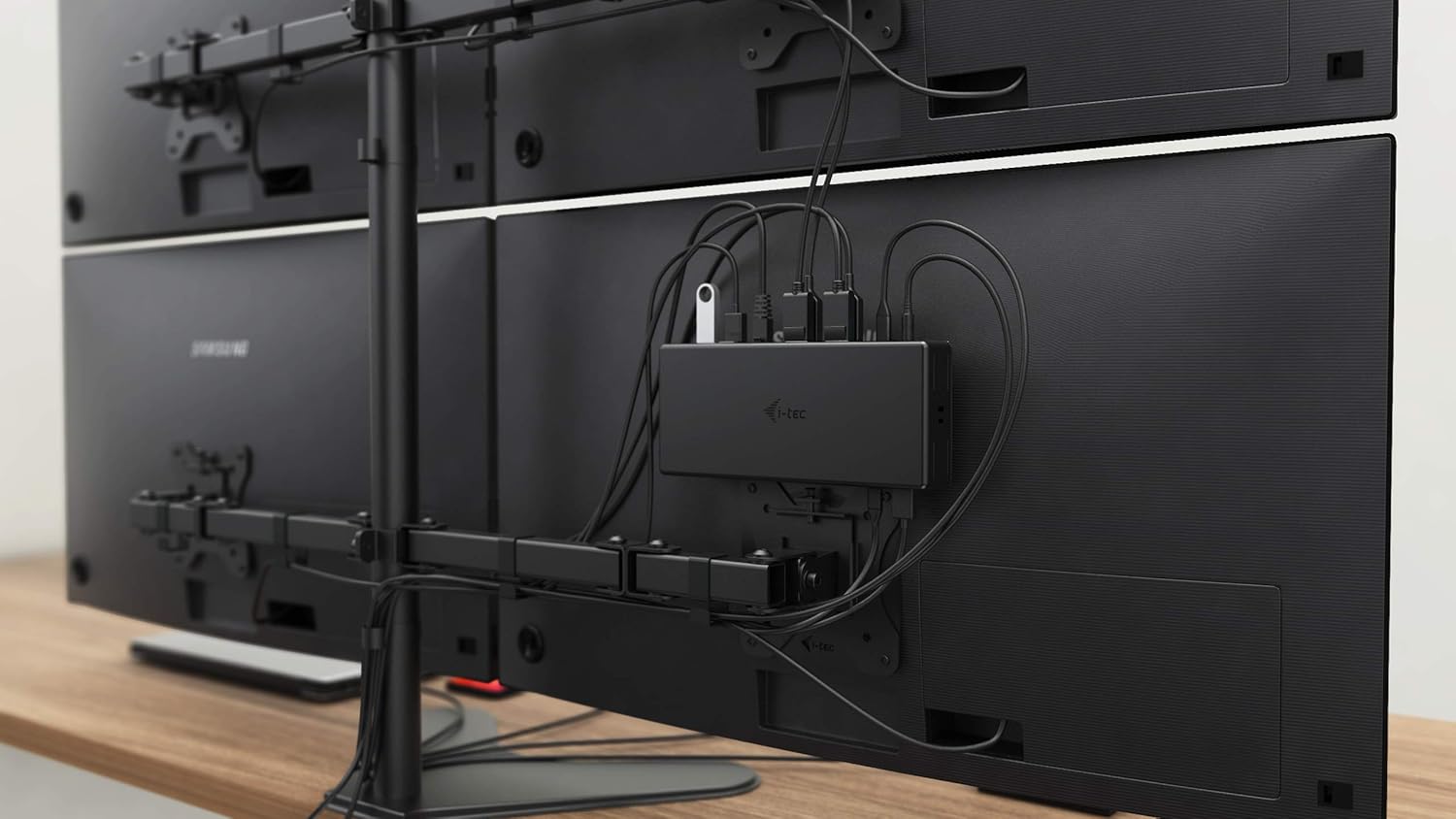
Слика 5.3: VESA Mounting. The docking station is shown mounted vertically on the back of a VESA-compatible monitor, demonstrating its space-saving installation capability and organized cable routing.

Слика 5.4: Connected Workstation. This image provides a close-up of the docking station on a desk, connected to a laptop via USB-C, and featuring various peripherals plugged into its front ports, including a USB drive and audio devices.
6. Одржавање
Да бисте осигурали дуготрајност и оптималне перформансе ваше прикључне станице, пратите ова упутства за одржавање:
- Чишћење: Use a soft, dry cloth to clean the exterior of the docking station. Do not use liquid cleaners or aerosols.
- вентилација: Ensure the docking station is placed in a well-ventilated area to prevent overheating. Do not block any ventilation openings.
- Руковање: Избегавајте испуштање или излагање базне станице јаким ударцима.
- Окружење: Држите уређај даље од екстремних температура, влаге и директне сунчеве светлости.
- Управљање кабловима: Ensure cables are not excessively bent or strained to prevent damage to ports and cables.
КСНУМКС. Решавање проблема
Ако наиђете на проблеме са базном станицом, погледајте следеће уобичајене проблеме и решења:
7.1 Нема излаза за приказ
- Проверите везе: Ensure all display cables (HDMI/DisplayPort) are securely connected to both the docking station and the monitors.
- Веза са хостом: Verify the USB-C cable from the docking station is firmly connected to your laptop's USB-C port.
- Снага: Confirm the docking station is powered on and receiving power from the adapter.
- Компатибилност са лаптопом: Уверите се да USB-C порт вашег лаптопа подржава алтернативни режим DisplayPort-а.
- Возачи: Install the latest drivers from ввв.и-тец.цз/сетуп.
- Подешавања екрана: Adjust your operating system's display settings to detect and extend/mirror displays.
7.2 USB Devices Not Working
- Поново повежи: Disconnect and reconnect the USB device to a different port on the docking station.
- Снага: Уверите се да је докинг станица укључена.
- Веза са хостом: Verify the USB-C connection to your laptop.
- Потрошња енергије: If connecting high-power USB devices, ensure the docking station's power adapter is correctly connected and providing sufficient power.
7.3 No Network Connection (GLAN)
- Провера кабла: Уверите се да је Етернет кабл безбедно повезан и са базном станицом и са рутером/модемом.
- Рутер/Модем: Verify your router/modem is working correctly.
- Возачи: Ensure the latest network drivers are installed for the docking station.
7.4 Laptop Not Charging (Power Delivery)
- Адаптер за напајање: Confirm the docking station's power adapter is correctly connected and functioning.
- УСБ-Ц кабл: Ensure the USB-C cable connecting the dock to your laptop supports Power Delivery.
- Компатибилност са лаптопом: Verify your laptop's USB-C port supports Power Delivery input.
8. Спецификације
| Феатуре | Детаљ |
|---|---|
| Број модела | C31QUATTRODOCKPDUK |
| Бранд | и-тец |
| Димензије производа | 10 к 2 к 2.7 инча (25.4 к 5.08 к 6.86 цм) |
| Тежина артикла | 10.2 унци (0.29 кг) |
| Хардверски интерфејс | DisplayPort, Ethernet, HDMI, USB, USB 3.0, USB Type C |
| Компатибилни уређаји | Laptop, Monitor, Tablet with USB-C (DisplayPort Alt Mode & Power Delivery support recommended) |
| Укупно УСБ портова | 6 (5x USB 3.0, 1x USB-C Data) |
| Укупни ХДМИ портови | 2 |
| Total DisplayPort | 2 |
| Етхернет | Гигабитни етернет (РЈ-45) |
| Аудио Јацкс | 1x Microphone (3.5mm), 1x Headphone (3.5mm) |
| Повер Деливери | Up to 85W to host device |
| Боја | Црно |
| Оперативни системи | Windows 10, macOS, Android, Linux |
9. Информације о гаранцији
The i-tec USB-C Quattro Docking Station is covered by a manufacturer's warranty. Please refer to the warranty card included in your package or visit the official i-tec webсајт за детаљне услове гаранције. Сачувајте доказ о куповини за потребе подношења захтева за гаранцију.
10. Корисничка подршка
For further assistance, technical support, or to download the latest drivers and firmware, please visit the official i-tec support webсајт:
You may also find helpful resources and FAQs on the product's dedicated setup page: ввв.и-тец.цз/сетуп