
1. Увод
Thank you for choosing the iClever GK08 Wireless Keyboard and Mouse Combo. This full-size keyboard with a numeric keypad and a silent mouse offers a stable 2.4 GHz connection, USB-C recharging, and dual-layout compatibility for Mac and Windows systems. This manual provides detailed instructions to help you set up, operate, and maintain your new device.
2. Безбедносне информације
- Држите уређај даље од воде, ватре и високих температура.
- Не покушавајте да раставите или модификујете уређај.
- Користите само приложени USB-C кабл за пуњење.
- Избегавајте испуштање или излагање уређаја јаким ударима.
- Одложите батерије и електронске компоненте одговорно у складу са локалним прописима.
3. Водич за подешавање
3.1 Садржај пакета
- iClever GK08 Wireless Keyboard
- iClever Wireless Mouse
- USB-A Nano Receiver (stored inside the mouse)
- УСБ-Ц кабл за пуњење
- Washable Dust Cover
- Упутство за употребу
3.2 Почетно пуњење
Before first use, ensure both the keyboard and mouse are fully charged.
- Connect the provided USB-C charging cable to the keyboard's USB-C port (located on the top edge).
- Повежите други крај кабла са УСБ извором напајања (нпр. УСБ портом рачунара, УСБ адаптером за зид).
- The charging indicator light on the keyboard will illuminate during charging and turn off when fully charged.
- For the mouse, connect the USB-C cable to its charging port. The mouse also has an indicator light.
- A full charge takes approximately 2 hours and provides up to 45 days of use for the keyboard.
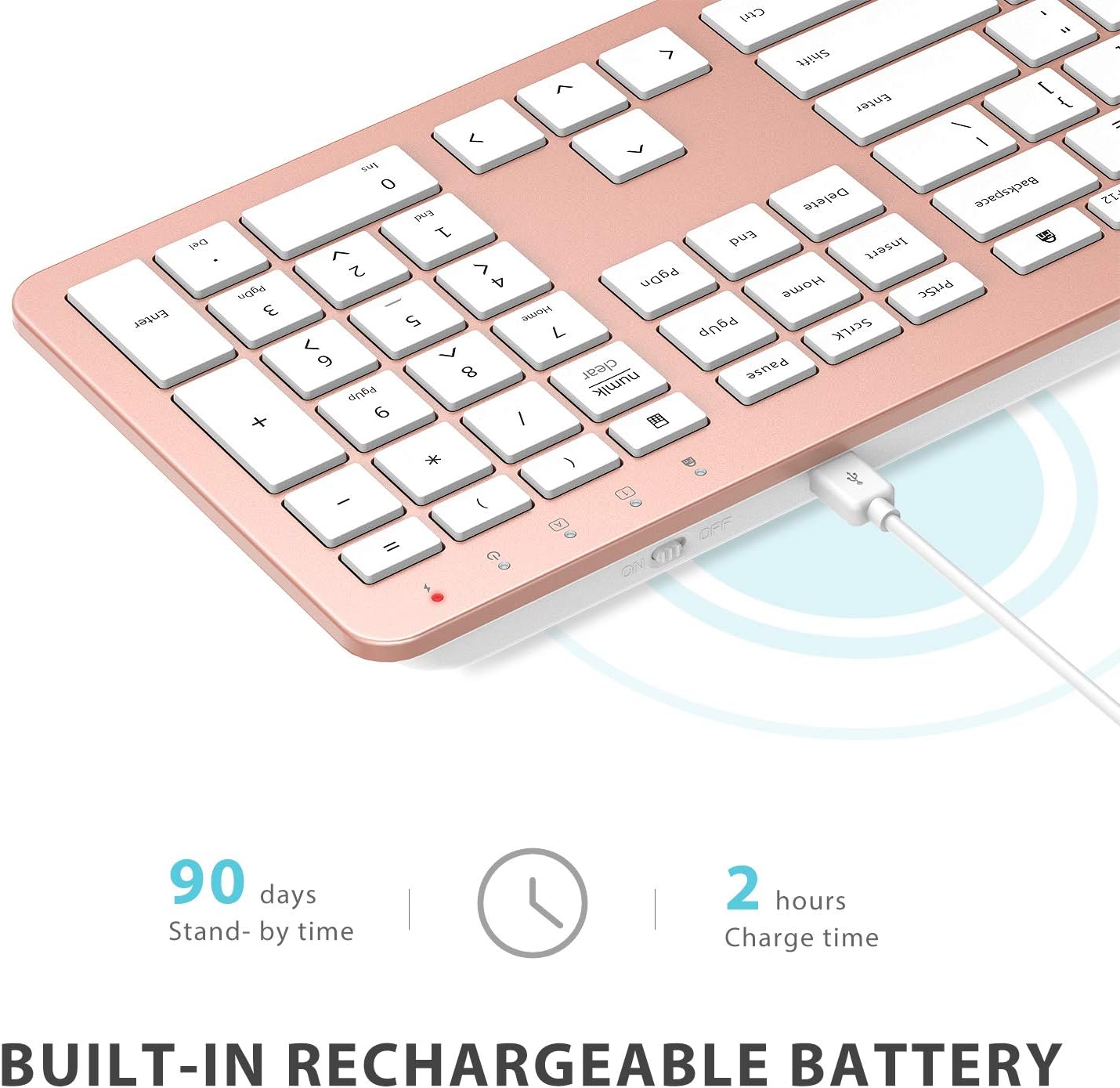
Image: The iClever GK08 keyboard connected to a USB-C charging cable, illustrating the charging process and battery life indicators.
3.3 Connecting to Your Computer (2.4 GHz Wireless)
The keyboard and mouse connect via a single 2.4 GHz USB-A nano receiver.
- Locate the USB-A nano receiver. It is typically stored in a compartment on the underside of the mouse.
- Plug the nano receiver into an available USB-A port on your computer.
- Turn on the keyboard using the ON/OFF switch (usually on the top edge).
- Turn on the mouse using the ON/OFF switch (located on the underside).
- Your computer should automatically detect and install the necessary drivers. The devices are ready for use once recognized.
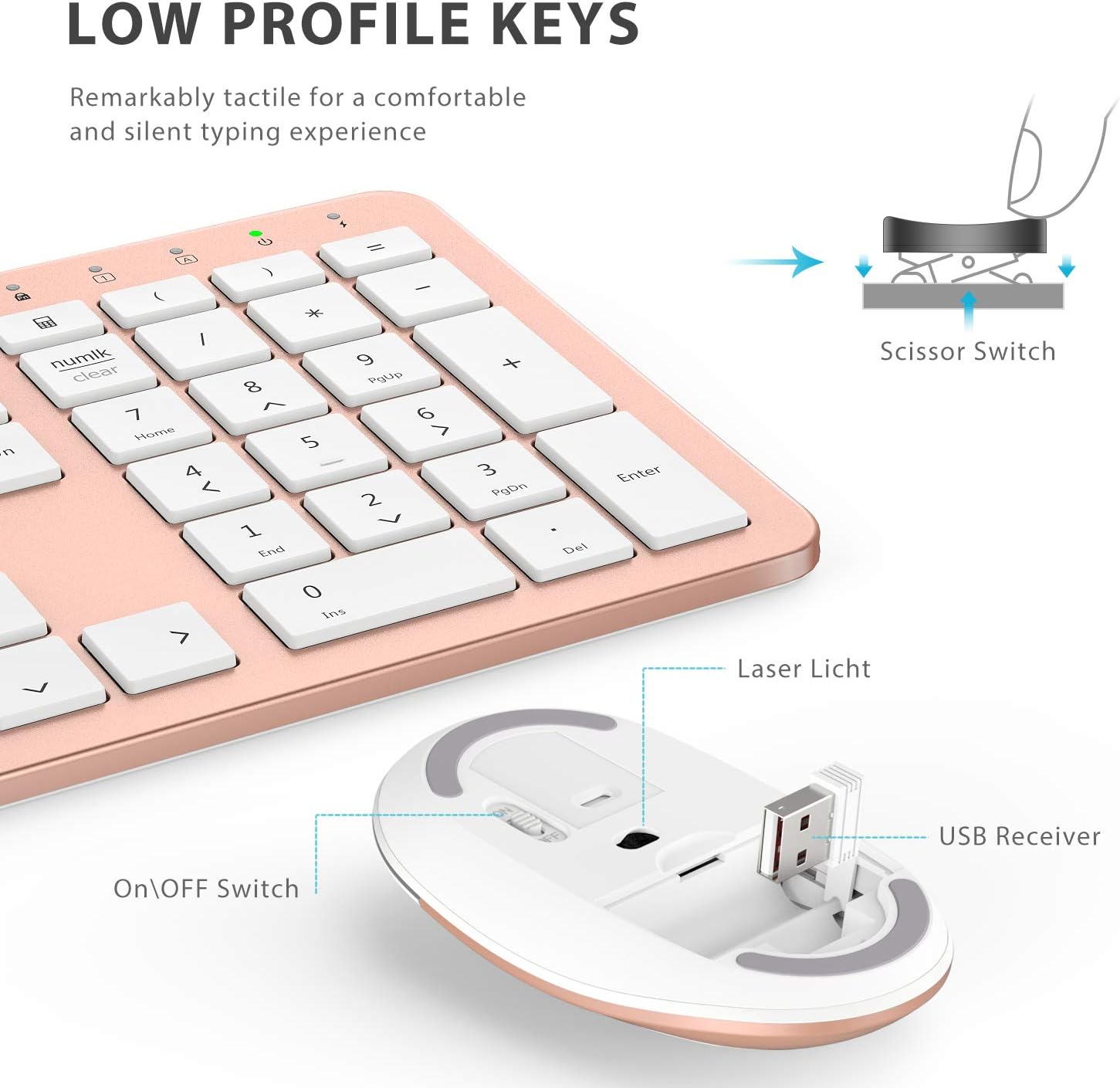
Слика: Крупни план view of the iClever mouse, highlighting the compartment where the USB nano receiver is stored for convenience.
3.4 Провера компатибилности
This combo requires an available USB-A port for the nano receiver. For newer Macs with only USB-C ports, a USB-C to USB-A adapter (not included) is required. It is compatible with:
- Windows 10/11 PC & laptop
- macOS desktops / notebooks with USB-A port (e.g., iMac Retina 4K/5K, MacBook Air/Pro ≤ 2017)
- Цхроме ОС

Image: A visual representation emphasizing the requirement of a USB-A port for the 2.4G wireless receiver, with a note about USB-C adapters for newer devices.
4. Упутство за употребу
4.1 Функције тастатуре
- Изглед у пуној величини: The keyboard features a 110-key layout with a dedicated numeric keypad for efficient data entry.
- Quiet Scissor-Switch Keys: Enjoy a comfortable and quiet typing experience with low-profile keys that produce less than 50 dB of sound.
- Media Shortcuts: Access common media functions directly from the keyboard.
- Dual-Layout Compatibility: The keyboard has clearly printed Mac and PC legends.
Switching Between Mac and Windows Layouts:
- За Виндовс: Притисните Фн + В to activate Win, Alt, NumLK functions.
- За Мац ОС: Притисните Фн + К to activate Alt (Option), Cmd, Clear functions.

Image: The iClever GK08 keyboard displaying the dual Mac and Windows key legends, with instructions for switching between operating system layouts using the Fn key combinations.
4.2 Функције миша
- Тихи клик: The mouse is designed for quiet operation, minimizing distractions.
- Подесиви ДПИ: The mouse features 3 adjustable DPI levels (800/1200/1600) to customize cursor sensitivity. Press the DPI button (usually located near the scroll wheel) to cycle through the settings.

Image: A visual demonstrating the quiet operation of the iClever mouse and the three adjustable DPI settings (800, 1200, 1600) for varied precision needs.
4.3 Функција аутоматског спавања
To conserve battery life, both the keyboard and mouse will enter an auto-sleep mode after 10 minutes of inactivity. To wake them up, simply press any key on the keyboard or move the mouse.
Video: A seller-provided video demonstrating the plug-and-play functionality and long battery life of the iClever Wireless Keyboard and Mouse. This video highlights the ease of setup and extended usage between charges.
5. Одржавање
- Чишћење: Користите меку, дamp cloth to clean the surfaces of the keyboard and mouse. Avoid harsh chemicals.
- Поклопац за прашину: Utilize the included washable dust cover to protect the keyboard from dust and spills when not in use.
- Складиштење: When not in use for extended periods, turn off both devices to conserve battery. Store the USB receiver inside the mouse.
КСНУМКС. Решавање проблема
- Без конекције:
- Ensure both keyboard and mouse are turned ON.
- Verify the USB nano receiver is securely plugged into a working USB-A port on your computer.
- Try plugging the receiver into a different USB-A port.
- Check if the devices are charged.
- Кашњење или повремена веза:
- Ensure the devices are within the 33 ft / 10 m operating range of the receiver.
- Избегавајте постављање пријемника у близини јаких извора сметњи (нпр. других бежичних уређаја, великих металних предмета).
- Re-pair the devices by unplugging and re-plugging the receiver.
- Keyboard Not Typing Correctly (Mac/Windows):
- Ensure you have selected the correct operating system layout using Фн + В за Windows или Фн + К за Мац.
- Курсор миша скаче или је нетачан:
- Подесите DPI подешавање помоћу дугмета DPI на мишу.
- Ensure the mouse sensor is clean and free from obstructions.
- Користите миш на одговарајућој површини (која није јако рефлектујућа или провидна).
7. Спецификације
| Феатуре | Детаљ |
|---|---|
| Бранд | иЦлевер |
| Број модела | ГК08 |
| Боја | Росе Голд |
| Технологија повезивања | 2.4 GHz wireless (USB-A nano receiver) |
| Домет | До 33 стопа / 10 м |
| Распоред тастатуре | QWERTY, Full-size 110-key with Numpad |
| Тип кључа | Scissor Switch (Quiet typing < 50 dB) |
| Извор напајања | Rechargeable Lithium Ion Battery (Keyboard) |
| Порт за пуњење | УСБ-Ц |
| Време пуњења | Прибл. 2 сата |
| Трајање батерије (тастатура) | До 45 дана (типична употреба) |
| ДПИ подешавања миша | 800 / 1200 / 1600 ДПИ |
| Компатибилни оперативни системи | Windows 8/10/11, macOS, Chrome OS |
| Посебне карактеристике | Dual Mac/Windows layout, 10-min auto-sleep, Washable dust cover |
8. Гаранција и подршка
iClever products typically come with a standard manufacturer's warranty. Please refer to the warranty card included in your product packaging or visit the official iClever webсајт за детаљне услове гаранције.
For technical support, troubleshooting assistance, or any product-related inquiries, please contact iClever customer service through their official webсајт или контакт информације наведене у документацији вашег производа.
Подршка на мрежи: www.iclever.com/support