
Mirascreen mirascreen G4 Plus
Упутство за употребу MiraScreen G4 Plus 4K WiFi дисплејског адаптера
Model: mirascreen G4 Plus
1. Увод
This user manual provides detailed instructions for the setup, operation, and maintenance of your MiraScreen G4 Plus 4K WiFi Display Dongle. This device allows you to mirror content from your smartphone, tablet, laptop, or Mac to any HDMI-equipped display, such as a TV, monitor, or projector, supporting up to 4K resolution.
Please read this manual thoroughly before using the product to ensure proper functionality and to avoid any damage.
2. Безбедносне информације
- Не излажите уређај води, влази или екстремним температурама.
- Избегавајте испуштање или излагање уређаја јаким ударима.
- Use only the provided or recommended power adapter to prevent damage.
- Не покушавајте сами да растављате или поправљате уређај. Све сервисирање препустите квалификованом особљу.
- Обезбедите одговарајућу вентилацију око уређаја током рада како бисте спречили прегревање.
- Држите уређај даље од директне сунчеве светлости и извора топлоте.
3. Садржај пакета
Након отварања пакета, проверите да ли су сви предмети присутни и у добром стању:
- MiraScreen G4 Plus 4K WiFi Display Dongle
- USB Power Cable (with Wi-Fi antenna)
- Кориснички приручник (овај документ)

Image: The MiraScreen G4 Plus dongle shown with its retail packaging, illustrating the compact size of the device and its box.
4. Производ је готовview
The MiraScreen G4 Plus is a compact wireless display adapter designed for seamless content mirroring. It features a built-in Wi-Fi module for connectivity and an HDMI output for display.
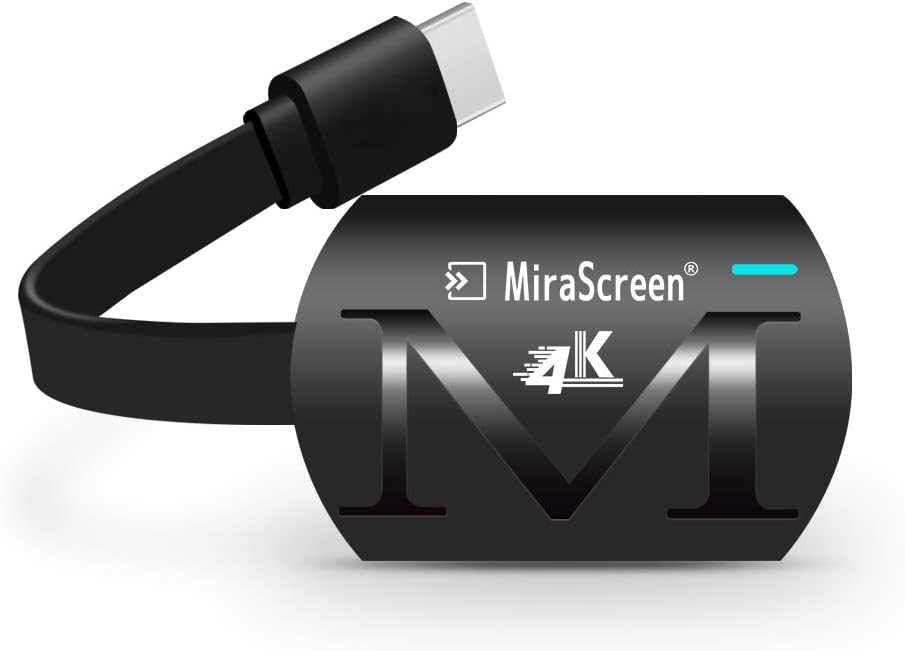
Слика: Крупни план view of the MiraScreen G4 Plus 4K WiFi Display Dongle, showing its sleek black design with the MiraScreen logo and 4K branding, and the attached USB power cable.
Кључне карактеристике:
- 4K High Definition Support: Mirrors your mobile device screen to HDMI-equipped devices, supporting 3840x2160P resolution for HD videos, games, music, photos, and files.
- Video & Audio Sync: Streams video and audio simultaneously, supporting 3G/4G mobile data and home WiFi router connections.
- Mirroring Without Internet: The dongle creates its own MiraScreen WiFi network, allowing direct mirroring from your mobile devices to a TV/monitor without an external internet connection.
- Широка компатибилност: Compatible with Android 4.2+, iOS 8.0+, Windows 8.1+, and Mac OS 10+ devices that have an HDMI input port.
- One-Click Mode Switch: Easily switch between Android and iOS mirroring modes.

Image: The MiraScreen dongle connected to a TV, with icons below illustrating its versatility for pictures, documents, PPT display, game entertainment, and home theater use.

Image: A visual comparison demonstrating the superior clarity and detail of 4K HD picture quality versus 1080P, highlighting the dongle's high-resolution capability.
5. Подешавање
5.1 Connecting the Dongle
- Повежи се са екраном: Plug the HDMI connector of the MiraScreen G4 Plus dongle into an available HDMI port on your TV, monitor, or projector.
- Прикључите напајање: Connect the USB power cable (with the Wi-Fi antenna) to the dongle's micro USB port. Plug the other end of the USB cable into a USB power adapter (5V/1A recommended) or a USB port on your display device that provides sufficient power. Ensure the dongle receives stable power.
- Изаберите ХДМИ улаз: On your display device, select the corresponding HDMI input source to which the dongle is connected. You should see the MiraScreen setup screen.

Image: A diagram illustrating the wide compatibility of the MiraScreen dongle, showing connections to various mobile devices (iPhone, iPad) and display devices (TV, Projector, Monitor).
5.2 Initial Configuration (First Use)
When the MiraScreen setup screen appears on your display, it will show the dongle's Wi-Fi name (SSID) and password. You will use these to connect your mobile device.
- Connect Your Device to Dongle's Wi-Fi: On your smartphone, tablet, or laptop, go to Wi-Fi settings and connect to the MiraScreen dongle's Wi-Fi network (SSID). Enter the password displayed on the screen.
- Страница за подешавање приступа: Отвори а web browser on your connected device and enter the IP address displayed on the MiraScreen setup screen (e.g., 192.168.203.1). This will open the MiraScreen configuration page.
- Connect to Home Wi-Fi (Optional): On the configuration page, select "Internet" or "Wi-Fi Setup" and choose your home Wi-Fi network. Enter the password for your home Wi-Fi. This allows the dongle to access the internet, enabling online streaming and updates.
- Поновно покретање: After connecting to your home Wi-Fi, the dongle may prompt you to reboot. Confirm the reboot. Your device will now be connected to your home network.
6. Упутство за употребу
6.1 Mirroring for iOS Devices (AirPlay)
Ensure your iOS device (iPhone, iPad) is connected to the same Wi-Fi network as the MiraScreen dongle (or directly to the dongle's Wi-Fi if no internet is needed).
- Swipe down from the top-right corner (or up from the bottom for older models) to open Control Center.
- Tap "Screen Mirroring" or "AirPlay Mirroring".
- Select the MiraScreen device from the list. Your iOS device screen will now be mirrored to the display.
6.2 Mirroring for Android Devices (Miracast/Google Home)
Android devices typically use Miracast or Google Home for mirroring. Ensure your Android device is connected to the same Wi-Fi network as the MiraScreen dongle.
- Using Miracast (Wireless Display):
- Go to your Android device's settings.
- Look for "Cast," "Smart View," "Wireless Display," "Screen Mirroring," or similar options (names vary by manufacturer).
- Select the MiraScreen device from the list.
- Using Google Home App:
- Download and open the Google Home app from the Google Play Store.
- Ensure your phone and the dongle are on the same Wi-Fi network.
- Tap on the MiraScreen device listed in the app.
- Tap "Cast my screen" at the bottom, then "Cast screen."

Image: A three-panel image demonstrating the process of casting your screen using the Google Home app on an Android device, showing the app interface and menu selections.
6.3 Mirroring for Windows/Mac OS
For Windows and Mac OS, you can typically use the built-in casting features or third-party applications.
- Виндовс: Притисните Windows тастер + P, then select "Connect to a wireless display" and choose the MiraScreen device.
- Мац ОС: Use AirPlay Mirroring from the menu bar (if available) or compatible third-party software.
6.4 Switching Modes (Android/iOS)
The MiraScreen G4 Plus features a physical button on the dongle for one-click mode switching between Android and iOS compatibility. Press this button briefly to toggle between modes if you encounter connection issues or are switching between different operating systems.

Слика: А view of the MiraScreen G4 Plus dongle highlighting the small button used for one-click mode switching between Android and iOS mirroring modes.
6.5 Important Notes on App Compatibility
Please be aware that the MiraScreen G4 Plus is not compatible with paid streaming applications that employ Digital Rights Management (DRM) protection. This includes, but is not limited to, services such as Netflix, Amazon Prime Video, Hulu Plus, Sky Go, DIRECTV, and HBO Go. Attempting to mirror content from these applications may result in a black screen or no audio.
7. Одржавање
- Чишћење: Use a soft, dry cloth to clean the surface of the dongle. Do not use liquid cleaners or aerosols.
- Складиштење: When not in use, store the dongle in a cool, dry place, away from direct sunlight and dust.
- Ажурирања софтвера: Periodically check the MiraScreen configuration page (accessed via IP address) for any available firmware updates. Keeping the firmware updated can improve performance and compatibility.
КСНУМКС. Решавање проблема
| Проблем | Могући узрок / решење |
|---|---|
| Нема приказа на ТВ-у/монитору. |
|
| Cannot connect to the dongle's Wi-Fi. |
|
| Mirroring is laggy or disconnects frequently. |
|
| Cannot mirror content from Netflix/Amazon Prime Video. |
|
| Нема звука или је звук изобличен. |
|
9. Спецификације
| Феатуре | Детаљ |
|---|---|
| Назив модела | wireless display dongle |
| Број модела ставке | mirascreen G4 Plus |
| Бранд | Mirascreen |
| Резолуција | 4K (3840x2160P) |
| Технологија повезивања | Ви-Фи, ХДМИ |
| Тип конектора | ХДМИ |
| Посебне карактеристике | Wifi Display, Wireless |
| Подржани ОС | Android 4.2+, iOS 8.0+, Windows 8.1+, Mac OS 10+ |
| Димензије производа | 10.5 к 10.5 к 2.2 цм |
| Тежина артикла | 0.05 килограма (50 г) |
| Произвођач | sagetech |
10. Гаранција и подршка
За информације о гаранцији и техничку подршку, погледајте документацију коју сте добили уз куповину или се директно обратите продавцу/произвођачу. Сачувајте доказ о куповини за потребе подношења захтева за гаранцију.
Manufacturer: sagetech
Ask a question about this manual
Ask about setup, troubleshooting, compatibility, parts, safety, or missing instructions. Manuals+ will review the question and use this page’s manual context to help answer it.