
SIMREX X900
SIMREX X900 Упутство за употребу дрона
Optical Flow Positioning RC Quadcopter with 1080P HD Camera
Увод
Хвала вам на куповиниasing the SIMREX X900 Drone. This quadcopter features Optical Flow Positioning for stable flight, a 1080P HD camera for clear aerial photography and video recording, Altitude Hold for easy control, and Headless Mode for simplified navigation. Its foldable design makes it highly portable. Please read this manual thoroughly before operating the drone to ensure safe and optimal performance.

Figure 1: SIMREX X900 Drone with controller and smartphone.
This image displays the SIMREX X900 drone in its unfolded state, alongside its remote controller and a smartphone mounted on the controller, showing the live video feed from the drone's camera. The drone is red and black with four propellers.
Садржај пакета
- SIMREX X900 RC Quadcopter
- Даљински управљач
- Rechargeable Drone Battery (1 included)
- УСБ кабл за пуњење
- Резервни пропелери
- Шрафцигер
- Упутство за употребу
Водич за подешавање
1. Расклапање дрона
Gently unfold the drone arms until they lock into position. Ensure all four arms are fully extended before flight.
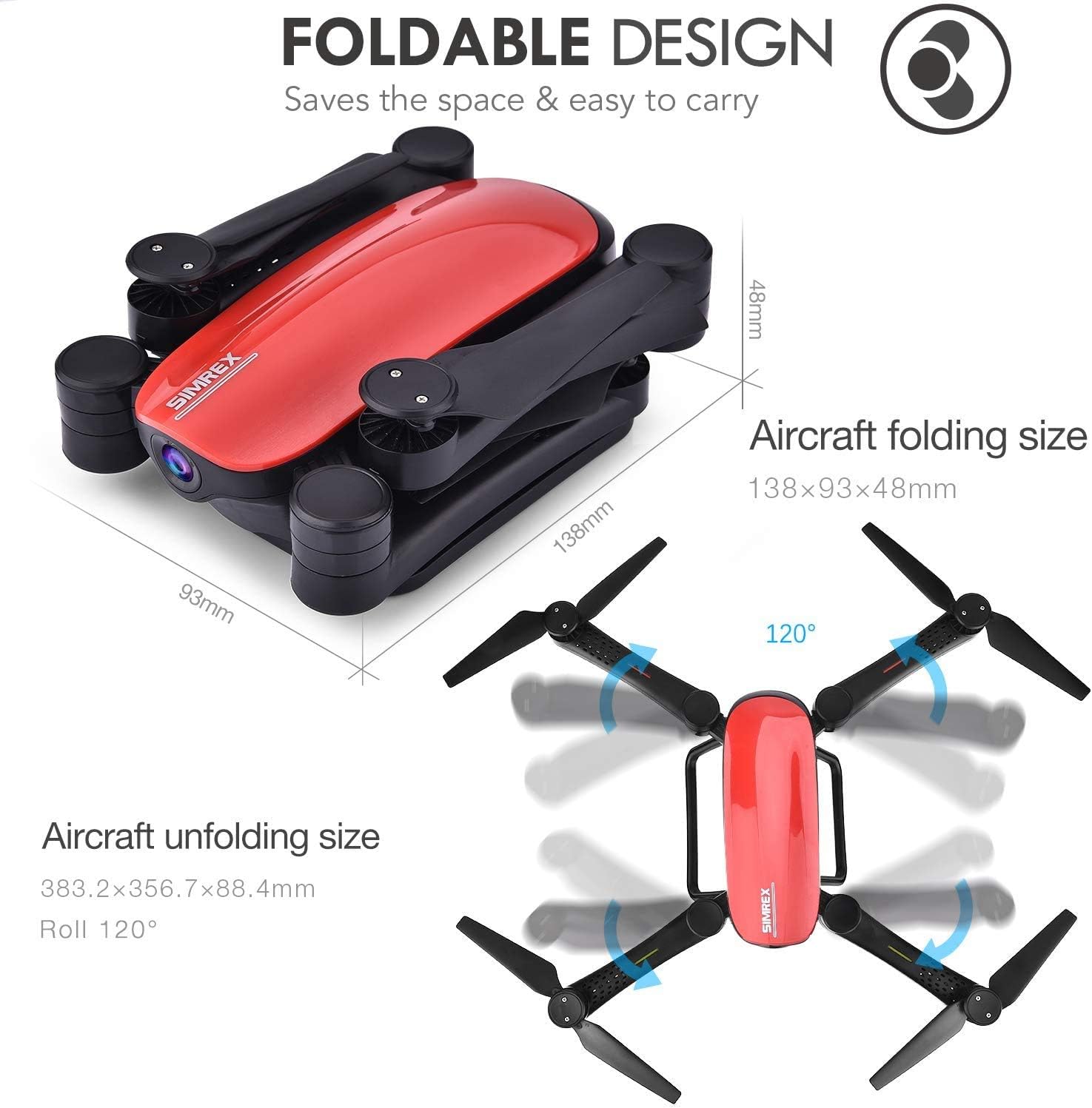
Figure 2: Foldable design and dimensions of the X900 drone.
This image illustrates the compact folded size (138x93x48mm) and the larger unfolded size (383.2x356.7x88.4mm) of the SIMREX X900 drone, highlighting its portability and ease of storage.
2. Инсталација и пуњење батерије
- Insert the fully charged drone battery into the battery compartment on the rear of the drone until it clicks into place.
- For charging, connect the USB charging cable to the drone battery and a USB power source (e.g., computer USB port, USB wall adapter). The charging indicator light will show charging status.
- Install 3 x AAA batteries (not included) into the remote controller, observing correct polarity.
3. Propeller Check
Ensure all propellers are securely attached and free from damage. Replace any damaged propellers with the provided spares using the screwdriver.
4. Преузимање апликације и повезивање
Download the official SIMREX drone application from your smartphone's app store (iOS/Android compatible). Turn on the drone and connect your smartphone to the drone's Wi-Fi network (usually named "SIMREX-XXXX"). Open the app to view the live video feed and access advanced controls.

Figure 3: Control options for the X900 drone.
This image illustrates two methods of controlling the drone: direct control via a smartphone connected to the drone's WiFi, or using the included transmitter with a smartphone mounted as a monitor for FPV (First Person View).
Упутство за употребу
1. Упаривање дрона и контролера
- Поставите дрон на равну, равну површину.
- Turn on the drone. The indicator lights will flash.
- Укључите даљински управљач.
- Потисните леви џојстик (гас) до краја нагоре, а затим до краја надоле. Светла дрона ће почети да светле континуирано, што указује на успешно упаривање.
2. Полетање и слетање
- Полетање једним кључем: Press the one-key take-off button on the controller. The drone will automatically ascend to a stable height.
- Ручно полетање: Push both joysticks simultaneously to the bottom-outer corners to arm the motors. Then, slowly push the left joystick (throttle) upwards to take off.
- Слетање једним кључем: Притисните дугме за слетање једним тастером. Дрон ће се аутоматски спустити и слетети.
- Ручно слетање: Slowly pull the left joystick (throttle) downwards until the drone lands. Once landed, push both joysticks to the bottom-outer corners to stop the motors.
3. Altitude Hold Mode
The X900 drone features Altitude Hold, allowing it to maintain a consistent height without continuous throttle input. Once the desired altitude is reached, release the throttle stick, and the drone will hover at that height, making it easier to control and capture stable footage.

Figure 4: Drone utilizing Altitude Hold feature.
This image depicts the SIMREX X900 drone maintaining a stable altitude above a grassy field, demonstrating its Altitude Hold capability. A dotted line indicates the drone's fixed height.
4. Режим без главе
In Headless Mode, the drone's orientation is relative to the pilot, regardless of which way the drone's front is facing. This simplifies flight control, especially for beginners, as you don't need to worry about the drone's actual heading.

Figure 5: Drone operating in Headless Mode.
This image shows the SIMREX X900 drone flying over a body of water, with arrows indicating movement directions relative to the pilot, illustrating the concept of Headless Mode where the drone's orientation does not affect control inputs.
5. 3D Flips and Stunts
To perform a 360-degree flip, fly the drone to a sufficient height (at least 3 meters). Press the 3D flip button on the controller, then push the right joystick in the desired direction (forward, backward, left, or right). The drone will perform a flip in that direction.

Figure 6: Drone performing 3D stunts.
This image captures the SIMREX X900 drone in mid-air, depicted in various orientations as it performs a 360-degree flip, showcasing its stunt capability.
6. Режим сензора гравитације
Activate Gravity Sensor Mode via the smartphone app or controller. In this mode, you can control the drone's flight by tilting your smartphone or the controller, providing an intuitive and immersive flying experience.

Figure 7: Controlling the drone with Gravity Sensor Mode.
This image shows a hand holding the SIMREX X900 remote controller, with the drone flying in the background, illustrating how tilting the controller (or a smartphone) can control the drone's movement in Gravity Sensor Mode.
Одржавање
- Чишћење: Use a soft, dry cloth to clean the drone and controller. Avoid using water or solvents.
- Нега пропелера: Regularly inspect propellers for cracks or damage. Replace any damaged propellers immediately to ensure safe flight.
- Одржавање батерије: Do not overcharge or over-discharge the battery. Store batteries in a cool, dry place when not in use. Remove batteries from the drone and controller during long-term storage.
- Складиштење: When not in use, store the drone in a cool, dry environment, away from direct sunlight and extreme temperatures. Fold the drone arms for compact storage.
Решавање проблема
| Проблем | Могући узрок | Решење |
|---|---|---|
| Дрон не реагује на контролер. | Није упарено; празна батерија у дрону или контролеру. | Re-pair the drone and controller. Charge drone battery; replace controller batteries. |
| Drone is unstable or drifts during flight. | Not calibrated; damaged propellers; windy conditions. | Perform gyroscope calibration on a flat surface. Replace damaged propellers. Fly in calm conditions. |
| Нема преноса видеа уживо на паметном телефону. | Not connected to drone's Wi-Fi; app not open or crashed. | Ensure phone is connected to drone's Wi-Fi. Restart the app and drone. |
| Drone does not take off. | Motors not armed; low battery. | Arm motors (joysticks to bottom-outer corners). Charge drone battery. |
Спецификације
| Феатуре | Детаљ |
|---|---|
| Бранд | СИМРЕКС |
| Назив модела | Кс900 |
| Резолуција снимања видео записа | 1080p (1920x1080 пиксела) |
| Технологија повезивања | Ви-Фи |
| Капацитет батерије | 1800 Милиamp Сати |
| Тип контроле | Ремоте Цонтрол |
| Медиа Типе | SD (for recording) |
| Димензије пакета | 10 к 6.97 к 3.27 инча |
| Тежина артикла | 1.62 фунти |
Гаранција и подршка
For warranty information, technical support, or any inquiries regarding your SIMREX X900 drone, please contact SIMREX customer service directly. Refer to the product packaging or the official SIMREX webсајт за контакт детаље.
SIMREX Official Store: Visit the SIMREX Store on Amazon
Ask a question about this manual
Ask about setup, troubleshooting, compatibility, parts, safety, or missing instructions. Manuals+ will review the question and use this page’s manual context to help answer it.