
Macally BTERGOKEY
Macally Wireless Ergonomic Keyboard User Manual
Model: BTERGOKEY
Увод
Thank you for choosing the Macally Wireless Ergonomic Keyboard. This manual provides detailed instructions for setting up, operating, maintaining, and troubleshooting your new keyboard. Please read this manual thoroughly to ensure optimal performance and longevity of your device.

Figure 1: Macally Wireless Ergonomic Keyboard (Model BTERGOKEY)
Сетуп
Садржај пакета
- Macally Wireless Ergonomic Keyboard
- Micro USB to USB-A Charging Cable
- Упутство за употребу (овај документ)
Пуњење тастатуре
The keyboard features a built-in 500mAh rechargeable battery. Before initial use, or when the battery is low, charge the keyboard using the included Micro USB to USB-A cable.
- Locate the Micro USB port on the keyboard.
- Connect the Micro USB end of the cable to the keyboard.
- Connect the USB-A end of the cable to a compatible USB power source (e.g., computer USB port, USB wall adapter).
- ЛЕД индикатор ће показати статус пуњења.

Figure 2: Keyboard connected to charging cable.
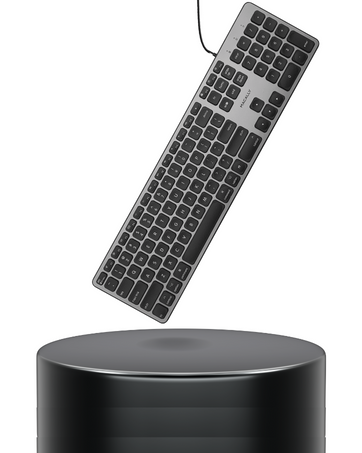
Figure 3: Close-up of the charging port and On/Off switch.
Блуетоотх упаривање
The Macally BTERGOKEY keyboard can pair with up to three Bluetooth devices simultaneously.
- Ensure the keyboard is charged and the On/Off switch is in the "On" position.
- Да бисте започели упаривање, притисните и држите Fn key, and while holding it, press the Number 1, 2, or 3 key on the number row. Release both keys. This selects the Bluetooth channel.
- Затим, притисните и држите Fn again, and while holding it, press the "P" key. Release both keys. The LED light for the selected channel (B1, B2, or B3) will flash rapidly, indicating it is in pairing mode.
- On your Mac, iPad, or iPhone, go to Системске поставке (Мац) или Подешавања (iOS), then navigate to Блуетоотх.
- Select "Macally BTERGOKEY" from the list of available devices.
- Follow any on-screen prompts to complete the pairing process. The LED light will stop flashing rapidly once successfully paired.
Figure 4: Bluetooth connectivity with multiple Apple devices.
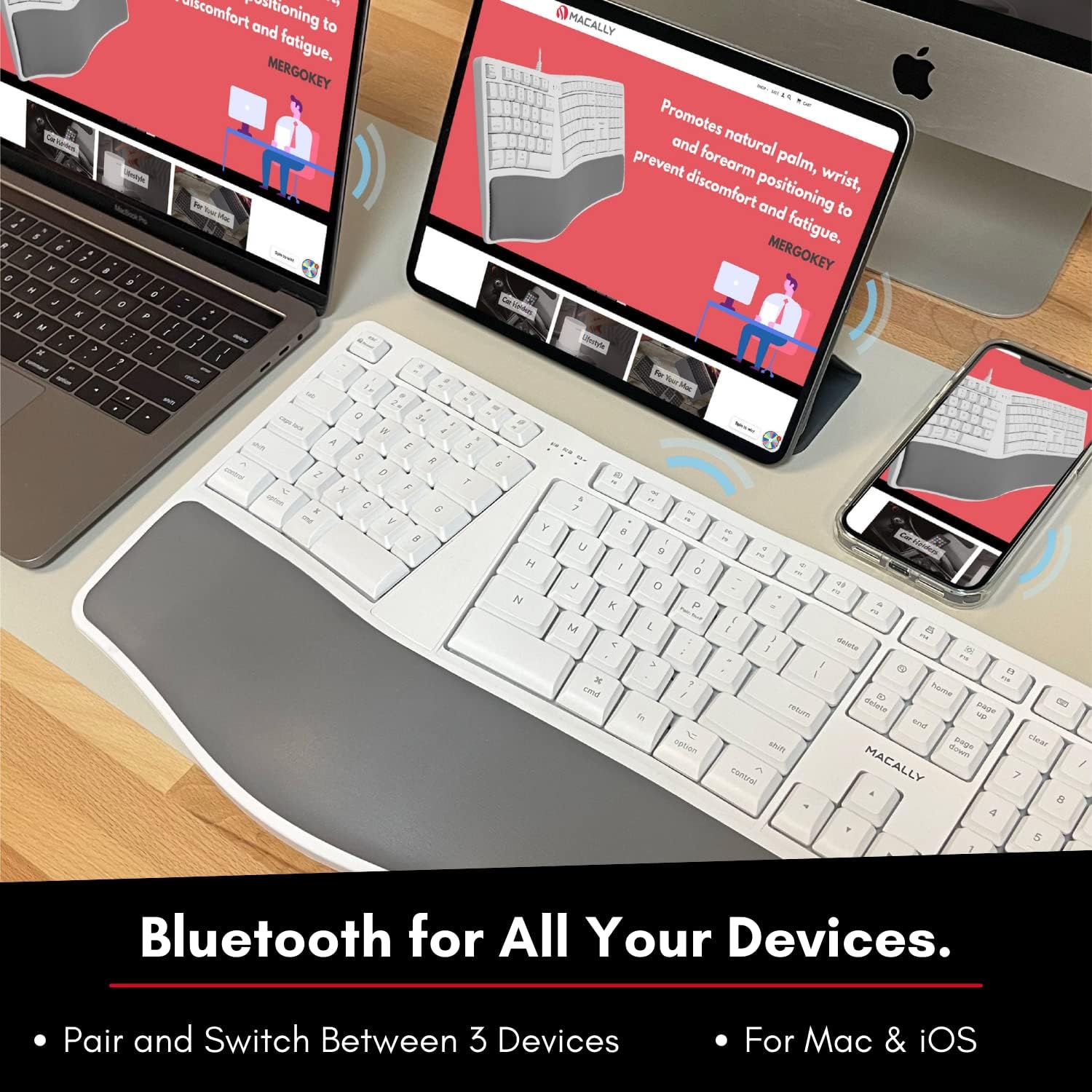
Figure 5: The keyboard supports Bluetooth connection to Mac, iPad, and iPhone.
Упутство за употребу
Пребацивање између упарених уређаја
To quick-switch between your paired Bluetooth devices (B1, B2, or B3), simply press and hold the Fn key and then press the corresponding Number 1, 2, or 3 on the number row. Release both keys. The keyboard will connect to the selected device.
Ergonomic Design and Typing
The Macally BTERGOKEY features a split ergonomic design with keys in two zones and at an angle to promote natural arm and wrist posture. It includes a padded wrist cushion for enhanced comfort.

Figure 6: The keyboard's design promotes neutral arm resting position and sloped comfort.
The keyboard's layout includes two dedicated typing zones and a space bar for each hand, which can help improve typing speed and reduce strain.

Figure 7: The keyboard features two distinct typing zones for improved efficiency.
It may take a few days to adjust to the unique layout of this ergonomic keyboard. Consistent use will help you adapt and experience the full benefits.

Figure 8: Adjustment period for the ergonomic layout.
MacOS Shortcut Keys
The keyboard features a 110-key Mac-specific layout with 21 MacOSX shortcut keys to enhance your productivity. These keys provide quick access to common functions.

Слика 9: Завршеноview of the 21 MacOS shortcut keys.
Одржавање
Чишћење ваше тастатуре
To maintain the cleanliness and functionality of your keyboard, follow these guidelines:
- Always turn off the keyboard before cleaning.
- Користите меку крпу која не оставља длачицеampопрати водом или благим, неабразивним раствором за чишћење.
- Avoid spraying cleaners directly onto the keyboard.
- Не користите јаке хемикалије, раствараче или абразивне материјале.
- Regularly remove dust and debris from between the keys using compressed air.
Баттери Царе
To prolong the life of the rechargeable battery:
- Избегавајте често потпуно пражњење батерије.
- Редовно пуните тастатуру, посебно ако је нећете користити дуже време.
- Store the keyboard in a cool, dry place when not in use.
Решавање проблема
Проблеми упаривања
- LED light flashing rapidly: This indicates the keyboard is actively searching for a device to pair with. Ensure Bluetooth is enabled on your host device and it is discoverable.
- LED light flashing slowly: This means the keyboard is attempting to reconnect to a previously paired device. Ensure the paired device's Bluetooth is on and within range.
- Keyboard not appearing in Bluetooth list:
- Уверите се да је тастатура напуњена и укључена.
- Make sure the keyboard is in pairing mode (LED flashing rapidly).
- Try restarting both the keyboard and your host device.
- Clear existing Bluetooth connections on your host device if you have too many.
Number Pad Not Working
If your number pad is not functioning, and there is no dedicated "Num Lock" key, you may need to adjust a setting in your macOS:
- Иди на Системске поставке на вашем Мац-у.
- Кликните на Приступачност.
- Померите се надоле и изаберите Контрола показивача.
- Онемогући the "Enable Mouse Keys" option. This setting can sometimes interfere with the number pad's functionality.
General Connectivity Issues
- Ensure the keyboard is within the effective range of your Bluetooth device (typically up to 33 feet or 10 meters).
- Минимизирајте сметње од других бежичних уређаја (нпр. Wi-Fi рутера, бежичних телефона).
- If issues persist, try unpairing and re-pairing the keyboard with your device.
Спецификације
| Феатуре | Детаљ |
|---|---|
| Димензије производа | 19 к 9.85 к 1.5 инча |
| Тежина артикла | 2.89 фунти |
| Број модела | BTERGOKEY |
| Технологија повезивања | Блуетоотх |
| Компатибилни уређаји | Apple Mac Pro/Mini, Macbook Pro/Air, iMac, iPad, iPhone |
| Број кључева | 110 |
| Батерија | 500мАх пуњива батерија |
| Посебне карактеристике | Split Ergonomic Design, Padded Wrist Cushion, Multi-sync Bluetooth, 21 MacOS Shortcut Keys, Adjustable Kickstand |
Гаранција и подршка
Macally products are designed with quality and reliability in mind. For warranty information and technical support, please visit the official Macally webсајту или контактирајте њихову корисничку службу.
Webсајт: ввв.мацалли.цом
Please have your product model number (BTERGOKEY) and purchase information ready when contacting support.
Ask a question about this manual
Ask about setup, troubleshooting, compatibility, parts, safety, or missing instructions. Manuals+ will review the question and use this page’s manual context to help answer it.