
1. Увод
This manual provides essential information for the safe and efficient operation of your iProda 2 in 1 Laptop, Model M1169YM. Please read this manual thoroughly before using the device and retain it for future reference. This convertible laptop features an 11.6-inch touchscreen, powered by an Intel N4100 processor, and runs on Windows 10 Pro.

Image: The iProda 2 in 1 Laptop can be used in multiple configurations, including traditional laptop, tent, stand, and tablet modes, showcasinг његову свестраност.
2. Безбедносне информације
Придржавајте се следећих мера предострожности како бисте спречили оштећење уређаја или повреде себе:
- Не излажите уређај екстремним температурама, директној сунчевој светлости или високој влажности.
- Избегавајте испуштање или излагање уређаја јаким ударцима.
- Use only the provided or approved power adapter for charging.
- Држите уређај даље од воде и других течности.
- Не покушавајте сами да растављате или поправљате уређај. Обратите се квалификованом сервисеру.
3. Садржај пакета
Проверите да ли су све ставке присутне у вашем пакету:
- iProda 2 in 1 Laptop (Model M1169YM)
- Повер Адаптер
- Кориснички приручник (овај документ)
4. Производ је готовview
The iProda 2 in 1 Laptop is designed for versatility, offering multiple usage modes and essential connectivity options.
4.1. Кључне карактеристике
- 11.6-инчни IPS екран осетљив на додир: A responsive 10-point precision touchscreen with 1920x1080 resolution for interactive use.
- Дизајн кабриолета: 360-degree hinge allows seamless transition between laptop, tablet, tent, and stand modes.
- Intel N4100 Processor: Provides efficient performance for daily tasks.
- Виндоус 10 Про: Pre-installed operating system for productivity and security.
- Прошириво складиште: Supports M.2 2242 SSD for additional storage capacity.

Image: Key features of the iProda laptop, including its touchscreen, operating system, display specifications, and camera resolution.

Image: The laptop's 360-degree hinge allows it to convert into a tablet, enabling direct interaction via its precision touchscreen.
4.2. Портови и дугмад
Familiarize yourself with the various ports and buttons on your laptop:
- Порт типа Ц: Used for power supply and data transfer.
- Микро ХДМИ: За повезивање са екстерним екранима.
- Микро УСБ: За повезивање УСБ уређаја.
- Слот за ТФ картицу: For expanding storage with a TF (MicroSD) card.
- Дугме за напајање: Да бисте укључили/искључили уређај или га stavili у стање спавања.
- Дугмад за јачину звука: To adjust audio output.
- Утичница за слушалице: За повезивање слушалица или екстерних звучника.

Слика: Детаљна view of the laptop's side panels, indicating the location and function of each port and button for easy identification.
5. Подешавање
5.1. Пуњење батерије
Before first use, fully charge the laptop's battery. Connect the provided power adapter to the Type-C port on the laptop and plug it into a power outlet. The charging indicator light will illuminate.
5.2. Прво покретање и подешавање система Windows
- Press and hold the Power Button until the screen turns on.
- Пратите упутства на екрану да бисте завршили почетно подешавање система Windows 10 Pro, укључујући избор језика, мрежну везу и креирање корисничког налога.
6. Управљање лаптопом
6.1. Коришћење екрана осетљивог на додир
The 10-point precision touchscreen allows for intuitive interaction with Windows 10 Pro. Use gestures such as tapping, swiping, pinching, and stretching to navigate, zoom, and interact with applications.
6.2. Тастатура и тачпед
The integrated keyboard and touchpad provide traditional input methods. The touchpad supports multi-touch gestures for scrolling, zooming, and switching applications.

Image: The laptop's full-size American keyboard and responsive touchpad, designed for comfortable typing and navigation.
6.3. Конвертибилни режими
The 360-degree hinge allows you to switch between various modes:
- Режим лаптопа: Стандардна конфигурација за куцање и продуктивност.
- Режим таблета: Fold the screen back completely for a tablet experience, ideal for browsing or drawing.
- Режим шатора: Position the laptop like a tent for media consumption or presentations.
- Режим стајања: Flip the keyboard face down to use the screen as a display, suitable for watching videos.

Image: The laptop configured in tent mode, demonstrating its flexibility for viewing content without the keyboard in the way.
7. Проширење складишта
The laptop comes with 64GB eMMC storage. You can expand the storage capacity by installing an M.2 2242 SSD (128GB/256GB/512GB, not included).
7.1. Installing an M.2 2242 SSD
To install an M.2 2242 SSD:
- Power off the laptop and disconnect the power adapter.
- Carefully open the back cover of the laptop.
- Locate the M.2 slot.
- Insert the M.2 2242 SSD into the slot and secure it with the appropriate screw (if provided).
- Вратите задњи поклопац.
- Upon booting, you may need to initialize and format the new SSD through Windows Disk Management.
Note: If you are unsure about this procedure, it is recommended to seek professional assistance.

Image: Visual representation of the M.2 SSD slot, illustrating how additional storage can be integrated into the laptop.
8. Повезивање
8.1. Ви-Фи веза
The laptop supports dual-frequency 2.4GHz/5GHz Wi-Fi. To connect to a wireless network:
- Кликните на икону Wi-Fi мреже у системској палети.
- Изаберите жељену мрежу са листе.
- Унесите мрежну лозинку ако се то затражи и кликните на „Повежи се“.
8.2. External Display (Micro HDMI)
Connect an external monitor or TV using a Micro HDMI to HDMI cable. Once connected, you can configure display settings (duplicate, extend, second screen only) through Windows display settings.
8.3. УСБ уређаји
Use the Micro USB port or the Type-C port (with an appropriate adapter) to connect peripherals such as a mouse, keyboard, or external storage devices.
9. Одржавање
9.1. Чишћење
To clean the laptop, power it off and disconnect the power adapter. Use a soft, lint-free cloth slightly dampened with water or a screen cleaner for the display. Avoid harsh chemicals or abrasive materials.
9.2. Брига о батерији
Да бисте продужили век трајања батерије:
- Избегавајте често потпуно пражњење батерије.
- Do not expose the laptop to high temperatures.
- If storing the laptop for an extended period, ensure the battery is charged to around 50-70%.
КСНУМКС. Решавање проблема
Ево решења за уобичајене проблеме на које можете наићи:
| Проблем | Решење |
|---|---|
| Лаптоп се не укључује. | Ensure the battery is charged. Connect the power adapter and try again. If still unresponsive, perform a hard reset by holding the power button for 10-15 seconds. |
| Екран је празан или трепери. | Restart the laptop. Check if an external display is connected and interfering. Update display drivers if possible. |
| Проблеми са Wi-Fi везом. | Ensure Wi-Fi is enabled. Restart your router and the laptop. Check network settings in Windows. |
| Екран осетљив на додир не реагује. | Restart the laptop. Ensure the screen is clean. Check for any pending Windows updates or driver updates for the touchscreen. |
11. Спецификације
Technical specifications for the iProda 2 in 1 Laptop (Model M1169YM):
| Феатуре | Детаљ |
|---|---|
| Бранд | iProda |
| Број модела | M1169YM |
| Оперативни систем | Виндовс 10 Про |
| Величина екрана | 11.6 инча |
| Резолуција екрана | 1920 к 1080 пиксела (1080п) |
| Процесор | Intel N4100 (up to 2.4 GHz Burst Frequency) |
| РАМ | 4 ГБ ДДР4 |
| Хард Дриве | 64 ГБ еММЦ |
| графичка картица | Integrated (UHD 600 Graphics) |
| Вирелесс Типе | 2.4 GHz / 5 GHz Dual-frequency Wi-Fi |
| Просечно трајање батерије | 8 Hours (3500mAh, 27Wh) |
| Тежина артикла | 3.63 фунти |
| Димензије производа | 11.99 к 11.6 к 0.5 инча |
| Технологија повезивања | HDMI, USB Type-C, Micro USB |
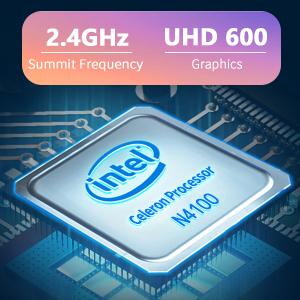
Image: The Intel Celeron N4100 processor, central to the laptop's performance, highlighting its clock speed and integrated graphics capabilities.

Image: The laptop's battery specifications, indicating its power capacity for extended use.
12. Гаранција и подршка
For warranty information and technical support, please refer to the documentation included with your purchase or visit the official iProda website. Contact information for customer service can typically be found on the manufacturer's support page.