
1. Производ је готовview
The SIIG JU-DK0L11-S1 is a versatile USB 3.0 Dual Monitor Docking Station designed to expand your laptop or desktop's connectivity and display capabilities. It supports up to two 1080p@60Hz Full HD video displays via two HDMI ports, along with multiple USB ports, Gigabit Ethernet, and a 3.5mm audio jack. This docking station is compatible with both Windows and macOS operating systems, including Mac M1/M2/M3 Pro&Max.
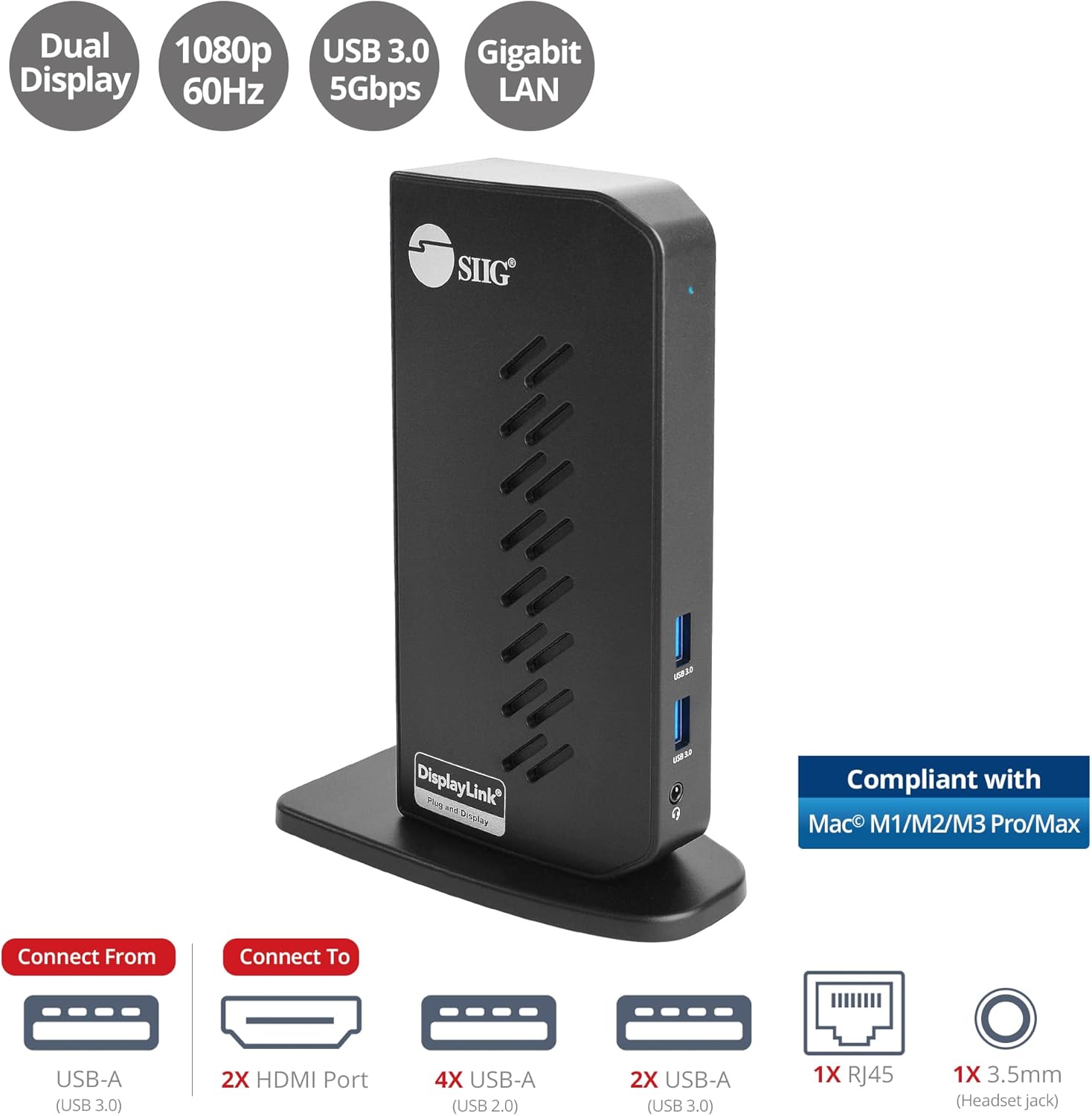
Image 1.1: The SIIG JU-DK0L11-S1 Dual Monitor Docking Station, showcasing its compact vertical design and various connectivity options.
2. Садржај пакета
Пре него што наставите са инсталацијом, проверите да ли су све ставке присутне у пакету.
- SIIG JU-DK0L11-S1 Dual Head Full HD HDMI Video Docking Station
- Адаптер за напајање (12В/2А)
- USB 3.0 Type-A to Type-B Cable
- Driver CD (Drivers can also be downloaded from the official SIIG webсајт)
- Упутство за употребу

Image 2.1: All components included in the SIIG JU-DK0L11-S1 docking station package, including the docking station, power adapter, USB cable, driver CD, and user manual.
3. Распоред хардвера
Familiarize yourself with the ports and indicators on the docking station.
Предња плоча
- ЛЕД за напајање: Означава статус напајања.
- 2x USB 3.0 порта: For connecting high-speed USB devices (5Gbps, 4.5W/900mA).
- 3.5 мм прикључак за слушалице: For connecting headphones or stereo speakers with microphone input.
Реар Панел
- 4x USB 2.0 порта: For connecting standard USB devices (480Mbps, 5V/900mA).
- RJ45 гигабитни етернет порт: За жичану мрежну везу (10/100/1000Mbps).
- 2x HDMI Outputs: For connecting external displays (up to 1080p@60Hz).
- USB 3.0 Type-B Port: For connecting the docking station to your host computer.
- Повер Јацк: За повезивање адаптера за напајање од 12V/2A.

Слика 3.1: Детаљно view of the front and rear panels of the docking station, highlighting all available ports and their functions.
4. Упутства за подешавање
Пратите ове кораке да бисте подесили своју докинг станицу:
- Install DisplayLink Drivers: Before connecting the docking station, install the necessary DisplayLink drivers on your computer. You can use the included driver CD or download the latest drivers from the official DisplayLink webсајт (ввв.дисплаилинк.цом/довнлоадс) or SIIG's support page.
- Прикључите напајање: Plug the provided 12V/2A power adapter into the docking station's power jack and then into a wall outlet. The Power LED on the front panel should illuminate.
- Connect to Host Computer: Use the supplied USB 3.0 Type-A to Type-B cable to connect the docking station's USB 3.0 Type-B port to an available USB 3.0 Type-A port on your laptop or desktop computer.
- Повежите екране: Connect your external monitors to the two HDMI output ports on the rear of the docking station using HDMI cables.
- Повежите периферне уређаје: Connect your USB devices (keyboard, mouse, printer, flash drives, etc.) to the available USB 3.0 and USB 2.0 ports. Connect an Ethernet cable to the RJ45 port for a wired network connection. Plug your headset or speakers into the 3.5mm audio jack.
Video 4.1: An official video demonstrating the setup and connectivity of the SIIG JU-DK0L11-S1 Dual Head Full HD HDMI Docking Station, showing how to connect monitors and peripherals.
5. Упутство за употребу
Once the docking station is set up, you can configure your display settings and utilize the connected peripherals.
Режими приказа
The docking station supports three primary display modes:
- Режим огледала: Duplicates your primary display onto the external monitors.
- Проширени режим: Extends your desktop across multiple screens, allowing for increased workspace.
- Примарни режим: Designates one of the connected displays as the main display.
You can configure these settings through your operating system's display settings (e.g., Windows Display Settings or macOS System Settings > Displays).

Image 5.1: A typical dual 1080p monitor setup utilizing the SIIG docking station, demonstrating an extended display configuration for enhanced productivity.
УСБ повезивање
The docking station provides two USB 3.0 ports for high-speed data transfer (e.g., external hard drives, SSDs) and four USB 2.0 ports for standard peripherals (e.g., keyboard, mouse, printer). Simply plug your devices into the corresponding ports.
Гигабит Етхернет
For a stable and fast internet connection, connect an Ethernet cable from your router or modem to the RJ45 port on the docking station. This provides a more reliable connection than Wi-Fi, supporting 10/100/1000 BASE-T wired networks.

Слика 5.2: Крупни план view of the Gigabit RJ45 Ethernet port and USB ports, illustrating their use for network and high-speed data transmission.
Аудио Цоннецтион
The 3.5mm headset jack allows you to connect headphones, speakers, or a microphone. Ensure your operating system's audio settings are configured to use the docking station's audio output/input.
6. Specifications (Model: JU-DK0L11-S1)
| Бранд | СИИГ |
| Број модела | ЈУ-ДК0Л11-С1 |
| Хардверски интерфејс | 3.5mm Audio, Ethernet, HDMI, USB 1.1, USB 2.0, USB 3.0 |
| Компатибилни уређаји | Desktop or laptop computer with an available USB 3.0 Type-A port. Compatible with Windows® 11/10/8.1/8/7 and macOS® 11 / 10.15 to 10.10. |
| Укупно УСБ портова | 6 (2x USB 3.0, 4x USB 2.0) |
| Укупни ХДМИ портови | 2 |
| Максимална резолуција | 1080p@60Hz (per display) |
| Етхернет Спеед | Gigabit (10/100/1000Mbps) |
| Улазни волtage | 100 волти (АЦ) |
| Димензије производа (Д к Ш к В) | 5.31 cm x 2.87 cm x 7.36 cm |
| Тежина артикла | 0.75 фунти |

Image 6.1: Physical dimensions of the SIIG JU-DK0L11-S1 docking station, illustrating its compact and space-saving design.
КСНУМКС. Решавање проблема
- Нема излаза на екран:
- Ensure the docking station is powered on and the Power LED is lit.
- Verify that the USB 3.0 cable is securely connected between the docking station and your computer.
- Check that HDMI cables are firmly connected to both the docking station and your monitors.
- Confirm that DisplayLink drivers are correctly installed and up to date.
- Покушајте да поново покренете рачунар.
- USB уређаји нису препознати:
- Ensure the docking station is powered and connected to your computer.
- Покушајте да повежете УСБ уређај са другим портом на базној станици.
- Connect the USB device directly to your computer to rule out device issues.
- Нема мрежне везе:
- Verify the Ethernet cable is securely connected to the RJ45 port on the docking station and your network source.
- Check your computer's network settings to ensure the Ethernet adapter is enabled.
- Confirm that your router/modem is functioning correctly.
- Проблеми са звуком:
- Ensure your headset/speakers are properly plugged into the 3.5mm jack.
- Check your computer's sound settings to select the docking station as the default audio output/input device.
8. Одржавање
To ensure the longevity and optimal performance of your SIIG docking station, follow these maintenance guidelines:
- Keep the device clean by wiping it with a soft, dry cloth. Avoid using liquid cleaners or aerosols.
- Ensure proper ventilation around the docking station to prevent overheating. The vertical design with heat dissipation features aids in this.
- Избегавајте излагање уређаја екстремним температурама, влажности или директној сунчевој светлости.
- Пажљиво рукујте кабловима и конекторима како бисте спречили оштећења.
9. Гаранција и подршка
For warranty information and technical support, please refer to the documentation included with your product or visit the official SIIG website. SIIG is committed to providing reliable products and customer assistance.
For further assistance, you may contact SIIG customer support directly through their webсајт или контакт информације које се налазе на паковању вашег производа.


