
Увод
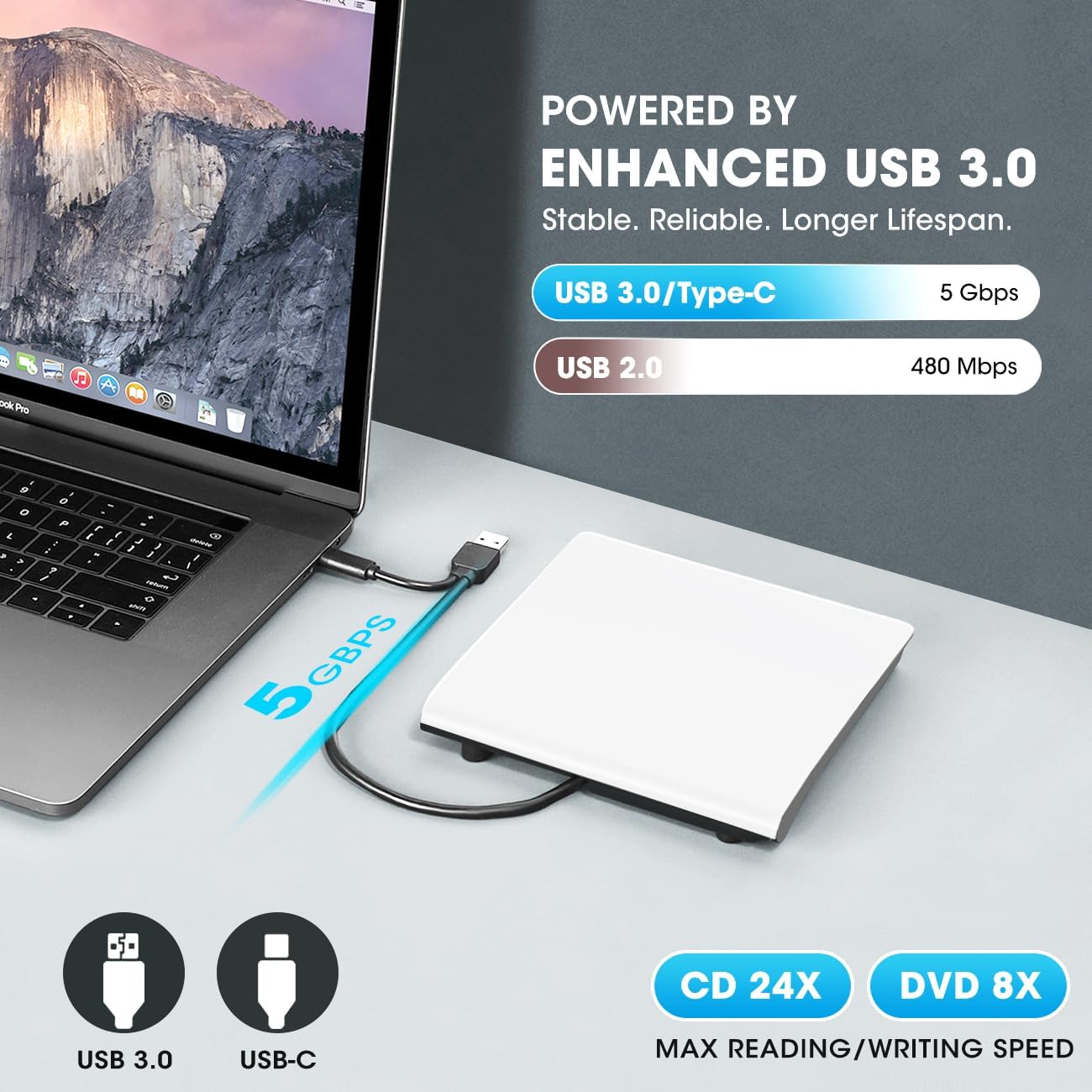
This manual provides detailed instructions for the ROOFULL External CD DVD Drive (Model ECD829-Y). This versatile device allows you to read, write, and rip CDs and DVDs on your Mac or Windows laptop/PC. Featuring both USB 3.0 and USB-C connectors, it offers high-speed data transfer and broad compatibility. Please read this manual thoroughly to ensure proper usage and optimal performance of your device.
Шта је у кутији
- USB-A & USB-C External CD/DVD Drive
- USB to micro-USD Power Supply Cord
- Grey Protective Carrying Case
Сетуп
The ROOFULL External CD DVD Drive is designed for plug-and-play functionality, requiring no manual driver installation. Follow these steps to set up your device:
- Повежите диск: Locate the integrated data cable at the bottom of the drive. This cable features both a USB 3.0 Type-A connector and a USB-C connector. Plug the appropriate connector into an available USB port on your Mac or PC.
- Аутоматско препознавање: Your computer should automatically recognize the drive. No additional drivers are typically needed.
- Опционо спољно напајање: For desktop PCs, it is recommended to use a rear USB port on the motherboard to ensure a stable power supply. If your computer's USB port does not provide sufficient power, connect the included USB to micro-USB power supply cord to the drive and a separate power source (e.g., a USB wall adapter, not included).

This video demonstrates the connection process, disc insertion, and basic reading/burning/ripping functions of the ROOFULL External CD/DVD Drive.
Упутство за употребу
This drive supports reading, writing, and ripping various CD and DVD formats. While the drive is plug-and-play, dedicated software is required to play or burn discs.
- Убацивање диска: Press the eject button on the front of the drive to open the disc tray. Carefully place your CD or DVD onto the spindle, ensuring it is seated correctly. Gently push the tray back into the drive until it clicks into place.
- Playing/Burning/Ripping: Once a disc is inserted and successfully read, use your preferred media player or burning software (e.g., VLC Media Player for playback, BurnAware Free or Nero for burning/ripping) to perform the desired action. On Mac, the drive icon will appear on the desktop after a disc is inserted and successfully read.
- Избацивање диска:
- За Виндовс: Press the eject button on the drive.
- За Мац: Due to macOS limitations, the tray cannot be opened via the button after playing or burning a disc. To eject a disc on a Mac, right-click the desktop icon of the disc and select "Eject," or go to "File" > "Eject" from the menu bar in Finder.
- Подржани формати дискова: CD-ROM, CD-R/RW, CD+R/RW, DVD-ROM, DVD±R/RW, DVD-RAM, and dual-layer DVD±R DL (VCD also supported).
- Unsupported Disc Formats: Blu-ray and 4K discs are not supported by this drive.
- DVD Region Codes: Most DVDs are encoded for play in specific regions. To play a regionalized DVD on your computer, you must set your DVD drive region to match the disc's region. Note that the region can only be changed a limited number of times (typically 4-5 times). CDs are not region coded.


Одржавање
To ensure the longevity and optimal performance of your ROOFULL External CD DVD Drive, follow these maintenance guidelines:
- Одржавати уредним одржавати чистим: Regularly wipe the exterior of the drive with a soft, dry cloth. Avoid using harsh chemicals or abrasive materials.
- Заштитите сочиво: Avoid touching the optical lens inside the drive. If cleaning is necessary, use a specialized CD/DVD lens cleaning kit.
- Правилно складиштење: When not in use, store the drive in its included protective carrying case to shield it from dust, water, and physical damage.
- Избегавајте екстремне услове: Не излажите диск екстремним температурама, влази или директној сунчевој светлости.

Решавање проблема
If you encounter issues with your ROOFULL External CD DVD Drive, refer to the following common problems and solutions:
- Диск није препознат:
- Уверите се да је УСБ кабл безбедно повезан и са диском и са рачунаром.
- Try connecting to a different USB port. For desktop PCs, use a rear USB port on the motherboard for a more stable power supply.
- If using a USB hub, try connecting the drive directly to your computer.
- Ensure your operating system is compatible (macOS 10.16 or later, Windows 11/10/8.1/7/Vista/XP, Linux).
- Disc Not Ejecting (Mac):
- On Mac, the eject button on the drive may not function after playing or burning a disc due to macOS limitations. Right-click the disc icon on your desktop and select "Eject," or go to "File" > "Eject" from the Finder menu bar.
- Disc Not Playing/Burning:
- Confirm that you have appropriate software installed for playing (e.g., VLC Media Player) or burning (e.g., BurnAware Free, Nero) discs. The drive is plug-and-play for hardware recognition, but software is essential for media operations.
- Check the disc for scratches or damage.
- Ensure the disc format is supported (Blu-ray and 4K discs are not supported).
- DVD Region Code Issues:
- If a DVD is not playing, verify that the drive's region code matches the disc's region code. You can typically adjust this in your computer's device manager settings (Windows) or DVD player software. Be aware that region changes are limited.
Спецификације
| Бранд | РООФУЛЛ |
| Број модела | ECD829-Y |
| Хардверски интерфејс | УСБ 3.0 Тип А, УСБ 3.0 Тип Ц |
| Брзина писања оптичке меморије | Max 24xCD / 8xDVD |
| Брзина читања оптичке меморије | Max 24xCD / 8xDVD |
| Компатибилни уређаји | Acer Windows Laptop and Desktop PC, Apple MacBook Pro, MacBook Air, iMac, Dell Windows Laptop and Desktop PC, HP Windows Laptop and Desktop PC, Lenovo Windows Laptop and Desktop PC |
| Оперативни систем | Mac (macOS 10.16 or later), Windows 11/10/8.1/7/Vista/XP, Linux |
| Димензије артикла (Д к Ш к В) | 5.74 cm D x 5.86 cm Š x 0.67 cm V |
| Тежина артикла | 0.3 килограма |
Гаранција и подршка
The ROOFULL External CD DVD Drive comes with a 2 година гаранције. ROOFULL is committed to delivering top-quality products and customer satisfaction.
If you experience any issues or have questions regarding your device, our dedicated support team is ready to help with free technical assistance or a free replacement device. For further assistance, please visit the ROOFULL Store on Amazon or contact customer support directly.