
1. Увод
Welcome to the user manual for your new Alienware m15 R4 Gaming Laptop. This powerful machine is designed to deliver an immersive gaming experience with its high-performance components. Featuring an Intel Core i7-10870H processor, NVIDIA GeForce RTX 3070 graphics, a 15.6-inch Full HD 300Hz display, and a 1TB PCIe SSD, this laptop is built for speed and responsiveness. This manual provides essential information on setting up, operating, maintaining, and troubleshooting your device to ensure optimal performance and longevity.
2. Шта је у кутији
Upon unboxing your Alienware m15 R4, please verify that all the following items are included:
- Alienware m15 R4 Notebook
- Повер Цорд
- Повер Адаптер
- Кориснички приручник (овај документ)
3. Производ је готовview
Familiarize yourself with the key features and components of your Alienware m15 R4 gaming laptop.
3.1 Фронт View
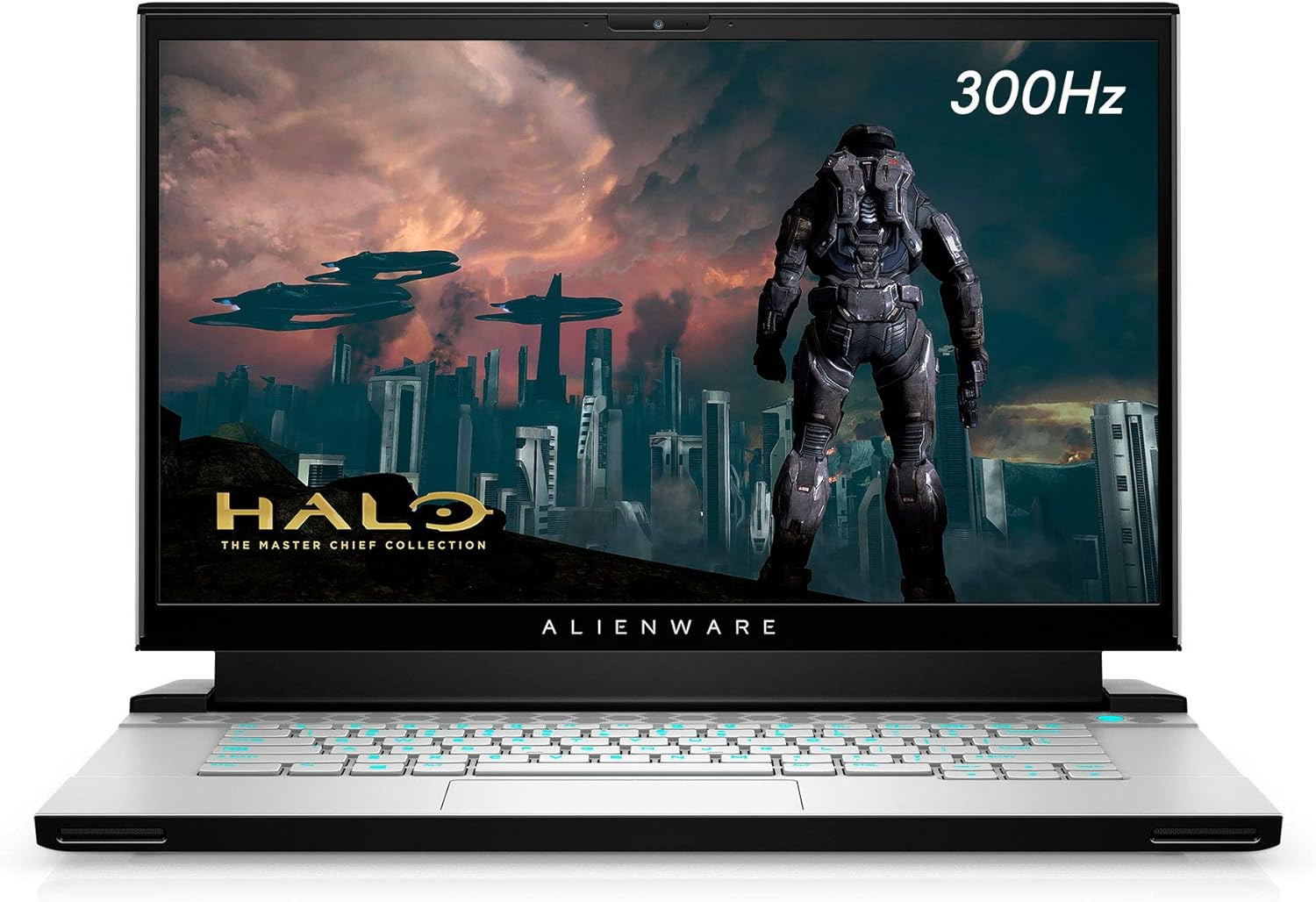
Слика 3.1: Фронт view of the Alienware m15 R4 laptop, showcasing the 15.6-inch Full HD display with a 300Hz refresh rate, ideal for immersive gaming. The Alienware logo is visible below the screen.
3.2 Портови са леве стране

Слика 3.2: Left side of the laptop, featuring a USB 3.0 Type-A port, an Ethernet port for wired network connectivity, and a 3.5mm audio jack for headphones or headsets.
3.3 Десни бочни портови

Слика 3.3: Right side of the laptop, equipped with two USB 3.0 Type-A ports and an SD card reader for convenient data transfer from memory cards.
3.4 Rear Ports and Cooling

Слика 3.4: Позади view of the laptop, highlighting the robust cooling vents and essential ports including HDMI, Mini-DisplayPort, Thunderbolt 3 (USB-C), and the power adapter input. This design optimizes airflow and connectivity.
3.5 Тастатура и тачпед

Слика 3.5: Одозго надоле view of the Alienware m15 R4's keyboard and touchpad. The keyboard features per-key RGB lighting and a comfortable layout for gaming and typing. The precision touchpad offers smooth navigation.
3.6 Laptop Back and Alienware Logo

Слика 3.6: The back of the Alienware m15 R4 laptop, featuring the iconic illuminated Alienware head logo. The sleek design and Lunar Light finish are prominent.
3.7 Кључне карактеристике
- Приказ: 15.6-inch FHD (1920 x 1080) 300Hz 3ms 300-nits 100% sRGB color gamut for fluid visuals.
- процесор: 10th Generation Intel Core i7-10870H (8-Core, 16MB Cache, up to 5.0GHz Max Turbo Frequency).
- Меморија: 16GB 2933MHz DDR4 RAM (Note: RAM is soldered and not user-upgradeable on some configurations).
- Складиштење: 1TB PCIe SSD for fast boot times and game loading.
- Графика: NVIDIA GeForce RTX 3070 8GB GDDR6 for high-fidelity gaming.
- Повезивање: Killer Wi-Fi 6 AX1650i 802.11ax 2x2 Wireless LAN + Bluetooth 5.1.
- Оперативни систем: Windows 10 Home (upgradeable to Windows 11).
4. Водич за подешавање
Follow these steps to set up your Alienware m15 R4 for the first time.
- Прикључите напајање: Plug the power adapter into the laptop's power input port (located at the rear) and then into a wall outlet.
- Почетно покретање: Open the laptop lid and press the power button (located on the top right of the keyboard deck). The Alienware logo will illuminate, and the system will begin its initial boot sequence.
- Виндовс подешавање: Follow the on-screen instructions to complete the Windows 10 Home setup. This includes selecting your region, language, creating a user account, and connecting to a Wi-Fi network.
- Ажурирања драјвера: After Windows setup, it is recommended to connect to the internet and allow Windows Update to download and install the latest drivers and security patches. You can also visit the official Alienware support website for the latest specific drivers for your model.
- Alienware Command Center: Explore the pre-installed Alienware Command Center software to customize lighting, power profiles, and monitor system performance.
5. Упутство за употребу
This section covers basic operation and usage tips for your Alienware m15 R4.
5.1 Управљање напајањем
- Укључивање/искључивање: Press the power button to turn on the laptop. To turn off, go to Start > Power > Shut down in Windows.
- Режим спавања: Close the lid or select Sleep from the Start > Power menu to put the laptop into a low-power state.
- Поново покрени: Select Restart from the Start > Power menu to reboot the system.
5.2 Тастатура и тачпед
- Позадинско осветљење тастатуре: Customize the per-key RGB lighting effects using the Alienware Command Center.
- Функцијски тастери: Користите Fn key in combination with the F1-F12 keys for quick access to features like volume control, screen brightness, and external display switching.
- Покрети додирне табле: The precision touchpad supports multi-touch gestures for scrolling, zooming, and switching applications. Refer to Windows settings for customization.
5.3 Перформансе у играма
- Режим игре: Windows 10 includes a Game Mode feature that optimizes system resources for gaming. Enable it via Windows Settings > Gaming > Game Mode.
- Alienware Command Center: Utilize the Command Center to create custom performance profiles for your games, manage fan speeds, and monitor temperatures.
- Спољашњи екран: For an enhanced gaming experience, connect to an external high-refresh-rate monitor using the HDMI or Mini-DisplayPort.
6. Одржавање
Редовно одржавање помаже у осигуравању дуготрајности и оптималних перформанси вашег лаптопа.
- Чишћење:
- Користите меку крпу која не оставља влакна за чишћење екрана и спољашњости. Избегавајте јаке хемикалије.
- Use compressed air to clear dust from cooling vents periodically to maintain airflow.
- Ажурирања софтвера:
- Regularly check for Windows Updates to ensure your operating system is secure and up-to-date.
- Update graphics drivers (NVIDIA GeForce Experience) and other system drivers (Alienware Update or Dell SupportAssist) for best performance.
- Одржавање батерије:
- Избегавајте често потпуно пражњење батерије.
- Ако складиштите лаптоп дуже време, уверите се да је батерија напуњена на око 50-80%.
- Управљање складиштем: Периодично чистите непотребно files and uninstall unused programs to free up disk space and maintain system speed.
КСНУМКС. Решавање проблема
This section addresses common issues you might encounter with your Alienware m15 R4.
7.1 Performance Issues (Lag, Slowdowns)
- Check Background Processes: Отворите Менаџер задатака (Ctrl+Shift+Esc) да бисте идентификовали и затворили апликације које захтевају много ресурса.
- Ажурирајте драјвере: Ensure your graphics drivers and chipset drivers are up-to-date.
- Хлађење: Ensure cooling vents are not obstructed. Excessive heat can lead to performance throttling. Consider using Alienware Command Center to adjust fan profiles.
- Режим напајања: Ensure the laptop is set to a "High Performance" or "Balanced" power plan, especially when gaming.
7.2 Прегревање
- вентилација: Ensure the laptop is on a hard, flat surface to allow proper airflow. Avoid using it on soft surfaces like beds or couches.
- Чисти отвори за вентилацију: Use compressed air to clear dust from the intake and exhaust vents.
- Брзина вентилатора: Adjust fan curves in Alienware Command Center to increase cooling during intense workloads.
7.3 Проблеми са екраном (нема слике, треперење)
- Спољни монитор: Повежите спољни монитор да бисте проверили да ли је проблем са екраном лаптопа или графичком картицом.
- Поновна инсталација драјвера: Reinstall graphics drivers.
- Осветљеност: Ensure display brightness is not set to minimum.
7.4 Keyboard/Touchpad Unresponsive
- Поново покрени: A simple restart can often resolve temporary unresponsiveness.
- Провера возача: Ensure keyboard and touchpad drivers are correctly installed and up-to-date in Device Manager.
- Спољни уређаји: Disconnect any external keyboards or mice to rule out conflicts.
8. Спецификације
Detailed technical specifications for the Alienware m15 R4 (Model: AWM15R4-7689WHT-PUS).
| Феатуре | Спецификација |
|---|---|
| Бранд | Алиенваре |
| Назив модела | Алиенваре м15 Р4 |
| Број модела ставке | AWM15R4-7689WHT-PUS |
| Величина екрана | 15.6 инча |
| Резолуција екрана | 1920 x 1080 пиксела (FHD) |
| Дисплеј Рефресх Рате | 300Хз |
| Процесор | Intel Core i7-10870H (8-Core, up to 5.0GHz) |
| РАМ | 16 GB DDR4 (2933 MHz) |
| Хард Дриве | 1 ТБ ПЦИе ССД |
| Грапхицс Цопроцессор | НВИДИА ГеФорце РТКС 3070 |
| Величина РАМ-а графичке картице | 8 ГБ ГДДР6 |
| Оперативни систем | Виндовс 10 Хоме |
| Вирелесс Типе | Killer Wi-Fi 6 AX1650i 802.11ax, Bluetooth 5.1 |
| УСБ 3.0 портови | 3 |
| Тежина артикла | 5.5 фунти |
| Димензије производа (ДкШкВ) | 14.19 к 10.86 к 0.78 инча |
| Боја | Lunar Light (White) |
| Батерије | 1 литијум-јонска батерија (укључена) |
9. Гаранција и подршка
Your Alienware m15 R4 laptop comes with a standard manufacturer's warranty. For detailed information regarding warranty coverage, terms, and conditions, please refer to the warranty documentation included with your purchase or visit the official Dell/Alienware support webсајту.
техничка подршка:
- For technical assistance, driver downloads, and troubleshooting guides, please visit the Делл подршка webсајту.
- You can also contact Alienware customer support directly through their webсајт за персонализовану помоћ.
Please have your service tag or express service code ready when contacting support, as this will help expedite the process.