
1. Увод
The Rapoo MT550 is a versatile multi-device wireless mouse designed for enhanced productivity and comfort. This manual provides detailed instructions for setting up, operating, and maintaining your MT550 mouse, ensuring optimal performance across various devices.
Кључне карактеристике укључују:
- Multi-device connectivity (Bluetooth 3.0, Bluetooth 4.0, and 2.4G wireless)
- Adjustable DPI settings (600/1000/1300/1600)
- Ергономски дизајн за удобну употребу
- Long battery life of up to 12 months
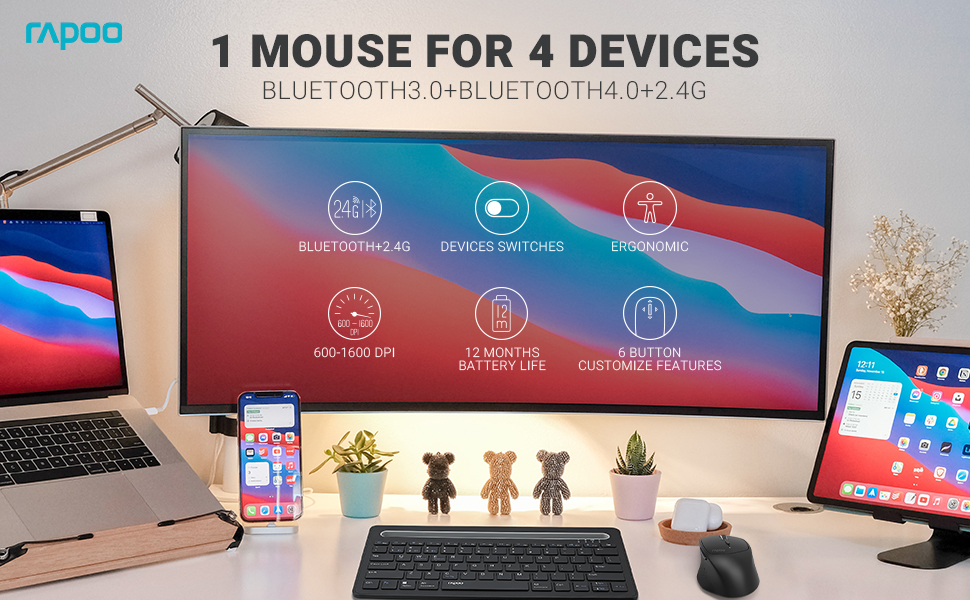
Image: The Rapoo MT550 mouse, highlighting its design for endurance, versatility, and comfort.
2. Подешавање
2.1. Инсталација батерије
The Rapoo MT550 mouse requires two AA batteries (included). To install:
- Пронађите поклопац одељка за батерију на доњој страни миша.
- Отворите поклопац.
- Уметните две АА батерије, водећи рачуна о исправном поларитету (+/-).
- Затворите поклопац одељка за батерије.
2.2. Повезивање путем 2.4G бежичне мреже (USB пријемник)
For a 2.4G wireless connection:
- Turn on the mouse using the ON/OFF switch on the underside.
- Locate the USB receiver stored in the battery compartment.
- Уметните УСБ пријемник у слободан УСБ порт на рачунару.
- The mouse should automatically connect. If not, press the device switch button until the indicator for channel 4 (usually indicated by a specific light pattern or number) is active.
2.3. Повезивање преко Блуетоотх-а
The Rapoo MT550 supports up to three Bluetooth connections. To connect:
- Turn on the mouse using the ON/OFF switch.
- Short press the device switch button to select a Bluetooth channel (1, 2, or 3). The corresponding indicator light will illuminate.
- Press and hold the Bluetooth pairing button (often located near the device switch button) for approximately 3 seconds until the indicator light for the selected channel starts flashing rapidly. This indicates the mouse is in pairing mode.
- On your device (computer, laptop, tablet, phone), enable Bluetooth and search for new devices.
- Select "Rapoo MT550" from the list of available devices to complete the pairing process.
- Repeat these steps to pair with up to two additional Bluetooth devices on channels 2 and 3.

Image: Labeled diagram of the Rapoo MT550 mouse, indicating the location of the ON/OFF switch, Bluetooth button, device switch button, battery slot, USB receiver, DPI button, scroller, and other buttons.
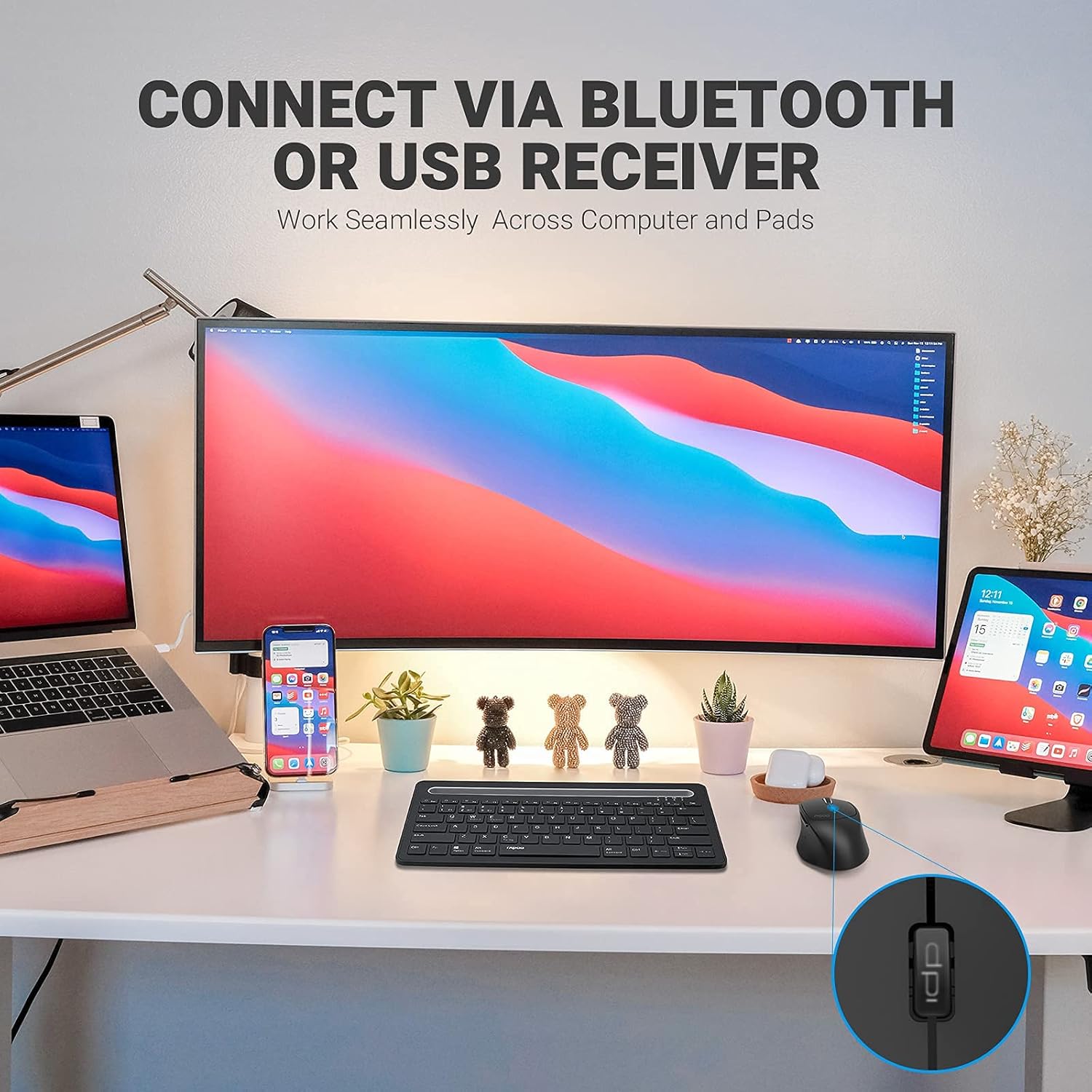
Image: A workstation demonstrating the Rapoo MT550 mouse connecting to multiple devices via Bluetooth or USB receiver.
3. Упутство за употребу
3.1. Пребацивање између уређаја
To switch between your connected devices:
- Short press the device switch button located on the underside of the mouse.
- Each press will cycle through the connected channels (1, 2, 3 for Bluetooth, 4 for 2.4G USB receiver). The corresponding indicator light will show the active channel.
3.2. Adjusting DPI (Sensitivity)
The MT550 mouse features four adjustable DPI settings for precise control:
- Press the DPI button, located behind the scroll wheel, to cycle through the available settings: 600, 1000, 1300, and 1600 DPI.
- The indicator light will briefly change to reflect the selected DPI level.

Слика: Крупни план view of the DPI button on the Rapoo MT550 mouse, with the indicator light showing the current DPI setting.
3.3. Using Forward/Back Buttons
The two thumb buttons on the side of the mouse provide quick navigation:
- The forward button advances to the next page or folder.
- The back button returns to the previous page or folder.
4. Одржавање
4.1. Чишћење
To maintain the appearance and functionality of your mouse:
- Користите меку, суву крпу да обришете површину миша.
- Avoid using harsh chemicals, abrasive cleaners, or solvents, as these can damage the finish.
4.2. Замена батерије
When the low battery indicator appears or the mouse becomes unresponsive, it's time to replace the batteries:
- Пратите кораке за инсталацију батерије наведене у одељку 2.1.
- Ensure you use two fresh AA batteries and insert them with the correct polarity.
4.3. Складиштење
When not in use for extended periods, store the mouse in a dry, cool environment away from direct sunlight and extreme temperatures.
КСНУМКС. Решавање проблема
If you encounter issues with your Rapoo MT550 mouse, refer to the following troubleshooting steps:
5.1. Миш не реагује
- Проверите снагу: Ensure the mouse is turned on using the ON/OFF switch.
- Проверите батерије: Verify that the batteries are correctly installed and have sufficient charge. Replace them if necessary.
- 2.4G пријемник: For 2.4G connection, ensure the USB receiver is securely plugged into a working USB port on your computer. Try a different USB port.
- Блуетоотх веза: For Bluetooth, ensure Bluetooth is enabled on your device and the mouse is paired to the correct channel. Try re-pairing the mouse if the connection is lost.
5.2. Intermittent Connection or Lag
- Близина: Move the mouse closer to your computer or device to ensure a strong signal.
- сметње: Avoid using the mouse near other wireless devices (e.g., Wi-Fi routers, cordless phones) that might cause interference.
- Површина: Ensure you are using the mouse on a suitable surface. While the MT550 is designed for various surfaces, extreme textures or reflective surfaces can affect tracking.
5.3. DPI се не мења
- Ensure you are pressing the dedicated DPI button, not another button.
- If the issue persists, try turning the mouse off and on again.
6. Спецификације
| Димензије производа | 3.93 к 2.55 к 1.57 инча |
| Тежина артикла | 5.3 унци |
| Батерије | 2 АА батерије (укључене) |
| Технологија повезивања | Bluetooth (3.0/4.0) and 2.4G Wireless |
| Технологија детекције покрета | Оптицал |
| Подесиви ДПИ | 600 / 1000 / 1300 / 1600 |
| Број дугмади | 6 (Left, Right, Scroll, DPI, Forward, Back) |
| Трајање батерије | Up to 12 months (under normal conditions) |
7. Гаранција и подршка
Rapoo provides the following coverage for your MT550 Multi-Device Wireless Mouse:
- гаранција: 3-year worry-free warranty.
- Политика враћања: 180-дневна гаранција поврата новца.
For further assistance, technical support, or warranty claims, please visit the official Rapoo webсајту или се обратите њиховом одељењу за корисничку подршку.