
1. Увод
Thank you for choosing the IMICE X6 Wired USB Gaming Mouse. This manual provides essential information for setting up, operating, and maintaining your new gaming mouse. Please read it carefully to ensure optimal performance and longevity of your device.
2. Безбедносне информације
- Држите уређај даље од течности и прекомерне влаге.
- Избегавајте екстремне температуре.
- Do not attempt to disassemble or modify the mouse. This may void your warranty and cause damage.
- За чишћење користите меку, суву крпу.
3. Садржај пакета
Пакет треба да садржи следеће ставке:
- IMICE X6 Wired USB Gaming Mouse
- Кориснички приручник (овај документ)
4. Производ је готовview
The IMICE X6 gaming mouse features an ergonomic design with multiple programmable buttons and adjustable DPI settings for a customized gaming experience.
4.1 Button Functions and Working Modes
The mouse supports two working modes: Normal mode and Multimedia mode. You can switch between these modes by long-pressing the DPI button for more than 5 seconds.
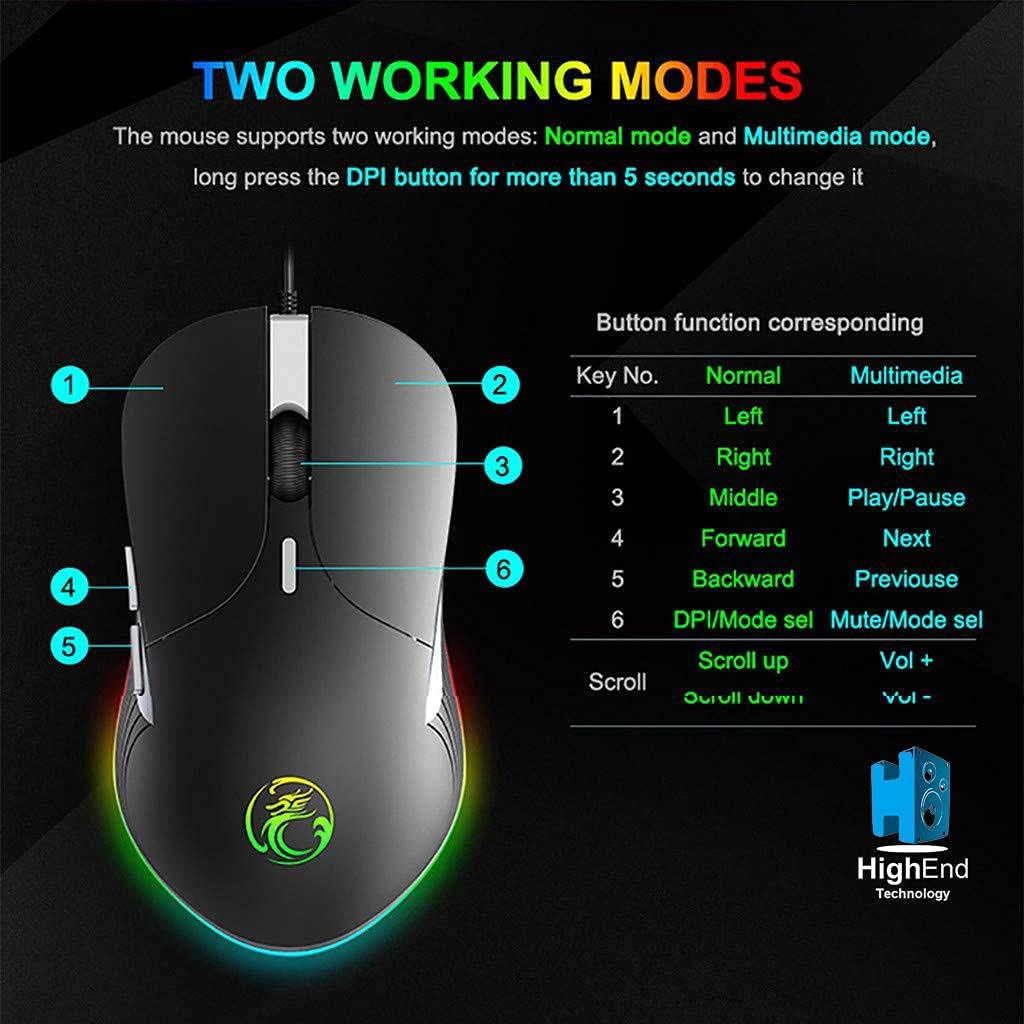
Слика 4.1: Button layout and function table for IMICE X6 mouse. The image displays the mouse from a top-down perspective, highlighting six numbered buttons. A table next to it lists the default functions for each button in 'Normal' mode (Left, Right, Middle, Forward, Backward, DPI/Mode select) and 'Multimedia' mode (Left, Right, Play/Pause, Next, Previous, Mute/Mode select). The scroll wheel also has functions for 'Scroll up' (Vol +) and 'Scroll down' (Vol -).
4.2 Компоненте миша
Familiarize yourself with the main components of your IMICE X6 mouse.

Слика 4.2: Labeled components of the IMICE X6 mouse. This image shows a side-angle view of the mouse, pointing out the 'Right click' button, 'Scroll' wheel, 'DPI switch', 'Left click' button, 'Forward' button, and 'Backward' button. The text also mentions that software can be used to implement functions like lighting and button functions, utilizing a built-in memory chip.
5. Подешавање
Setting up your IMICE X6 mouse is a simple plug-and-play process.
- Повежите УСБ кабл: Plug the USB connector of the mouse into an available USB port on your computer or laptop.
- Инсталација драјвера: Your operating system (Windows, macOS, Linux) should automatically detect and install the necessary drivers. No additional software installation is typically required for basic functionality.
- Тест функционалност: Once connected, move the mouse and click the buttons to ensure it is working correctly.
6. Упутство за употребу
6.1 Основни рад
- Леви клик: Primary button for selecting items, activating functions.
- Десни клик: Secondary button for context menus and special functions.
- Точак за померање: Померајте се горе или доле кроз документе и web странице. Такође се може притиснути за функцију клика средњим тастером миша.
- Дугмад за напред/назад: Навигација web pages or folders (default function).
6.2 Подешавање осетљивости DPI
The IMICE X6 mouse features 6 adjustable DPI levels, allowing you to change cursor speed and precision on the fly. The DPI button is typically located behind the scroll wheel.
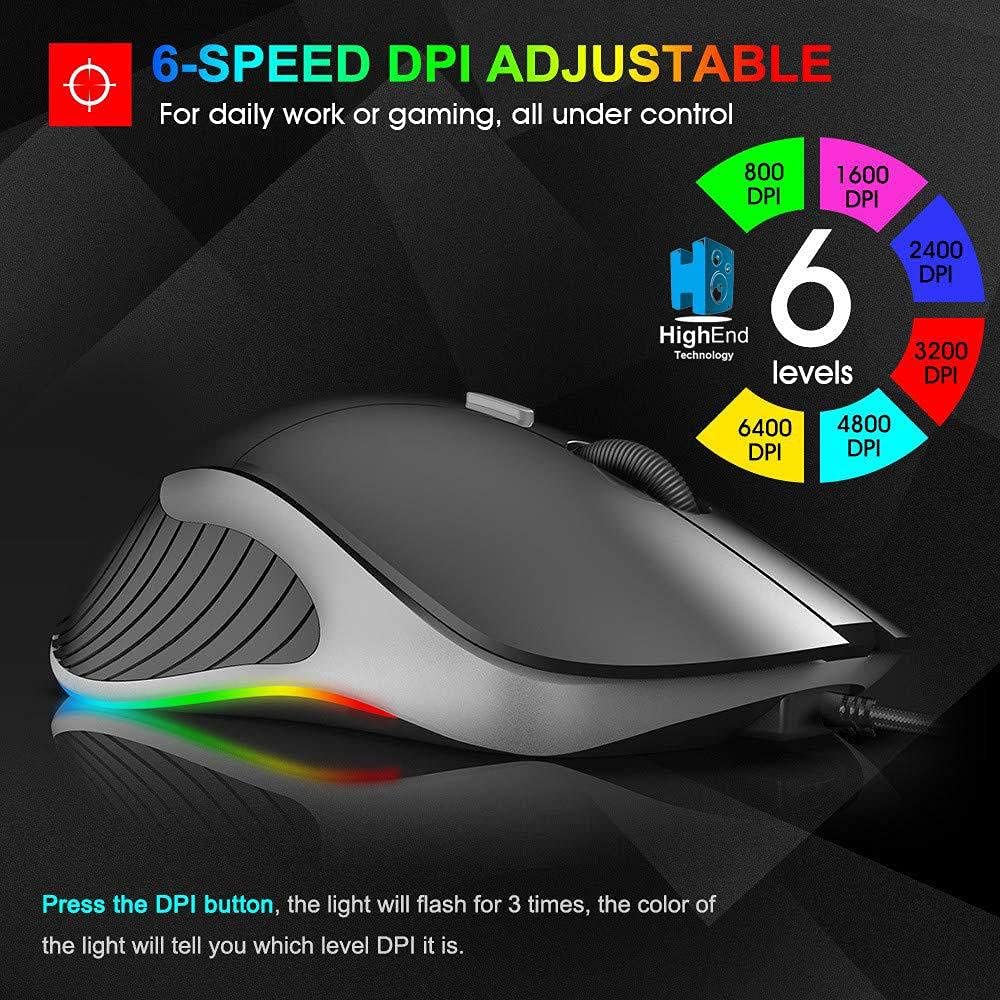
Слика 6.1: 6-Speed DPI Adjustment. This image shows the mouse from a side-top view, with six colored circles indicating DPI levels: 800, 1600, 2400, 3200, 4800, and 6400 DPI. The text explains that pressing the DPI button will make the light flash 3 times, and the color of the light indicates the current DPI level.
Да бисте променили DPI:
- Притисните тастер Дугме ДПИ (Button 6 in Image 4.1).
- The mouse's LED lighting will flash 3 times, and the color will indicate the current DPI level.
- Continue pressing the DPI button to cycle through the available DPI settings: 800, 1600, 2400, 3200, 4800, and 6400 DPI.
6.3 Switching Working Modes
As mentioned in Section 4.1, the mouse has two working modes:
- нормалан режим: Standard mouse functions for general use and gaming.
- Мултимедијални режим: Buttons are remapped for media control (e.g., Play/Pause, Next, Previous, Volume).
To switch modes, long-press the DPI button for more than 5 seconds. The mouse will indicate the mode change, typically through a change in LED behavior.
7. Одржавање
Proper maintenance ensures the longevity and performance of your mouse.
- Чишћење: Користите меку крпу која не оставља влакна да обришете површину миша. За тврдокорну прљавштину, благо обришитеampНатопите крпу водом. Избегавајте јаке хемикалије или абразивне материјале.
- Одржавање сензора: Одржавајте оптички сензор на доњој страни миша чистим и без прашине или прљавштине како бисте осигурали прецизно праћење.
- Нега каблова: Избегавајте оштра савијања или прекомерно повлачење USB кабла како бисте спречили оштећења.
КСНУМКС. Решавање проблема
If you encounter issues with your IMICE X6 mouse, try the following solutions:
| Проблем | Решење |
|---|---|
| Миш не реагује |
|
| Покрет курсора је неправилан или скачкав |
|
| Подешавање DPI-ја се не мења |
|
9. Спецификације
Key technical specifications for the IMICE X6 Gaming Mouse:
- Бренд: IMICE
- Модел: X6
- Боја: Црно
- Технологија повезивања: УСБ (жични)
- Детекција покрета: Оптицал
- Maximum Mouse Sensitivity (DPI): 6400 ДПИ
- Подесиви нивои DPI-ја: 800, 1600, 2400, 3200, 4800, 6400 DPI
- Број дугмади: 5
- Оријентација руке: Амбидектроус
- Препоручена употреба: Гаминг
- Компатибилни уређаји: ПЦ, Лаптоп
- Извор напајања: Plug-in Electric (USB powered)
- Потребне батерије: бр
10. Гаранција и подршка
Your IMICE X6 Gaming Mouse comes with a standard manufacturer's warranty. Please refer to the warranty card included with your purchase or contact your retailer for specific warranty terms and conditions.
For technical support or further assistance, please contact the vendor or visit the official IMICE support webсајт (ако је доступан).