
1. Увод
This manual provides detailed instructions for the setup, operation, and maintenance of your UBOTIE Portable Bluetooth Colorful Computer Keyboard (Model SK-621BT). Please read this manual thoroughly before using the product to ensure optimal performance and longevity.
2. Карактеристике производа
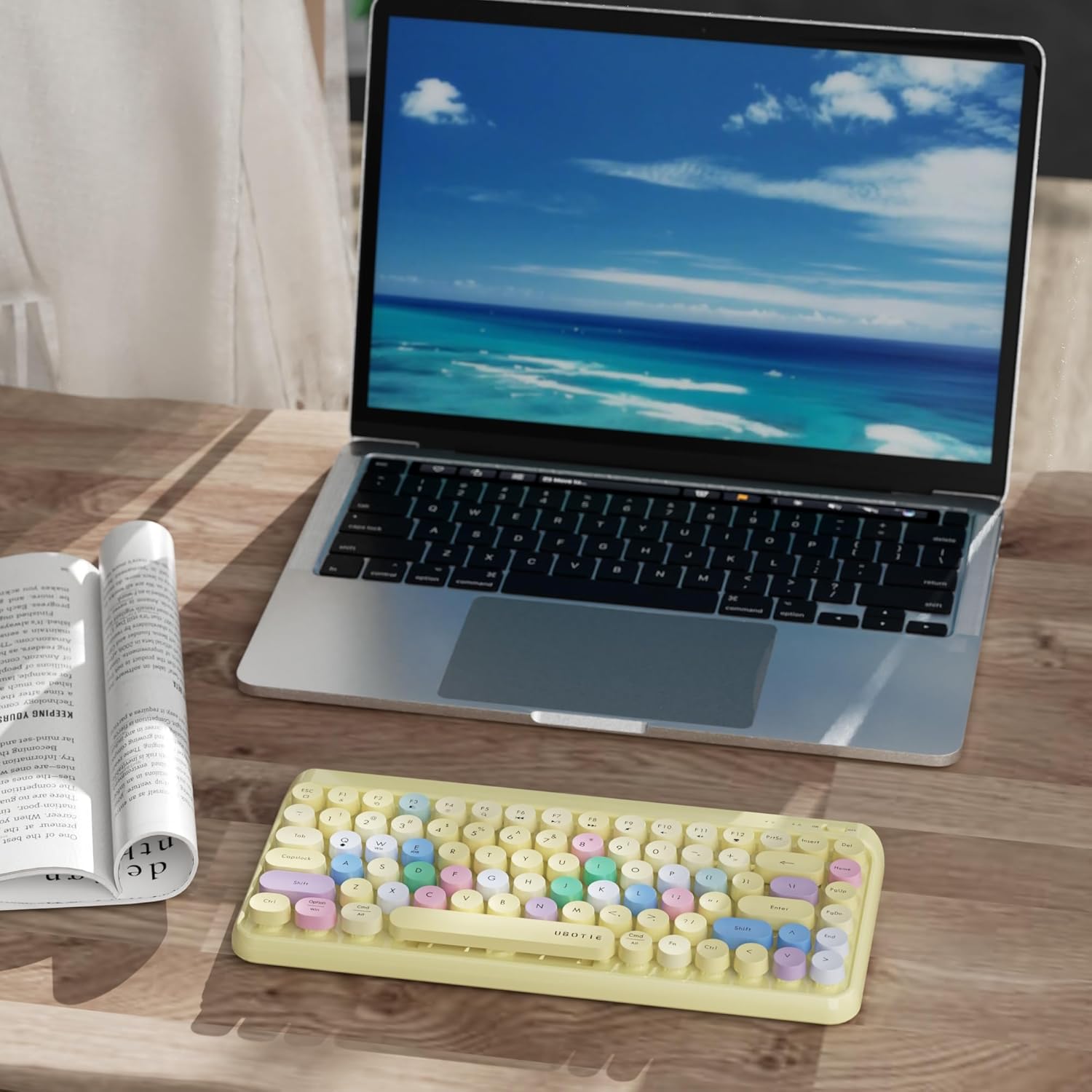
- Шарени дизајн: Each keyboard features a multicolor design.
- Ретро округле капице за тастатуре: Designed with a classic typewriter aesthetic.
- Широка компатибилност: Compatible with Windows, Mac OS, iOS, and Android devices.
- Stable Bluetooth Connection: Offers a 10m connecting range, quick re-connection, auto-sleep function, and an On/Off switch.
- Повезивање са више уређаја: Provides BT1, BT2, and BT3 connection channels, allowing simultaneous connection to multiple devices (PC, laptop, mobile phones).
- Преносив и компактан: Mini size and lightweight for easy transport.
3. Садржај пакета
- UBOTIE Portable Bluetooth Colorful Computer Keyboard (SK-621BT)
- Упутство за употребу
- 2 ААА батерија (укључено)
- Cleaning brush (may be included)
- Decorative stickers (may be included)
4. Спецификације
| Димензије производа | 12.6 к 5.51 к 0.98 инча |
| Тежина артикла | 1.35 фунти |
| Број модела ставке | СК-621БТ |
| Батерије су потребне | 2 ААА батерије |
| Технологија повезивања | Блуетоотх |
| Опис тастатуре | Membrane Round Key Colorful Wireless Keyboard Bluetooth |
| Компатибилни уређаји | Лаптоп, ПЦ, Таблет |
5. Подешавање
5.1 Инсталација батерије
- Пронађите одељак за батерију на доњој страни тастатуре.
- Отворите поклопац батерије.
- Уметните 2 ААА батерије, водећи рачуна о исправном поларитету (+/-).
- Добро затворите поклопац батерије.

Image: The underside of the UBOTIE keyboard with the battery compartment visible.
5.2 Блуетоотх упаривање
- Укључите тастатуру помоћу прекидача за укључивање/искључивање који се налази у горњем десном углу.
- Hold down the 'Fn + C' keys for 2 seconds. The battery indicator light will turn on and flash, indicating pairing mode.
- On your computer, tablet, or mobile phone, navigate to the Bluetooth settings.
- Тражи available devices. The device list should display 'UBOTIE'.
- Click on 'UBOTIE' to pair and connect.
- Wait for the connection success indicator to stop flashing.
- To switch between operating systems, press and hold the 'Fn' key, then press 'Q' for Android, 'W' for Windows, or 'E' for iOS (Apple system) for 1 second.

Image: The UBOTIE keyboard showing the key layout for pairing.
6. Упутство за употребу
6.1 Функцијски тастери
The top row of keys (F1-F12) on your UBOTIE keyboard includes various multimedia and system control functions. These functions are typically accessed by pressing the 'Fn' key simultaneously with the desired function key.
- Контроле медија: Keys such as F7 (Play/Pause), F8 (Fast Forward), F9 (Mute), F10 (Volume Down), and F11 (Volume Up) allow for convenient control of media playback and audio levels.
- Функције система: Other keys may include shortcuts for common tasks like opening web browsers or accessing system settings. Refer to the keycap legends for specific functions.
6.2 Пребацивање више уређаја
The keyboard supports connecting to up to three devices simultaneously using BT1, BT2, and BT3 channels. To switch between paired devices:
- Ensure all devices are paired to their respective BT channels (BT1, BT2, or BT3).
- Press the 'Fn' key along with the corresponding channel key (e.g., 'Fn + 1' for BT1, 'Fn + 2' for BT2, 'Fn + 3' for BT3) to switch the active connection.
7. Одржавање
7.1 Чишћење
To maintain the cleanliness and functionality of your keyboard:
- Use the provided cleaning brush to remove dust and debris from between the keycaps.
- For deeper cleaning, gently remove the round keycaps. Clean the keyboard base and the keycaps separately with a soft, damp cloth. Ensure all parts are completely dry before reattaching the keycaps.
- Избегавајте употребу јаких хемикалија или абразивних материјала, јер они могу оштетити завршну обраду тастатуре или натписе на тастатури.
Слика: Крупни план view of the keyboard with keycaps removed for cleaning.
КСНУМКС. Решавање проблема
- Keyboard Not Connecting/Blinking Red Light:
Ensure the keyboard has fresh batteries and is turned on. Re-initiate the Bluetooth pairing process (Fn + C for 2 seconds) and ensure your device's Bluetooth is enabled and searching. Verify the correct operating system mode is selected (Fn + Q/W/E). If issues persist, try removing the keyboard from your device's Bluetooth list and re-pairing. - Frequent Disconnections/Lag:
Check battery levels and replace if low. Ensure the keyboard is within the 10m Bluetooth range of your device. Minimize interference from other wireless devices. If using with a Mac, ensure Bluetooth settings are optimized for external devices and not set to aggressive power-saving modes that might cause disconnections. - Тастери не реагују:
Check for any debris under the keycaps. If a specific key is not responding, try removing and reattaching its keycap. Ensure the keyboard is properly connected via Bluetooth.
9. Гаранција и подршка
This UBOTIE product comes with a one-year service warranty. For any product-related issues or inquiries, please consult our 24-hour customer service. We are committed to providing a satisfactory solution for you.