
Увод
This manual provides detailed instructions for the installation, operation, maintenance, and troubleshooting of your GIGABYTE GeForce RTX 3080 Vision OC 10G graphics card. This high-performance graphics card is designed for demanding visual tasks, powered by NVIDIA's Ampere architecture, featuring 2nd Generation RT Cores, 3rd Generation Tensor Cores, and 10GB GDDR6X memory. It incorporates the WINDFORCE 3X Cooling System for efficient thermal management and RGB Fusion 2.0 for customizable lighting.
Подешавање и инсталација
1. Системски захтеви
- Матична плоча са ПЦИ Екпресс компатибилношћу са једним к16 графичким утором двоструке ширине.
- Напајање од најмање 750 W са два 8-пинска PCIe конектора за напајање.
- Microsoft Windows 10 64-bit or Linux 64-bit operating system.
- 32GB system memory recommended for optimal performance.
- Интернет конекција за преузимање драјвера.
2. Садржај пакета
- GIGABYTE GeForce RTX 3080 Vision OC 10G Graphics Card
- Кориснички приручник (овај документ)
3. Физичка инсталација
- Припремите свој систем: Искључите рачунар и одспојите све каблове. Отворите кућиште рачунара.
- Пронађите PCIe слот: Пронађите слободан PCI Express x16 слот на матичној плочи.
- Уклоните поклопце слотова: Remove the necessary expansion slot covers from the back of your computer case to accommodate the graphics card.
- Уметните графичку картицу: Carefully align the graphics card with the PCIe slot and press it firmly until it is securely seated. Ensure the retention clip on the PCIe slot locks into place.

Слика: Фронт view of the GIGABYTE GeForce RTX 3080 Vision OC 10G Graphics Card, showcasing the triple WINDFORCE fans and the white/silver shroud design.
- Обезбедите картицу: Fasten the graphics card to the computer case using screws.
- Повежите каблове за напајање: Connect the two 8-pin PCIe power connectors from your power supply to the corresponding ports on the graphics card. Ensure a firm connection.
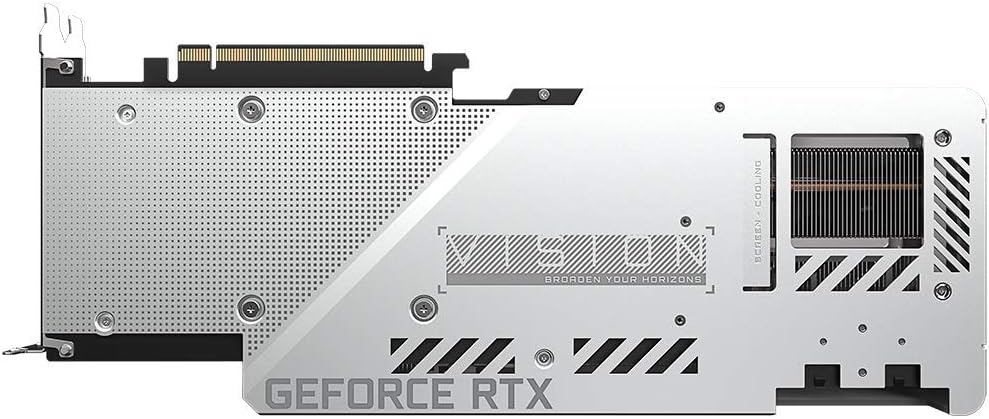
Слика: Позади view of the GIGABYTE GeForce RTX 3080 Vision OC 10G Graphics Card, highlighting the protective metal backplate with ventilation cutouts and the GeForce RTX branding.
- Затворите случај: Replace the computer case cover and reconnect all cables.
- Connect display: Повежите монитор на један од излаза за приказ (HDMI или DisplayPort) на графичкој картици.
Упутство за употребу
1. Инсталација драјвера
- Укључено: Turn on your computer. The system may boot into a lower resolution or use a generic display driver.
- Преузмите драјвере: Посетите званичну страницу компаније GIGABYTE webсајт (ввв.гигабите.цом) или званични NVIDIA-ин webсајт (ввв.нвидиа.цом/дриверс).
- Select product: Navigate to the support section and locate the drivers for the GeForce RTX 3080 series.
- Инсталирајте драјвере: Download the latest recommended drivers and follow the on-screen instructions to complete the installation. A system restart may be required.
2. Конфигурација софтвера
- GIGABYTE контролни центар / AORUS мотор: For advanced control over your graphics card, including fan speed adjustment, overclocking profiles, and RGB Fusion 2.0 lighting customization, download and install the GIGABYTE Control Center or AORUS Engine software from the GIGABYTE webсајту.
- NVIDIA GeForce искуство: Install NVIDIA GeForce Experience for optimal game settings, driver updates, and access to features like ShadowPlay.
Одржавање
- Уклањање прашине: Regularly clean dust from the graphics card fans and heatsink using compressed air. Ensure the system is powered off and unplugged before cleaning.
- Инспекција вентилатора: Periodically check the fans for any obstructions or unusual noises.
- Ажурирања драјвера: Keep your graphics drivers updated to ensure optimal performance and stability.
Решавање проблема
Нема излаза на екрану
- Уверите се да је кабл монитора безбедно повезан са графичком картицом и монитором.
- Проверите да ли је графичка картица потпуно уметнута у PCIe слот.
- Check that all required PCIe power connectors are securely attached to the graphics card.
- Тестирајте са другим каблом за дисплеј или монитором ако је могуће.
Нестабилност или падови система
- Уверите се да ваше напајање испуњава минималну снагуtage requirement (750W).
- Ажурирајте драјвере за графичку картицу на најновију верзију.
- Monitor GPU temperatures using software like GIGABYTE Control Center to check for overheating.
- Check for conflicts with other installed drivers or software.
Лоше перформансе
- Ensure drivers are correctly installed and up to date.
- Verify that the graphics card is running at its intended clock speeds (can be checked with monitoring software).
- Check background applications that might be consuming system resources.
- Ensure your system's BIOS/UEFI is updated.
Спецификације
| Јединица за графичку обраду | НВИДИА ГеФорце РТКС 3080 |
| Видео меморија | 10ГБ ГДДР6Кс |
| Меморијски интерфејс | 320-битни |
| Боост Цлоцк | 1800 МХз |
| Брзина меморије | 19000 МХз |
| Излазни портови | ДисплаиПорт, ХДМИ |
| Максимална дигитална резолуција | 7680x4320 (via DisplayPort 1.4a) |
| више-view | 4 |
| Димензије картице (ДxШxВ) | 12.6 к 4.96 к 2.17 инча (320 к 126 к 55 мм) |
| Препоручена ПСУ | 750В |
| Повер Цоннецторс | 2к 8-пин |
| ПЦИ Екпресс | 4.0 к16 |
| Број модела | GV-N3080VISION OC-10GD 2.0 |
Информације о гаранцији
GIGABYTE products are covered by a limited warranty. The specific terms and duration of the warranty may vary by region and product. Please refer to the official GIGABYTE website or your product's packaging for detailed warranty information and registration procedures. Keep your proof of purchase for warranty claims.
Техничка подршка
For technical assistance, driver downloads, FAQs, and further support, please visit the official GIGABYTE support webсајт:
You may also contact GIGABYTE customer service through the contact information provided on their webсајт за ваш специфични регион.