
1. Увод
This manual provides detailed instructions for the setup, operation, and maintenance of your Bytech BYMCWC101BLK PC Web Camera. Please read this manual thoroughly before using the product to ensure proper functionality and longevity.
2. Садржај пакета
Проверите да ли су све ставке наведене у наставку укључене у пакет вашег производа:
- Бајтек BYMCWC101BLK рачунар Web Камера
- Кориснички приручник (овај документ)
- Интегрисани УСБ кабл
3. Подешавање
Follow these steps to set up your Bytech BYMCWC101BLK PC Web камера:
- Пласман: Позиционирајте webcam on top of your computer monitor, laptop screen, or a flat surface. The adjustable clip allows for secure attachment.
- Повежите се са рачунаром: Прикључите интегрисани УСБ кабл из webкамеру у слободан УСБ порт на рачунару.
- Инсталација драјвера: Тхе webcam is typically plug-and-play. Your operating system (Windows, macOS, Linux) should automatically detect and install the necessary drivers. Wait for the installation to complete.
- Верификација: Open a video conferencing application (e.g., Zoom, Skype, Microsoft Teams) or your computer's camera application to confirm the webКамера је препозната и приказује видео.
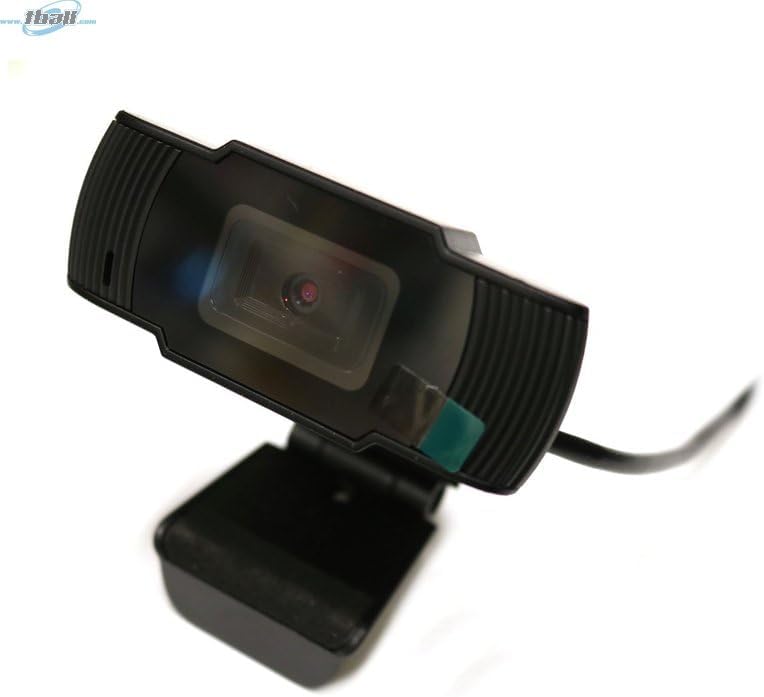
Image: The Bytech BYMCWC101BLK PC Web Camera securely mounted on top of a computer monitor, demonstrating its adjustable clip design.
4. Упутство за употребу
Once installed, the Bytech BYMCWC101BLK PC Web Camera can be used with various applications:
- Видео конференције: Select the Bytech webcam as your video input device within your preferred video conferencing software (e.g., Zoom, Skype, Google Meet).
- стриминг: For live streaming platforms, configure the webcam as your primary video source in your streaming software (e.g., OBS Studio).
- Снимање: Use your computer's built-in camera application or third-party software to record video.
- Перформансе при слабом осветљењу: Тхе webcam features BSI CMOS photo sensor technology and is designed to perform effectively in low-light conditions, providing clear video even with limited ambient lighting.
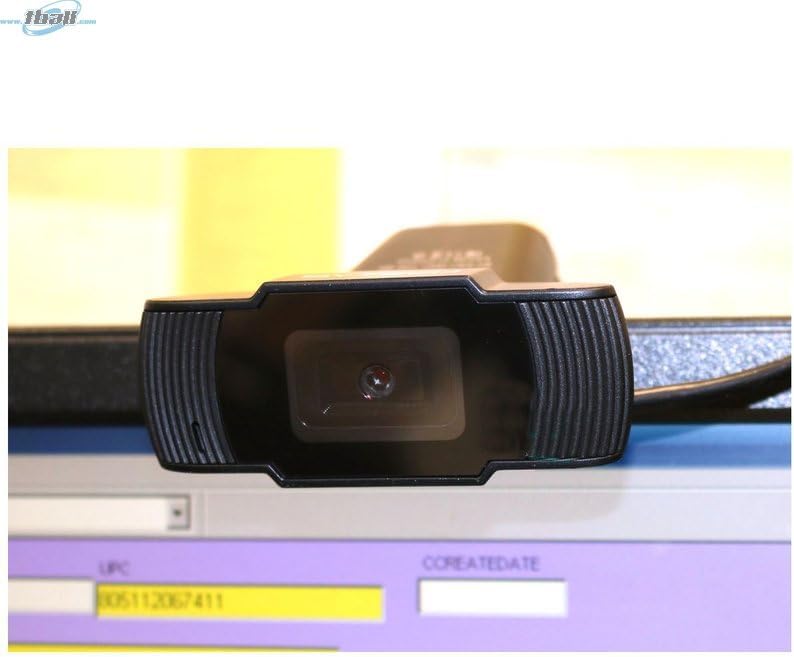
Слика: Крупни план view of the Bytech BYMCWC101BLK PC Web Camera's lens, highlighting its design and integrated privacy cover (if applicable, otherwise just lens).
5. Одржавање
To ensure optimal performance and extend the lifespan of your webкамера:
- Чишћење: Нежно обришите сочиво меком крпом која не оставља влакна. Избегавајте употребу јаких хемикалија или абразивних материјала.
- Складиштење: Када није у употреби, чувајте webcam in a clean, dry environment away from direct sunlight and extreme temperatures.
- Нега каблова: Немојте прекомерно савијати или криво увијати USB кабл.
КСНУМКС. Решавање проблема
Ако наиђете на проблеме са својим webкамера, погледајте следеће уобичајене проблеме и решења:
- Без слике/видеа:
- Уверите се да је USB кабл безбедно повезан са оба webкамера и ваш рачунар.
- Покушајте да укључите webкамера у други УСБ порт.
- Поново покрените рачунар.
- Check your application settings to ensure the Bytech webКамера је изабрана као видео улазни уређај.
- Лош видео квалитет:
- Обезбедите адекватно осветљење у свом окружењу.
- Очистите webобјектив камере меком крпом.
- Check your application's video settings for resolution and frame rate.
- Microphone Not Working (if applicable):
- Проверите да ли је webcam's microphone is selected as the audio input device in your computer's sound settings and within your application.
- Ensure the microphone is not muted in your system or application.
7. Спецификације
| Феатуре | Детаљ |
|---|---|
| Назив модела | BYMCWC101BLK |
| Бранд | Битецх |
| Технологија повезивања | УСБ |
| Технологија фото сензора | БСИ ЦМОС |
| Формат видео снимања | МП4 |
| Посебна карактеристика | Лов Лигхт |
| Боја | Црно |
| Тежина артикла | 4.9 унци |
| Димензије пакета | 7.76 к 4.65 к 2.44 инча |
8. Гаранција и подршка
For warranty information or technical support, please refer to the documentation included with your purchase or contact your retailer. Keep your proof of purchase for warranty claims.