
1. Увод
This manual provides detailed instructions for the setup, operation, and maintenance of your CHERRY DW 9100 Slim Wireless Keyboard and Mouse Set. This rechargeable desktop set offers both 2.4 GHz wireless and Bluetooth connectivity, featuring a slim design and silent keystroke SX Scissor Mechanism for comfortable and efficient use in various environments.

Image 1.1: The CHERRY DW 9100 Slim Wireless Keyboard and Mouse Set, including the USB nano receiver.
2. Садржај пакета
Молимо вас да проверите садржај пакета након распакивања како бисте били сигурни да су све компоненте присутне:
- CHERRY DW 9100 Slim Wireless Keyboard
- CHERRY DW 9100 Slim Wireless Mouse
- УСБ нано пријемник
- УСБ-Ц кабл за пуњење
- Кориснички приручник (овај документ)
3. Подешавање
3.1 Пуњење уређаја
Both the keyboard and mouse are equipped with rechargeable lithium batteries.
- Connect the supplied USB-C charging cable to the USB-C port on the keyboard and mouse.
- Connect the other end of the cable to a powered USB port (e.g., computer, USB wall adapter).
- The status LED on each device will indicate the charging status. A full charge is indicated when the LED changes color or turns off (refer to Section 4.3 for LED indicators).
3.2 Connecting via 2.4 GHz Wireless
For a stable and fast wireless connection, use the included USB nano receiver.
- Locate the USB nano receiver.
- Прикључите USB nano пријемник у слободан USB порт на рачунару.
- On both the keyboard and mouse, locate the connectivity switch. Set the switch to the 2.4 ГХз position (often indicated by a receiver icon or "RF").
- Уређаји би требало аутоматски да се повежу са вашим рачунаром.
3.3 Повезивање преко Блуетоотх-а
The set supports Bluetooth connectivity for devices that have Bluetooth capabilities.
- On both the keyboard and mouse, locate the connectivity switch. Set the switch to the Блуетоотх position (often indicated by a Bluetooth icon).
- На рачунару или уређају отворите подешавања Bluetooth-а.
- Initiate the pairing process on your device. The keyboard and mouse should appear in the list of discoverable devices (e.g., "CHERRY DW 9100 Keyboard", "CHERRY DW 9100 Mouse").
- Select each device to pair them. Follow any on-screen prompts, such as entering a pairing code for the keyboard.
Напомена: The keyboard and mouse can be paired with multiple Bluetooth devices. Use the connectivity switch to toggle between paired devices or 2.4 GHz mode.
4. Упутство за употребу
4.1 Функције тастатуре
The CHERRY DW 9100 Slim Keyboard features a full-size layout with an SX Scissor Mechanism for silent and precise keystrokes.
- Стандардни тастери: Сви стандардни алфанумерички и симболички тастери функционишу како се очекује.
- Функцијски тастери (F1-F12): These keys may have secondary functions (e.g., media control, volume, brightness) accessible by pressing the Fn key simultaneously. Refer to your operating system's settings for specific function key behavior.
- Нумеричка тастатура: Provides dedicated number entry.

Слика 4.1: Бочни професионалацfile of the CHERRY DW 9100 Slim Keyboard, highlighting its thin design.

Image 4.2: Visual representation of the CHERRY SX Scissor Mechanism, responsible for silent and precise keystrokes.
4.2 Функције миша
The CHERRY DW 9100 Slim Mouse features 6 buttons and a scroll wheel for versatile navigation.
- Леви/десни клик: Стандардни тастери миша.
- Точак за померање: За вертикално скроловање и као клик средњим тастером миша.
- Бочна дугмад: Typically used for forward/backward navigation in web читачи.
- ДПИ прекидач: A button, usually near the scroll wheel, allows adjustment of the mouse's sensitivity (DPI - Dots Per Inch). Pressing this button cycles through different DPI settings, indicated by the mouse's status LED.

Слика 4.3: Врх view of the CHERRY DW 9100 Slim Mouse, showing the left/right click buttons, scroll wheel, and DPI switch.
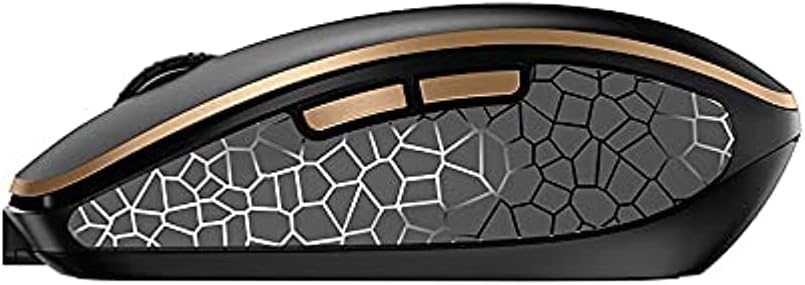
Слика 4.4: Бочна страна view of the CHERRY DW 9100 Slim Mouse, illustrating the ergonomic design and side buttons.
4.3 Статусне ЛЕД диоде
Both the keyboard and mouse feature status LEDs to provide information on battery level, charging status, and mouse resolution.
- Слаба батерија: The LED will flash or illuminate in a specific color (e.g., red) when the battery level is low, indicating that charging is required.
- Пуњење: The LED will illuminate while charging and typically change color or turn off when fully charged.
- Mouse Resolution (DPI): When adjusting the DPI, the mouse LED may briefly flash to indicate the current setting.
5. Одржавање
5.1 Чишћење
To maintain the performance and appearance of your devices:
- Искључите уређаје из рачунара пре чишћења.
- Користите меку крпу која не оставља длачицеampнатопљен водом или благим раствором за чишћење.
- Avoid using harsh chemicals, abrasive cleaners, or solvents, as these can damage the surfaces.
- За тастатуру, користите компримовани ваздух да бисте уклонили прашину и прљавштину између тастера.
5.2 Одржавање батерије
The integrated lithium batteries are designed for long-term use.
- Recharge the devices when the low battery indicator appears.
- Avoid fully discharging the batteries frequently to prolong their lifespan.
- If storing the devices for an extended period, charge them to approximately 50% before storage.
КСНУМКС. Решавање проблема
If you encounter issues with your CHERRY DW 9100 Slim set, refer to the following common solutions:
6.1 Проблеми са повезивањем
- No Connection (2.4 GHz):
- Уверите се да је USB nano пријемник безбедно прикључен у исправан USB порт.
- Verify the keyboard and mouse connectivity switches are set to the 2.4 ГХз положај.
- Покушајте да прикључите пријемник на други УСБ порт.
- Ensure the devices are sufficiently charged.
- Нема везе (Блутут):
- Ensure the keyboard and mouse connectivity switches are set to the Блуетоотх положај.
- Confirm Bluetooth is enabled on your computer/device.
- Remove previous pairings from your device's Bluetooth settings and attempt to re-pair.
- Ensure the devices are sufficiently charged.
6.2 Проблеми са напајањем и пуњењем
- Уређаји који се не пуне:
- Check that the USB-C charging cable is properly connected to both the device and the power source.
- Пробајте други USB-C кабл или други USB извор напајања.
- Уверите се да је извор напајања активан.
- Кратак век трајања батерије:
- Ensure devices are fully charged before use.
- Battery life can vary based on usage patterns.
6.3 Mouse Tracking Issues
- Inaccurate or No Tracking:
- Уверите се да је сензор миша чист и без прљавштине.
- Use the mouse on a suitable surface (e.g., mouse pad). Highly reflective or transparent surfaces may cause issues.
- Adjust the DPI setting using the DPI switch on the mouse.
7. Спецификације
| Феатуре | Детаљ |
|---|---|
| Број модела | ЈД-9100УС-2 |
| Димензије производа | 17.32 к 5.12 к 0.59 инча |
| Тежина артикла | 2.35 фунти |
| Батерије | Rechargeable Lithium (USB-C) |
| Технологија повезивања | Bluetooth, 2.4 GHz Radio Frequency (USB) |
| Посебна карактеристика | Rechargeable, Silent Keystroke (SX Scissor Mechanism) |
| Компатибилни уређаји | Персонал Цомпутер |
| Произвођач | ТРЕШЊА |
Note on Batteries: The product description indicates USB-C rechargeable lithium batteries. The specification "1 AA batteries required. (included)" in the source data appears to be a discrepancy. Please rely on the USB-C rechargeable feature for this model.
8. Гаранција и подршка
CHERRY products are manufactured to high-quality standards. For detailed warranty information, including terms and conditions, please refer to the official CHERRY webсајт или гарантни лист који је испоручен уз ваш производ.
For technical support, troubleshooting assistance beyond this manual, or to inquire about replacement parts, please visit the official CHERRY support portal or contact their customer service directly.
- Official CHERRY Webсајт: www.cherry.de/en/ (или регионални еквивалент)
- Корисничка подршка: Погледајте на webсајт за контакт детаље.