
Diswoe Controller for Nintendo Switch
Diswoe Wireless Pro Controller User Manual
Model: Controller for Nintendo Switch
Увод
Thank you for choosing the Diswoe Wireless Pro Controller. This gamepad is designed to enhance your gaming experience on Nintendo Switch, Switch Lite, OLED, and PC. It features advanced functionalities such as a 6-axis gyro, adjustable Turbo function, dual shock vibration, and a comfortable ergonomic design for extended play sessions. This manual provides detailed instructions on setup, operation, maintenance, and troubleshooting to ensure optimal performance of your controller.

Figure 1: Diswoe Wireless Pro Controller
Садржај пакета
- Diswoe Wireless Pro Controller
- УСБ кабл за пуњење
- Упутство за употребу
Распоред контролера

Figure 2: Controller Button Layout
- Left 3D Stick: За усмерено кретање.
- Д-пад: Directional Pad for precise inputs.
- Хоме дугме: Returns to the console's home screen.
- Дугме за снимање екрана: Снима снимке екрана у игри.
- Турбо дугме: Activates and adjusts Turbo function.
- +/- Дугмад: System menu navigation, volume control.
- Дугмад A/B/X/Y: Стандардна дугмад за акције.
- Right 3D Stick: За контролу камере или циљање.
- Л1/Р1 дугмад: Дугмад за рамена.
- Л2/Р2 дугмад: Дугмад за окидање.
- TAPY-C Port: USB-C port for charging and wired connection.
Сетуп
1. Почетно пуњење
Before first use, fully charge the controller. Connect the supplied USB charging cable to the controller's USB-C port and the other end to a USB power source (e.g., Switch dock, PC, or USB wall adapter). The charging time is approximately 2-3 hours for a full charge, providing up to 12 hours of continuous gameplay.

Figure 3: Battery and Charging Indication
2. Pairing with Nintendo Switch/Switch Lite/OLED
- Из менија HOME изаберите „Контролери“ > „Промени хват/редослед“.
- While on the "Change Grip/Order" screen, press and hold the Home button on the Diswoe controller for 3-5 seconds until the LED indicators start flashing rapidly.
- Након упаривања, одговарајуће ЛЕД диоде плејера на контролеру ће непрекидно светлети.
- The controller supports up to 4 players simultaneously.

Figure 4: Controller in use with Nintendo Switch
3. Connecting to PC (Wired Only)
The Diswoe controller can be connected to a PC via the USB charging cable. No specific driver installation is required for basic functionality.
- Connect the USB-C end of the cable to the controller and the USB-A end to your PC.
- The PC should automatically recognize the controller as a gamepad.
Упутство за употребу
1. Основне контроле
Utilize the Left and Right 3D sticks for analog movement and camera control. The D-pad provides precise digital inputs. The A/B/X/Y buttons are for in-game actions. L1/R1 and L2/R2 serve as shoulder and trigger buttons respectively.
2. Gyro Axis Motion Sensors
The controller features a high-quality 6-axis centrifugal chip for precise somatosensory targeting. This allows for motion control in compatible games, enabling actions like rotation, tilt, and acceleration-based inputs.

Figure 5: 6-Axis Gyro Motion Sensors in Action
3. Adjustable TURBO Function
The Turbo function allows for rapid, automatic pressing of a button. To set up Turbo:
- Притисните и држите Турбо дугме, then press the desired action button (A/B/X/Y/L1/R1/L2/R2) to enable Turbo for that button.
- To adjust Turbo speed, press and hold the Турбо дугме и померите Right 3D stick Up/Down. There are 3 speeds: 5 shots/s, 12 shots/s, and 20 shots/s.
- To clear Turbo for a specific button, press and hold the Турбо дугме and press the action button again. To clear all Turbo settings, press and hold the Турбо дугме за 5 секунде.

Figure 6: Turbo Function Activation
4. Dual Shock Vibration Adjustment
The controller features dual motors for realistic vibration feedback. You can adjust the vibration intensity:
- Притисните и држите Турбо дугме и померите Left 3D stick Up/Down to cycle through 3 vibration intensities: Low, Medium, and Strong.
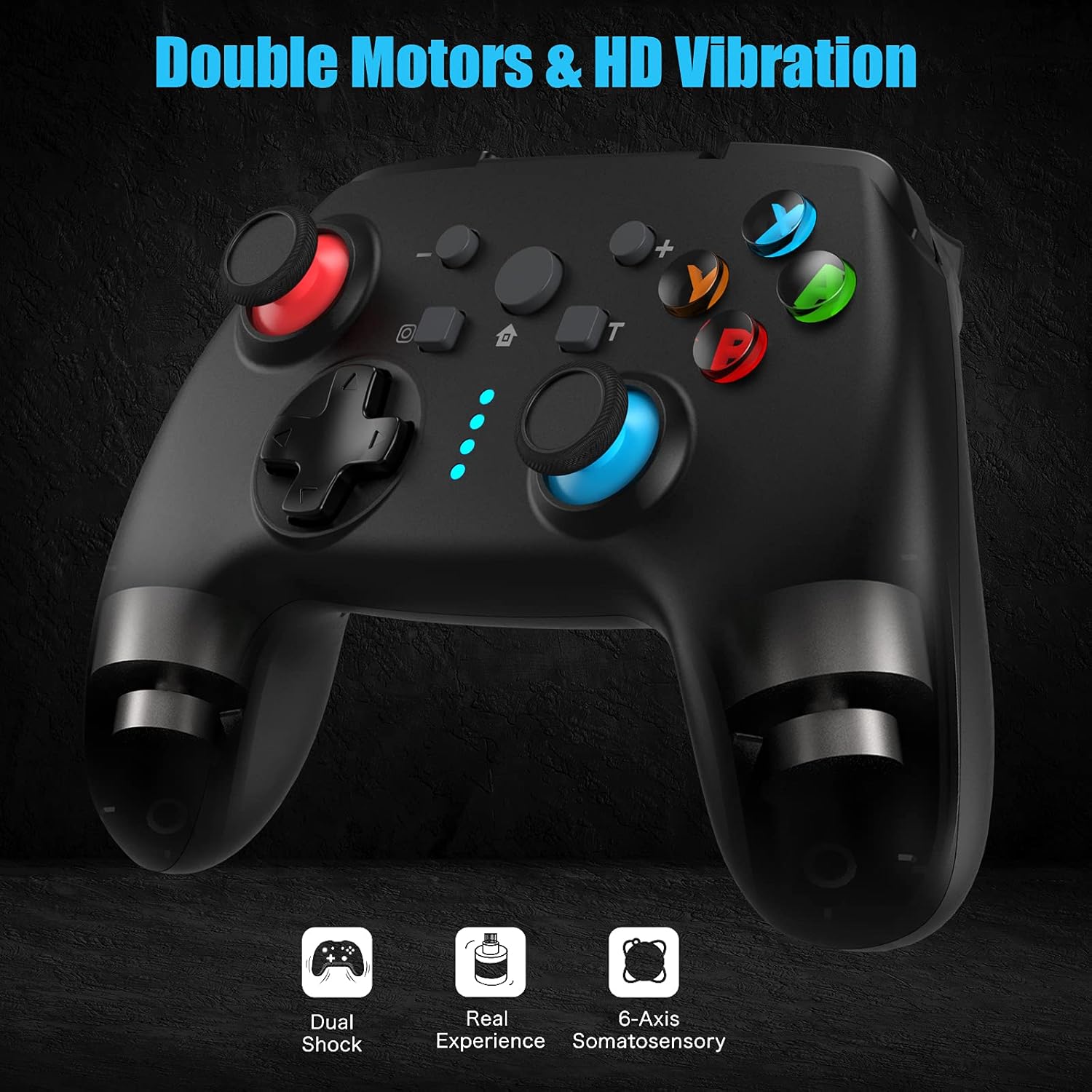
Figure 7: Dual Shock Vibration Feature
5. Screenshot Capture
Притисните тастер Дугме екрана (located near the Home button) to instantly capture your in-game moments.
6. Функција буђења
When the Switch console is in sleep mode, you can press the Дугме за почетак on the controller to wake up the console and automatically reconnect the controller.
Одржавање
1. Смернице за наплату
- Charge the controller when the battery indicator is low.
- Избегавајте прекомерно пуњење; искључите га када се потпуно напуни.
- The controller supports charging while playing.
2. Чишћење и складиштење
- Очистите контролер меком, сувом крпом. Не користите јаке хемикалије или абразивне материјале.
- Чувајте контролер на хладном и сувом месту, даље од директне сунчеве светлости и екстремних температура.
- Ако се не користи дуже време, пуните контролер најмање једном у три месеца како бисте одржали здравље батерије.
3. Функција аутоматског спавања
The controller will automatically enter sleep mode after 5 minutes of no input to conserve battery life. Press any button to wake it up.
Решавање проблема
- Контролер се не повезује/упарује:
- Уверите се да је контролер напуњен.
- Make sure the Switch console is updated to the latest system version.
- Try restarting the Switch console.
- Repeat the pairing process carefully.
- If issues persist, try connecting the controller via USB cable to the Switch dock (if applicable) to force a connection, then try wireless pairing again.
- Buttons or sticks unresponsive:
- Проверите ниво батерије.
- Ensure the controller is within the 10m wireless range.
- Restart the controller by holding the Home button for 10 seconds until it turns off, then turn it back on.
- If connected to PC, try a different USB port.
- Вибрација не ради или је преслаба/јака:
- Adjust the vibration intensity as described in the "Operating Instructions" section.
- Ensure the game supports vibration feedback.
- Турбо функција не ради:
- Ensure you have correctly assigned the Turbo function to the desired button.
- Check if the Turbo speed is set appropriately.
Спецификације
| Феатуре | Детаљ |
|---|---|
| Бранд | Дисвое |
| Назив модела | Контролер за Нинтендо Свитцх |
| Технологија повезивања | Wireless (Bluetooth), USB (Wired) |
| Тип контролера | Гамепад |
| Компатибилне платформе | Nintendo Switch, Switch Lite, OLED, PC |
| Тип батерије | Литијум-јонски (600 мАх) |
| Време пуњења | Прибл. 2-3 сати |
| Време играња | До 12 сати |
| Домет | До 10 метара |
| Посебне карактеристике | 6-Axis Gyro, Adjustable Turbo, Dual Shock Vibration, Screenshot Capture, Wake-up Function |
| Број дугмади | 16 |
| Боја | Црно |
Гаранција и подршка
Information regarding specific warranty terms and conditions for this product is not provided in the available data. For warranty claims, technical support, or further inquiries, please contact the manufacturer or your point of purchase. Keep your purchase receipt as proof of purchase.
Manufacturer: Diswoe
Ask a question about this manual
Ask about setup, troubleshooting, compatibility, parts, safety, or missing instructions. Manuals+ will review the question and use this page’s manual context to help answer it.