
1. Увод
This manual provides comprehensive instructions for the Earto iPad Pro 12.9 Keyboard Case. It covers product features, compatibility, setup procedures, operating guidelines, maintenance tips, and troubleshooting solutions to ensure optimal use of your device.

2. Производ је готовview и карактеристике
The Earto iPad Pro 12.9 Keyboard Case combines a protective cover with a functional keyboard and trackpad, transforming your iPad into a versatile workstation. Key features include:
- Smart Trackpad with Multi-Touch Gestures: Navigate your iPad with precision using the integrated trackpad, supporting various multi-touch gestures for efficient operation.
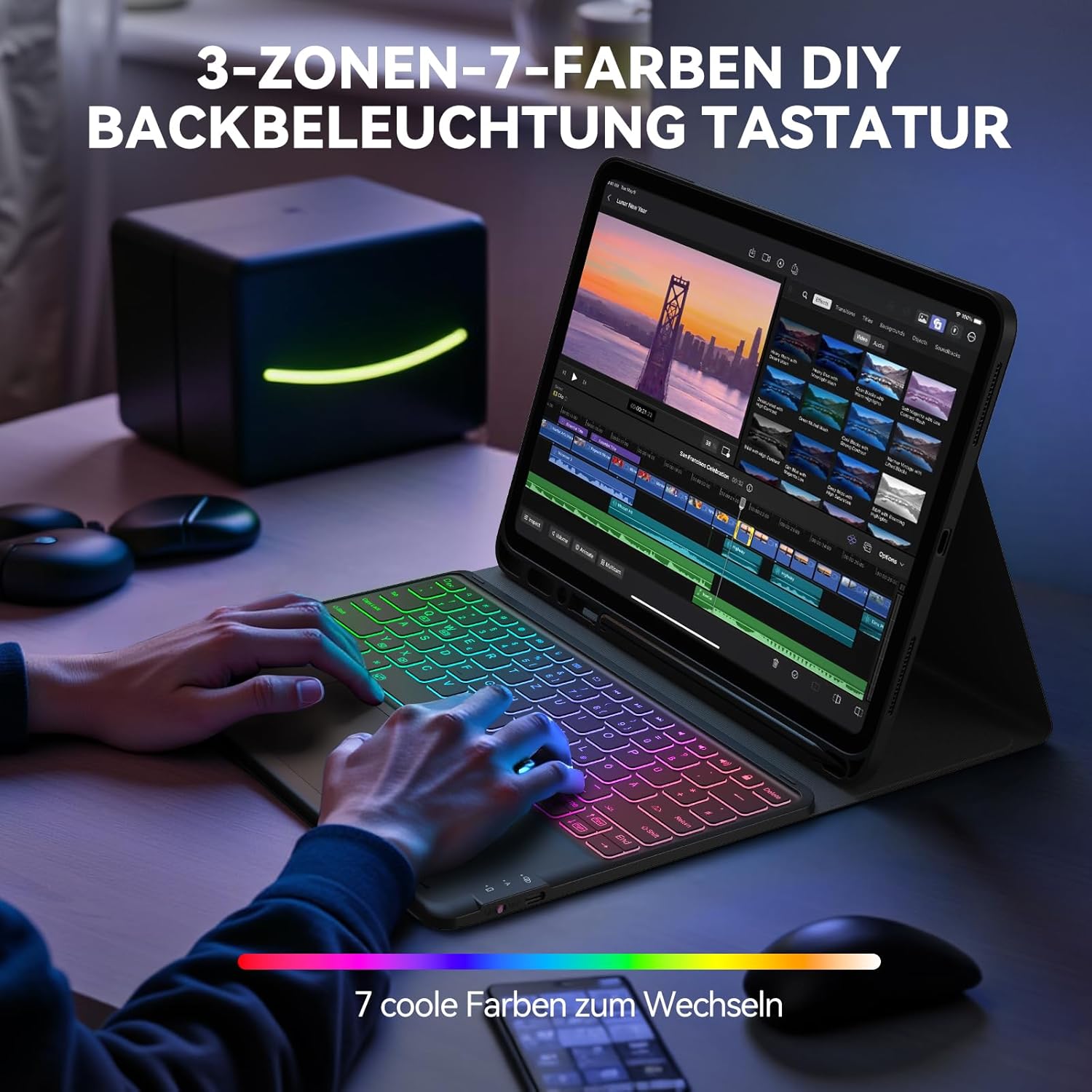
- 7-Color 3-Zone Backlight: Customize your typing experience with a unique three-zone backlight design, offering 7 colors per zone and adjustable brightness levels for comfortable use in any lighting condition.
- Подесиво Viewугао угла: The case features an adjustable slot, allowing you to set your iPad at optimal viewing angles for typing, watching, or drawing.
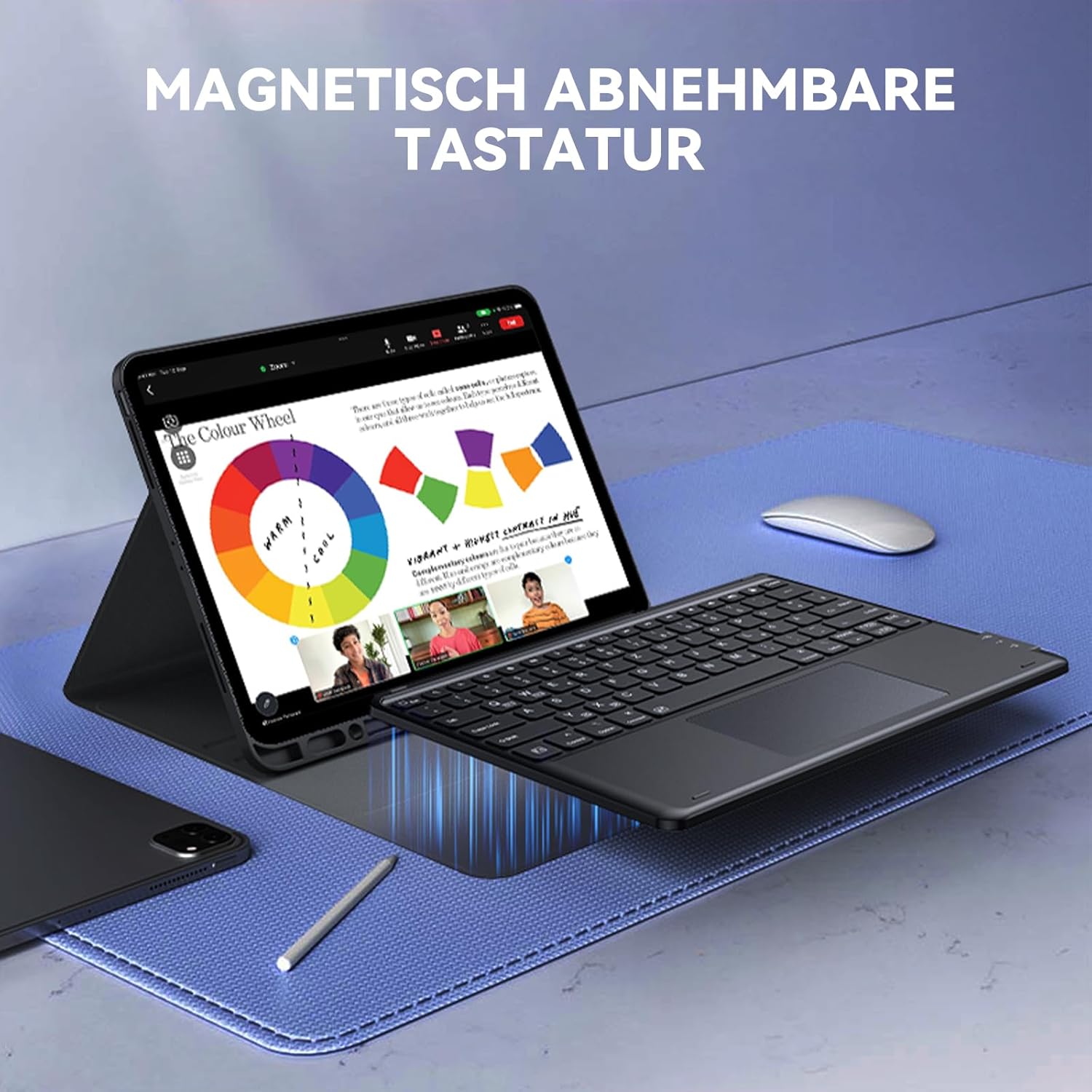
- Магнетна одвојива тастатура: The keyboard can be magnetically attached or detached from the case, offering flexibility for different usage scenarios.
- Блуетоотх повезивање: Connects wirelessly to your iPad via Bluetooth for a seamless typing experience.
- Integrated Pencil Slot: A dedicated slot for storing and charging your Apple Pencil.


3. Компатибилност
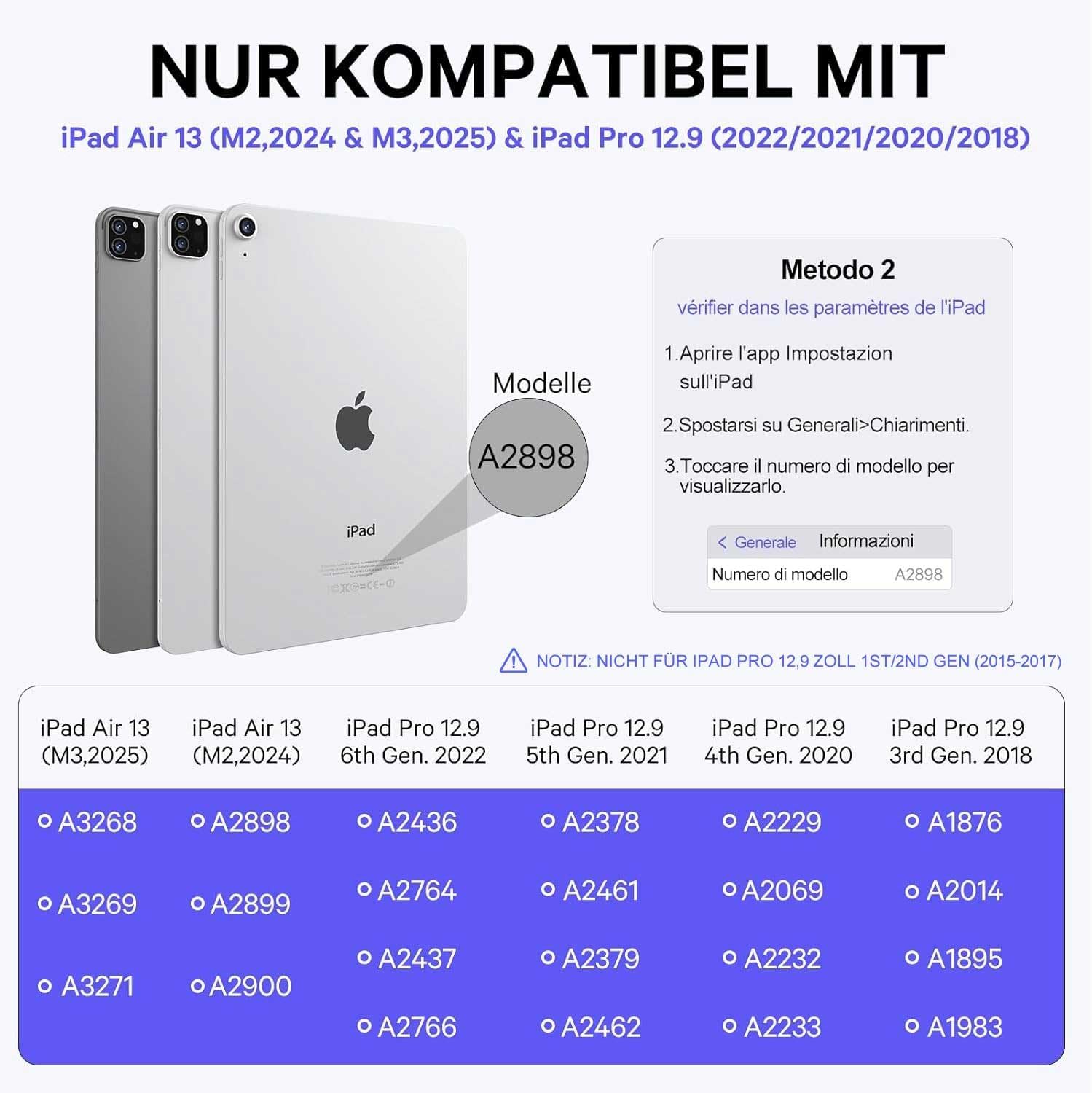
Ова футрола са тастатуром је компатибилна са следећим моделима iPad Pro-а од 12.9 инча:
- iPad Pro 12.9-inch (6th Generation 2022): Models A2436, A2437, A2764, A2766
- iPad Pro 12.9-inch (5th Generation 2021): Models A2378, A2461, A2379, A2462
- iPad Pro 12.9-inch (4th Generation 2020): Models A2229, A2069, A2232, A2233
- iPad Pro 12.9-inch (3rd Generation 2018): Models A1876, A2014, A1895, A1983
Note: This case is NOT compatible with iPad Pro 12.9-inch (2nd Generation 2017) or (1st Generation 2015). Please verify your iPad model number on the back of your device before use.
4. Упутства за подешавање
4.1. Пуњење тастатуре
Пре прве употребе, уверите се да је тастатура потпуно напуњена.
- Пронађите порт за пуњење типа C са стране тастатуре.
- Connect the provided Type-C charging cable to the keyboard and a power source.
- The charging indicator light will illuminate. A full charge typically takes approximately 2.5 hours.
- Once fully charged, the keyboard can operate for up to 50 hours without backlight.

4.2. Блуетоотх упаривање
Пратите ове кораке да бисте повезали тастатуру са iPad-ом путем Bluetooth-а:
- Turn on the power switch of the keyboard. The power switch is usually located on the side or back of the keyboard.
- Притисните тастер Fn кључ и C key simultaneously to enter Bluetooth pairing mode. The Bluetooth indicator light will start blinking.
- На вашем iPad-у идите на Подешавања > Блуетоотх и укључите Блуетоотх.
- In the list of available devices, select "Bluetooth 5.1 Keyboard" to complete the pairing process. The indicator light on the keyboard will stop blinking once connected.

5. Упутство за употребу
5.1. Контрола позадинског осветљења тастатуре
The keyboard features a 3-zone, 7-color backlight system with adjustable brightness.
- To turn the backlight on/off or adjust brightness, press the 💡 кључ.
- To change the color of the left backlight zone, press Фн + А.
- To change the color of the middle backlight zone, press Фн + С.
- To change the color of the right backlight zone, press Фн + Д.

5.2. Trackpad Gestures
The integrated trackpad supports various multi-touch gestures for intuitive navigation. Refer to your iPad's operating system documentation for a full list of supported gestures.

5.3. Повезивање више уређаја
The keyboard can connect to two devices simultaneously, allowing for easy switching between them.
- Pair the keyboard with your first device (e.g., iPad) using the Bluetooth pairing instructions (Section 4.2).
- To pair with a second device, repeat the Bluetooth pairing process. The keyboard will remember both connections.
- Use the designated function keys (e.g., Fn + 1, Fn + 2) to switch between connected devices. (Specific keys not provided, assuming standard functionality).

5.4. Подесиво Viewинг Англес
The case design allows for multiple viewing angles to suit various activities such as typing, watching videos, or browsing.
- Position the iPad in the case's adjustable slot to achieve your desired angle.
- The magnetic attachment of the keyboard allows for slight adjustments to optimize comfort.

5.5. Detachable Keyboard
The keyboard can be easily detached from the case for standalone use or when only the protective case is needed.
- Gently pull the keyboard away from the magnetic base of the case.
- To reattach, align the keyboard with the magnetic strip in the case until it snaps into place.
6. Одржавање
To ensure the longevity and optimal performance of your Earto iPad Pro 12.9 Keyboard Case, follow these maintenance guidelines:
- Чишћење: Користите меку, дamp крпу за брисање спољашњости кућишта и тастатуре. Избегавајте јаке хемикалије или абразивне материјале.
- Складиштење: Када се не користи, футролу за тастатуру чувајте на хладном и сувом месту, даље од директне сунчеве светлости и екстремних температура.
- Изложеност течности: Avoid exposing the keyboard to liquids. In case of accidental spills, immediately power off the keyboard and allow it to dry completely before reuse.
- Пажљиво рукујте: Do not drop or apply excessive force to the keyboard or case, as this may cause damage.
КСНУМКС. Решавање проблема
If you encounter issues with your Earto iPad Pro 12.9 Keyboard Case, refer to the following common problems and solutions:
- Тастатура се не повезује преко Bluetooth-а:
- Уверите се да је тастатура укључена и потпуно напуњена.
- Уверите се да је Bluetooth омогућен на вашем iPad-у.
- Re-enter pairing mode on the keyboard (Fn + C) and re-select "Bluetooth 5.1 Keyboard" on your iPad.
- If previously paired, try forgetting the device on your iPad and re-pairing.
- Тастери не реагују:
- Check if the keyboard is charged.
- Ensure the Bluetooth connection is stable.
- Поново покрените и тастатуру и ваш iPad.
- Trackpad not working:
- Уверите се да је тастатура повезана путем Блутут-а.
- Check iPad settings for trackpad functionality (Settings > Accessibility > Touch > AssistiveTouch).
- Очистите површину додирне табле да бисте уклонили све остатке.
- Backlight not working or changing colors:
- Уверите се да је тастатура довољно напуњена.
- Притисните тастер 💡 key to cycle through brightness levels or turn on the backlight.
- Use Fn + A/S/D to change zone colors.
If the issue persists after trying these steps, please contact Earto customer support for further assistance.
8. Спецификације
| Феатуре | Детаљ |
|---|---|
| Бранд | Earto |
| Боја | Црно |
| Технологија повезивања | Блуетоотх |
| Посебне карактеристике | Trackpad, Backlit Keyboard (7 colors, 3 zones) |
| Компатибилни уређаји | iPad Pro 12.9 (3rd, 4th, 5th, 6th Generation) |
| Састав батерије | Литијум полимер (1 укључен) |
| Опис тастатуре | Флексибилно |
| Препоручена употреба производа | Канцеларија |
| Управљање бојама позадинског осветљења тастатуре | РГБ |
| Димензије производа | 28.5Д к 24.5В к 1.7Х центиметара |
9. Гаранција и подршка
Information regarding product warranty and availability of spare parts is not provided in the product data. For any support inquiries or warranty claims, please refer to the Earto official webсајт или директно контактирајте њихову корисничку службу.