
1. Увод
The Keychron Q7 is a wired custom mechanical keyboard featuring a 70% layout. It is designed for users seeking a compact yet fully functional keyboard with advanced customization options. The Q7 supports QMK/VIA open-source firmware for key remapping and macro creation, and features a hot-swappable design for easy switch replacement. Its double-gasket mount structure and CNC machined aluminum case contribute to a premium typing experience. This manual provides instructions for setting up, operating, and maintaining your Keychron Q7 keyboard.
2. Садржај пакета
Please verify that all items listed below are included in your package. If any items are missing or damaged, contact Keychron support.

Image: Contents of the Keychron Q7 package, including the keyboard, cables, and tools.
- тастатура:
- 1к потпуно састављена тастатура
- Including: 1x Aluminum Case, 1x PCB, 1x Steel Plate, 1x Sound Absorbing Foam, 1x Case Foam, 10x Gaskets (6 Installed and 4 in the Box)
- Тастери: 1 set x Keycaps (Double-Shot PBT)
- Прекидачи: 1 сет к прекидача (Гатерон Г Про)
- Стабилизатори: 5 сета к стабилизатори
- Кабл:
- 1к кабл од типа Ц до типа Ц
- 1к адаптер типа-А на тип-Ц
- Алати:
- 1к Скидач прекидача
- 1к извлакач за кључеве
- 1к Сцревдривер
- 1к хексадецимални кључ
Note: All tools are typically located at the bottom of the product box.
3. Подешавање
3.1 Повезивање тастатуре
The Keychron Q7 is a wired keyboard. To connect it to your computer:
- Пронађите USB Type-C порт на задњој страни тастатуре.
- Connect one end of the provided Type-C to Type-C cable to the keyboard.
- Connect the other end of the cable to a compatible USB Type-C port on your computer. If your computer only has USB Type-A ports, use the provided Type-A to Type-C adapter.
- Ваш оперативни систем би требало аутоматски да препозна тастатуру.

Image: The Keychron Q7 keyboard with its USB-C cable connected, ready for use.
3.2 Switching Between Mac and Windows Layouts
The Keychron Q7 is compatible with both macOS and Windows operating systems. A physical switch on the back of the keyboard allows you to toggle between the two layouts, ensuring correct key functionality for your system.
- Locate the "Win/Mac" toggle switch on the rear edge of the keyboard, near the USB-C port.
- Slide the switch to the "Mac" position if you are using a macOS device.
- Slide the switch to the "Win" position if you are using a Windows or Linux device.

Image: Close-up of the Keychron Q7's rear, showing the physical switch to select between Windows and macOS modes.
4. Упутство за употребу
4.1 QMK and VIA Support for Customization
The Keychron Q7 fully supports QMK (Quantum Mechanical Keyboard) and VIA firmware, allowing for extensive customization of key functions, macros, and backlighting without requiring programming knowledge. VIA is a graphical user interface that works with QMK firmware.
- Download the VIA software or access the Keychron Launcher Web App from the official Keychron webсајту.
- Connect your Keychron Q7 keyboard to your computer.
- Launch the VIA application or web app. The software should automatically detect your keyboard.
- Use the interface to remap keys, create custom macros, adjust RGB lighting effects, and configure different keyboard layers.

Image: Screenshot of the Keychron Launcher Web App, demonstrating the interface for key remapping, macro creation, and shortcut customization via QMK/VIA.
4.2 Прекидачи са могућношћу замене током рада
The Keychron Q7 features a hot-swappable PCB, allowing you to change mechanical switches without soldering. This enables easy customization of your typing feel.
- The PCB supports both 3-pin and 5-pin MX-style mechanical switches (e.g., Cherry, Gateron, Kailh).
- The keyboard comes pre-installed with factory-lubed Gateron G Pro Brown switches, known for their tactile feedback.

Слика: Крупни план view of the keyboard's PCB with keycaps and switches removed, showing the hot-swappable sockets ready for switch installation.
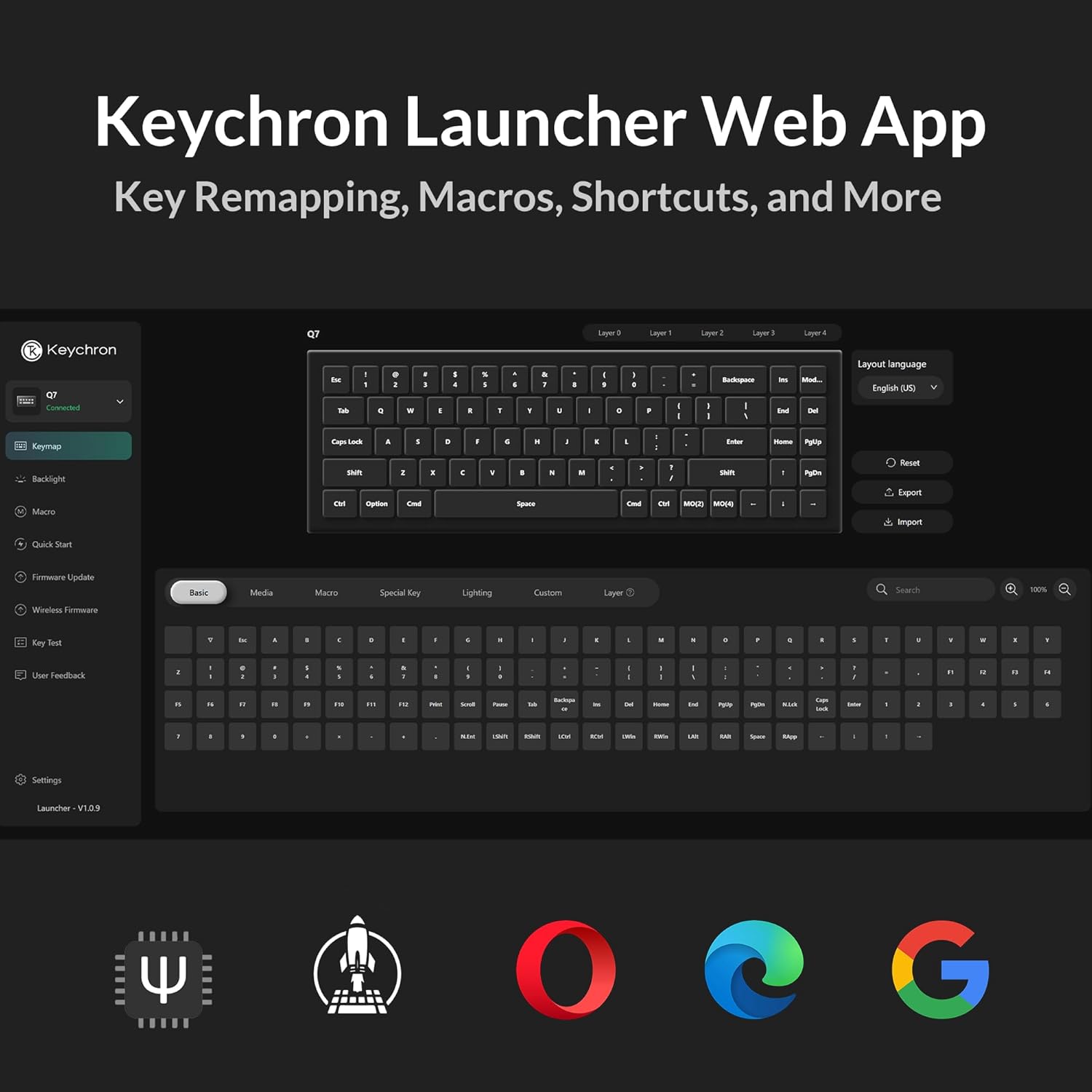
Image: Diagram detailing the specifications of the Gateron G Pro Brown switch, including operating force, pre-travel, travel distance, behavior, lubrication, and sound level.
4.3 Double-Gasket Design
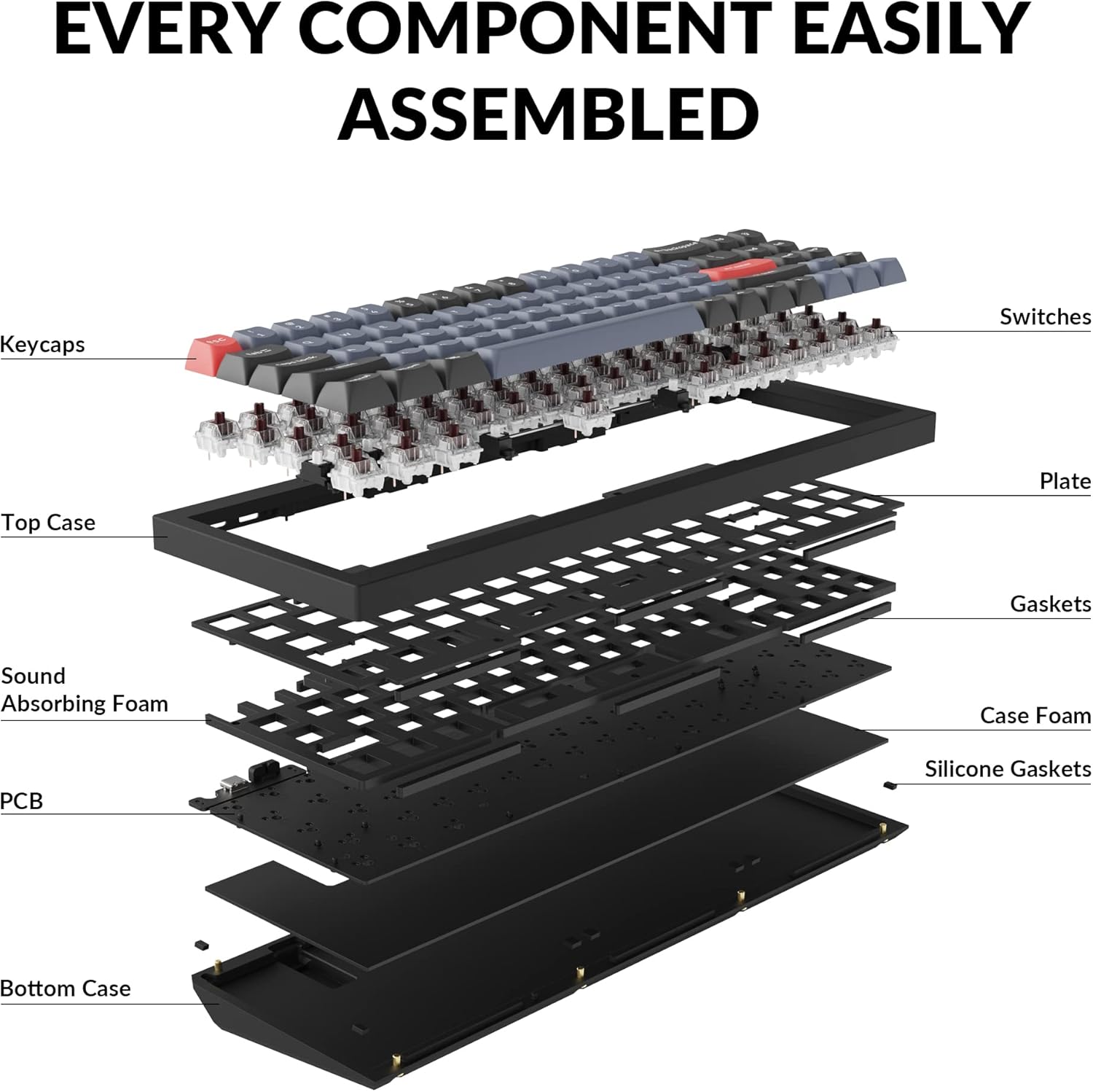
The Keychron Q7 incorporates a double-gasket mount design with silicone pads. This construction enhances typing feel and sound by allowing for more flexibility and dampening vibrations within the aluminum case.

Image: An exploded diagram illustrating the various layers and components of the Keychron Q7 keyboard, including keycaps, switches, plate, gaskets, sound absorbing foam, PCB, and bottom case.
4.4 Double-Shot PBT Keycaps
The keyboard is equipped with durable double-shot PBT keycaps. This material and manufacturing process ensure that the legends will not fade or wear over time, and the keycaps resist shine from prolonged use.
Слика: Крупни план view of the Keychron Q7's keycaps, highlighting their texture and legends.
4.5 South-Facing RGB Backlighting
The Keychron Q7 features south-facing RGB LEDs. This design provides even backlighting and ensures compatibility with most custom keycap sets, as it prevents interference with Cherry-profile цапцапс.

Image: Close-up of several switches on the Keychron Q7, showing the vibrant RGB backlighting emanating from beneath the keycaps.
4.6 70% Layout
The 70% layout of the Keychron Q7 retains essential function keys while offering a significantly reduced footprint compared to full-size keyboards. This design optimizes desk space for mouse movement and promotes a cleaner workspace.

Image: A visual comparison illustrating the compact 70% layout of the Keychron Q7 next to a standard full-size keyboard, highlighting the space-saving benefits.
5. Одржавање
5.1 Генерално чишћење
Редовно чишћење помаже у одржавању перформанси и изгледа тастатуре.
- Уклањање прашине: Користите лименку компримованог ваздуха да бисте одували прашину и остатке између тастера.
- Чишћење површине: Gently wipe the keycaps and keyboard case with a soft, lint-free cloth dampОпрати малом количином воде или благим, неабразивним средством за чишћење. Избегавати прекомерну влагу.
- Дубинско прање: For thorough cleaning, keycaps can be removed (see 5.2 Keycap Removal/Replacement) and cleaned separately.
5.2 Keycap Removal/Replacement
To remove keycaps:
- Use the provided keycap puller.
- Gently hook the puller onto opposite sides of the keycap.
- Pull straight up with even pressure until the keycap detaches from the switch stem.
To replace keycaps:
- Align the keycap's cross-shaped stem with the switch's stem.
- Press down firmly and evenly until the keycap clicks into place.
5.3 Switch Replacement (Hot-Swappable)
The hot-swappable design allows for easy switch replacement without soldering.
- Уклоните капицу тастатуре: First, remove the keycap from the switch you wish to replace using the keycap puller (refer to 5.2).
- Уклоните прекидач: Use the provided switch puller. Align the prongs of the switch puller with the two clips on the top and bottom of the switch housing. Squeeze the clips and gently pull the switch straight up from the PCB.
- Инсталирајте нови прекидач: Ensure the pins on the new switch are straight. Align the pins with the holes on the PCB. Gently push the switch straight down until it clicks into place. Do not force it; if resistance is met, check the pins for bending.
- Замена тастера: Вратите поклопац тастера назад на нови прекидач.
КСНУМКС. Решавање проблема
6.1 Тастатура не реагује
- Проверите кабловску везу: Ensure the USB-C cable is securely connected to both the keyboard and your computer. Try a different USB port or cable.
- Пребацивање оперативног система: Verify that the "Win/Mac" toggle switch on the back of the keyboard is set to the correct operating system (Windows/macOS).
- Поново покрените рачунар: Sometimes a simple computer restart can resolve connectivity issues.
- Тестирајте на другом рачунару: If possible, test the keyboard on a different computer to determine if the issue is with the keyboard or the original computer's setup.
6.2 Тастери се не региструју или се куцају двапут
- Проверите прекидаче: Since the keyboard is hot-swappable, a switch might not be fully seated or could be faulty. Carefully remove the keycap and then the switch (refer to 5.3) and re-seat it firmly. If the issue persists, try replacing the switch with a spare one.
- Clean Under Keycap: Debris under the keycap or around the switch stem can interfere with key presses. Remove the keycap and clean the area.
6.3 Проблеми са RGB позадинским осветљењем
- Check VIA Settings: Ensure that backlighting is enabled and configured correctly within the VIA software.
- Подешавање осветљености: Use the keyboard's default function keys (if any) or VIA to adjust brightness levels.
- Ажурирање фирмвера: Ensure your keyboard's firmware is up to date. Check the Keychron webсајт за најновији фирмвер и упутства за ажурирање.
6.4 QMK/VIA софтвер не детектује тастатуру
- Ensure Wired Connection: VIA requires a direct wired connection to function.
- Re-plug Keyboard: Искључите и поново повежите тастатуру.
- Restart Software: Close and reopen the VIA application or web апп.
- Инсталација драјвера: For some operating systems, specific drivers might be required. Refer to the Keychron support page for your model.
7. Спецификације
| Модел | Кеицхрон К7 |
| Број модела ставке | Keychron Q7M3 |
| Лаиоут | 70% |
| Технологија повезивања | USB-C (жичани) |
| Компатибилни уређаји | Laptop, Mac, PC (Windows, macOS, Linux) |
| Прекидачи | Hot-swappable Gateron G Pro Brown (pre-installed) |
| Кеицапс | Двоструки ПБТ |
| Позадинско осветљење | РГБ окренут према југу |
| Материјал кућишта | CNC обрађени алуминијум |
| Монтажни стил | Double-Gasket Mount |
| Димензије производа | 13.44 к 4.76 к 1.33 инча |
| Тежина артикла | 5.21 фунти |
| Произвођач | Кеицхрон |
8. Гаранција и подршка
8.1 Информације о гаранцији
Keychron products typically come with a limited warranty against manufacturing defects. The specific warranty period and terms may vary by region and product. Please refer to the official Keychron webвеб-сајт или вашу документацију о куповини за детаљне информације о гаранцији.
To claim warranty service:
- Retain your proof of purchase (e.g., invoice, order number).
- Contact Keychron customer support through their official channels.
8.2 Корисничка подршка
For technical assistance, troubleshooting, or general inquiries regarding your Keychron Q7 keyboard, please visit the official Keychron support page:
The Keychron website also provides FAQs, firmware updates, and additional resources for product customization and maintenance.