
OBSBOT OBS-200002
Упутство за употребу даљинског управљача OBSBOT Tiny 2
Model: OBS-200002
Увод
Даљински управљач OBSBOT Tiny 2 је дизајниран да побољша ваше искуство са OBSBOT Tiny серијом webcams, including Tiny 2 Lite, Tiny 2, Tiny 4K, Tiny 1080P, Tiny SE, and the OBSBOT UVC to HDMI Adapter 2nd Gen. This smart remote provides intuitive control over various camera functions and AI features, offering a more convenient and pleasant usage experience.
It combines the functionality of a remote control with a presentation clicker, allowing for seamless control during video calls, live streaming, and presentations.
Садржај пакета
- OBSBOT Tiny 2 Remote Control
- USB Receiver Dongle (stored inside the remote's battery compartment)
- User Guide/Instructions
видео: Unboxing and initial setup of the OBSBOT Tiny Remote Control, including battery installation and USB dongle location.
Сетуп
1. Инсталација батерије
- Отворите поклопац одељка за батерије на задњој страни даљинског управљача.
- Уметните две ААА батерије, водећи рачуна о исправном поларитету (+/-).
- Затворите поклопац одељка за батерије.
2. Повезивање USB пријемника
- Locate the USB receiver dongle inside the remote's battery compartment.
- Plug the USB receiver dongle into an available USB 2.0 or higher port on your computer.
3. Software Setup (OBSBOT TinyCam)
- Ensure your OBSBOT Tiny series webcam is connected to your computer and the OBSBOT TinyCam software is running.
- Navigate to the settings within the OBSBOT TinyCam software.
- Scroll down to find the "Remote Control" option and enable it.
- The remote control should now be paired and ready for use.
Упутство за употребу
Распоред и функције даљинског управљача
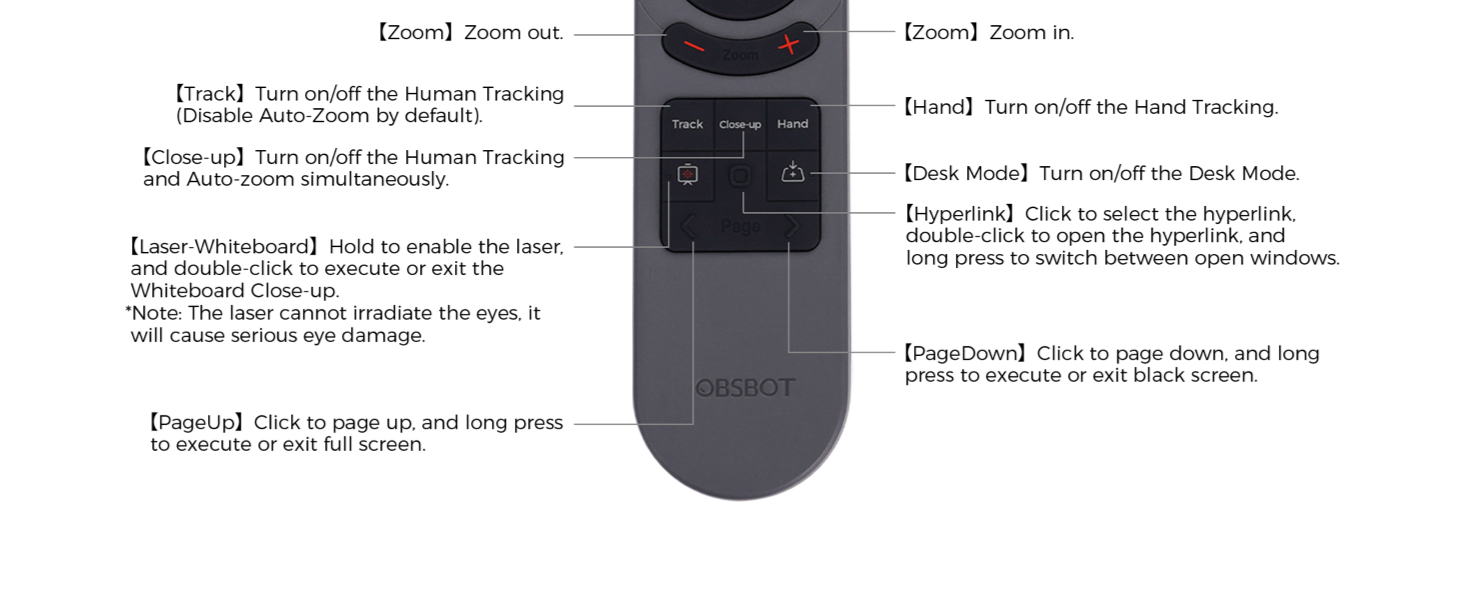
слика: Detailed diagram illustrating the buttons and their corresponding functions on the OBSBOT Tiny 2 Remote Control.
- Дугме за напајање: Turns the connected OBSBOT Tiny series webкамера укључена или искључена.
- Тастери за смер: Control the pan and tilt of the webцам.
- Дугме за ресетовање: Resets the camera's position to its default (square zero).
- Device Selection Buttons (Left/Right Arrows): Allows switching control between multiple connected OBSBOT devices (if connected to the same computer).
- Zoom In/Out Buttons: Подесите ниво зумирања камере.
- P1, P2, P3 Buttons: Preset buttons to save and recall specific camera positions and zoom levels.
- Дугме за праћење: Toggles Human Tracking on/off. Disables Auto Zoom by default.
- Дугме за крупни план: Activates Close-up mode, turning on Human Tracking and Auto Zoom simultaneously.
- Ручно дугме: Toggles Hand Tracking on/off.
- Дугме за режим рада на столу: Укључује/искључује режим радне површине.
- Дугме за ласерску белу таблу: Hold to enable the laser pointer. Double-click to execute or exit Whiteboard Close-up. Note: The laser cannot irradiate the eyes; it will cause serious eye damage.
- Дугме за хиперлинк: Кликните да бисте изабрали хиперлинк. Двапут кликните да бисте отворили хиперлинк. Дуго притисните да бисте прелазили између отворених прозора.
- Дугме PageDown: Click to page down. Long press to execute or exit a black screen.
- Дугме PageUp: Click to page up. Long press to execute or exit full screen.
Важна напомена: Some keys on the remote controller will not work with OBSBOT Tiny 4K and OBSBOT Tiny, as the features controlled by those keys (e.g., Close-up, Hand, Laser-Whiteboard, Desk Mode) are not integrated into those specific models.
Воице Цонтрол
The OBSBOT Tiny 2 webcam supports voice control for various functions, including waking up the device, initiating tracking, and adjusting zoom. Refer to the OBSBOT TinyCam software settings for a full list of voice commands and to enable/disable this feature.
видео: Demonstration of the OBSBOT Meet Remote Control features and functions.
Апликације

Video Meetings: Control your camera's focus and framing during online conferences.

Remote Classes: Utilize presentation clicker features and camera control for engaging online teaching.

Пренос уживо: Adjust camera angles and zoom on the fly for dynamic broadcasts.
Одржавање
- Keep the remote control clean and dry. Use a soft, dry cloth for cleaning.
- Avoid exposing the remote to extreme temperatures or direct sunlight.
- Ако даљински управљач неће бити коришћен дуже време, извадите батерије да бисте спречили цурење.
- Store the USB receiver dongle securely within the remote's battery compartment to prevent loss.
Решавање проблема
- Даљински не реагује:
- Проверите да ли су батерије правилно постављене и да ли су довољно напуњене. Замените их ако је потребно.
- Ensure the USB receiver dongle is securely plugged into your computer.
- Verify that the "Remote Control" option is enabled in the OBSBOT TinyCam software settings.
- Restart the OBSBOT TinyCam software and/or your computer.
- Specific features not working:
- Confirm that your OBSBOT webcam model supports the specific feature (e.g., Close-up, Desk Mode). Refer to your webcam's manual for compatibility.
- Ensure your OBSBOT TinyCam software and webcam firmware are up to date.
- сметње:
- Avoid using the remote near strong electromagnetic interference sources.
Спецификације
| Димензије производа | 10 к 2 к 0.01 инча |
| Тежина артикла | 1.76 унци |
| Број модела ставке | ОБС-200002 |
| Батерије | 2 ААА батерије (нису укључене) |
| Бранд | ОБСБОТ |
| Посебна карактеристика | Ергономски |
| Боја | Црно |
| Максимални број подржаних уређаја | 4 |
| Компатибилни уређаји | OBSBOT Tiny series webcams, OBSBOT UVC to HDMI Adapter 2nd Gen, Personal Computer |
Гаранција и подршка
For warranty information, technical support, or further assistance, please visit the official OBSBOT webсајт или директно контактирајте њихову корисничку службу. Сачувајте рачун за куповину за потребе гаранције.