
1. Увод
Thank you for choosing the NEWQ 12-in-1 USB-C Docking Station. This device is designed to expand the connectivity of your USB-C or Thunderbolt-enabled laptop, providing a comprehensive solution for dual monitor setups, high-speed data transfer, network access, and power delivery. Please read this manual carefully to ensure proper installation and operation.

Image 1.1: The NEWQ 12-in-1 USB-C Docking Station with its included power adapter.
2. Карактеристике производа
The NEWQ 12-in-1 USB-C Docking Station offers extensive connectivity and functionality:
- Dual 4K HDMI Output: Supports dual 4K@30Hz displays or a single 4K@60Hz display for enhanced visual experience and productivity.
- Испорука велике снаге: Includes a 96W PD 3.0 power adapter to power the docking station and charge your laptop at a minimum of 65W. An additional 18W PD 3.0 USB-C port is available for charging mobile devices.
- 12-in-1 Universal Connectivity: Equipped with 2x 4K HDMI ports, 2x USB-A 3.0 ports, 2x USB-A 2.0 ports, 1x RJ45 Gigabit Ethernet port, 1x SD card reader, 1x TF (microSD) card reader, 1x 3.5mm Audio port, 1x Power-IN port, and 1x 18W PD Output port.
- Пренос података велике брзине: Dual USB-A 3.0 ports support data transfer rates up to 5Gbps. SD and TF card slots can read data simultaneously at a maximum speed of 104 MB/s.
- Широка компатибилност: Driver-free operation with Windows, Mac OS, XP, Chrome OS, iPad OS, Android, Unix, and Linux. Compatible with various USB-C and Thunderbolt 3/4 laptops including MacBook Air/Pro, Dell, HP, Lenovo, Surface, Steam Deck, Huawei, and Samsung.

Image 2.1: Detailed diagram illustrating all 12 functional ports of the docking station.
3. Водич за подешавање
Follow these steps to set up your NEWQ 12-in-1 USB-C Docking Station:
- Повежите адаптер за напајање: Plug the included 96W power adapter into the DC-IN port of the docking station. Then, connect the power adapter to a wall outlet. The docking station requires external power to function correctly and charge your laptop.
- Повежите се са хост уређајем: Use the integrated USB-C cable from the docking station to connect it to a compatible USB-C or Thunderbolt port on your laptop. Ensure the connection is secure.
- Повежите екстерне екране: Connect your HDMI monitors to the HDMI 2.0 ports on the docking station using HDMI cables.
- Повежите периферне уређаје: Plug in your USB devices (keyboard, mouse, external drives) into the USB-A 3.0 or USB-A 2.0 ports. Connect an Ethernet cable to the RJ45 port for wired network access. Insert SD or TF cards into their respective slots. Connect headphones or speakers to the 3.5mm audio jack.
- Укључено: Power on your laptop and external monitors. The operating system should automatically detect the docking station and connected devices.

Image 3.1: The docking station connected to a laptop, demonstrating power input and output for various devices.
4. Упутство за употребу
4.1 Конфигурација екрана
The docking station supports various display modes. You can configure your displays through your operating system's display settings.
- Режим огледала: Displays the same content on all connected screens (laptop and external monitors).
- Проширени режим: Extends your desktop across multiple screens, allowing for increased workspace.
Important Note for macOS Users: macOS does not support triple distinct extended displays. While you can connect two external monitors, they will display mirrored content or an extended desktop where both external monitors show the same extended view, distinct from the laptop screen. For Windows and Steam OS, triple display extension is supported.

Image 4.1: A laptop connected to two external monitors, demonstrating a dual display setup for increased productivity.

Image 4.2: Visual representation of Mirror Mode and Extend Mode across multiple displays, highlighting macOS limitations for triple distinct displays.

Image 4.3: Table detailing supported display resolutions and modes for Mac OS and Windows operating systems.
4.2 Data Transfer and Charging
Utilize the various ports for efficient data management and device charging:
- УСБ 3.0 портови: Connect external hard drives, flash drives, or other high-speed USB devices for data transfer up to 5Gbps.
- Читачи SD/TF картица: Insert your camera's SD card or phone's TF (microSD) card to quickly transfer photos and videos at speeds up to 104 MB/s. Both slots can be used simultaneously.
- Етхернет порт: Connect to a wired network for stable and fast internet access up to 1000Mbps (Gigabit Ethernet).
- 18W PD Output: Use the dedicated USB-C PD output port to fast-charge your smartphone, tablet, or other compatible mobile devices.

Image 4.4: Illustration of high-speed data transfer via USB 3.0 ports at 5000Mbps (5Gbps).

Image 4.5: Demonstration of a 1000Mbps Gigabit Ethernet connection through the docking station.

Image 4.6: An SD card inserted into the docking station, indicating a transfer speed of 104 Mbps.
5. Компатибилност
This docking station is designed for broad compatibility with various devices and operating systems:
- Оперативни системи: Windows, Mac OS, XP, Chrome OS, iPad OS, Android, Unix, Linux.
- Компатибилни уређаји: MacBook Air/Pro, Dell XPS/Inspiron/G/Alienware series, HP Spectre/ENVY/Pavilion/OMEN/ZBook/Elite series, Microsoft Surface series, Lenovo ThinkBook/Yoga/ThinkPad/Legion series, Chromebook, Asus, Acer, Samsung, Huawei, and other Type-C port devices (including Thunderbolt 3/4 laptops).
For a detailed compatibility list, please refer to the QR code below:
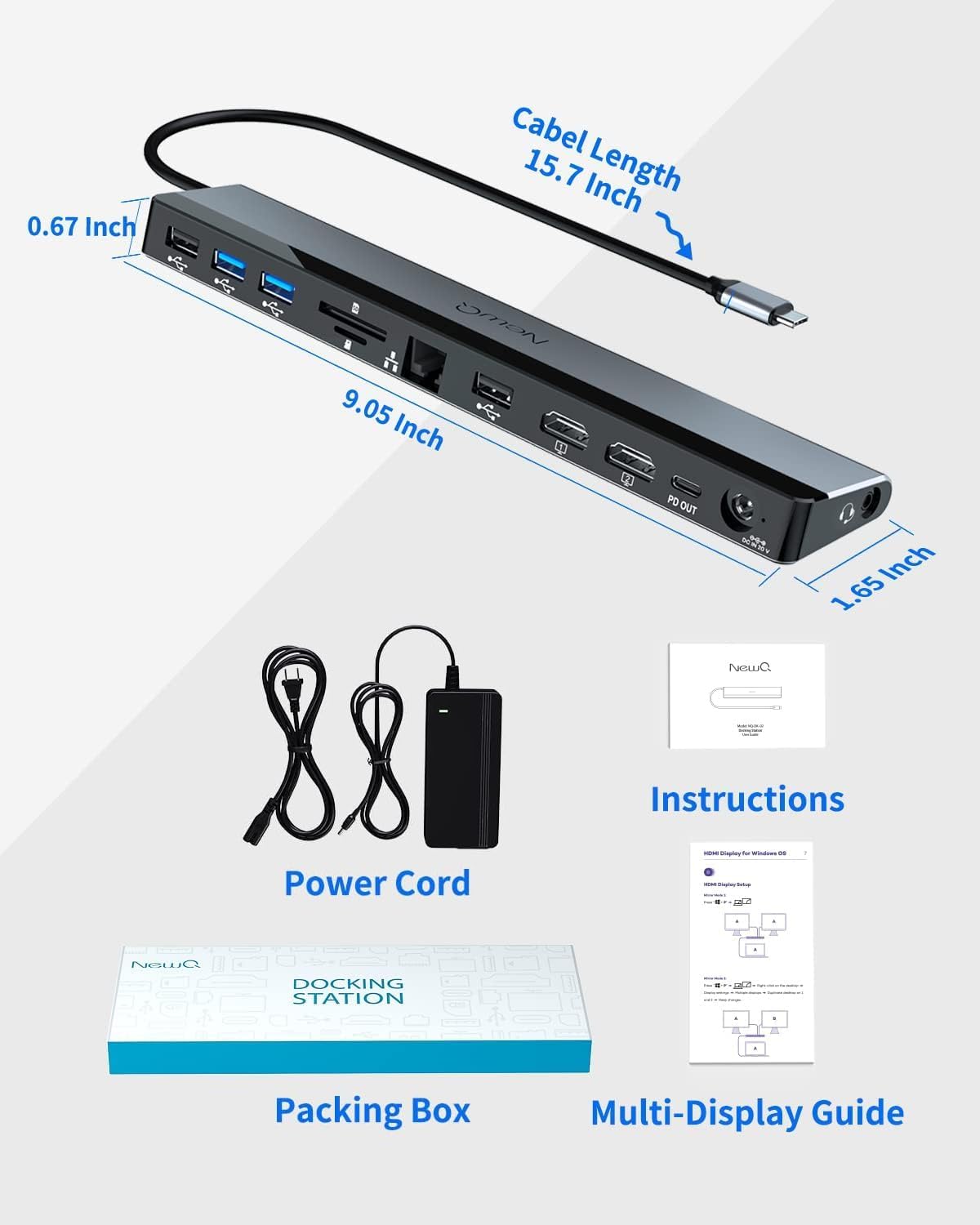
Image 5.1: Product dimensions and a QR code linking to the NEWQ Docking Station Compatibility List. Access Compatibility List
6. Одржавање
To ensure the longevity and optimal performance of your docking station, please follow these maintenance guidelines:
- Одржавајте уређај чистим и без прашине. Користите меку, суву крпу за чишћење.
- Avoid exposing the docking station to extreme temperatures, humidity, or direct sunlight.
- Не растављајте и не покушавајте сами да поправите уређај. То може поништити гаранцију и проузроковати оштећење.
- Ensure proper ventilation around the docking station to prevent overheating. The device features an optimized thermal design to maintain lower operating temperatures.

Слика 6.1: Унутрашњи view highlighting the thermal management design for lower operating temperatures and extended product life.
КСНУМКС. Решавање проблема
Ако наиђете на проблеме са докинг станицом, погледајте следеће уобичајене проблеме и решења:
- Нема излаза на екран:
- Ensure the docking station is properly powered and connected to your laptop's USB-C port.
- Verify that your HDMI cables are securely connected to both the docking station and the monitors.
- Check your laptop's display settings to ensure external monitors are detected and configured (mirror or extend mode).
- Confirm your laptop's USB-C port supports video output (DisplayPort Alternate Mode).
- Поново покрените лаптоп и поново повежите докинг станицу.
- USB уређаји нису препознати:
- Ensure the docking station is powered.
- Try connecting the USB device to a different USB port on the docking station.
- Повежите УСБ уређај директно са лаптопом да бисте потврдили да је функционалан.
- Неки USB уређаји велике снаге могу захтевати директно повезивање или спољни извор напајања.
- Нема мрежне везе (Етернет):
- Проверите да ли је Етернет кабл безбедно повезан и са базном станицом и са рутером/модемом.
- Проверите мрежна подешавања вашег лаптопа.
- Уверите се да је ваша интернет веза активна.
- Лаптоп се не пуни:
- Уверите се да је адаптер за напајање од 96 W правилно повезан са базном станицом и исправном утичницом.
- Уверите се да USB-C порт вашег лаптопа подржава Power Delivery (PD).
- The docking station provides a minimum of 65W to the laptop; some high-performance laptops may require more power than the docking station can provide for optimal charging speed.
- Повремено повезивање:
- Ensure all cables are firmly connected. Loose connections can cause intermittent issues.
- Избегавајте постављање докинг станице у близини извора јаких електромагнетних сметњи.
- Update your laptop's USB-C/Thunderbolt drivers.

Image 7.1: Icons representing the various safety protection features integrated into the docking station, including overcharge, overcurrent, overvoltage, short circuit, and temperature protection.
8. Спецификације
| Феатуре | Спецификација |
|---|---|
| Модел | B09QSZZL83 |
| Димензије (Д к Ш к В) | 9.05 к 1.65 к 0.67 инча (230 к 42 к 17 мм) |
| Тежина артикла | 1.5 фунте (0.68 кг) |
| Боја | Светло сива |
| Укупан број портова | 12 |
| ХДМИ портови | 2 (Dual 4K@30Hz, Single 4K@60Hz) |
| УСБ-А 3.0 портови | 2 (Up to 5Gbps data transfer) |
| УСБ-А 2.0 портови | 2 (Up to 480Mbps data transfer) |
| Етхернет порт | 1 (Gigabit Ethernet, 1000Mbps) |
| Читачи картица | 1x SD, 1x TF (microSD) (Up to 104 MB/s, simultaneous read) |
| Аудио Порт | 1 (3.5mm Stereo Audio) |
| Повер Инпут | DC-IN (96W Power Adapter included) |
| Power Output (Laptop) | Min. 65W via host USB-C connection |
| Power Output (PD Out) | 1 (18W PD 3.0 for mobile devices) |
| Хардверски интерфејс | 3.5mm Audio, Ethernet, HDMI, Secure Digital Card, USB 2.0, USB 3.0, USB Type C |
| Компатибилност | USB-C and Thunderbolt 3/4 enabled devices |
9. Гаранција и подршка
NEWQ products are designed for reliability and performance. For any questions, technical support, or warranty inquiries, please contact NEWQ customer service through the retailer's platform or the official NEWQ webсајт. Молимо вас да сачувате доказ о куповини за потребе гаранције.