
1. Увод
Thank you for choosing the FOREVER Setty Webкамера. Овај приручник пружа основне информације за подешавање, рад и одржавање вашег webcam. Designed for remote work, conferences, online teaching, and video calls, this webcam offers clear image quality, an integrated microphone, and versatile 360-degree rotation.
2. Шта је у кутији
- FOREVER Setty Webцам
- УСБ кабл
- Аудио кабл

Image 2.1: FOREVER Setty Webcam and its retail packaging, showing the webcam, USB cable, and audio cable.
3. Упутства за подешавање
3.1 Повезивање Webцам
- Позиционирање: The Setty webcam features an adjustable clip. You can securely attach it to any type of screen (PC monitor, laptop, TV) or place it stably on a desk, monitor stand, TV cabinet, or a circular lamp са троношцем.
- УСБ веза: Повежите webcam directly to your computer using the provided USB cable. The computer will automatically detect the webcam without requiring additional drivers. The 140 cm cable length allows for flexible placement.
- Аудио веза: If your computer does not automatically detect the microphone or you prefer a separate audio input, connect the audio cable from the webcam to your computer's microphone input.

Image 3.1: The FOREVER Setty Webcam showing its integrated clip and the attached USB and audio cables, ready for connection to a computer.

Image 3.2: The FOREVER Setty Webcam securely mounted on top of a laptop screen, demonstrating its adjustable clip mechanism.
4. Руковање Webцам
4.1 Image and Video Quality
The Setty webcam features a CMOS sensor that delivers a clear image with a constant high resolution of 16 MPX. The dynamic resolution is 640 x 480 pixels. This ensures good visual quality for various applications.
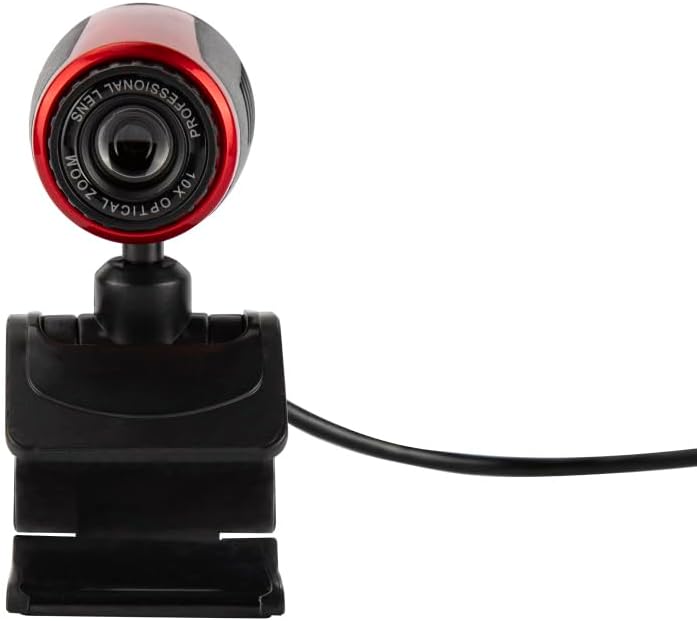
Image 4.1: A close-up front view of the FOREVER Setty Webcam, highlighting the lens and its compact design.
4.2 Интегрисани микрофон
Тхе webcam includes an integrated microphone for clear and fluid video communications. This allows for natural audio recording, making it suitable for online classes, business meetings, and connecting with family and friends. You can also use the camera with wireless headsets, gaming headsets, or computer speakers.
4.3 Ротација од 360 степени
Тхе webcam's design allows for 360-degree rotation, enabling you to adjust the angle as needed. The stable clip ensures the camera remains in your desired position without damaging your screen.

Слика 4.2: Страна А view of the FOREVER Setty Webcam, illustrating its adjustable stand and the ability to change the camera's angle.
4.4 Широк спектар примене
The Setty Webcam is compatible with various operating systems, including Windows (Win10/Vista/Win7), Mac, and Android TV. It provides excellent video quality for popular communication platforms such as Skype, WhatsApp, Facetime, Zoom, Teams, Facebook, YouTube, and Twitch.
5. Одржавање
Да бисте осигурали оптималне перформансе и дуговечност вашег webкамеру, пратите ова упутства за одржавање:
- Чишћење: Gently wipe the lens and body of the webcam with a soft, dry, lint-free cloth. Avoid using harsh chemicals or abrasive materials that could scratch the lens or damage the surface.
- Складиштење: Када није у употреби, чувајте webцам на хладном и сувом месту далеко од директне сунчеве светлости и екстремних температура.
- Нега каблова: Avoid bending or twisting the USB and audio cables excessively to prevent internal damage.
КСНУМКС. Решавање проблема
If you encounter issues with your FOREVER Setty Webкамера, испробајте следећа решења:
- WebКамера није откривена:
- Уверите се да је USB кабл безбедно повезан са оба webкамера и ваш рачунар.
- Покушајте да повежете webкамеру на други УСБ порт на рачунару.
- Поново покрените рачунар.
- Check your computer's device manager (Windows) or System Information (Mac) to see if the webкамера је наведена.
- Нема слике/лош квалитет слике:
- Уверите се да је сочиво чисто и без прашине или мрља.
- Check the lighting conditions in your environment. Adequate lighting is crucial for good image quality.
- Проверите да ли је тачно webcam is selected in your video conferencing application's settings.
- Microphone Not Working/Poor Audio Quality:
- Уверите се да је аудио кабл (ако се користи) правилно повезан.
- Check your computer's sound settings to ensure the webcam's microphone is selected as the input device and its volume is not muted.
- Verify the microphone settings within your video conferencing application.
7. Спецификације
| Феатуре | Детаљ |
|---|---|
| Бранд | ФОРЕВЕР |
| Број модела | 5900495902092 |
| Боја | Црно |
| Димензије производа (Д к Ш к В) | 3.2 к 3.1 к 3.2 цм |
| Тежина артикла | 90 грама |
| Технологија повезивања | УСБ |
| Ефективна резолуција мировања | 16 мегапиксела |
| Видео Ресолутион | 480п |
| Технологија сензора слике | ЦМОС |
| Максимална жижна даљина | 3.5 милиметара |
| Мак Апертуре | 2.8 ф |
| Дигитални зум | 3.6 к |
| Фоцус Типе | Мануал Фоцус |
| Посебне карактеристике | Adjustable, Wireless (Note: 'Wireless' might be a mistranslation or refer to compatibility with wireless headsets, as the primary connection is USB) |
| Компатибилни уређаји | Лаптоп, персонални рачунар, таблет |
8. Гаранција и подршка
For warranty information and technical support, please refer to the documentation provided with your purchase or contact FOREVER customer service. Keep your proof of purchase for any warranty claims.