
Увод
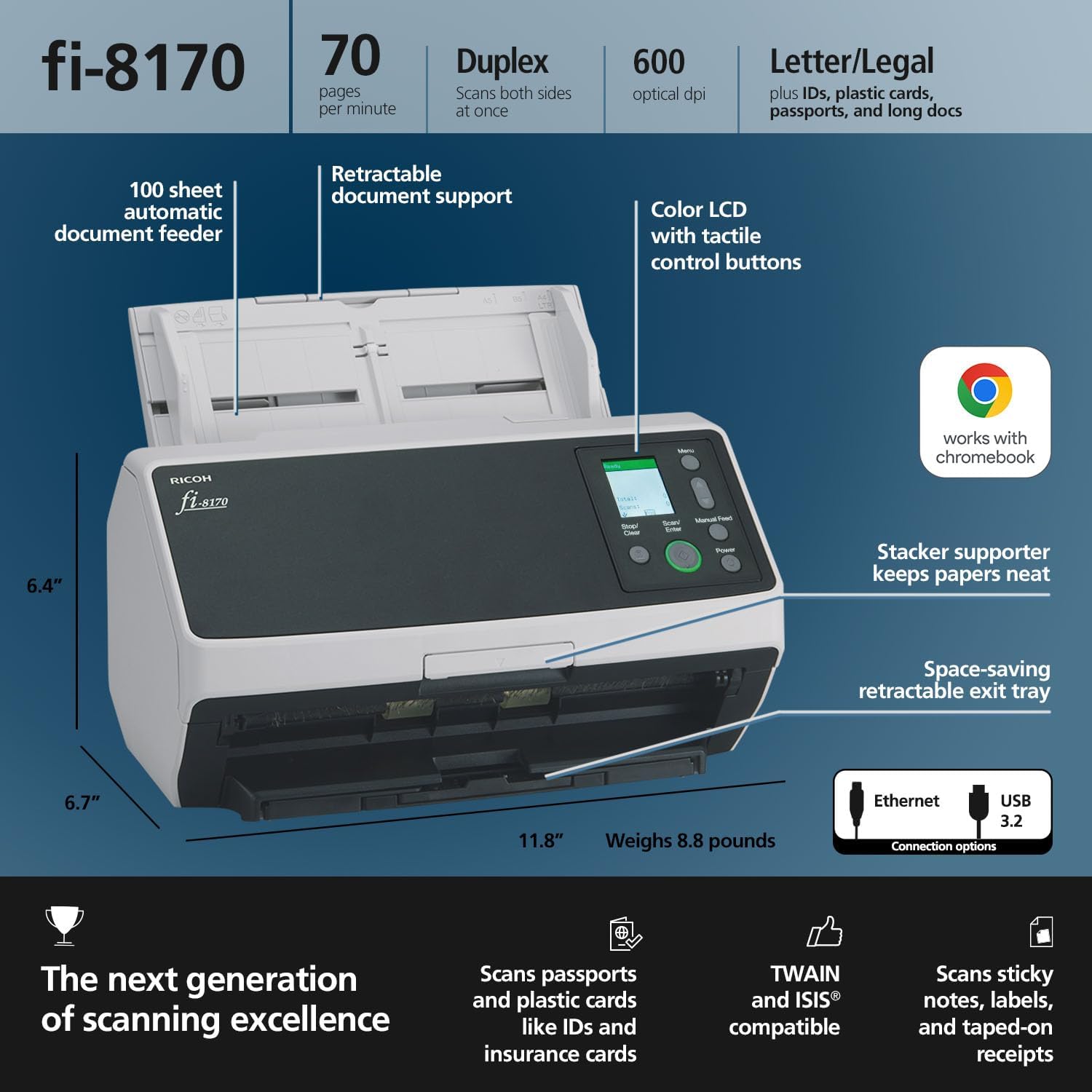
The RICOH fi-8170 is a professional high-speed color duplex document scanner designed for efficient document management. It features advanced feeding technologies and Clear Image Capture for high-quality digital images, suitable for various applications including customer onboarding, accounting, administration, and mailroom operations.
This manual provides essential information for setting up, operating, maintaining, and troubleshooting your fi-8170 scanner. Please read it thoroughly to ensure proper use and to maximize the scanner's performance and longevity.
Сетуп
1. Распакивање и почетно постављање
Carefully remove all components from the packaging. Ensure all items listed in the 'What's in the Box' section are present. Place the scanner on a stable, flat surface with adequate space for document feeding and exit.
2. Повезивање скенера
- Прикључак за напајање: Connect the AC adapter and power cable to the scanner and a suitable power outlet.
- УСБ веза: For direct connection to a computer, use the provided USB cable (USB 3.2 compatible).
- Етхернет веза: For network scanning, connect an Ethernet cable to the scanner's Ethernet port and your network.
3. Инсталација софтвера
Insert the provided Software DVD into your computer's optical drive. Follow the on-screen instructions to install the necessary drivers (TWAIN/ISIS) and PaperStream software (PaperStream Capture, PaperStream ClickScan, Scanner Central Admin, Software Operation Panel). Ensure your system meets the minimum requirements: Windows® 11, 10, 8.1, & 7; Windows Server 2022, 2019, 2016, 2012, 2008.

Image: The fi-8170 scanner connected to a laptop, demonstrating a typical setup for operation.
Упутство за употребу
1. Учитавање докумената
- Аутоматски механизам за увлачење докумената (АДФ): The fi-8170 features a 100-page ADF. Fan the documents lightly and align them before placing them into the ADF. Adjust the side guides to fit the document width.
- Supported Document Types: The scanner handles a wide variety of documents, including standard paper (Letter/Legal), receipts, business cards, ID cards, and passports.
- Ручни феед: For thick documents like ID cards or passports (up to 7mm thick), use the manual feed option.

Image: Various documents, including a packing list and invoices, loaded into the scanner's automatic document feeder.
2. Процес скенирања
- Покретање скенирања: Press the 'Scan/Enter' button on the control panel or initiate a scan through the PaperStream software on your computer.
- Дуплекс скенирање: The scanner automatically performs duplex (double-sided) scanning at speeds up to 70 pages per minute.
- Clear Image Capture: This technology ensures high-quality digital images with accurate color reproduction.
Слика: Детаљна view of the scanner's control panel and documents being fed, highlighting the user interface.
3. Using PaperStream Software
The included PaperStream software suite provides tools for convenient scanning, powerful image enhancement, quick image capture, and indexing options, including Optical Character Recognition (OCR). Refer to the software's help documentation for detailed instructions on its features.
Одржавање
1. Чишћење скенера
Regular cleaning is crucial for maintaining optimal scan quality and preventing paper jams. Use a soft, lint-free cloth and a mild cleaning solution (or isopropyl alcohol) to clean the following components:
- Ваљци за увлачење: Clean the feed rollers to ensure proper document feeding.
- Стаклене површине: Wipe the scanning glass surfaces to remove dust and smudges.
- Екстеријер: Keep the scanner's exterior free from dust.
2. Replacing Consumables
Over time, feed rollers and other consumable parts may wear out. Ricoh provides consumable kits for replacement. Refer to the scanner's service manual or contact support for instructions on replacing these parts.
Решавање проблема
This section addresses common issues you might encounter with your fi-8170 scanner.
1. Заглављивање папира
- If a paper jam occurs, the scanner will typically stop and display an error message.
- Open the scanner covers as indicated in the error message or the quick guide.
- Carefully remove any jammed paper, ensuring no torn pieces remain inside.
- Close all covers securely and resume scanning. The fi-8170 features superior document protection to prevent jams and detect multifeeds.
2. Лош квалитет слике
- Check if the scanning glass or rollers are dirty. Clean them as described in the Maintenance section.
- Ensure the original documents are clean and free from wrinkles or tears.
- Adjust scanning settings (resolution, brightness, contrast) in the PaperStream software.
3. Software Installation Issues
- Verify that your operating system meets the minimum system requirements.
- Ensure all previous scanner drivers are uninstalled before installing new ones.
- Покрените инсталер као администратор.
- If issues persist, download the latest drivers and software from the official Ricoh support webсајту.
Спецификације
| Феатуре | Спецификација |
|---|---|
| Тип скенера | Document, ID Card |
| Бранд | Рицох |
| Назив модела | Фујитсу фи-8170 |
| Технологија повезивања | Етхернет, УСБ |
| Димензије производа (Д x Ш x В) | 6.4"Д к 11.8"Ш к 6.7"В |
| Резолуција | 600 дпи |
| Тежина артикла | 8.8 фунти |
| Ватtage | 28 вати |
| Дубина боје | 8 бита |
| Стандардни капацитет листова | 100 |
| Технологија оптичког сензора | ЦИС |
| Дубина нијанси сиве | 8 бита |
| Тип извора светлости | ЛЕД |
| Медиа Типе | Business Card, Embossed Card, ID Card, Receipt |
| Минимални системски захтеви | Windows® 11, 10, 8.1, & 7. Windows Server 2022, 2019, 2016, 2012, 2008. |
Шта је у кутији
Upon unboxing your RICOH fi-8170 scanner, you should find the following items:
- RICOH fi-8170 Document Scanner Unit
- AC adapter and power cable
- УСБ кабл
- Getting Started guide
- Help and Service information
- Software DVD (PaperStream IP TWAIN/ISIS® drivers, PaperStream Capture, PaperStream Clickscan, Scanner Central Admin, Software Operation Panel)

Image: The fi-8170 scanner and its included accessories, such as cables and software.
Гаранција и подршка
Информације о гаранцији
The RICOH fi-8170 scanner comes with a 3-Year Advance Exchange Warranty. This provides priority replacement protection for your investment. Please refer to the warranty documentation included with your product for full terms and conditions.
Техничка подршка
For technical assistance, troubleshooting beyond this manual, or inquiries regarding replacement parts and service, please contact Ricoh customer support. Contact details can typically be found on the official Ricoh website or in the 'Help and Service information' provided with your scanner.
Слике производа


