
Увод
The HyperGear HyperStream 1080P Webcam provides high-definition video and clear audio for various applications, including online meetings, classes, and streaming. This manual provides instructions for setup, operation, maintenance, and troubleshooting to ensure optimal performance of your webцам.
Садржај пакета
Молимо вас да проверите да ли су све ставке присутне у вашем пакету:
- HyperGear HyperStream 1080P Webцам
- УСБ кабл
- Уграђен микрофон
Производ је завршенview
The HyperGear HyperStream 1080P Webcam is designed for ease of use and high-quality performance. Key features include:
- Crystal-Clear 1080P HD Resolution: Delivers sharp and vibrant visuals.
- Built-in Noise Reduction Microphone: Captures clear audio by reducing background sounds.
- Плуг & Плаи УСБ повезивање: Requires no additional software or drivers for quick setup.
- Wide-Angle 110° Lens: Обухвата широко поље view, suitable for group interactions.
- Auto-White Balance: Automatically adjusts to various lighting conditions for optimal image quality.
- Подесиви носач са клипом: Securely attaches to monitors or laptops, and can also be positioned as a standalone unit.
Упутства за подешавање
Follow these steps to set up your HyperGear HyperStream 1080P Webкамера:
- Распакујте Webкамера: Пажљиво уклоните webcam and its USB cable from the packaging.

Image: The HyperGear HyperStream 1080P Webcam is designed for instant plug-and-play setup without requiring additional drivers. Simply connect the USB cable to your computer.
- Монтирајте Webкамера:
- На монитору/лаптопу: Open the adjustable clip and place it securely on top of your monitor or laptop screen. Adjust the angle to ensure the webКамера је стабилна и окренута према вама.
- На столу: Пресавијте копчу да бисте формирали стабилан сталак и поставите је webкамеру на равној површини, као што је ваш сто.

Слика: Тхе webcam features an adjustable mount that allows it to be clamped onto any screen or display, or positioned as a standalone unit on your desk. It offers 180-degree rotation for flexible positioning.
- Повежите се са својим уређајем: Прикључите УСБ кабл из webcam into an available USB port on your computer (PC, Mac) or Xbox console. The webcam is plug-and-play, so no additional drivers are typically required.
- Потврдите везу: Your operating system should automatically detect the webcam. You can verify its connection in your device settings or within your preferred video conferencing/streaming application.
Упутство за употребу
Once connected, the HyperGear HyperStream 1080P Webcam is ready for use with various applications.
Компатибилност система
Тхе webcam is compatible with multiple operating systems and platforms:
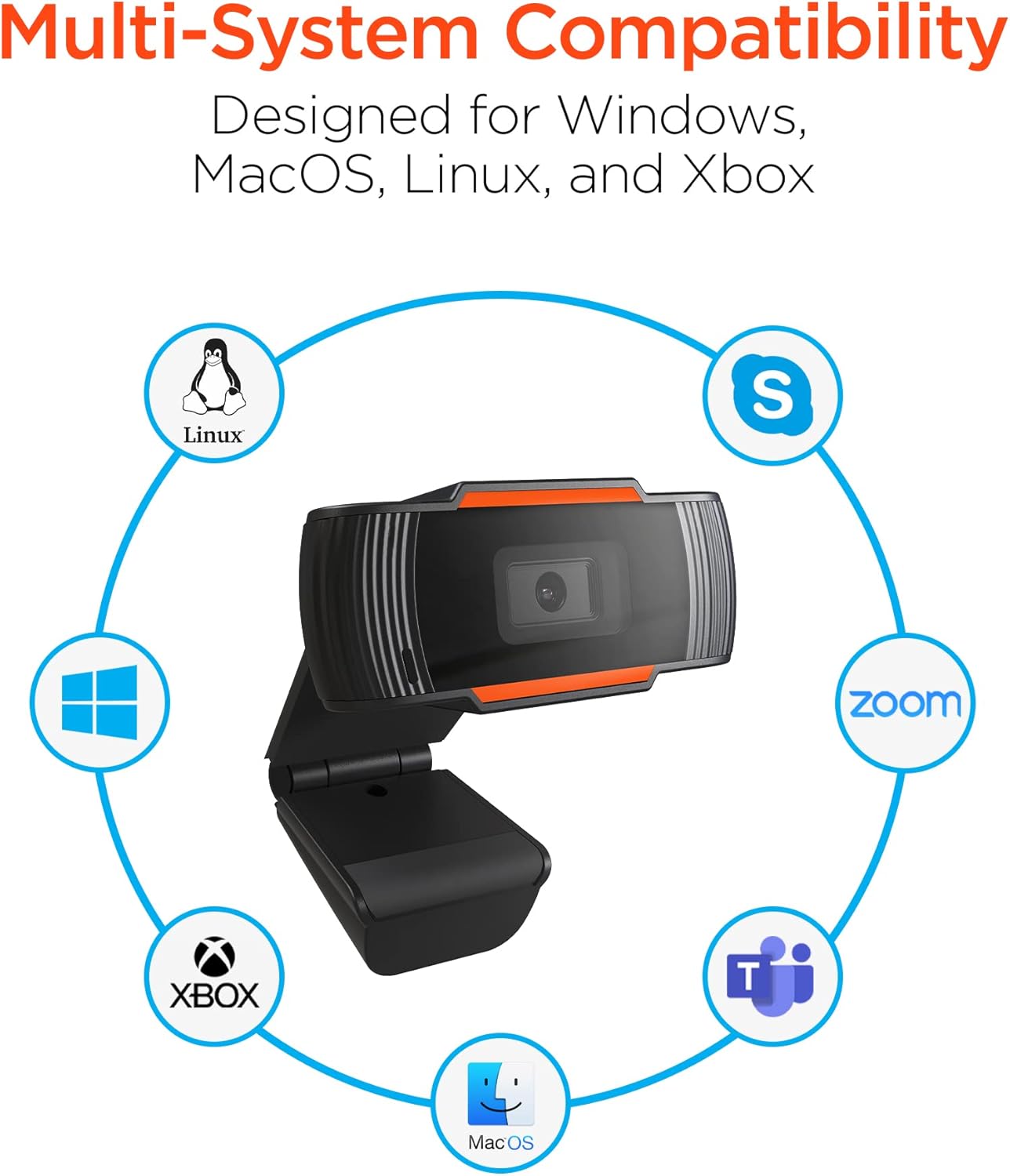
Image: The HyperGear HyperStream 1080P Webcam offers multi-system compatibility, designed for use with Windows, MacOS, Linux, and Xbox, as well as popular communication platforms like Skype, Zoom, and Microsoft Teams.
- Виндовс
- мацОС
- Линук
- Ксбок
- Compatible with popular video conferencing software (e.g., Skype, Zoom, Microsoft Teams).
Коришћењем Webцам
- Изаберите Webкамера: In your video conferencing or streaming application, navigate to the video and audio settings. Select "HyperGear HyperStream 1080P Webcam" as your video input device and its integrated microphone as your audio input device.
- Adjust Position and Angle: Осигурајте webcam is positioned to capture your desired view. The 110° wide-angle lens is ideal for capturing multiple participants or a broader background.

Image: The 110° ultra wide-angle lens ensures that your entire team and presentations fit within the frame, making it suitable for group meetings and collaborative environments.
- Benefit from Auto-White Balance and Fixed Focus: Тхе webcam automatically adjusts for optimal lighting and maintains a sharp focus on subjects within its field of view, eliminating the need for manual adjustments.

Слика: Тхе webcam features fixed focus and auto-white balance (AWB) to automatically adjust to various lighting conditions (like daylight or fluorescent), ensuring clear and sharp visuals without manual intervention.
- Utilize Noise Reduction Microphone: The built-in microphone actively reduces ambient noise, ensuring your voice is clear and easily understood during calls.

Image: The integrated noise reduction microphone minimizes unwanted background noise and distortions, ensuring clear audio during your video calls and streams.
Одржавање
Да бисте обезбедили дуговечност и оптималне перформансе вашег webкамеру, пратите ова упутства за одржавање:
- Чишћење: Нежно обришите сочиво меком крпом која не оставља влакна. Избегавајте употребу јаких хемикалија или абразивних материјала који би могли да огребу сочиво или оштете камеру.asing.
- Складиштење: Када није у употреби, чувајте webкамеру на чистом и сувом месту, даље од екстремних температура и директне сунчеве светлости.
- Руковање: Izbegavajte ispuštanje webcam or subjecting it to strong impacts, which could damage internal components.
Решавање проблема
If you encounter issues with your HyperGear HyperStream 1080P Webкамера, покушајте следеће кораке за решавање проблема:
- WebКамера није откривена:
- Уверите се да је USB кабл безбедно прикључен у оба webcam and your computer's USB port.
- Покушајте да укључите webкамера у други УСБ порт.
- Поново покрените рачунар.
- Check your operating system's device manager (Windows) or System Information (macOS) to see if the webкамера је наведена.
- Нема видео излаза:
- Проверите да ли је webКамера је изабрана као уређај за видео улаз у подешавањима ваше апликације.
- Уверите се да тренутно ниједна друга апликација не користи webcam, as some systems only allow one application to access it at a time.
- Check for any physical obstructions covering the lens.
- No Audio Input (Microphone):
- Потврдите да је webcam's microphone is selected as the audio input device in your application's settings and your system's sound settings.
- Check that the microphone is not muted in your application or system settings.
- Ensure your system's privacy settings allow applications to access the microphone.
- Лош видео квалитет:
- Ensure you have adequate lighting in your environment. While the webcam has auto-white balance, sufficient ambient light is crucial for best results.
- Очистите webcam lens if it appears smudged or dirty.
- Check your internet connection speed if streaming or video conferencing, as a slow connection can affect video quality.
Спецификације
| Феатуре | Детаљ |
|---|---|
| Бранд | ХиперГеар |
| Назив модела | HyperStream Portable 1080P |
| Резолуција снимања видео записа | 1080п |
| Технологија повезивања | УСБ |
| Боја | црна |
| Посебна карактеристика | Подесиво |
| Цамцордер Типе | Webцам |
| Оперативни систем | Виндовс, мацОС |
| Ленс Типе | Широки угао |
| Фоцус Типе | Фиксни фокус |
| Омјер слике | 16:9 |
| Тип контроле експозиције | Аутоматски |
| Ефективна видео резолуција | 1920 Пикелс |
| Компатибилни уређаји | Персонал Цомпутер |
| Уграђени медији | Microphone, USB Cable |
| Тежина артикла | 4.72 унци |
| УПЦ | 633755155390 |
| ASIN | B09S51KSC4 |
Гаранција и подршка
For warranty information and customer support, please refer to the documentation included with your purchase or visit the official HyperGear webсајту.
Такође можете посетити HyperGear Store on Amazon за више информација о производу и ресурсе за подршку.