
1. Увод
This manual provides essential information for the proper installation, operation, and maintenance of your PowerColor Red Devil AMD Radeon RX 6650 XT Graphics Card. Please read this guide thoroughly before proceeding with installation to ensure optimal performance and longevity of your product.
The PowerColor Red Devil AMD Radeon RX 6650 XT is designed for high-performance gaming and demanding graphical tasks, featuring 8GB of GDDR6 memory and advanced cooling solutions.
2. Садржај пакета
Проверите да ли се све ставке наведене у наставку налазе у паковању вашег производа:
- PowerColor Red Devil AMD Radeon RX 6650 XT Graphics Card
- Кратки водич за инсталацију / Упутство за употребу
- Graphics Card Holder (for support)
- ARGB LED Cable (for lighting synchronization)
- Монтажни завртњи
3. Системски захтеви
Пре инсталације, уверите се да ваш систем испуњава следеће минималне захтеве:
- матична плоча: PCI Express compatible motherboard with one x16 PCIe slot.
- Напајање: Minimum 650W or greater power supply.
- Системска меморија (РАМ): Minimum 8GB, Recommended 16GB.
- Приказ: A display with HDMI or DisplayPort input is required.
- Улазни уређаји: Keyboard and mouse required for installation software.
- Оперативни систем: 64-bit operating system required. Supported OS include Linux, Windows 7/10/11.
- АПИ подршка: DirectX 12 and Vulkan support.
4. Подешавање
4.1. Физичка инсталација
- Припремите свој систем:
- Искључите рачунар и искључите кабл за напајање из зидне утичнице.
- Отворите кућиште рачунара да бисте приступили матичној плочи.
- If replacing an existing graphics card, disconnect its power cables and display cables. Carefully unlatch the PCIe retention clip and remove the old card.
- Убаците графичку картицу:
- Locate an available x16 PCIe slot on your motherboard.
- Align the graphics card with the PCIe slot and press down firmly until it is securely seated and the retention clip locks into place.
- Обезбедите графичку картицу:
- Use the provided mounting screws to secure the graphics card to your computer case's expansion slot brackets.
- Install the included graphics card holder to prevent GPU sag, adjusting its height as needed.
- Повежите каблове за напајање:
- Connect the 8-pin and 6-pin PCIe power connectors from your power supply to the corresponding ports on the graphics card. Ensure a firm connection.
- Повежите каблове дисплеја:
- Connect your monitor(s) to the graphics card using HDMI or DisplayPort cables. The card supports 1 HDMI and 3 DisplayPort outputs.
- Затворите кућиште и укључите напајање:
- Затворите кућиште рачунара и поново повежите кабл за напајање.
- Укључите рачунар.
4.2. Инсталација софтвера
- Преузмите драјвере:
- Visit the official AMD or PowerColor website to download the latest Radeon Software drivers for your specific operating system.
- Uninstall Old Drivers (if applicable):
- If you had a previous graphics card, it is recommended to uninstall its drivers using a utility like Display Driver Uninstaller (DDU) in Safe Mode to prevent conflicts.
- Install New Drivers:
- Run the downloaded Radeon Software installer. Follow the on-screen prompts to complete the installation.
- During installation, your display may flicker or go black temporarily. This is normal.
- Поново покрените систем:
- Поново покрените рачунар након што је инсталација драјвера завршена.
- Конфигуришите подешавања екрана:
- Once Windows loads, right-click on the desktop and select "Display settings" or open Radeon Software.
- Adjust your display resolution and refresh rate to match your monitor's capabilities.
- Enable AMD FreeSync (if your monitor supports it) for a smoother gaming experience.
5. Режими рада и карактеристике
5.1. Dual BIOS Switch
Your graphics card features a Dual BIOS switch, allowing you to choose between two performance profiles:
- OC (Overclock) Mode: Provides higher clock speeds for maximum performance.
- Тихи режим: Offers quieter operation with slightly reduced clock speeds.
The BIOS switch is located on the side of the card, near the power connectors. Ensure your system is powered off before changing the BIOS mode.
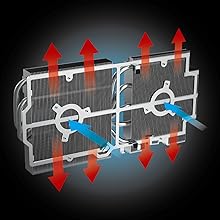
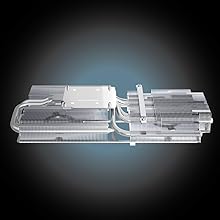
5.2. Напредни систем хлађења
The Red Devil series is equipped with a robust cooling solution to maintain optimal temperatures during intense gaming sessions:
- Triple-Fan Design: Features three optimized static pressure fans for efficient airflow.
- Large Heatsink: A massive heatsink with vertical aluminum fins maximizes heat dissipation.
- Copper Base Direct Touch: Ensures efficient heat transfer from the GPU to the heatsink.
5.3. Прилагодљиво RGB осветљење
The graphics card features customizable RGB lighting on the fans, side shroud, and backplate. Use the PowerColor Devil Zone RGB software to personalize lighting effects and colors to match your system's aesthetic. The output LEDs on the display ports also illuminate for easy connection in low-light conditions.


Video: OVERVIEW | Red Devil AMD Radeon RX 6600 XT Graphics Card. Овај видео пружа крајview of the PowerColor Red Devil AMD Radeon RX 6600 XT, highlighting its design and features. While the video specifically mentions the RX 6600 XT, many features and design elements are similar to the RX 6650 XT model.
6. Спецификације
| Феатуре | Валуе |
|---|---|
| Видео меморија | 8ГБ ГДДР6 |
| Стреам Процессорс | 2048 |
| Game Clock (OC/Silent) | 2523 МХз / 2447 МХз |
| Boost Clock (OC/Silent) | 2694 МХз / 2669 МХз |
| Мемори Цлоцк | 17.5 Гбпс |
| Minimum System Power | 650В |
| Максимална резолуција екрана | 7680к4320 |
| Грапхицс Цопроцессор | АМД Радеон РКС 6650 КСТ |
| Марка чипса | АМД |
| Видео излазни интерфејс | 1x HDMI, 3x DisplayPort |
| Тежина артикла | 3.17 фунти |
| Димензије производа (ДкШкВ) | 10.39 к 5.94 к 2.13 инча |
7. Одржавање
To ensure the longevity and optimal performance of your graphics card, regular maintenance is recommended:
- Уклањање прашине: Периодично чистите прашину са вентилатора и хладњака помоћу компримованог ваздуха. Уверите се да је систем искључен пре чишћења.
- Проток ваздуха: Ensure your computer case has adequate airflow to prevent overheating. Keep cables tidy and clear of fan pathways.
- Ажурирања драјвера: Regularly check the AMD website for the latest driver updates to benefit from performance improvements and bug fixes.
КСНУМКС. Решавање проблема
Ако наиђете на проблеме са графичком картицом, размотрите следеће кораке за решавање проблема:
- Нема приказа/црни екран:
- Ensure all power cables (8-pin and 6-pin) are securely connected to the graphics card.
- Verify that display cables are firmly connected to both the graphics card and the monitor.
- Проверите да ли је ваш монитор подешен на исправан улазни извор.
- Пробајте други кабл за дисплеј или монитор ако је доступан.
- Нестабилност/падови система:
- Ensure your power supply meets the minimum 650W requirement.
- Ажурирајте драјвере за графичку картицу на најновију верзију.
- Monitor GPU temperatures using Radeon Software or third-party tools. Ensure adequate cooling.
- If overclocking, try reverting to default clock speeds or switching to Silent BIOS mode.
- Лоше перформансе:
- Уверите се да су ваши графички драјвери ажурирани.
- Check in-game settings and reduce demanding options if necessary.
- Verify that your system's CPU and RAM meet recommended specifications.
- Ensure AMD FreeSync is enabled if your monitor supports it.
9. Гаранција и подршка
Your PowerColor Red Devil AMD Radeon RX 6650 XT Graphics Card is covered by a manufacturer's warranty. Please refer to the warranty information included in your product packaging or visit the official PowerColor website for details on warranty terms, registration, and technical support. Keep your proof of purchase for warranty claims.
For further assistance, visit the PowerColor support webсајту или контактирајте њихов тим за корисничку подршку.