
1. Увод
This manual provides comprehensive instructions for the setup, operation, and maintenance of your Cherry MW 9100 Wireless Rechargeable Mouse. The MW 9100 is a compact, versatile mouse offering dual connectivity options (Bluetooth or 2.4 GHz USB receiver) and a convenient rechargeable battery.
Кључне карактеристике укључују:
- Compact design with charging functionality.
- Flexible operation: use while charging via USB-C cable.
- Dual connectivity: Bluetooth or 2.4 GHz USB receiver.
- Magnetic storage for the USB receiver, ideal for travel.
- Adjustable DPI settings for varied usage.
2. Садржај пакета
Проверите да ли су све ставке присутне у пакету:
- Cherry MW 9100 Wireless Rechargeable Mouse
- УСБ-Ц кабл за пуњење
- 2.4 ГХз УСБ пријемник
- Заштитна торбица
- Упутство за употребу (овај документ)
3. Подешавање
3.1 Пуњење миша
The Cherry MW 9100 mouse features a built-in rechargeable battery. Before initial use, or when the battery is low, connect the included USB-C cable to the mouse and to a USB power source (e.g., computer USB port, USB wall adapter). The mouse can be used normally while charging.

Слика 3.1: Врх view of the Cherry MW 9100 mouse, showing the charging indicator light.
3.2 Повезивање миша
The MW 9100 offers two connection methods: 2.4 GHz wireless via USB receiver or Bluetooth.
3.2.1 Бежична веза од 2.4 GHz
- Locate the USB receiver. It is magnetically stored in a compartment on the underside of the mouse.
- Уметните УСБ пријемник у слободан УСБ порт на рачунару.
- On the underside of the mouse, slide the switch to the "RF" position.
- Миш би требало аутоматски да се повеже са рачунаром.
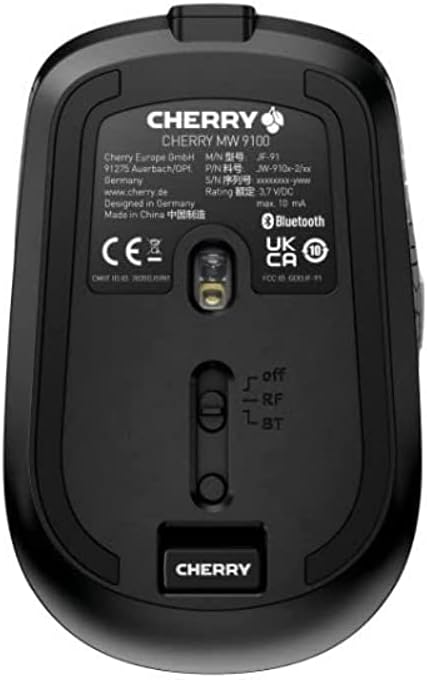
Слика 3.2: Underside of the Cherry MW 9100 mouse, highlighting the USB receiver storage and the connection mode switch.
3.2.2 Блуетоотх веза
- On the underside of the mouse, slide the switch to the "BT" (Bluetooth) position.
- Press and hold the small pairing button located near the connection switch on the underside of the mouse until the LED indicator on the mouse starts blinking, indicating pairing mode.
- На рачунару или уређају отворите подешавања за Bluetooth и потражите нове уређаје.
- Select "Cherry MW 9100" from the list of available devices to complete the pairing process.
4. Упутство за употребу
4.1 Основне функције
The Cherry MW 9100 mouse features standard left and right click buttons, a scroll wheel (which also functions as a middle click button), and two side buttons for navigation (typically forward/back).
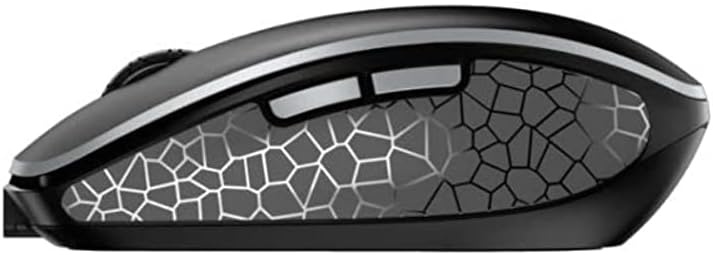
Слика 4.1: Сиде view of the Cherry MW 9100 mouse, illustrating the ergonomic design and side buttons.
4.2 ДПИ подешавање
The mouse includes a DPI (Dots Per Inch) button, usually located near the scroll wheel, allowing you to adjust the cursor sensitivity. Press this button to cycle through different DPI settings to match your preference or task requirements.

Слика 4.2: A hand demonstrating the comfortable grip on the Cherry MW 9100 mouse during use.
5. Одржавање
To ensure optimal performance and longevity of your Cherry MW 9100 mouse:
- Чишћење: Користите меку, суву крпу за чишћење површине миша. За тврдокорну прљавштину, благо дamp cloth can be used, but ensure no moisture enters the device. Avoid harsh chemicals or abrasive materials.
- Складиштење: When not in use, especially during travel, store the mouse in the provided protective pouch to prevent scratches and damage.
- Одржавање батерије: Avoid fully discharging the battery frequently. Recharge the mouse when the low battery indicator appears.
КСНУМКС. Решавање проблема
| Проблем | Могући узрок | Решење |
|---|---|---|
| Миш не реагује | Low battery, incorrect connection mode, USB receiver not connected, Bluetooth not paired. |
|
| Intermittent connection (Bluetooth) | Interference, device driver issues, distance from device. |
|
| Покрет курсора је неправилан или спор | Dirty optical sensor, low battery, incorrect DPI setting. |
|
7. Спецификације
| Феатуре | Детаљ |
|---|---|
| Бранд | Трешња |
| Број модела | JW-9100US-2 |
| Технологија повезивања | Bluetooth, 2.4 GHz USB Wireless |
| Откривање покрета | Оптицал |
| Посебне карактеристике | Lightweight, Portable, Rechargeable |
| Димензије производа | 4 к 3 к 2 инча |
| Тежина артикла | 6.4 унци |
| Боја | Црно |
8. Гаранција и подршка
For warranty information and technical support, please refer to the official Cherry website or contact Cherry customer service directly. Keep your proof of purchase for warranty claims.
Произвођач: ТРЕШЊА
Webсајт: ввв.цхерри.де