
1. Увод
The ACT AC7049 Dual Monitor Docking Station transforms your laptop into a complete workstation. This versatile 11-in-1 docking station allows you to connect up to two Full HD displays (max. 2048 x 1152 resolution) to your laptop via HDMI, using a single USB-C/A cable. It expands your laptop's connectivity with a Gigabit LAN port, microphone and headphone jacks, and six additional USB ports. Featuring DisplayLink® technology, it ensures advanced screen display on both MacOS and Windows computers.
2. Кључне карактеристике
- Подршка за два монитора: Connect up to two external displays with HDMI ports, supporting resolutions up to 2048x1152@60Hz.
- Универзална компатибилност: Works with laptops featuring a USB-C or USB-A 3.2 Gen1 (USB 3.0) port, compatible with MacOS and Windows thanks to DisplayLink technology.
- Екстензивно повезивање: Includes 2x HDMI, 1x Gigabit Ethernet, 3x USB-A 3.2 Gen 1 (one with fast charging), 4x USB-A 2.0, and 3.5mm audio jacks for microphone and headphones.
- Флексибилно постављање: Designed for both vertical and horizontal placement to optimize desk space and port accessibility.
- УСБ пуњач: Dedicated USB port for charging smartphones and tablets.
3. Садржај пакета
Молимо вас да проверите пакет за следеће ставке:
- ACT AC7049 Docking Station
- USB-C/A 3.2 Gen1 Connection Cable (USB-A to USB-C)
- Повер Адаптер
- Вертикални сталак
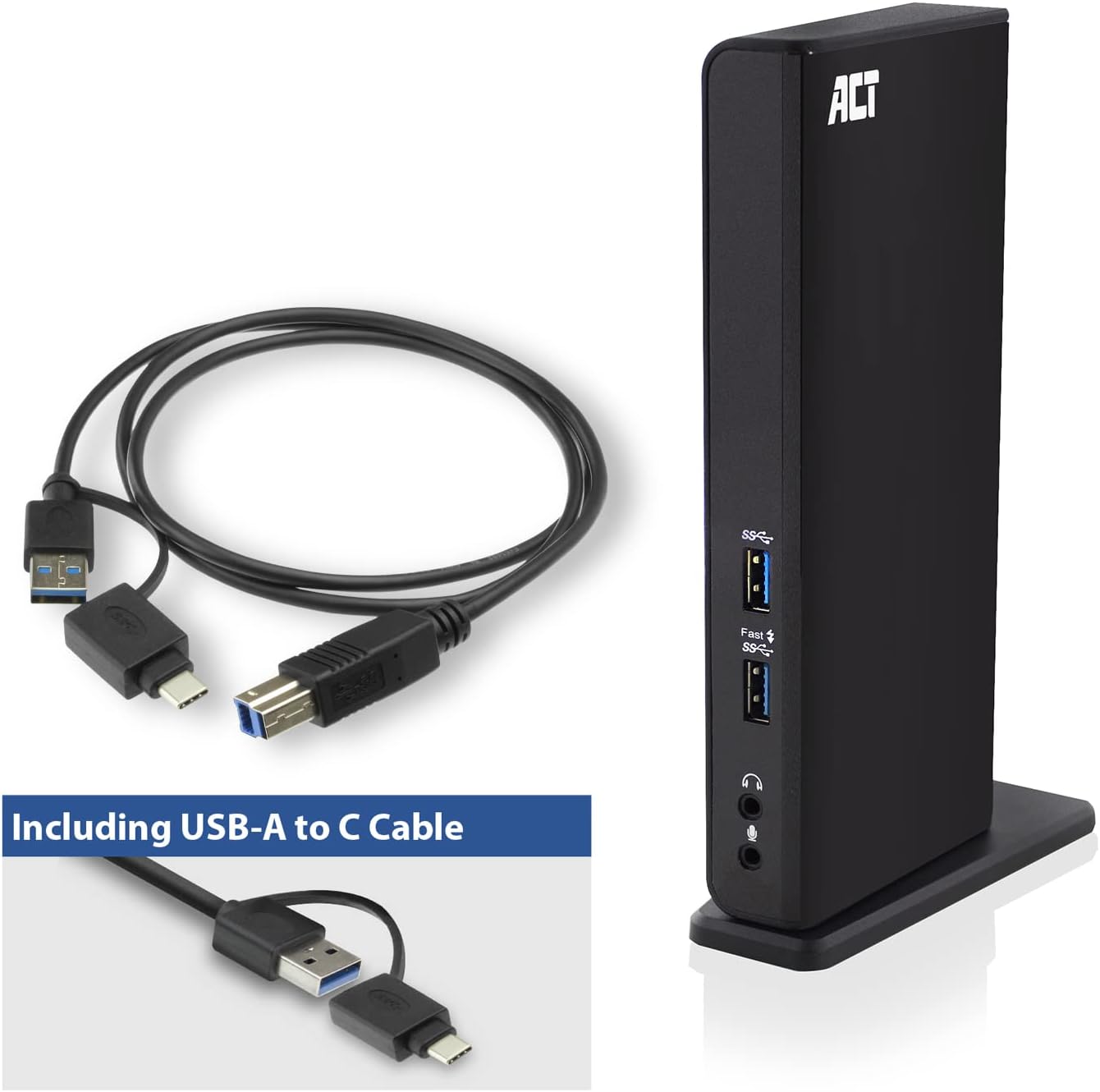
Image: The ACT AC7049 Docking Station shown with its included USB-A to USB-C connection cable and power adapter, highlighting the components provided in the package.
4. Водич за подешавање
4.1. Повезивање адаптера за напајање
- Connect the power adapter to the DC 5V input port on the back of the AC7049 docking station.
- Plug the power adapter into a wall outlet. The docking station will power on.
4.2. Connecting to Your Laptop
- Use the provided USB-C/A 3.2 Gen1 connection cable. Connect the USB-B end to the corresponding port on the docking station.
- Connect the other end (USB-A or USB-C, depending on your laptop's port) to an available USB 3.2 Gen1 (USB 3.0) or USB-C port on your laptop.
4.3. Driver Installation (DisplayLink)
The AC7049 utilizes DisplayLink technology for extended monitor functionality. Drivers are typically installed automatically on most operating systems. If not, please follow these steps:
- Посетите званични DisplayLink webсајт (ввв.дисплаилинк.цом/довнлоадс) to download the latest drivers for your operating system (Windows or MacOS).
- Install the downloaded driver package and follow the on-screen instructions.
- Поново покрените рачунар ако се то од вас затражи.

Image: The official DisplayLink 'Plug and Display' logo, indicating the technology used for multi-monitor support.
5. Упутство за употребу
5.1. Connecting External Displays
- Connect your HDMI monitors to the two HDMI ports on the back of the docking station.
- Once connected, your operating system should detect the new displays. You can configure display settings (extend, mirror, primary display) through your computer's display settings.

Image: A visual representation of the docking station enabling both 'Mirror your content' and 'Extend your content' display modes across a laptop and two external monitors.
5.2. Повезивање USB периферних уређаја
- Предњи УСБ портови: Two USB-A 3.2 Gen1 ports (one with fast charging capability) are located on the front for easy access to frequently used devices like USB drives, smartphones, or tablets.
- Rear USB Ports: Four USB-A 2.0 ports are located on the back for connecting peripherals such as keyboards, mice, printers, or other less frequently connected devices.
5.3. Мрежна веза
Connect an Ethernet cable from your router or network switch to the Gigabit Ethernet port on the docking station. Your laptop will automatically gain wired network access.
5.4. Аудио везе
Connect your headphones and/or microphone to the dedicated 3.5mm audio jacks on the front of the docking station.

Image: An isometric diagram showcasing the comprehensive connectivity of the ACT AC7049, demonstrating how a laptop, two monitors, a keyboard, mouse, network cable, headphones, and a smartphone can all be connected simultaneously.
6. Опције пласмана
The ACT AC7049 docking station offers flexible placement options to suit your workspace:
- Вертикално постављање: Use the included stand to position the docking station vertically. This saves desk space and provides easy access to all ports.
- Хоризонтално постављање: The docking station can also be placed horizontally if preferred.

Image: The ACT AC7049 Docking Station positioned vertically on its stand, highlighting its compact design and accessible ports.
7. Одржавање
To ensure optimal performance and longevity of your ACT AC7049 Docking Station, follow these maintenance guidelines:
- Чишћење: Use a soft, dry cloth to clean the exterior of the docking station. Avoid using liquid cleaners or aerosols, as they may damage the device.
- вентилација: Ensure the docking station is placed in a well-ventilated area to prevent overheating. Do not block any ventilation openings.
- Складиштење: Када се не користи дуже време, чувајте докинг станицу на хладном и сувом месту, даље од директне сунчеве светлости и екстремних температура.
- Управљање кабловима: Keep cables organized and free from kinks or excessive bending to prevent damage to the cables and ports.
КСНУМКС. Решавање проблема
If you encounter issues with your ACT AC7049 Docking Station, please refer to the following common troubleshooting steps:
- Нема излаза на екран:
- Ensure the docking station is powered on and correctly connected to your laptop.
- Verify that the HDMI cables are securely connected to both the docking station and the monitors.
- Проверите подешавања екрана вашег лаптопа да бисте били сигурни да су спољни монитори правилно детектовани и конфигурисани (нпр. проширени или зрцаљени).
- Reinstall or update the DisplayLink drivers from ввв.дисплаилинк.цом/довнлоадс.
- Покушајте да повежете један монитор истовремено да бисте изоловали проблем.
- USB уређаји не раде:
- Ensure the docking station is properly connected to your laptop and powered.
- Try connecting the USB device directly to your laptop to confirm it is functional.
- Connect the USB device to a different USB port on the docking station.
- Поново покрените лаптоп.
- Нема мрежне везе:
- Verify the Ethernet cable is securely connected to both the docking station and your router/switch.
- Check your laptop's network settings to ensure the wired connection is enabled.
- Тестирајте Етернет кабл са другим уређајем ако је могуће.
- Audio Not Working:
- Ensure headphones/microphone are fully plugged into the correct 3.5mm jacks.
- Check your laptop's sound settings to ensure the docking station's audio output/input is selected as the default device.
9. Спецификације
| Феатуре | Спецификација |
|---|---|
| Број модела | АЦ7049 |
| Бранд | АЦТ |
| Боја | Црно |
| Технологија повезивања | УСБ-А, УСБ-Ц |
| Видео Оутпут | 2 x HDMI (Max. 2048 x 1152 @ 60Hz) |
| УСБ портови | 3 x USB-A 3.2 Gen 1 (5Gbps, 1x Fast Charging), 4 x USB-A 2.0 (480Mbps) |
| Мрежни порт | 1 x гигабитни етернет (RJ45) |
| Аудио портови | 1 x 3.5mm Headphone Jack, 1 x 3.5mm Microphone Jack |
| Компатибилни уређаји | Laptop, Computer (with USB 3.2 Gen1 / USB 3.0 or USB-C port) |
| Подршка за оперативни систем | Windows, MacOS (via DisplayLink) |
| Димензије (Д к Ш к В) | 10.9 x 6 x 18.1 цм (приближно) |
| Тежина артикла | 317 грама |
10. Гаранција и подршка
ACT products are designed for reliability and adhere to international standards and EU legislation. The ACT AC7049 Docking Station comes with a manufacturer's warranty, typically ranging from 2 to 5 years. For specific warranty details and support, please refer to the official ACT webсајту или контактирајте свог продавца.
For technical support or further inquiries, please visit the official ACT connectivity webсајт: ввв.ацт-цоннецтивити.цом