
1. Увод
This manual provides detailed instructions for the setup, operation, and maintenance of your Rapoo E9700M Wireless Keyboard. Please read this manual thoroughly before using the product to ensure proper functionality and to prevent damage.

Image 1.1: The Rapoo E9700M Wireless Keyboard. This image shows the keyboard from an angled perspective, highlighting its slim profile and dark gray finish.
2. Садржај пакета
Проверите да ли су све ставке присутне у пакету:
- Rapoo E9700M Wireless Keyboard
- УСБ-Ц кабл за пуњење
- Nano USB Receiver (typically stored in the keyboard's battery compartment)
- Кратки водич (овај документ служи као свеобухватни водич)
3. Карактеристике
- Multi-Mode Wireless Connectivity: Supports Bluetooth 3.0, 5.0, and 2.4 GHz for stable transmission up to 10 meters.
- Smart Switching: Automatically pairs and connects to multiple devices, allowing one-click switching.
- Ултра-танак дизајн: Constructed with an aluminum alloy for stability and durability.
- Пуњива батерија: Integrated eco-friendly lithium battery eliminates the need for disposable batteries.
- Мултимедијални интервентни тастери: Dedicated keys for quick access to multimedia functions.
- DE-Layout QWERTZ: German keyboard layout.
4. Подешавање
4.1. Пуњење тастатуре
Before initial use, fully charge the keyboard. Connect the supplied USB-C cable to the keyboard's charging port and the other end to a USB power source (e.g., computer USB port, USB wall adapter).
- Индикаторска лампица пуњења ће светлети током пуњења.
- The light will turn off or change color once fully charged.
4.2. Connecting via 2.4 GHz Wireless
- Locate the Nano USB receiver, typically stored in a compartment on the underside of the keyboard.
- Plug the Nano USB receiver into an available USB port on your computer.
- Turn on the keyboard using the power switch (usually located on the side or back).
- Притисните тастер Фн + КСНУМКС key combination to activate 2.4 GHz mode. The corresponding indicator light will blink.
- Your computer should automatically detect and install the necessary drivers. The keyboard is ready for use.

Слика 4.2: Одозго надоле view of the Rapoo E9700M keyboard, showing the German (DE-Layout QWERTZ) key arrangement. Note the function keys with blue icons for connectivity modes.
4.3. Повезивање преко Блуетоотх-а
The keyboard supports two Bluetooth channels (Bluetooth 1 and Bluetooth 2).
- Укључите тастатуру помоћу прекидача за напајање.
- Притисните Фн + КСНУМКС for Bluetooth 1 or Фн + КСНУМКС for Bluetooth 2. The corresponding indicator light will blink slowly.
- Да бисте ушли у режим упаривања, притисните и држите Фн + КСНУМКС or Фн + КСНУМКС 3 секунди док индикаторска лампица не трепће брзо.
- On your device (PC, Mac, smartphone, tablet), open Bluetooth settings and search for new devices.
- Select "Rapoo E9700M" from the list of available devices.
- Follow any on-screen prompts to complete the pairing process. The indicator light will stop blinking once connected.
4.4. Пребацивање између повезаних уређаја
The Rapoo E9700M allows seamless switching between up to three connected devices (one 2.4 GHz and two Bluetooth devices).
- Притисните Фн + КСНУМКС да бисте прешли на Блуетоотх уређај 1.
- Притисните Фн + КСНУМКС да бисте прешли на Блуетоотх уређај 2.
- Притисните Фн + КСНУМКС to switch to the 2.4 GHz wireless connection.
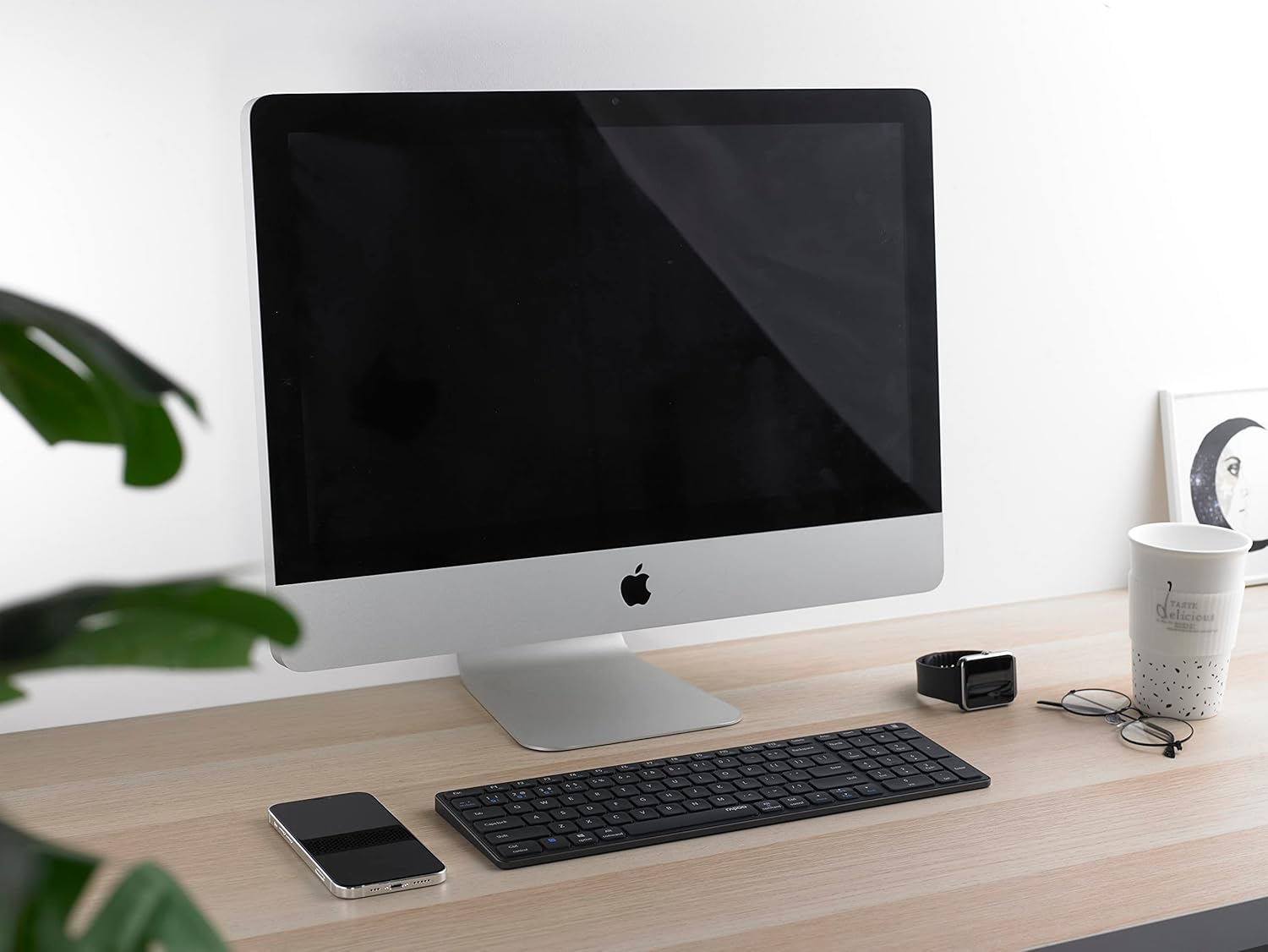
Image 4.4: The Rapoo E9700M keyboard positioned on a desk next to an iMac, demonstrating its compatibility with macOS devices.
5. Упутство за употребу
5.1. Multimedia Hotkeys
The keyboard features multimedia hotkeys for quick access to various functions. These keys are typically activated by pressing the Fn key simultaneously with the corresponding function key (F1-F12).
| Комбинација тастера | Функција |
|---|---|
| Фн + Ф1 | Медиа Плаиер |
| Фн + Ф2 | Утишавање звука |
| Фн + Ф3 | Волуме Уп |
| Фн + Ф4 | Муте |
| Фн + Ф5 | Превиоус Трацк |
| Фн + Ф6 | Нект Трацк |
| Фн + Ф7 | Пусти/Паузирај |
| Фн + Ф8 | Стани |
| Фн + Ф9 | Почетна страница |
| Фн + Ф10 | Емаил |
| Фн + Ф11 | Мој рачунар |
| Фн + Ф12 | Фаворитес |
5.2. Индикаторска светла
The keyboard has indicator lights to show connection status and battery level:
- Bluetooth 1/2/4 (2.4G) Indicator: Blinks slowly when searching for connection, blinks rapidly when in pairing mode, solid when connected.
- Цапс Лоцк индикатор: Illuminates when Caps Lock is active.
- Индикатор статуса батерије: Illuminates when charging, blinks when battery is low.
6. Одржавање
To ensure the longevity and optimal performance of your Rapoo E9700M keyboard, follow these maintenance guidelines:
- Чишћење: Користите меку, суву крпу да обришете површину тастатуре. За тврдокорну прљавштину, благо обришитеampОперите крпу водом или благим, неабразивним средством за чишћење. Избегавајте прекомерну влагу.
- Складиштење: Чувајте тастатуру на хладном и сувом месту, даље од директне сунчеве светлости и екстремних температура.
- Избегавајте течности: Do not expose the keyboard to liquids. In case of accidental spills, immediately power off the keyboard and allow it to dry completely before reuse.
- УСБ пријемник: When not in use, store the Nano USB receiver in its designated compartment within the keyboard to prevent loss.

Image 6.1: The underside of the Rapoo E9700M keyboard, showing the smooth aluminum finish and regulatory markings. The USB receiver compartment is typically located here.
КСНУМКС. Решавање проблема
If you encounter issues with your keyboard, refer to the following common problems and solutions:
- Тастатура не реагује:
- Уверите се да је тастатура укључена.
- Проверите ниво батерије и по потреби је напуните.
- Verify the correct connection mode (2.4 GHz, Bluetooth 1, or Bluetooth 2) is selected using Fn + 1/2/4.
- For 2.4 GHz, ensure the Nano USB receiver is securely plugged into a working USB port.
- For Bluetooth, ensure Bluetooth is enabled on your device and the keyboard is paired. Try re-pairing if necessary.
- Покушајте да се повежете са другим УСБ портом или уређајем да бисте искључили проблеме са портом/уређајем.
- Кашњење или повремена веза:
- Reduce the distance between the keyboard and your device (maximum 10 meters).
- Remove any obstacles that might interfere with the wireless signal (e.g., large metal objects).
- Avoid using the keyboard near other strong wireless interference sources (e.g., Wi-Fi routers, other wireless devices).
- Уверите се да је тастатура потпуно напуњена.
- Тастери не раде или куцање није исправно:
- Очистите тастатуру да бисте уклонили све остатке који би могли да ометају тастере.
- Поново покрените рачунар/уређај.
- If using Bluetooth, try unpairing and re-pairing the keyboard.
8. Спецификације
| Феатуре | Детаљ |
|---|---|
| Бранд | Рапоо |
| Модел | Е9700М |
| Технологија повезивања | Bluetooth 3.0, Bluetooth 5.0, 2.4 GHz Wireless (USB-C, WLAN) |
| Компатибилни уређаји | Laptop, PC, Smart TV, Gaming Console, Smartphone, Tablet |
| Опис тастатуре | Мултимедија |
| Посебна карактеристика | Multimedia Hotkeys, Rechargeable Battery |
| Боја | Дарк Греи |
| Стиле | Цлассиц |
| Материјал | Алуминијум |
| Укључене компоненте | Keyboard, USB-C Cable, Nano USB Receiver |
| Лаиоут | DE-Layout (QWERTZ) |
9. Гаранција и подршка
Rapoo products are designed with quality and reliability in mind. For warranty information and technical support, please refer to the warranty card included with your product or visit the official Rapoo webсајт. Сачувајте доказ о куповини за потребе гаранције.
For further assistance, please contact Rapoo customer support through their official channels.