
1. Увод
This manual provides essential information for the proper use and maintenance of your Headwolf FPad 1 Android Tablet. Please read this guide thoroughly before operating the device to ensure optimal performance and longevity. The Headwolf FPad 1 is an 8-inch tablet designed for everyday use, featuring a responsive display and the Android 12 operating system.
2. Садржај пакета
Upon unboxing your Headwolf FPad 1 tablet, please verify that all the following items are included:
- Headwolf FPad 1 Tablet
- Упутство за употребу (овај документ)
- Power Adapter (USB-A wall charger)
- УСБ-А на УСБ-Ц кабл за пуњење
Note: The tablet may come with a pre-applied screen protector for immediate use.
3. Device Layout and Overview
Familiarize yourself with the physical components and ports of your Headwolf FPad 1 tablet.

Слика 3.1: Предња и задња страна view of the Headwolf FPad 1 Tablet.
3.1. Задња плоча
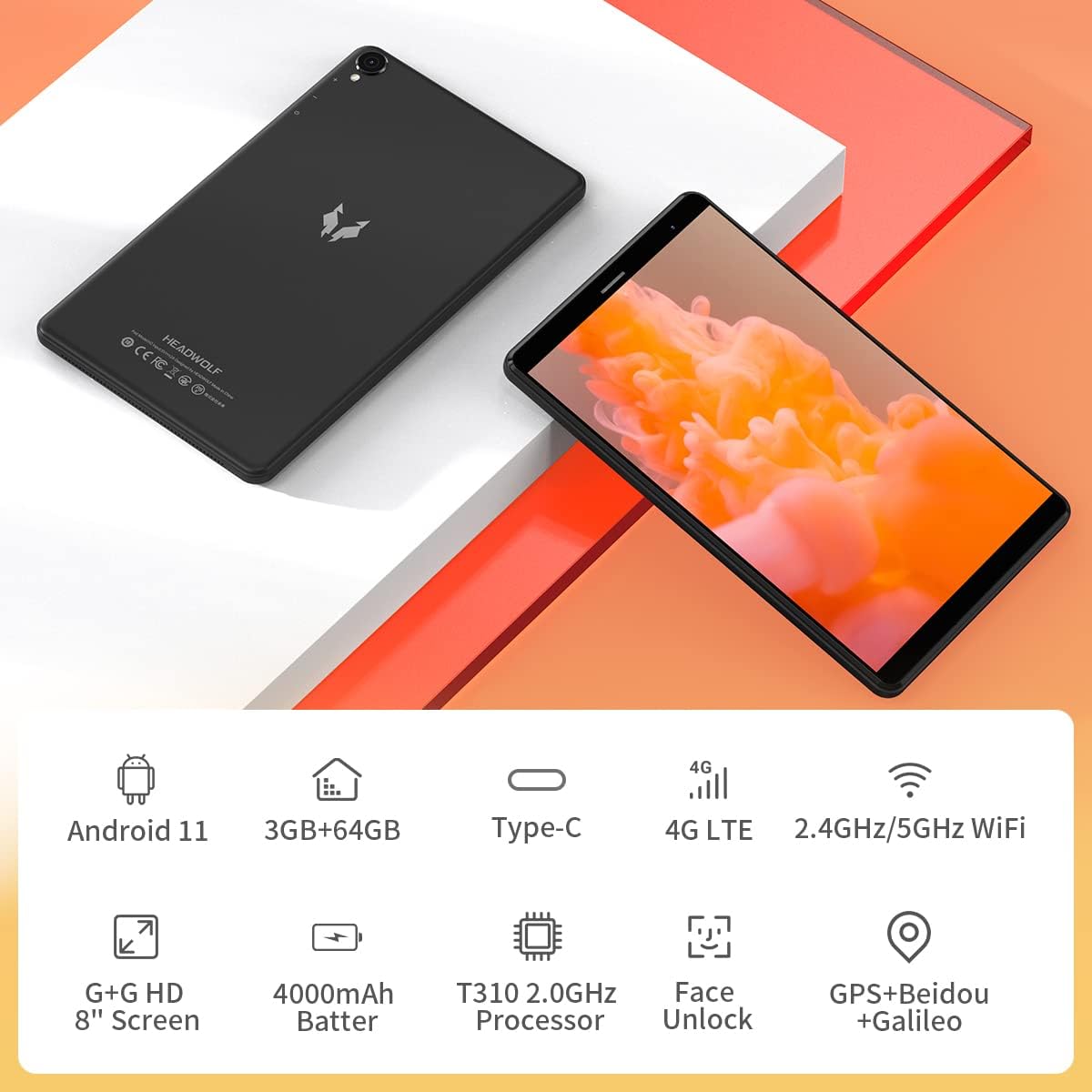
Figure 3.2: The back panel features the Headwolf logo, regulatory markings, and the rear camera module.
3.2. Предњи панел

Figure 3.3: The front of the tablet displays the 8-inch screen, the front-facing camera, and an earpiece for calls.
3.3. Сиде Viewс и луке

Figure 3.4: The side of the tablet includes the power button, volume rocker, 3.5mm headphone jack, SIM card slot, MicroSD card slot, and USB-C charging port.
- Дугме за напајање: Located on the right side, used to power on/off or wake/sleep the device.
- Тастер за јачину звука: Adjacent to the power button, controls audio volume.
- Задња камера: 5MP camera with LED flash, located on the back panel.
- Предња камера: 5MP camera, located on the front bezel above the screen.
- УСБ-Ц порт: For charging and data transfer, located on the top edge.
- 3.5 мм прикључак за слушалице: For connecting wired headphones, located on the top edge.
- Слот за СИМ картицу: Supports 4G LTE connectivity (check regional compatibility), located on the top edge.
- Утор за мицроСД картицу: For expandable storage, located on the top edge.
- говорници: Located on the bottom edge.
4. Подешавање
4.1. Прво укључивање
- Press and hold the Power Button on the right side of the tablet until the Headwolf logo appears on the screen.
- The tablet will boot up, displaying the Android welcome screen.
4.2. Избор језика и региона
Follow the on-screen prompts to select your preferred language and region. This will configure the tablet's default settings.
4.3. Мрежна веза
Connect your tablet to a Wi-Fi network to access the internet and complete the setup process. You may also insert a 4G LTE SIM card for mobile data connectivity (if supported in your region).
4.4. Подешавање Google налога
Sign in with your Google account or create a new one. This is necessary to download apps from the Google Play Store and access Google services.
5. Упутство за употребу
5.1. Основна навигација
- Гестови на екрану осетљивом на додир: Додирните да бисте изабрали, превуците прстом да бисте се померали, уштипните да бисте зумирали.
- Почетни екран: Access your apps and widgets. Swipe left or right to navigate between screens.
- Табла са обавештењима: Превуците прстом надоле од врха екрана да бисте приступили обавештењима и брзим подешавањима.
5.2. Повезивање
- Ви-Фи: Go to Settings > Network & Internet > Wi-Fi to connect to available networks. The tablet supports 2.4GHz and 5GHz Wi-Fi.
- Блуетоотх: Go to Settings > Connected devices > Bluetooth to pair with Bluetooth accessories (e.g., headphones, speakers). The tablet supports Bluetooth 5.0.
- 4Г ЛТЕ: If a compatible SIM card is inserted, mobile data can be enabled via Settings > Network & Internet > Mobile network.
- ГПС: The tablet has built-in GPS for navigation and location services.
5.3. камере
The Headwolf FPad 1 features 5MP front and rear cameras.

Figure 5.1: The tablet is equipped with dual 5MP cameras and supports face unlock.
- Фотографисање: Open the Camera app, select photo mode, and tap the shutter button.
- Снимање видео записа: In the Camera app, switch to video mode and tap the record button. Video recording is supported up to 1080p.
- Подешавања камере: Adjust settings like filters, white balance, and composition lines within the Camera app.
5.4. Конзумирање медија
Enjoy videos, music, and e-books on your tablet's HD display.

Figure 5.2: The 8-inch HD IPS display provides a clear viewискуство за разне медије.
- Видео репродукција: Use pre-installed apps like YouTube or download others from the Play Store.
- аудио: The tablet features stereo speakers. For a more immersive experience, connect headphones via the 3.5mm jack or Bluetooth.
5.5. Гаминг
The UNISOC T310 Quad-Core processor allows for smooth performance in most casual games. For graphically intensive games, performance may vary, and lower settings might be required for optimal gameplay.

Figure 5.3: The tablet's processor is capable of handling various gaming applications.
6. Одржавање
- Чишћење: Користите меку крпу која не оставља влакна за чишћење екрана и кућишта. Избегавајте јаке хемикалије.
- Одржавање батерије: Да бисте продужили век трајања батерије, избегавајте екстремне температуре и често потпуно пражњење батерије.
- Ажурирања софтвера: Редовно проверавајте и инсталирајте системска ажурирања како бисте осигурали оптималне перформансе и безбедност.
- Управљање складиштем: Периодично чистите непотребне files and apps to free up internal storage. Consider using a MicroSD card for additional storage.
КСНУМКС. Решавање проблема
This section addresses common issues you might encounter with your Headwolf FPad 1 tablet.
7.1. Уређај се не укључује
- Ensure the battery is charged. Connect the tablet to the power adapter and wait a few minutes before attempting to power it on again.
- Притисните и држите дугме за напајање најмање 10-15 секунди да бисте извршили присилно поновно покретање.
7.2. Slow Performance/Freezing
- Затворите неискоришћене апликације које раде у позадини.
- Clear cache data from apps and the system.
- Поново покрените таблет.
- Обезбедите довољно слободног простора за складиштење.
7.3. Проблеми са Wi-Fi повезивањем
- Toggle Wi-Fi off and on in Quick Settings or Settings.
- Рестартујте свој Wi-Fi рутер.
- Заборавите мрежу и поново се повежите.
7.4. Camera Quality
The 5MP cameras are designed for basic photography and video calls. For optimal results, ensure good lighting conditions. Camera performance may not be comparable to high-end smartphone cameras.
8. Спецификације
| Феатуре | Спецификација |
|---|---|
| Бранд | Хеадволф |
| Назив модела / Серија | FPad 1 / F1 |
| Број модела ставке | F2 |
| Оперативни систем | Android 12 (some marketing may refer to Android 11) |
| Величина екрана | 8 инча |
| Резолуција екрана | 1280x800 HD IPS |
| Процесор | UNISOC T310 Quad-Core A75 (2 GHz) |
| РАМ | 3 ГБ |
| Интерна меморија | 64 ГБ |
| Екпандабле Стораге | MicroSD up to 512GB (some sources indicate up to 2TB) |
| Задња камера | 5 МП |
| Предња камера | 5 МП |
| Капацитет батерије | 4000mAh (up to 7-8 hours usage) |
| Порт за пуњење | УСБ Типе-Ц |
| Бежично повезивање | 5G WiFi, Bluetooth 5.0, 4G LTE |
| Навигација | GPS, Beidou, Galileo |
| Димензије (ДкШкВ) | 8.31 к 0.38 к 4.97 инча |
| Тежина артикла | 11.4 унци (приближно 320 г) |
| Боја | Purple (as listed in specifications, though product images show black/grey) |
9. Гаранција и подршка
For warranty information and technical support, please refer to the documentation included with your purchase or visit the official Headwolf webсајт. Сачувајте доказ о куповини за евентуалне рекламације по гаранцији.