
1. Увод
This manual provides detailed instructions for the setup, operation, and maintenance of your KECAG 10.1 Inch Digital Picture Frame. Please read this manual thoroughly before using the device to ensure proper functionality and to maximize your user experience. Keep this manual for future reference.
2. Производ је готовview
2.1 Кључне карактеристике
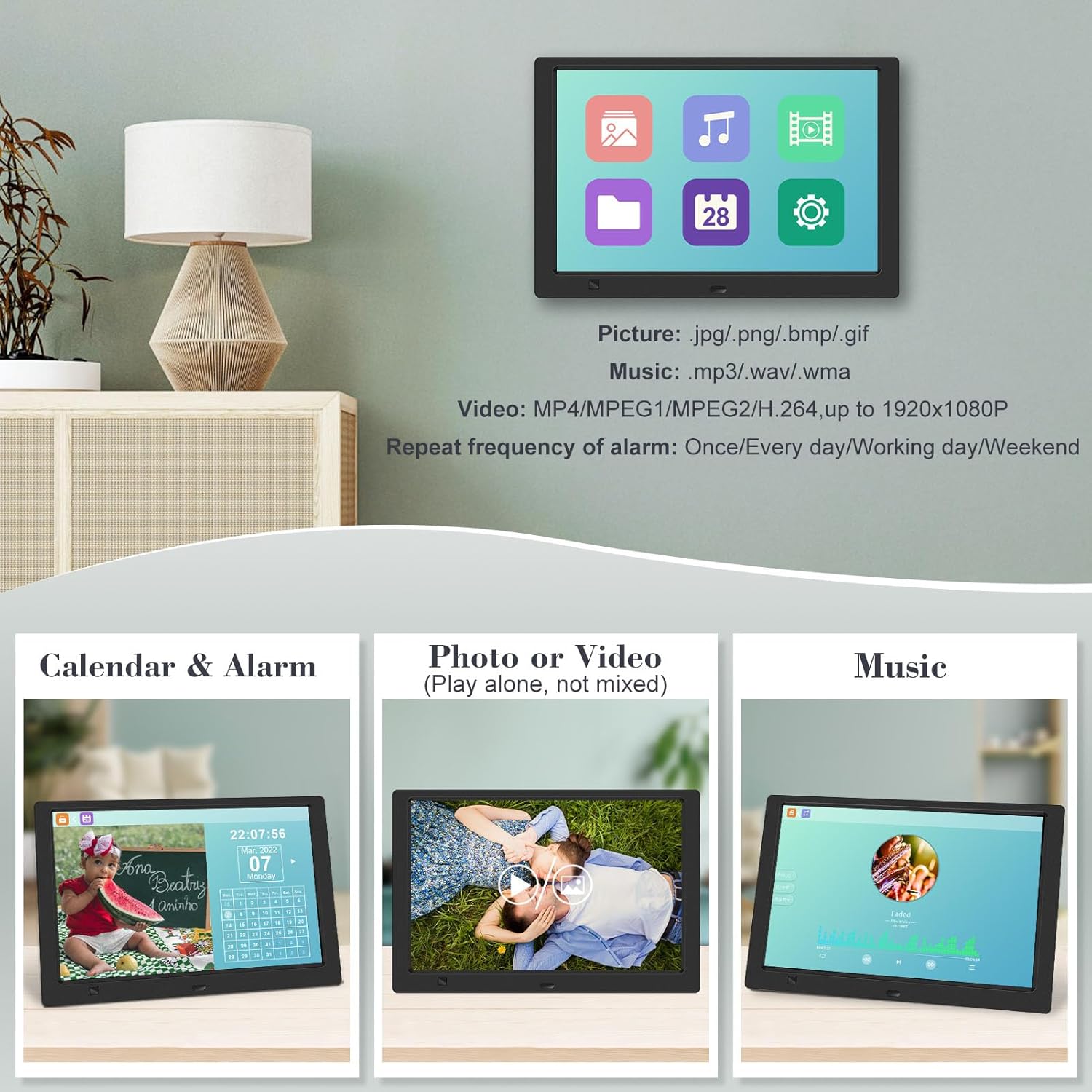
- 10.1 Inch 1080P HD IPS Screen: Features a 1920x1080 resolution with a 180° wide-angle IPS display for clear viewиз различитих углова.
- Мултимедијална репродукција: Supports photo slideshows, video playback, and music playback.
- Сензор покрета: Automatically turns the frame on/off based on detected movement to conserve energy.
- Timing On/Off Function: Allows scheduled power on and off times.
- Versatile Media Support: Compatible with SD cards and USB flash drives.
- Интерфејс прилагођен кориснику: Simple main menu for easy navigation.
- даљински управљач: Provides convenient operation from a distance.
- Додатне функције: Includes calendar and alarm features.
2.2 Садржај пакета
- KECAG 10.1 Inch Digital Picture Frame
- УСБ флеш диск од 32 ГБ
- Ремоте Цонтрол
- Повер Адаптер
- Упутство за употребу

Слика 2.2.1: The KECAG 10.1 Inch Digital Picture Frame displaying a family photo, accompanied by its remote control.
3. Подешавање
3.1 Прикључак за напајање
- Locate the power adapter included in the package.
- Connect the small end of the power adapter cable to the DC IN port on the back of the digital picture frame.
- Укључите други крај адаптера за напајање у стандардну електричну утичницу.
- The frame will automatically power on or enter standby mode.
3.2 Inserting Media (USB Drive or SD Card)
The digital picture frame supports both USB flash drives and SD cards for media playback.
- Identify the USB port and SD card slot on the side or back of the frame.
- For a USB drive: Carefully insert the USB flash drive into the USB port.
- For an SD card: Insert the SD card into the SD card slot with the metal contacts facing down, until it clicks into place.
- Ensure the media is inserted correctly to avoid damage.

Слика 3.2.1: Illustrated steps for connecting media (USB/SD card) and power to the digital picture frame.
3.3 Initial Power On and Language Settings
- Once powered on, the frame may display a language selection screen.
- Use the remote control's navigation buttons (Up/Down/Left/Right) to select your preferred language.
- Притисните тастер ЕНТЕР дугме да потврдите свој избор.
4. Упутство за употребу
4.1 Функције даљинског управљача
The remote control allows for convenient navigation and setting adjustments. Ensure the remote is aligned with the infrared sensor on the frame during use.
- МЕНИ: Access the main menu or return to the previous menu.
- ФОТО: Directly enter photo playback mode.
- МУЗИКА: Directly enter music playback mode.
- ФИЛМ: Directly enter video playback mode.
- ЕКСИТ: Exit current function or menu.
- ЕНТЕР: Потврдите избор или репродукујте/паузирајте медиј.
- ПОДЕСИТИ: Приступ поставкама система.
- Навигациона дугмад (горе/доле/лево/десно): Крећите се кроз меније и опције.
- ВОЛ+/ВОЛ-: Adjust volume during video or music playback.
4.2 Навигација по главном менију
From the main menu, you can select different functions:
- слика: View photos in a slideshow.
- музика: Пусти аудио files.
- Календар: Display calendar and set alarms.
- Подешавања: Конфигуришите подешавања уређаја.

Слика 4.2.1: The digital picture frame's interface showing options for Calendar, Photo/Video, and Music playback.
4.3 Репродукција фотографија
- Из главног менија изаберите Слика или притисните тастер ФОТО дугме на даљинском.
- The frame will automatically start a slideshow of photos found on the inserted media.
- Редослед репродукције: In settings, you can choose between Shuffle, Sequential, or Repeat All.
- Ефекти прелаза: Select from various effects like Up/Down, Mosaic, Left/Right, or Random.
- Имаге Преview: Access a thumbnail view of your photos.
- Ротација слике: Adjust the orientation of images (vertical/horizontal).
- Осветљеност екрана: Adjust the display brightness in the settings menu.
Слика 4.3.1: The digital picture frame displaying a photo slideshow with background music and various image transition options.

Слика 4.3.2: Visual representation of slideshow and image preview options, including settings for playback order, display scale, picture rotation, time window, and screen brightness adjustment.
4.4 Video and Music Playback
- Из главног менија изаберите Филм or Музика, or use the corresponding buttons on the remote.
- Дођите до жељеног file using the remote control and press ЕНТЕР играти се.
- Supported video formats: MP4/MPEG1/MPEG2/H.264 up to 1920x1080.
- Supported music formats: MP3/WAV/WMA.
4.5 Функција сензора покрета
The motion sensor helps save energy by automatically turning the frame on or off.
- To enable/disable the motion sensor, go to the Подешавања мени.
- Select the motion sensor option and toggle it On or Off.
- When enabled, the frame will power on when movement is detected and turn off after a period of inactivity.
4.6 Timing On/Off Function
Set specific times for the frame to automatically power on and off.
- Приступите Подешавања мени.
- Locate the Timing On/Off function.
- Set your desired power-on time and power-off time. You can also configure this for specific days (e.g., weekdays, weekends, every day).

Слика 4.6.1: Demonstrates the smart motion sensor turning on the frame when movement is detected and the timing on/off function for scheduled operation.
5. Одржавање
5.1 Чишћење екрана
Да бисте очистили екран, нежно га обришите меком, сувом крпом која не оставља влакна. За тврдокорне мрље, благо обришитеampОбришите крпу водом или средством за чишћење екрана. Избегавајте употребу јаких хемикалија или абразивних материјала.
5.2 Општа нега
- Keep the frame away from direct sunlight, heat sources, and excessive moisture.
- Избегавајте испуштање уређаја или излагање јаким ударима.
- Do not attempt to disassemble the frame; this will void the warranty.
- Осигурајте одговарајућу вентилацију око уређаја.
КСНУМКС. Решавање проблема
If you encounter issues with your digital picture frame, please refer to the following common problems and solutions:
| Проблем | Могући узрок | Решење |
|---|---|---|
| Рам се не укључује. | Адаптер за напајање није повезан или је утичница неисправна. | Ensure the power adapter is securely connected to the frame and a working electrical outlet. Try a different outlet. |
| No photos/videos/music displayed. | No media inserted, media not recognized, or unsupported file формату. | Ensure a USB drive or SD card is properly inserted. Check if files are in supported formats (JPG/PNG/BMP/GIF for photos; MP4/MPEG1/MPEG2/H.264 for video; MP3/WAV/WMA for music). Try reformatting the media (backup data first). |
| Даљински управљач не ради. | Battery depleted, remote not aimed correctly, or sensor obstructed. | Replace the remote control battery. Ensure the remote is pointed directly at the frame's infrared sensor. Remove any obstructions between the remote and the frame. |
| Екран је празан или замрзнут. | Привремени софтверски квар. | Искључите адаптер за напајање, сачекајте 10 секунди, а затим га поново укључите да бисте поново покренули оквир. |
7. Спецификације
| Феатуре | Спецификација |
|---|---|
| Величина екрана | 10.1 инча |
| Резолуција | 1920 x 1080 (1080p HD IPS) |
| Аспецт Ратио | 16:9 |
| Viewинг Англе | 180° |
| Компатибилни уређаји | SD Card, USB Drive |
| Подржани формати фотографија | ЈПГ, ПНГ, БМП, ГИФ |
| Подржани видео формати | MP4, MPEG1, MPEG2, H.264 (up to 1920x1080) |
| Подржани музички формати | МП3, ВАВ, ВМА |
| Сензор покрета | Да |
| Број модела ставке | KECAG-CA-001 |
| Димензије производа | 6.4 к 9.7 к 0.99 инча |
| Тежина артикла | 1.59 фунти |
| Батерије (даљински управљач) | 1 литијум-метална батерија (укључена) |
| Произвођач | КЕЦАГ |
8. Гаранција и подршка
For warranty information, please refer to the documentation included with your product packaging. KECAG provides 24-hour customer service to assist with any issues or questions you may have regarding your digital picture frame. Please contact customer support for assistance.