
1. Увод
This manual provides detailed instructions for the setup, operation, maintenance, and troubleshooting of your FMOUSE Slim White Wireless Bluetooth Mouse M113. Please read this manual thoroughly before using the product to ensure optimal performance and longevity.

Image 1: FMOUSE M113 Slim White Wireless Bluetooth Mouse
2. Садржај пакета
Након отварања пакета, проверите да ли су све следеће ставке укључене:
- 1 x FMOUSE M113 Wireless Mouse
- 1 x USB Charging Cable (Type-C, 80cm/31.5in)
- 1 x USB пријемник (2.4 GHz)
- 1 к Упутство за употребу

Image 2: Package contents of the FMOUSE M113 mouse
3. Подешавање
3.1 Пуњење миша
Before initial use, fully charge the mouse using the provided Type-C USB cable. The charging port is located at the front of the mouse.
- Пуњење: The scroll wheel light will display red.
- Пуњење је завршено: The scroll wheel light will turn off.
- Слаба батерија: The scroll wheel light will flash red.

Image 3: Type-C charging port and battery indicators
3.2 Повезивање миша (дуални режим)
The FMOUSE M113 supports two connection modes: 2.4GHz Wireless (via USB receiver) and Bluetooth 5.1. You can switch between modes using the selector switch on the bottom of the mouse.

Image 4: Dual connection options for the mouse
3.2.1 Бежична веза од 2.4 GHz (USB пријемник)
- Locate the USB receiver stored in the magnetic slot on the bottom of the mouse.
- Укључите УСБ пријемник у слободан УСБ порт на рачунару.
- Slide the switch on the bottom of the mouse to the 2.4Г position (indicated by a USB icon).
- Миш би требало аутоматски да се повеже са вашим уређајем.
3.2.2 Bluetooth 5.1 веза
- Slide the switch on the bottom of the mouse to the Блуетоотх position (indicated by a Bluetooth icon).
- The scroll wheel light will flash, indicating it is in pairing mode.
- On your device (e.g., MacBook, iPad, Laptop), navigate to the Bluetooth settings.
- Тражи available devices and select "FMOUSE M113" (or similar) to pair.
- Once paired, the scroll wheel light will stop flashing and remain solid.
Видео 1: Крајview of FMOUSE M113 features and connectivity
4. Управљање мишем
4.1 Основне функције
- Леви клик: Примарни избор и активација.
- Десни клик: Приступа контекстуалним менијима.
- Точак за померање: Scrolls content vertically.
4.2 ДПИ подешавање
The mouse features 4 adjustable DPI levels (800/1200/1600/2400) to customize cursor sensitivity. Press the Дугме ДПИ (located near the scroll wheel) to cycle through the settings. The scroll wheel light color indicates the current DPI level.
- 800 ДПИ: (Specific color may vary, refer to image)
- 1200 ДПИ: (Specific color may vary, refer to image)
- 1600 ДПИ: (Specific color may vary, refer to image)
- 2400 ДПИ: (Specific color may vary, refer to image)
To turn the scroll wheel light on or off, long-press the DPI button for 2 seconds.

Image 5: 4 Adjustable DPI levels and corresponding light indicators
4.3 Дугме за повратак на радну површину
The mouse includes a dedicated Desktop Return button. Pressing this button will instantly minimize all open windows and return you to your computer's desktop. This feature is useful for quick privacy or task switching.

Image 6: Function of the Desktop Return button
4.4 Дугме за искључивање звука/контролу јачине звука
Тхе Дугме за искључивање звука provides quick audio control:
- Појединачна штампа: Mutes or unmutes your computer's audio.
- Long Press (2 seconds) and Scroll: After a long press, you can adjust the computer's volume by scrolling the wheel up or down.

Image 7: Mute and volume adjustment functions
4.5 Функција тихог клика
The FMOUSE M113 is designed with silent click buttons, reducing noise during use. This makes it suitable for quiet environments such as libraries, offices, or late-night work.
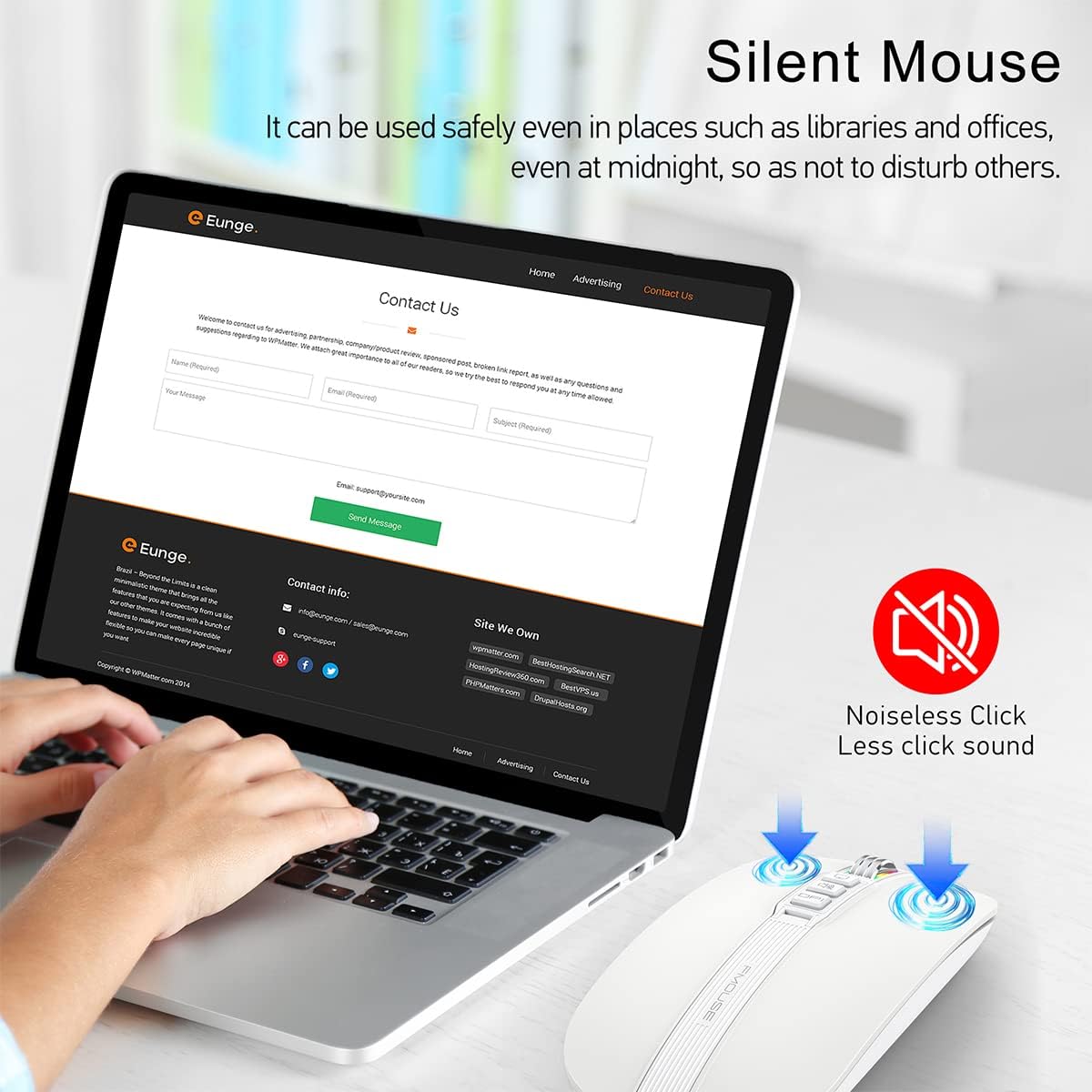
Image 8: Silent click feature of the mouse
5. Одржавање
5.1 Чишћење
- Искључите миш из уређаја пре чишћења.
- Користите меку, суву крпу која не оставља влакна да обришете површину миша.
- За тврдокорну прљавштину лагано дampОбришите крпу водом или благим средством за чишћење електронике. Избегавајте прекомерну влагу.
- Не користите јаке хемикалије, абразивна средства за чишћење или раствараче.
5.2 Одржавање батерије
- Charge the mouse regularly to maintain battery health.
- Избегавајте често потпуно пражњење батерије.
- Do not expose the mouse to extreme temperatures, as this can affect battery life.
5.3 Складиштење
- Када се миш не користи дуже време, чувајте га на хладном и сувом месту.
- Ensure the mouse is turned off to conserve battery life.
- The USB receiver can be stored in its magnetic slot on the bottom of the mouse to prevent loss.
КСНУМКС. Решавање проблема
6.1 Проблеми са повезивањем
- Mouse not connecting via 2.4GHz USB receiver:
- Ensure the USB receiver is securely plugged into a working USB port.
- Verify the switch on the bottom of the mouse is set to the 2.4G position.
- Try plugging the receiver into a different USB port. - Миш се не повезује преко Bluetooth-а:
- Ensure the switch on the bottom of the mouse is set to the Bluetooth position.
- Check that Bluetooth is enabled on your device.
- Remove any previous pairings of the mouse from your device's Bluetooth settings and attempt to pair again.
- Ensure the mouse is sufficiently charged.
6.2 DPI Light Behavior
- DPI light not changing color: Press the DPI button to cycle through settings. If it still doesn't change, ensure the mouse is powered on and charged.
- DPI light is off: Long-press the DPI button for 2 seconds to toggle the light on/off.
6.3 Проблеми са пуњењем
- Миш се не пуни:
- Ensure the Type-C charging cable is securely connected to both the mouse and a power source.
- Try using a different USB port or power adapter.
- Check if the charging cable is damaged. - Scroll wheel light flashing red: This indicates a low battery. Connect the mouse to a power source for charging.
6.4 Cursor Movement
- Неправилно или никакво кретање курсора:
- Ensure the mouse is properly connected (2.4GHz or Bluetooth).
- Check the battery level and charge if necessary.
- Clean the optical sensor on the bottom of the mouse.
- Ensure the mouse is used on a suitable surface (not highly reflective or transparent).
7. Спецификације
| Феатуре | Спецификација |
|---|---|
| Димензије производа | 4.45 к 2.24 к 0.98 инча (113 к 57 к 25 мм) |
| Тежина артикла | 2.4 унце (68 грама) |
| Технологија повезивања | Bluetooth 5.1, бежични 2.4GHz (USB) |
| Технологија детекције покрета | Оптицал |
| ДПИ Левелс | 800 / 1200 / 1600 / 2400 |
| Тип батерије | 1 литијум-јонска батерија (укључена) |
| Порт за пуњење | Типе-Ц |
| Посебне карактеристике | One-click DPI adjustment, One-click access to desktop, One-click muting, Three shortcut keys |

Image 9: Dimensions of the FMOUSE M113 mouse
8. Гаранција и подршка
8.1 Информације о гаранцији
FMOUSE products are designed and manufactured to the highest quality standards. For specific warranty details, please refer to the warranty card included in your product packaging or visit the official FMOUSE webсајт. Сачувајте рачун као доказ о куповини за потребе гаранције.
8.2 Корисничка подршка
If you encounter any issues or have questions regarding your FMOUSE M113 mouse that are not covered in this manual, please contact FMOUSE customer support through the following channels:
- Службено Webсајт: Visit the FMOUSE Store on Amazon
- Емаил: Погледајте паковање производа или званична упутства webсајт за контакт имејл.