
YQSAVIOR YQ10S
Упутство за употребу YQSAVIOR 10" Android 14 таблета
Model: YQ10S | Brand: YQSAVIOR
1. Увод
This user manual provides comprehensive instructions for the YQSAVIOR 10" Android 14 Tablet (Model: YQ10S). It covers essential information regarding product setup, operation, maintenance, and troubleshooting. Please read this manual thoroughly before using your tablet to ensure proper functionality and to maximize your user experience.
2. Безбедносне информације
- Безбедност батерије: Do not attempt to replace the battery yourself. Use only the provided charger and cable. Avoid exposing the tablet to extreme temperatures or direct sunlight.
- Отпорност на воду: This tablet is not water-resistant. Avoid exposure to liquids.
- Чишћење: Disconnect the tablet from power before cleaning. Use a soft, dry cloth. Avoid abrasive cleaners or solvents.
- одлагање: Dispose of the tablet and its accessories responsibly according to local regulations. Do not dispose of electronic waste in household trash.
- деца: Држите мале делове и материјале за паковање даље од деце како бисте спречили опасност од гушења.
3. Садржај пакета
Проверите да ли су све ставке присутне у вашем пакету:
- 1x YQ10S tablet
- 1к пуњач
- 1к кабл типа Ц
- 1x Упутство за употребу (овај документ)
4. Производ је готовview
Familiarize yourself with the physical features and components of your YQSAVIOR 10" Android 14 Tablet.

Слика 4.1: Предње и задње view of the YQSAVIOR 10" Android 14 Tablet in Pink. The tablet features a sleek design with a textured pink back panel and a black front display.
4.1. Главне компоненте
- Приказ: 10-inch IPS Touch Screen with 1280x800 resolution for vibrant colors and clear visuals.
- Предња камера: 2.0MP camera, typically located above the screen for video calls and selfies.
- Задња камера: 8.0MP camera, located on the back panel for capturing photos and videos.
- Дугме за напајање: Usually on the side, used to turn the tablet on/off or put it to sleep/wake.
- Дугмад за јачину звука: Typically located near the power button, used to adjust audio volume.
- УСБ Типе-Ц порт: За пуњење и пренос података.
- Утор за мицроСД картицу: Allows for storage expansion up to 1TB.
- Двоструки звучници: Located on the sides or bottom for audio output.

Слика 4.2: The tablet supports 5G/2.4G WiFi and Wi-Fi 6, ensuring fast and stable network connectivity for browsing and streaming.
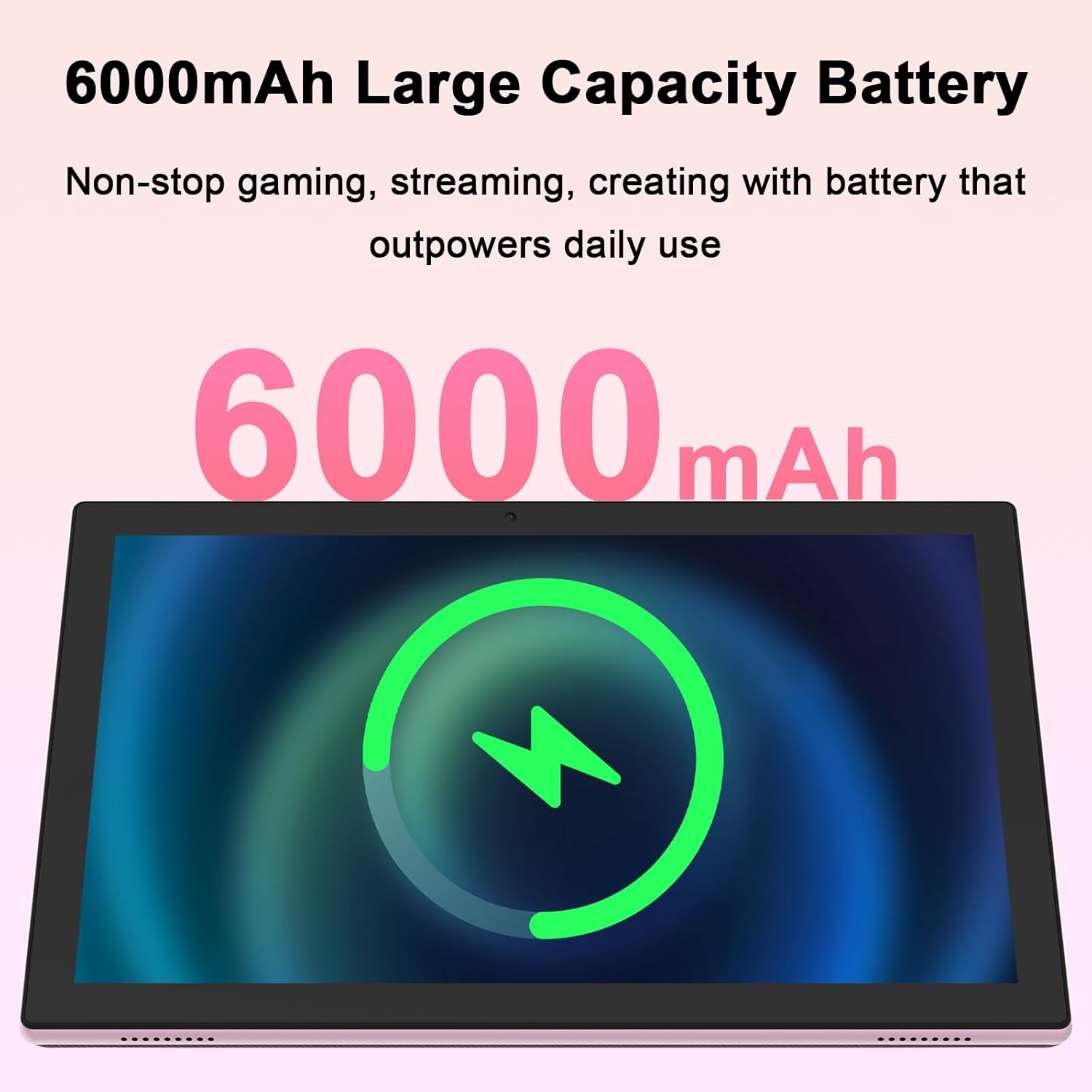
Слика 4.3: Equipped with a 6000mAh large capacity battery, the tablet provides extended usage time for various activities.
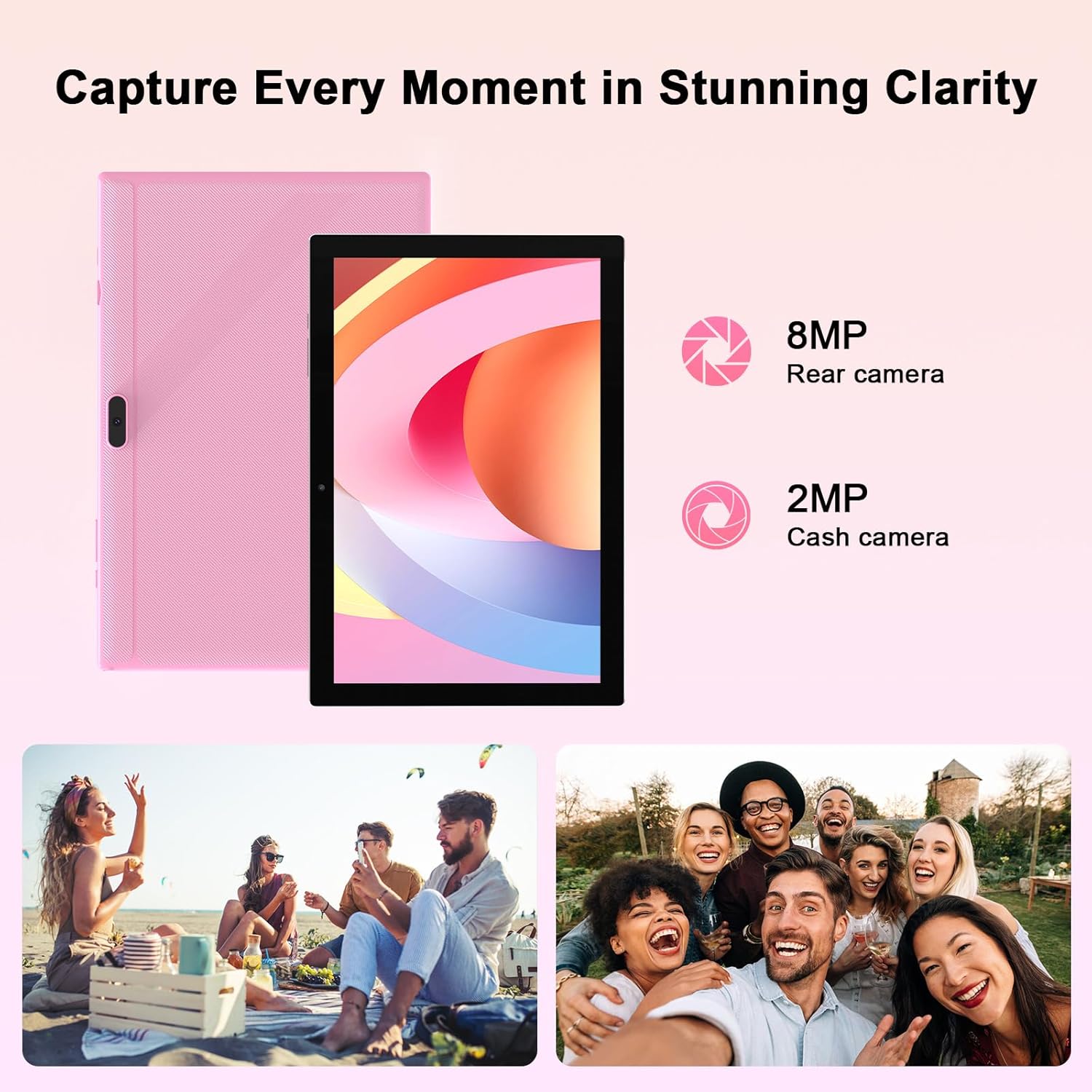
Слика 4.4: The tablet features an 8MP rear camera and a 2MP front camera, suitable for capturing moments and video calls.

Слика 4.5: The tablet's powerful quad-core processor and 8GB RAM (4+4GB) ensure smooth performance for gaming and multimedia consumption.

Слика 4.6: With 64GB ROM and support for up to 1TB expandable storage via TF card, the tablet offers ampпростор за апликације, фотографије и видео записе.
Видео 4.1: Званична видео презентација производаasing the YQSAVIOR 10-inch tablet's features, including its display, speakers, and overall design. This video highlights the tablet's suitability for various uses.
5. Подешавање
5.1. Пуњење таблета
Before first use, fully charge your tablet. Connect the provided Type-C cable to the tablet's charging port and the other end to the charger. Plug the charger into a power outlet. The battery indicator on the screen will show charging status. A full charge typically takes several hours.
5.2. Укључивање/искључивање
- За укључивање: Press and hold the Power button until the YQSAVIOR logo appears on the screen.
- За искључивање: Притисните и држите дугме за напајање док се не појави мени за искључивање. Изаберите „Искључивање“ и потврдите.
- За спавање/буђење: Briefly press the Power button to put the tablet to sleep or wake it from sleep mode.
5.3. Почетно подешавање
При првом укључивању, таблет ће вас водити кроз процес почетног подешавања. Пратите упутства на екрану да бисте:
- Изаберите свој језик.
- Повежите се на Ви-Фи мрежу.
- Sign in with your Google account (or create one).
- Подесите закључавање екрана (ПИН, шаблон, лозинка).
- Review и прихватите услове и одредбе.
5.4. Повезивање на Ви-Фи
Да бисте се повезали на Ви-Фи мрежу:
- Иди на Подешавања > Мрежа и интернет > Ви-Фи.
- Укључите Ви-Фи.
- Изаберите жељену мрежу са листе.
- Унесите лозинку ако се то од вас затражи и додирните Повежите се.
6. Упутство за употребу
6.1. Основна навигација
The YQSAVIOR tablet uses a touch-sensitive screen for navigation:
- Додирните: Да бисте изабрали ставку или отворили апликацију.
- Додирните и држите: За приступ контекстуалним менијима или премештање ставки.
- Превуците: За кретање кроз екране или листе.
- Зумирање штипкањем прстију: Да бисте увећали или умањили слике и web странице.
6.2. Управљање апликацијама
As a GMS Certified Tablet, you can download and install a wide variety of applications from the Google Play Store.
- Инсталирање апликација: Отворите Плаи продавница апликацију, потражите жељену апликацију и додирните Инсталирај.
- Деинсталирање апликација: Touch and hold the app icon on the home screen or app drawer, then drag it to "Uninstall" or select "App info" and choose "Uninstall".
6.3. Управљање складиштем
Your tablet comes with 64GB of internal storage. You can expand this by inserting a MicroSD card (up to 1TB).
- Уметање МицроСД картице: Locate the MicroSD card slot, gently insert the card until it clicks into place.
- Управљање складиштем: Иди на Подешавања > Складиштење да view коришћење и управљање складишним простором files.
6.4. Употреба камере
Use the built-in cameras to capture photos and videos.
- Отворите Камера апп.
- Switch between front (2MP) and rear (8MP) cameras using the camera switch icon.
- Додирните дугме затварача да бисте снимили фотографију или покренули/зауставили снимање видеа.
6.5. Блуетоотх повезивање
Connect your tablet to Bluetooth devices like headphones or speakers.
- Иди на Подешавања > Повезани уређаји > Блуетоотх.
- Укључите Блуетоотх.
- Изаберите свој уређај са листе доступних уређаја за упаривање.
7. Одржавање
7.1. Чишћење таблета
To keep your tablet in optimal condition:
- Користите меку крпу која не оставља влакна да обришете екран и кућиште.
- За тврдокорне мрље, благо дampОперите крпу водом или средством за чишћење екрана намењеним за електронику.
- Avoid spraying liquids directly onto the tablet.
7.2. Ажурирања софтвера
Редовно проверавајте и инсталирајте ажурирања софтвера како бисте били сигурни да ваш таблет има најновије функције, безбедносне закрпе и побољшања перформанси.
- Ensure your tablet is connected to Wi-Fi.
- Иди на Подешавања > Систем > Ажурирање система.
- Пратите упутства на екрану да бисте проверили и инсталирали све доступне надоградње.
КСНУМКС. Решавање проблема
This section addresses common issues you might encounter with your YQSAVIOR tablet.
| Проблем | Могући узрок | Решење |
|---|---|---|
| Таблет се не укључује. | Слаба батерија; пад софтвера. | Charge the tablet for at least 30 minutes. Perform a forced restart by holding the Power button for 10-15 seconds. |
| Tablet is slow or freezes. | Превише апликација које раде; мало меморије; застарели софтвер. | Close unused apps. Clear cache. Free up storage space. Check for system updates. Restart the tablet. |
| Повезивање на Ви-Фи није могуће. | Нетачна лозинка; проблем са рутером; Wi-Fi је онемогућен. | Ensure correct password. Restart your Wi-Fi router. Toggle Wi-Fi off and on in tablet settings. |
| Батерија се брзо празни. | Висока осветљеност екрана; апликације у позадини; слаб сигнал. | Reduce screen brightness. Close background apps. Disable unused features like Bluetooth/GPS. |
| Apps crashing or not installing. | Insufficient storage; app incompatibility; corrupted data. | Clear app cache/data. Free up storage. Ensure app is compatible with Android 14. Reinstall the app. |
Ако проблеми и даље постоје, размислите о враћању на фабричка подешавања (Подешавања > Систем > Опције ресетовања > Обриши све податке (ресетовање на фабричка подешавања)). Note: This will erase all data on your tablet, so back up important fileс први.
9. Спецификације
| Феатуре | Детаљ |
|---|---|
| Бранд | ИКСАВИОР |
| Назив модела | ИК10С |
| Оперативни систем | Андроид 14 |
| Величина екрана | 10 инча |
| Резолуција екрана | 1280x800 IPS |
| Процесор | 1.6 GHz Quad-core (ARM Rockchip) |
| РАМ | 8 ГБ (4+4 ГБ) |
| Интерна меморија (РОМ) | 64 ГБ |
| Екпандабле Стораге | МикроСД картица до 1 ТБ |
| Задња камера | 8 МП |
| Предња камера | 2 МП |
| Вирелесс Типе | 802.11n (2.4G WiFi), Bluetooth |
| Капацитет батерије | 6000мАх |
| Просечно трајање батерије | 10 сати (мешовита употреба) |
| Тежина артикла | 14.1 унци (приближно 400 г) |
| Димензије производа (ДкШкВ) | 10 к 4.6 к 0.3 инча |
| Боја | Пинк |
10. Гаранција и подршка
YQSAVIOR products are designed and manufactured to the highest quality standards. For information regarding warranty coverage, technical support, or service inquiries, please refer to the warranty card included with your product or visit the official YQSAVIOR website. Please have your product model number (YQ10S) and purchase details ready when contacting support.
Ask a question about this manual
Ask about setup, troubleshooting, compatibility, parts, safety, or missing instructions. Manuals+ will review the question and use this page’s manual context to help answer it.