
1. Увод
Welcome to the HyperX Armada 25 Gaming Monitor user manual. This document provides essential information for setting up, operating, maintaining, and troubleshooting your new monitor. The HyperX Armada 25 is designed for competitive gaming, featuring a 24.5-inch Full HD (1920x1080) IPS panel, a 240Hz refresh rate, and a 1ms response time, ensuring smooth and responsive visuals. It also includes NVIDIA G-SYNC compatibility to eliminate screen tearing and minimize input latency. A desk mount is included for convenient setup and to maximize desk space.
Кључне карактеристике:
- Све-у-једном пакет: Includes an ergonomic arm and desk mount for easy setup and space-saving.
- Висока брзина освежавања и време одзива: 240Hz refresh rate and 1ms response time for ultra-smooth gaming.
- Vibrant IPS Panel: 24.5-inch Full HD (1920x1080) IPS panel delivers stunning visuals with accurate colors and wide viewинг углова.
- Компатибилност са NVIDIA G-SYNC: Eliminates screen tearing and reduces stuttering for a fluid gaming experience.

Званични видео производа:
2. Подешавање
This section guides you through the initial setup of your HyperX Armada 25 Gaming Monitor, including assembly and connection to your computer.
2.1. Assembling the Desk Mount
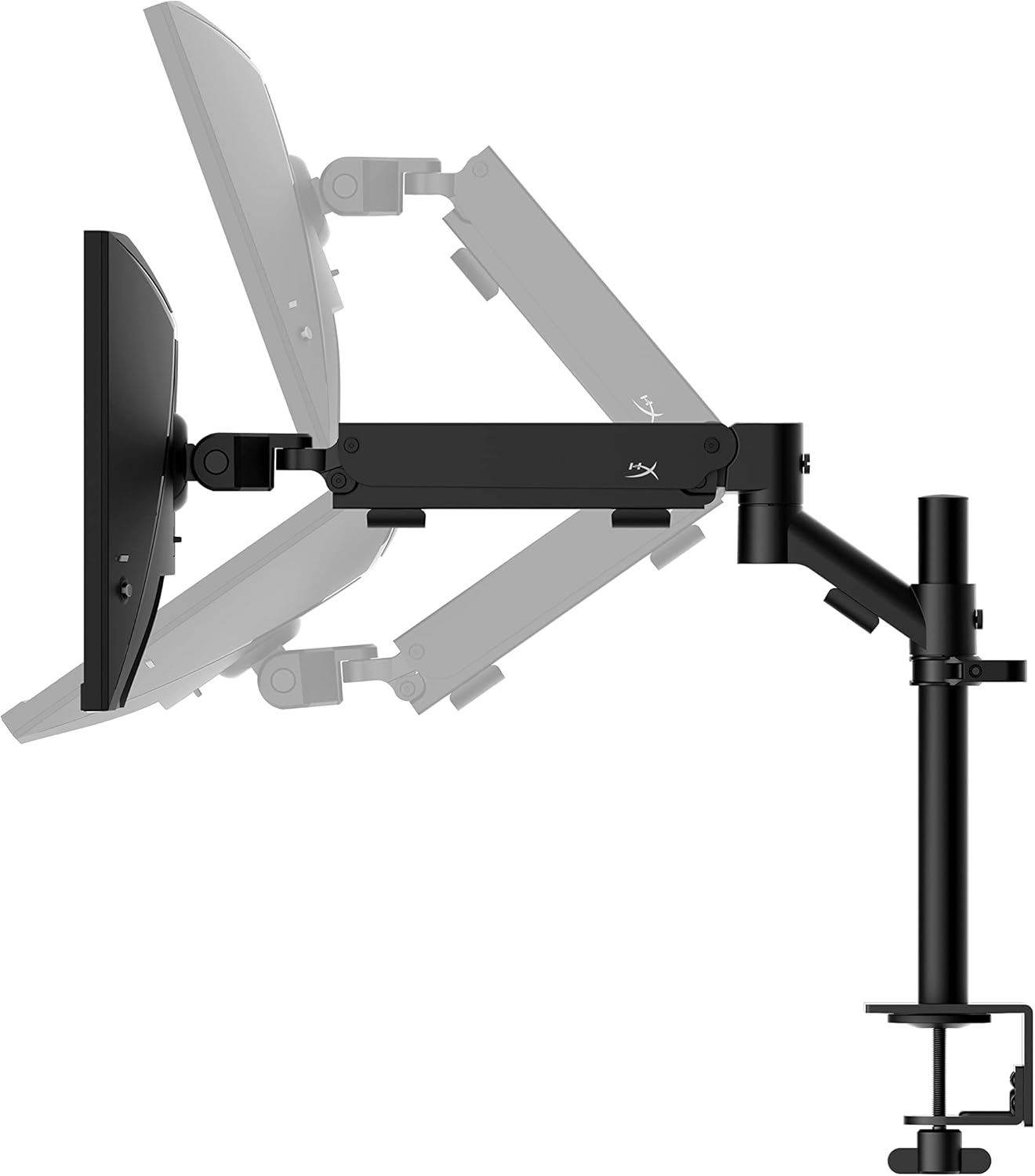
The HyperX Armada 25 comes with an integrated ergonomic desk mount. Follow the instructions provided in the separate quick start guide for detailed assembly steps. The monitor head easily snaps into the arm, allowing for quick and secure installation.

2.2. Повезивање монитора
Connect the monitor to your computer using the appropriate cables. The HyperX Armada 25 supports both HDMI and DisplayPort connections.
- Повежите један крај HDMI или DisplayPort кабла са одговарајућим портом на графичкој картици рачунара.
- Connect the other end of the cable to an available HDMI 2.0 or DisplayPort 1.4 port on the back of your monitor.
- Прикључите кабл за напајање на монитор, а затим на утичницу.
- Притисните дугме за напајање на монитору да бисте га укључили.

3. Руковање монитором
This section covers basic operation and navigation of the monitor's On-Screen Display (OSD) menu.
3.1. Навигација преко екранског менија (OSD)
The OSD menu is controlled using a joystick located on the back of the monitor. This joystick allows you to power on/off the monitor and navigate through various settings.
- Притисните џојстик: Да бисте отворили OSD мени или потврдили избор.
- Move the joystick Up/Down/Left/Right: To navigate through menu options and adjust settings.
- Hold the joystick: To power off the monitor.

3.2. Подешавање положаја монитора
The ergonomic desk mount allows for flexible positioning of your monitor. You can adjust the height, tilt, swivel, and pivot to find your optimal viewугао уласка.

4. Одржавање
Proper maintenance ensures the longevity and optimal performance of your HyperX Armada 25 Gaming Monitor.
- Чишћење екрана: Лагано користите меку крпу која не оставља длачице дampened with water or a specialized screen cleaner. Avoid using harsh chemicals, abrasive materials, or direct spraying onto the screen.
- Чишћење Цasing: Обришите монитор цasinг меком, сувом крпом.
- вентилација: Уверите се да вентилациони отвори монитора нису блокирани како бисте спречили прегревање.
- Искључите када се не користи: Искључите монитор када га не користите дуже време како бисте уштедели енергију и продужили његов век трајања.
КСНУМКС. Решавање проблема
Ако наиђете на проблеме са монитором, погледајте следеће уобичајене кораке за решавање проблема.
- Нема напајања:
- Проверите да ли је кабл за напајање добро повезан и са монитором и са утичницом.
- Уверите се да утичница за напајање исправно функционише.
- Притисните дугме за напајање на монитору.
- Нема сигнала:
- Verify that the HDMI or DisplayPort cable is securely connected to both the monitor and your computer.
- Уверите се да је рачунар укључен и да није у режиму спавања.
- Изаберите исправан улазни извор помоћу OSD менија.
- Flickering Screen or Image Issues:
- Check the display cable for damage or loose connections.
- Уверите се да су драјвери ваше графичке картице ажурирани.
- Подесите брзину освежавања у подешавањима екрана рачунара.
- If G-SYNC is enabled, try disabling it temporarily to see if the issue persists.
- Buttons Not Responding (OSD Joystick):
- Уверите се да је монитор укључен.
- Try restarting the monitor by unplugging and replugging the power cable.
- Clean around the joystick to ensure no debris is obstructing its movement.
6. Спецификације
Detailed technical specifications for the HyperX Armada 25 Gaming Monitor.
| Феатуре | Детаљ |
|---|---|
| Димензије производа | 21.94 к 25.79 к 31.12 инча; 16.98 фунти |
| Број модела ставке | HyperX Armada 25 |
| Датум првог доступног | 24. августа 2022. године |
| Произвођач | ХП Инц. |
| ASIN | B0B2C1G356 |
| Величина екрана | 24.5 инча дијагонала |
| Резолуција | Фул ХД (1920x1080) |
| Рефресх Рате | 240Хз |
| Панел Типе | ИПС Панел |
| Време одговора | 1мс |
| Синц технологија | Компатибилан са НВИДИА® Г-СИНЦ® |
| Included Mount | Desk Mount Included |
| Повезивање | HDMI and Display Port |
7. Гаранција и подршка
For warranty information, technical support, or to access additional resources, please visit the official HyperX webсајту или контактирајте њихову корисничку службу.
- Званични HyperX Webсајт: www.hyperx.com
- Страница за подршку производу: Refer to the support section on the HyperX webсајт за ваш специфични модел.