
1. Увод
Thank you for choosing the AUN AKEY6S Native Full HD 1080p Projector. This manual provides essential information for setting up, operating, maintaining, and troubleshooting your projector. Please read this manual thoroughly before use to ensure optimal performance and longevity of your device.
The AUN AKEY6S projector features native 1920x1080p resolution with 4K support, 8000 lumens brightness, a 12000:1 contrast ratio, and runs on Android 9.0. It offers versatile connectivity options including WiFi (2.4G/5G) and Bluetooth 5.2, making it suitable for various home cinema and presentation needs.
2. Подешавање
2.1 Распакивање и садржај пакета
Пажљиво извадите све компоненте из паковања. Уверите се да су присутне све ставке наведене у наставку:
- 1x AUN AKEY6S Projector
- 1к даљински управљач
- 1x Упутство за употребу (овај документ)
- КСНУМКСк напајање
2.2 Постављање пројектора
Position the projector on a stable, flat surface or mount it securely. Ensure there is adequate ventilation around the device. The optimal projection distance and screen size are as follows:
- Величина пројекције: 50 до 300 инча
- Удаљеност пројекције: Approximately 1.5 meters (50 inches) to 6.2 meters (300 inches)

Image: Illustration of the AUN AKEY6S projector demonstrating adjustable projection sizes from 50 to 300 inches based on distance from the screen.
2.3 Прикључак за напајање
Connect the provided power supply cable to the projector's power input port and then plug it into a standard electrical outlet.
2.4 Почетно укључивање
Press the power button on the projector or the remote control to turn on the device. The projector will boot up and display the Android 9.0 interface.
2.5 Подешавање фокуса и трапезоидног искривљења
- Фокус: Rotate the focus ring on the projector lens until the projected image is clear and sharp.
- Кеистоне Цоррецтион: The AKEY6S features an electronic keystone correction of ±40°. Access this setting through the projector's menu to adjust the image shape if it appears trapezoidal.
2.6 Опције монтаже
The projector supports multiple mounting configurations:
- Десктоп Моунт: Поставите пројектор на равну површину.
- Монтажа на плафон: Secure the projector to the ceiling using a compatible projector mount (not included). Ensure the image orientation is adjusted in the projector settings if mounted upside down.

Image: Visual representation of various mounting options for the AUN AKEY6S projector, including ceiling and desktop placements.
3. Упутство за употребу
3.1 User Interface Navigation (Android 9.0)
Navigate the Android 9.0 interface using the remote control. Use the directional buttons to move between icons and options, and the OK button to select. The Back button returns to the previous screen, and the Home button returns to the main menu.
3.2 Повезивање екстерних уређаја
The AKEY6S projector offers multiple ports for connecting various devices:

Слика: Детаљна view of the AUN AKEY6S projector's rear panel, highlighting all available input and output ports for connectivity.
- HDMI (HD-IN): Connect devices like laptops, gaming consoles (X-BOX, PS4), TV sticks, or set-top boxes using an HDMI cable. Select the corresponding HDMI input source from the projector's menu.
- USB (USB-IN): Insert USB flash drives to play media files (videos, photos, music) directly.
- AV (AV-IN): Connect older devices using an AV cable.
- SD Card (SD Card-IN): Уметните SD картицу да бисте приступили медијима files.
- 3.5 мм аудио излаз: Повежите екстерне звучнике или слушалице.
- РЈ45 (ЛАН): For wired internet connection (Android version only).
- VGA (VGA-IN): Connect computers or laptops using a VGA cable.
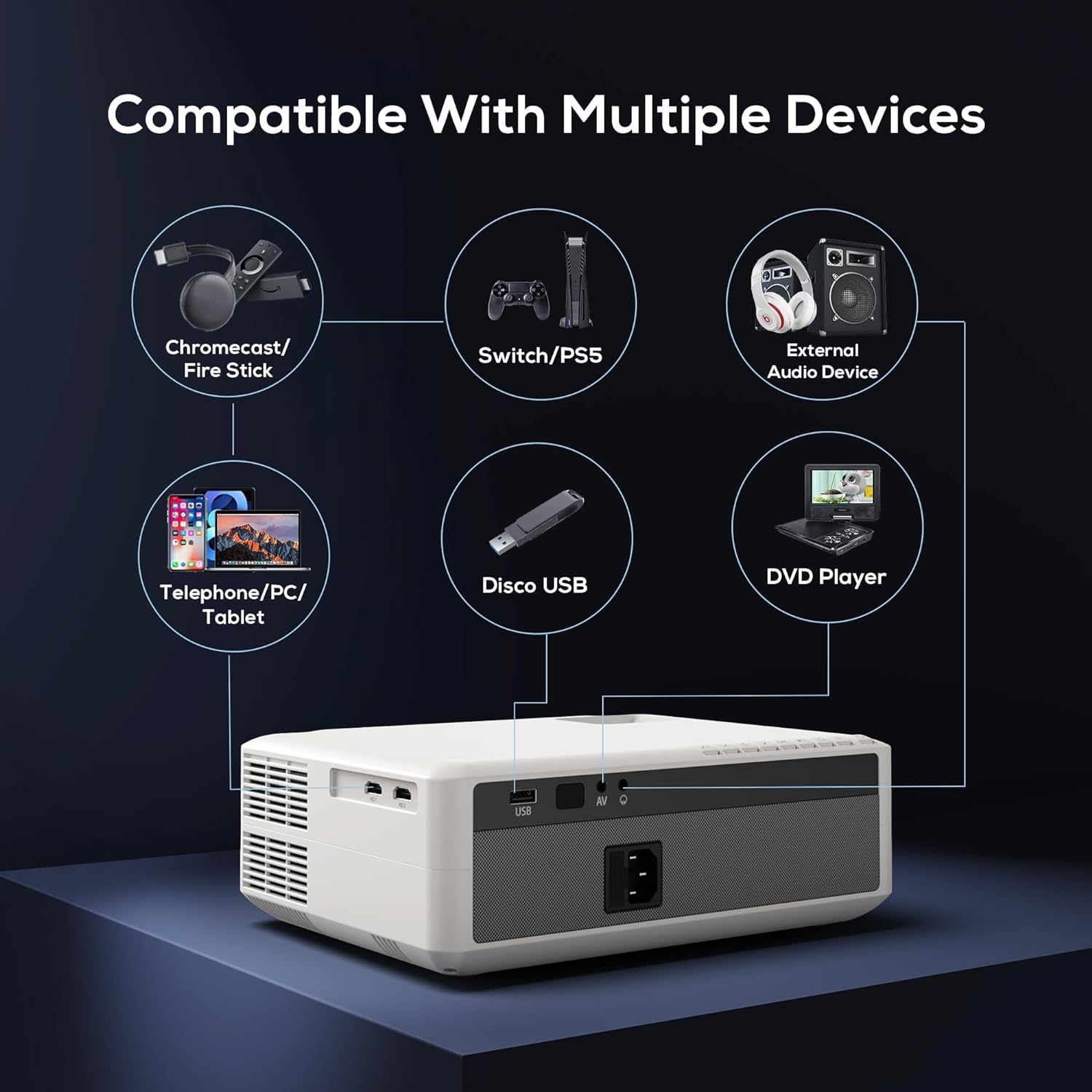
Image: Diagram illustrating the AUN AKEY6S projector's compatibility with a wide range of external devices such as streaming sticks, gaming consoles, audio systems, mobile devices, USB drives, and DVD players.
3.3 Wireless Connectivity (WiFi)
Да бисте се повезали на бежичну мрежу:
- Go to the projector's settings menu.
- Изаберите Мрежа и Интернет.
- Укључи Ви-Фи and select your desired 2.4G or 5G network from the list.
- Унесите лозинку ако се то од вас затражи и повежите се.
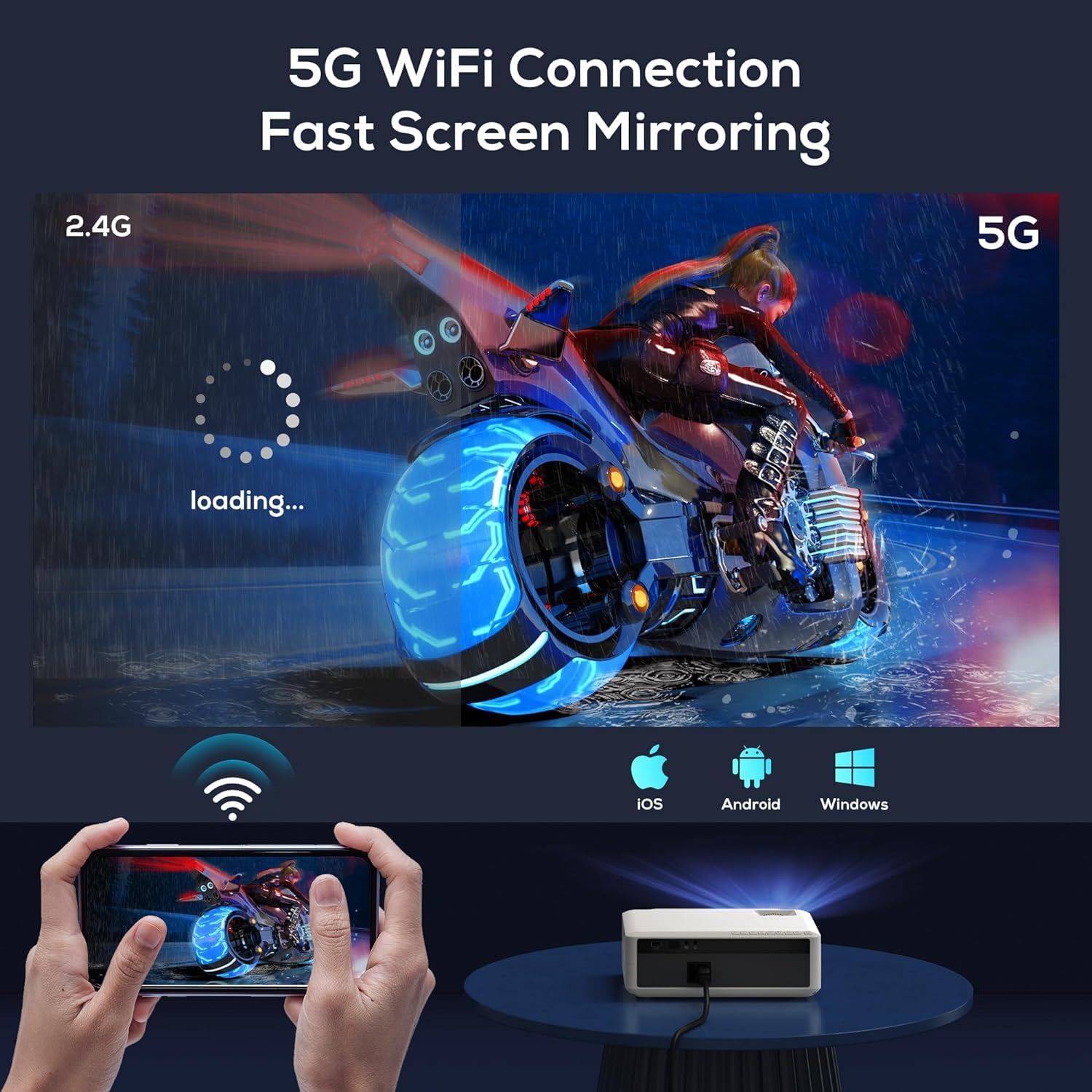
Image: The AUN AKEY6S projector displaying a loading screen, illustrating its 5G WiFi capability for fast screen mirroring from a mobile device.
3.4 Bluetooth аудио веза
Pair Bluetooth speakers or headphones for enhanced audio:
- Go to the projector's settings menu.
- Изаберите Повезани уређаји or Блуетоотх.
- Turn on Bluetooth and put your audio device into pairing mode.
- Select your device from the list to connect.
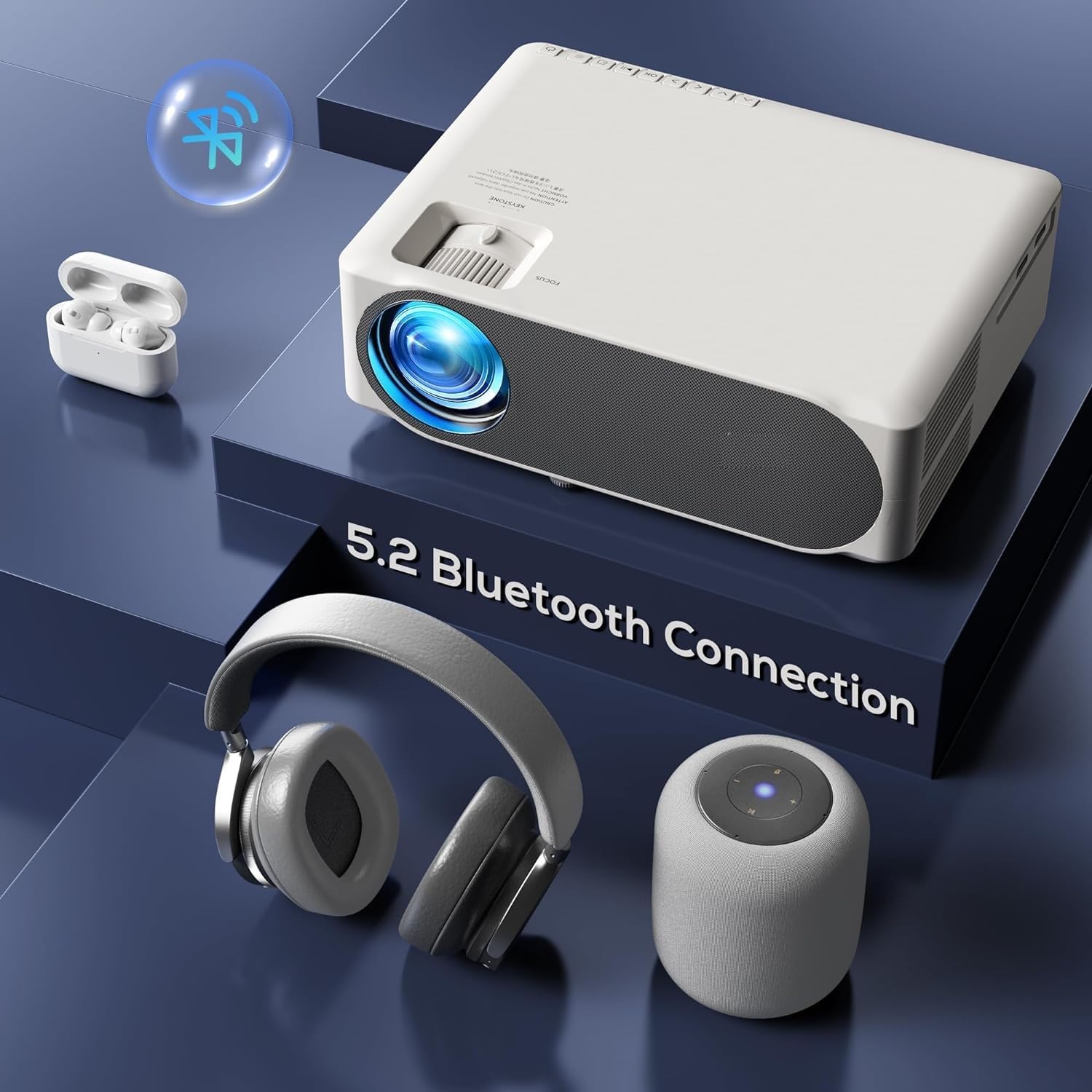
Image: The AUN AKEY6S projector shown with various Bluetooth audio devices, highlighting its Bluetooth 5.2 connectivity for wireless sound.
3.5 Пресликавање екрана
The projector supports screen mirroring from iOS, Android, and Windows devices via WiFi. Refer to the specific screen mirroring application or setting on your device and follow the on-screen instructions to connect to the projector.
3.6 Управљање апликацијама
The AKEY6S comes with Android 9.0 and pre-installed applications. You can also install more apps:
- Унапред инсталиране апликације: YouTube, Netflix, Hotstar, Prime Video.
- Installing New Apps:
- The projector supports Google Play Store and APK installation.
- To install Aptoide TV App Store: Open the browser, search for "Aptoide TV APK", download the APK, then open File Manager and install.
- Download other apps like Netflix, Hotstar, Prime Video from Aptoide TV App Store if not pre-installed or if updates are needed.
4. Одржавање
4.1 Чишћење
- Објектив: Користите меку крпу без влакана, посебно дизајнирану за оптичка сочива. Не користите абразивна средства за чишћење или прекомерну силу.
- Тело пројектора: Wipe the exterior with a soft, dry cloth. For stubborn dirt, slightly dampу крпу са водом.
- Вентс: Regularly check and clean the ventilation openings to prevent dust buildup, which can affect cooling performance. Use a soft brush or compressed air.
4.2 Dust Protection
The AUN AKEY6S projector features an advanced dustproof design to minimize dust ingress and maintain image quality over time. Regular cleaning of external vents is still recommended.
4.3 Складиштење
When not in use for extended periods, store the projector in a cool, dry place, away from direct sunlight and extreme temperatures. Cover the lens with its cap to protect it from dust and scratches.
КСНУМКС. Решавање проблема
If you encounter issues with your AUN AKEY6S projector, refer to the following common problems and solutions:
5.1 Нема напајања
- Ensure the power cable is securely connected to both the projector and the power outlet.
- Проверите да ли је утичница функционална тако што ћете укључити други уређај.
- Check if the power indicator light on the projector is on.
5.2 Нема слике или је слика замућена
- Adjust the focus ring on the lens until the image is sharp.
- Check the keystone correction settings if the image is trapezoidal.
- Ensure the input source is correctly selected (e.g., HDMI 1, USB).
- Verify that the connected source device (laptop, TV stick) is powered on and outputting a signal.
- Clean the projector lens if it appears dirty.
5.3 Нема звука
- Increase the volume on both the projector and the connected source device.
- Check if external speakers or headphones are properly connected or paired via Bluetooth.
- Ensure the audio output setting on the projector is correct.
- Verify that the source video/audio file is not muted or corrupted.
5.4 Даљински управљач не реагује
- Замените батерије у даљинском управљачу.
- Уверите се да нема препрека између даљинског управљача и ИР пријемника пројектора.
- Point the remote directly at the projector's IR receiver.
5.5 WiFi or Bluetooth Connectivity Issues
- Ensure WiFi/Bluetooth is enabled in the projector's settings.
- Поново покрените пројектор и рутер/Блутут уређај.
- Check if the WiFi password is entered correctly.
- Move the projector closer to the WiFi router or Bluetooth device to improve signal strength.
5.6 App Installation Issues
For issues related to app installation, refer to the following:
- How to Install YouTube? The projector comes with a preinstalled YouTube App.
- How to install Aptoide TV App Store?
- Open the Browser.
- Type for Aptoide TV APK.
- Download the APK to the Projector.
- Отворите File Manager and Install the Aptoide TV App Store.
- How to download Netflix, Hotstar, Prime Video Apps?
- Projector comes with preinstalled Netflix, Hotstar, Prime Video Apps.
- Otherwise, download the apps from Aptoide TV App Store.
6. Спецификације
| Феатуре | Детаљ |
|---|---|
| Бранд | АУН |
| Модел | АКЕИ6С |
| Нативе Ресолутион | 1920 x 1080p Full HD |
| 4К подршка | Да |
| Осветљеност | 8000 лумена |
| Однос контраста | 12000:1 |
| Величина пројекције | 50 - 300 инча |
| Аспецт Ратио | 16:9 |
| Lamp Живот | 30,000 сата |
| Оперативни систем | Андроид 9.0 |
| Меморија (РАМ/РОМ) | 1ГБ РАМ / 8ГБ РОМ |
| ЦПУ | 4-Cores ARM 64 |
| ГПУ | ARM A35 GPU |
| Ви-Фи | 2.4Г / 5Г |
| Блуетоотх | Блуетоотх 5.2 |
| Повезивање | 2x HDMI, AV, USB, SD Card, 3.5mm Audio Out, RJ45, VGA |
| Елецтрониц Кеистоне | ±40° |
| Димензије производа | 30 к 25 к 8 цм |
| Тежина артикла | 2 кг |
| Ватtage | 150 Ваттс |
| Рефресх Рате | 60 Хз |
Напомена: Спецификације се могу променити без претходне најаве ради побољшања производа.
7. Гаранција и подршка
7.1 Гаранција на производ
The AUN AKEY6S Projector comes with a 1-годишња гаранција from the date of purchase. This warranty covers manufacturing defects and workmanship under normal use. Please retain your purchase receipt as proof of purchase.
7.2 Корисничка подршка
For technical assistance, warranty claims, or any product-related inquiries, please contact Megaa Electronics, the authorized support provider:
- Емаил: support@megaaelectronics.com or мегааелецтроницс@гмаил.цом
- ВхатсАпп: 8328671337
Please provide your product model (AKEY6S) and purchase details when contacting support to facilitate a quicker resolution.