
1. Увод
This manual provides essential information for the proper installation, operation, and maintenance of your SUNMI T2s Lite 15.6-inch Android Point of Sale (POS) system. Please read this manual thoroughly before using the device to ensure optimal performance and safety. Keep this manual for future reference.
2. Безбедносне информације
- Не излажите уређај екстремним температурама, влажности или директној сунчевој светлости.
- Избегавајте испуштање или излагање уређаја јаким ударима.
- Use only the power adapter supplied with the device. Using an incorrect adapter may cause damage or fire.
- Не покушавајте сами да растављате или поправљате уређај. Обратите се квалификованом сервисеру.
- Држите уређај даље од воде или других течности.
- Обезбедите одговарајућу вентилацију око уређаја током рада.
3. Садржај пакета
Проверите да ли су све ставке присутне у пакету:
- SUNMI T2s Lite POS Terminal
- Повер Адаптер
- Повер Цабле
- Водич за брзи почетак (ако је применљиво)
- Гарантни лист (ако је примењиво)
Ако било који предмет недостаје или је оштећен, одмах контактирајте свог продавца.
4. Производ је готовview
The SUNMI T2s Lite is an integrated Android-based POS system designed for retail environments. It features a 15.6-inch capacitive touchscreen display and various connectivity options.
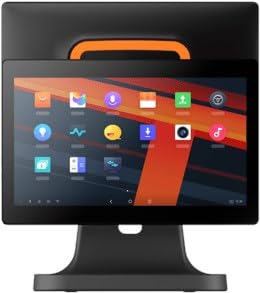
Слика 4.1: Фронт view of the SUNMI T2s Lite POS system. This image displays the main 15.6-inch touchscreen, which is the primary interface for operating the device. The design is compact and suitable for various retail settings.
4.1 кључне компоненте
- 15.6-инчни екран осетљив на додир: High-resolution (1920x1080) capacitive touch interface.
- Дугме за напајање: Located typically on the side or rear for turning the device on/off.
- УСБ портови: For connecting peripherals such as barcode scanners, external printers, or cash drawers.
- Етхернет порт: За жичану мрежну везу.
- Улазна снага: За повезивање адаптера за напајање.
- Предња камера: For specific applications requiring image capture.
5. Подешавање
5.1 Распакивање и постављање
- Carefully remove the device and all accessories from the packaging.
- Place the POS terminal on a stable, flat surface in a well-ventilated area.
- Ensure there is sufficient space around the device for cable connections and heat dissipation.
5.2 Повезивање напајања
- Повежите кабл за напајање са адаптером за напајање.
- Plug the power adapter into the power input port on the back of the SUNMI T2s Lite.
- Укључите други крај кабла за напајање у уземљену електричну утичницу.
5.3 Initial Boot and Network Connection
- Press and hold the power button until the screen lights up. The device will boot into the Android operating system.
- Пратите упутства на екрану за почетно подешавање, укључујући избор језика и временске зоне.
- Ви-Фи веза: Иди на Подешавања > Мрежа и интернет > Wi-Fi, select your network, and enter the password.
- Етхернет веза: Connect an Ethernet cable from your router/switch to the Ethernet port on the device. The device should automatically connect to the wired network.
5.4 Повезивање периферних уређаја
- УСБ уређаји: Plug USB peripherals (e.g., barcode scanner, external printer, cash drawer) into the available USB ports. The system will typically recognize them automatically.
- Блуетоотх уређаји: Иди на Подешавања > Повезани уређаји > Блутут, enable Bluetooth, and pair with your desired device.
6. Упутство за употребу
6.1 Укључивање/искључивање
- За укључивање: Притисните и држите дугме за напајање док екран не засветли.
- За искључивање: Press and hold the power button until a power menu appears. Select "Power off" and confirm. Alternatively, a short press of the power button will put the device to sleep.
6.2 Употреба екрана осетљивог на додир
- Додирните: Да бисте изабрали ставку или активирали дугме.
- Додирните и задржите: To open context menus or drag items.
- Превуците: За кретање кроз листе или навигацију између екрана.
- Зумирање штипкањем прстију: Да бисте увећали или умањили слике или web странице.
6.3 Навигација у Андроид ОС-у
- Почетни екран: The central hub for your applications and widgets.
- Фиока апликација: Приступите свим инсталираним апликацијама.
- Табла са обавештењима: Превуците надоле од врха екрана до view обавештења и брза подешавања.
- Подешавања: Configure Wi-Fi, Bluetooth, display, sound, and other system options.
6.4 Basic POS Functions
The specific POS functions will depend on the software application installed on your device. Refer to the documentation provided with your POS software for detailed instructions. Generally, you will:
- Launch your POS application from the home screen or app drawer.
- Пријавите се са својим корисничким акредитивима.
- Process transactions using the touchscreen and connected peripherals (e.g., scanning items, accepting payments).
- Print receipts if an external or integrated printer is configured.
7. Одржавање
7.1 Чишћење уређаја
- Always power off and unplug the device before cleaning.
- Користите меку крпу која не оставља длачицеampводом или благим, неабразивним средством за чишћење да бисте обрисали екран и спољашње површине.
- Не прскајте течности директно на уређај.
- Избегавајте употребу јаких хемикалија, растварача или абразивних материјала.
7.2 Ажурирања софтвера
Regularly check for and install system and application updates to ensure optimal performance, security, and access to new features. You can usually find system updates in Подешавања > Систем > Ажурирање система.
7.3 Складиштење
When not in use for extended periods, store the device in a cool, dry place, away from direct sunlight and extreme temperatures. If storing for a long time, ensure the battery is charged to about 50% to prolong its lifespan.
КСНУМКС. Решавање проблема
Овај одељак се бави уобичајеним проблемима на које можете наићи. За сложеније проблеме, контактирајте корисничку подршку.
- Device will not power on:
- Уверите се да је адаптер за напајање безбедно повезан са уређајем и исправном утичницом.
- Проверите да ли је утичница функционална.
- Try holding the power button for 10-15 seconds to force a restart.
- Touchscreen is unresponsive:
- Поново покрените уређај.
- Ensure the screen is clean and free of debris or liquids.
- Проблеми са мрежном везом (Wi-Fi/Ethernet):
- Check if the Wi-Fi is enabled and you are connected to the correct network with the right password.
- For Ethernet, ensure the cable is properly connected and your router/switch is working.
- Рестартујте рутер/модем.
- Peripherals (e.g., printer, scanner) not working:
- Уверите се да је периферни уређај правилно повезан са исправним портом.
- Check if the peripheral has its own power supply and is turned on.
- Verify that the necessary drivers or software for the peripheral are installed and configured within your POS application.
9. Спецификације
The following are key technical specifications for the SUNMI T2s Lite:
| Феатуре | Спецификација |
|---|---|
| Бранд | СУНМИ |
| Произвођач | Сунми |
| Изворна резолуција екрана | 1920x1080 пиксела |
| Технологија повезивања | Bluetooth, Ethernet, USB, WLAN |
| Опис камере | Фронтални |
| ASIN | B0B53FLFT8 |
10. Гаранција и подршка
The SUNMI T2s Lite POS system comes with a standard manufacturer's warranty. Please refer to the warranty card included in your package for specific terms and conditions, including warranty period and coverage details.
For technical support, service, or warranty claims, please contact your authorized SUNMI dealer or the customer support channel specified in your purchase documentation. Ensure you have your product model number (T2s Lite) and ASIN (B0B53FLFT8) ready when contacting support.