
Rapoo M650
Rapoo M650 Bluetooth Wireless Mouse Instruction Manual
Model: M650 | Brand: Rapoo
Увод
The Rapoo M650 is a portable dual-mode wireless mouse designed for versatile connectivity and comfortable use. It supports Bluetooth 3.0, Bluetooth 5.0, and 2.4G USB receiver connections, allowing seamless switching between multiple devices. Its silent click design and high-precision tracking engine enhance productivity in various environments.

Image: The Rapoo M650 wireless mouse in rose pink, showcasing its compact design and the accompanying USB receiver.
Водич за подешавање
1. Распакивање и постављање батерије
The Rapoo M650 mouse comes with one pre-installed AA battery. To activate the mouse, locate the battery compartment, typically under a magnetic top cover. Remove the protective pull tab from the battery to establish power connection.

Image: The underside of the Rapoo M650 mouse with the top cover removed, revealing the AA battery compartment and the storage slot for the USB receiver.
2. Connecting via 2.4G USB Receiver
- Remove the USB receiver from its storage slot inside the mouse.
- Уметните УСБ пријемник у слободан УСБ порт на рачунару или уређају.
- Turn on the mouse using the ON/OFF switch located on the underside. The mouse should automatically connect to your device.
3. Connecting via Bluetooth (BT 3.0/5.0)
- Turn on the mouse using the ON/OFF switch on the underside.
- Press and hold the Bluetooth pairing button (often located on the underside or top of the mouse) for approximately 3 seconds until the indicator light flashes, indicating pairing mode.
- On your device (laptop, tablet, smartphone), navigate to the Bluetooth settings.
- Тражи available devices and select "RAPOO M650" (or similar) from the list to pair.
- Пратите сва упутства на екрану да бисте довршили процес упаривања.
Video: This video demonstrates the multi-mode wireless connection capabilities of the Rapoo M650 mouse, including Bluetooth pairing and switching between devices.
4. Пребацивање између повезаних уређаја
The Rapoo M650 supports connection to up to three devices simultaneously (one via 2.4G USB receiver, two via Bluetooth). To switch between connected devices, short press the dedicated switch button on the mouse (usually on the underside or top). The indicator light will change to show which channel is active.
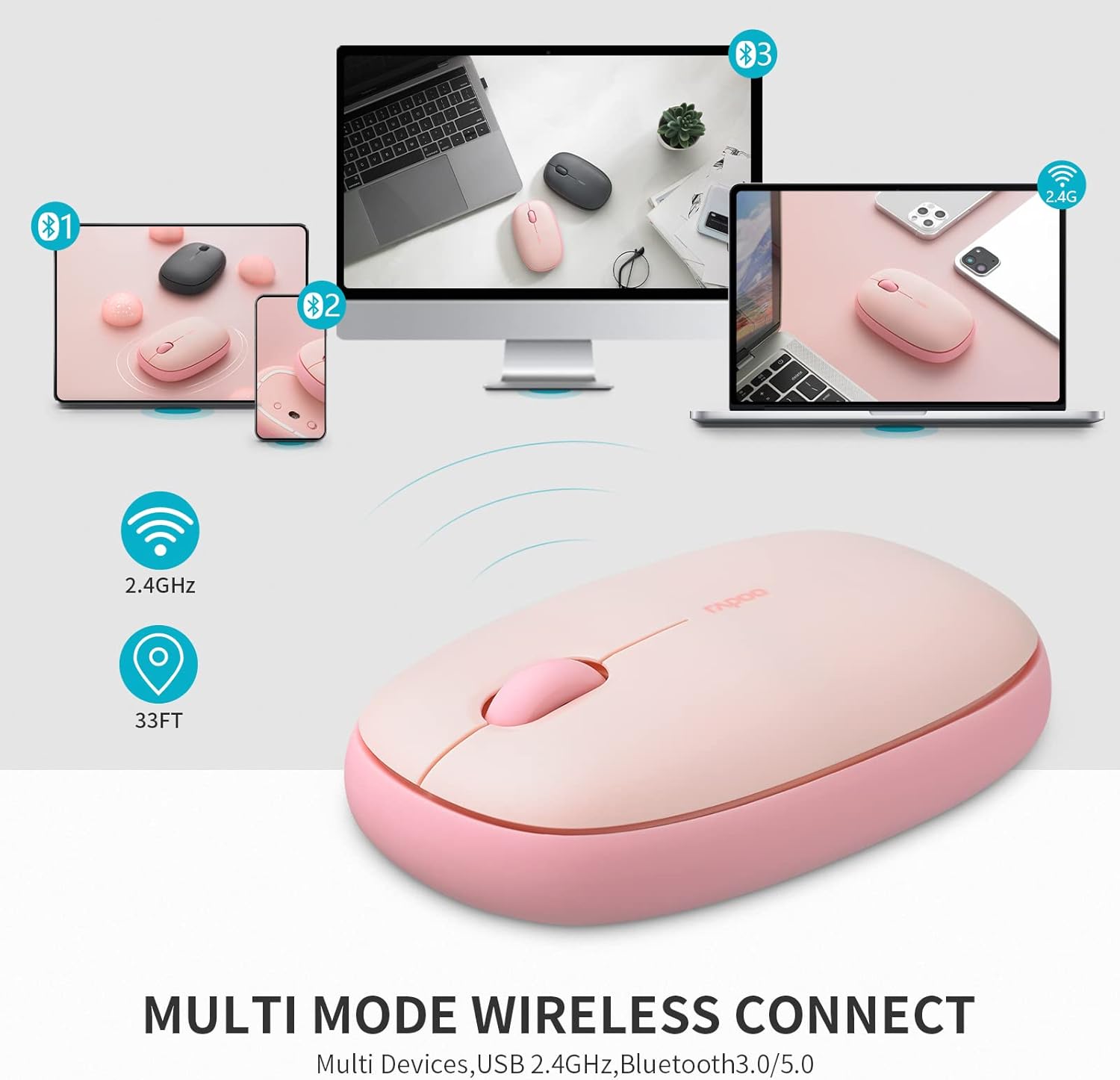
Image: A visual representation of the Rapoo M650 mouse's multi-device connectivity, illustrating its ability to connect to a laptop, tablet, and smartphone via 2.4G and Bluetooth.
Упутство за употребу
1. Основне функције
- Леви клик: Примарни избор и активација.
- Десни клик: Приступа контекстуалним менијима.
- Точак за померање: Вертикално се скролује кроз документе и web странице.
2. Silent Click Design
The Rapoo M650 features silent switches, significantly reducing click noise. This allows for a quieter working environment, minimizing distractions for both the user and those nearby.

Image: A person using the Rapoo M650 mouse, emphasizing its quiet operation due to the silent click design.
3. High-Precision Tracking
Equipped with a 1300 DPI optical tracking engine, the M650 provides precise cursor control. It is designed to work effectively on various surfaces, including leather, cloth, paper, and wood, often eliminating the need for a mouse pad.

Image: The Rapoo M650 mouse shown on different surfaces like wood, fabric, and paper, illustrating its high-precision optical tracking capabilities without a mouse pad.
4. Ергономски дизајн
The mouse features an ergonomic, slim, and pebble-shaped design that fits comfortably in the hand, reducing fatigue during extended use. Its ambidextrous design makes it suitable for both left and right-handed users.

Image: A diagram illustrating the dimensions of the Rapoo M650 mouse and a hand holding it, highlighting its ergonomic and slim design.
Одржавање
1. Замена батерије
The Rapoo M650 uses one AA battery, providing up to 9 months of battery life under normal conditions. When the mouse's performance degrades or the indicator light suggests low power, replace the AA battery. To do so, gently remove the magnetic top cover, replace the old battery with a new AA battery, and reattach the cover.
2. Чишћење
To maintain optimal performance and appearance, regularly clean the mouse. Use a soft, dry cloth to wipe the exterior. For stubborn dirt, a slightly damp cloth can be used, ensuring no moisture enters the internal components. The anti-fingerprint and sweat-proof outer shell simplifies cleaning.
Решавање проблема
- Миш не реагује: Ensure the mouse is turned on and the battery has sufficient charge. Check if the USB receiver is securely plugged in or if Bluetooth is properly paired.
- Проблеми са везом: For 2.4G connection, try plugging the USB receiver into a different USB port. For Bluetooth, unpair and re-pair the mouse with your device. Ensure no other wireless devices are causing interference.
- Intermittent tracking: Clean the optical sensor on the underside of the mouse. Ensure you are using the mouse on a suitable surface; avoid highly reflective or transparent surfaces.
- Difficulty switching devices: Ensure you are pressing the switch button correctly and holding it for the appropriate duration if required for pairing.
Спецификације
| Феатуре | Детаљ |
|---|---|
| Модел | М650 |
| Технологија повезивања | Bluetooth 3.0/5.0, 2.4G Wireless |
| Технологија детекције покрета | Оптицал |
| ДПИ | 1300 |
| Тип батерије | 1 АА батерија (укључена) |
| Трајање батерије | До 9 месеци |
| Димензије производа | 2.36 к 1.18 к 4.33 инча |
| Тежина артикла | 1.76 унци |
| Посебне карактеристике | Multi-device connectivity, Silent clicks, Ergonomic design |
Гаранција и подршка
Rapoo provides a one-year warranty for the M650 mouse. Additionally, a 30-day return and refund or replacement policy is offered. For support or warranty claims, please refer to the official Rapoo webсајту или контактирајте њихову корисничку службу.
Ask a question about this manual
Ask about setup, troubleshooting, compatibility, parts, safety, or missing instructions. Manuals+ will review the question and use this page’s manual context to help answer it.