
1. Увод
This manual provides essential information for setting up, operating, maintaining, and troubleshooting your Alienware X17 R2 Gaming Laptop. Please read this guide thoroughly to ensure optimal performance and longevity of your device.
The Alienware X17 R2 is designed for high-performance gaming and demanding tasks, featuring advanced cooling technologies, powerful processors, and dedicated graphics.
2. Производ је готовview
The Alienware X17 R2 is engineered to deliver an immersive gaming experience in a thin 17-inch form factor. Key features include:
- Powerful Intel CPUs: Experience high-performance action across all your favorite games with 12th Gen Intel Core processors.
- Next-Gen GPUs: Game unrestrained with NVIDIA GeForce RTX 3070Ti graphics, Dynamic Boost 2.0, and Deep Learning Super Sampлинг технологија.
- Patented Quad Cooling: An industry-first design uses four intelligently controlled and programmable fans to dissipate heat.
- Продужено време репродукције: Improve battery life with Advanced Optimus technology from NVIDIA—now available on all display options.
- Legend 2.0 Industrial Design: A fresh evolution in design with a high-endurance finish and customizable AlienFX lighting.

Слика 2.1: Предња страна view of the Alienware X17 R2 Gaming Laptop displaying a game.
3. Подешавање
3.1 Распакивање и почетни преглед
- Пажљиво извадите лаптоп и сву додатну опрему из паковања.
- Проверите да ли су присутне све ставке наведене у одељку „Шта је у кутији“.
- Прегледајте лаптоп да ли има физичких оштећења. Ако пронађете оштећења, одмах контактирајте продавца.
3.2 Повезивање напајања
- Connect the power adapter to the charging port located at the rear of the laptop.
- Укључите кабл за напајање у зидну утичницу.
- The power indicator light will illuminate, indicating the laptop is receiving power.
3.3 Прво покретање и подешавање оперативног система
- Press the Alienware head power button to turn on the laptop.
- Пратите упутства на екрану да бисте завршили процес подешавања система Windows 11 Home. То укључује избор региона, повезивање са Wi-Fi мрежом и креирање корисничког налога.
- Дозволите систему да преузме и инсталира све потребне надоградње.
4. Управљање лаптопом
4.1 Тастатура и тачпед
The Alienware X17 R2 features a backlit keyboard and a responsive touchpad. The AlienFX lighting allows for customizable colors and effects across the keyboard and other zones.

Слика 4.1: Детаљно view позадински осветљене тастатуре и тачпеда.
4.2 Приказ и графика
Enjoy stunning visuals on the 17.3-inch FHD display with a 480Hz refresh rate and 3ms response time. The NVIDIA GeForce RTX 3070Ti graphics card ensures smooth gameplay and high-fidelity rendering. The laptop supports Dolby Vision for optimized color profiles.
4.3 Аудио
Experience immersive 3D sound via Dolby Atmos, designed to deliver audio as studios intended.
4.4 Портови и повезивање
The laptop offers a variety of ports for peripherals and external displays:

Слика 4.2: Задња страна view илуструјући различите портове за повезивање.
- УСБ 3.0 портови: 3 ports for connecting various USB devices.
- УСБ-Ц портови: For versatile connectivity, including Thunderbolt 4.
- ХДМИ КСНУМКС: Supports up to 4K/120Hz output for external displays.
- Етхернет: Killer E3100 RJ45 Ethernet for stable wired network connections.
- бежични: Killer Wi-Fi 6 (802.11ax) and Bluetooth for wireless connectivity.
5. Одржавање
5.1 Чишћење
- Користите меку крпу која не оставља влакна за чишћење екрана и спољашњих површина.
- Избегавајте употребу јаких хемикалија или абразивних материјала.
- Редовно чистите отворе за хлађење како бисте спречили накупљање прашине, што може утицати на перформансе.
5.2 Ажурирања софтвера
Ensure your operating system and drivers are kept up-to-date. Windows Update will handle OS updates, and Alienware Command Center can assist with driver and firmware updates.
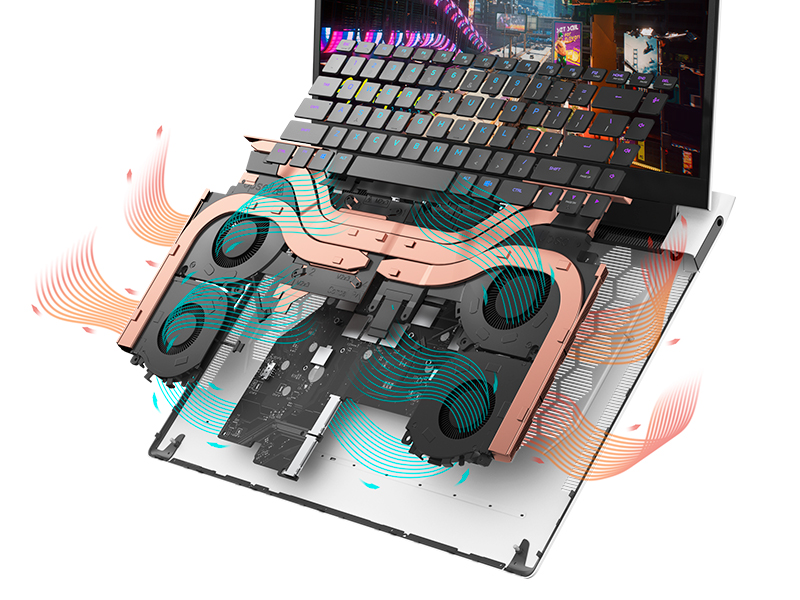
Figure 5.1: Alienware Command Center for system management.
КСНУМКС. Решавање проблема
If you encounter issues with your Alienware X17 R2, consider the following basic troubleshooting steps:
- Нема напајања: Уверите се да је адаптер за напајање безбедно повезан и са лаптопом и са исправном утичницом. Проверите индикаторску лампицу напајања.
- Проблеми са приказом: If the screen is black, try connecting an external monitor to verify if the issue is with the laptop's display or the graphics card. Update graphics drivers.
- прегревање: Ensure cooling vents are clear of obstructions. Use Alienware Command Center to monitor temperatures and adjust fan profiles.
- Успоравање перформанси: Затворите непотребне апликације. Проверите да ли позадински процеси троше много процесора или РАМ-а. Обезбедите довољно слободног простора на SSD-у.
- Проблеми са софтвером: Restart the laptop. If issues persist, consider performing a system restore or reinstalling the problematic software.
7. Спецификације
| Феатуре | Спецификација |
|---|---|
| Величина екрана | 17.3 инча |
| Резолуција екрана | 1920 x 1080 пиксела (FHD) |
| Процесор | Intel Core i9-12900H (3.8 GHz, 14 Cores) |
| РАМ | 16 GB DDR5 (4800 MHz) |
| Хард Дриве | 1 TB SSD (Solid State) |
| Грапхицс Цопроцессор | НВИДИА ГеФорце РТКС 3070 Ти (8 ГБ ГДДР6) |
| Оперативни систем | Виндовс 11 Хоме |
| Вирелесс Типе | 802.11ax (Killer Wi-Fi 6), Bluetooth |
| УСБ 3.0 портови | 3 |
| Тежина артикла | 6.82 фунти |
| Димензије производа | 11.79 к 15.72 к 0.58 инча |
8. Шта је у кутији
- Алиенваре Кс17 Р2 Гаминг Лаптоп
- Повер Адаптер
- Повер Цорд
- Документација
9. Званични видео снимци производа
Alienware X17 R2 Gaming Laptop Overview
Видео 9.1: Званичник прекоview of the Alienware X17 R2 Gaming Laptop, highlighting its design, cooling, and performance features.
About Alienware X17 R2 Gaming Laptop
Video 9.2: A detailed look at the Alienware X17 R2 Gaming Laptop, showcasing its features and design elements.
10. Гаранција и подршка
Your Alienware X17 R2 Gaming Laptop comes with a standard manufacturer's warranty. For detailed warranty information, please refer to the documentation included with your product or visit the official Alienware support webсајту.
For technical support, driver downloads, and service requests, please visit the Alienware support portal. You can also find FAQs and community forums for additional assistance.