
SSK SC211
SSK SC211 11-in-1 USB-C Laptop Docking Station User Manual
Model: SC211 | Brand: SSK
1. Увод
The SSK SC211 11-in-1 USB-C Laptop Docking Station is a versatile multiport adapter designed to expand the connectivity of your USB-C enabled laptop, tablet, or smartphone. It integrates multiple essential ports into a single compact device, enhancing productivity and simplifying your workspace.
2. Карактеристике производа
This docking station provides 11 ports for comprehensive connectivity:
- 2 x HDMI Ports: Supports 4K video output. HDMI1 supports up to 4K@60Hz, and HDMI2 supports up to 4K@30Hz.
- 1 x VGA Port: Supports video output up to 1920x1080@60Hz, especially when used in dual or triple display configurations.
- 1 x Ethernet/RJ-45 Port: Provides stable wired network connectivity with 1000Mbps Gigabit speed.
- 2 x USB 3.0 порта: Offers high-speed data transfer rates of up to 5Gbps.
- 1 x USB 2.0 Port: Ideal for connecting wireless mouse and keyboard receivers, minimizing interference.
- 1 x 3.5mm Audio Port: Supports both microphone input and audio output.
- 1 x USB-C PD3.0 Charging Port: Delivers up to 100W Power Delivery for fast charging of compatible Type-C devices.
- 1 x Читач СД картица: For standard SD cards, with data transfer speeds up to 80MB/s.
- 1 x TF Card Reader (Micro SD): For Micro SD cards, with data transfer speeds up to 80MB/s. Both SD and TF card slots can be used simultaneously.

Слика 1: Завршеноview of the SSK SC211 11-in-1 USB-C Docking Station with all ports clearly labeled, including PD 3.0, USB 2.0, HDMI1 (4K@60Hz), HDMI2 (4K@30Hz), RJ45 Ethernet, SD/TF Card, 2x USB 3.0, 3.5mm Audio, and VGA (1080P@60Hz).
3. Водич за подешавање
- Повежите се са хост уређајем: Plug the integrated USB-C cable from the docking station into the USB-C port of your laptop, tablet, or smartphone. Ensure your device's USB-C port supports "Display Port Alternate Mode" for video output functionality.
- Прикључак за напајање (опционо, али се препоручује): For stable performance and charging, connect your device's original power adapter or a compatible USB-C PD charger (up to 100W) to the docking station's USB-C PD port.
- Повежите екстерне екране:
- For HDMI displays, connect HDMI cables from your monitors to the HDMI1 and/or HDMI2 ports on the docking station.
- За VGA екране, повежите VGA кабл са монитора на VGA порт на базној станици.
- Повежите периферне уређаје:
- Plug USB devices (e.g., external hard drives, flash drives) into the USB 3.0 ports.
- Connect wireless mouse/keyboard receivers to the USB 2.0 port.
- Insert SD or TF cards into the respective card reader slots.
- For wired internet, connect an Ethernet cable to the RJ-45 port.
- Connect headphones or speakers to the 3.5mm audio port.
- Driver Installation (Mac OS Specific): For Mac OS, due to its MST (Multi-Stream Transport) display limitations, installing DisplayLink drivers may be required to achieve extended display functionality across multiple distinct displays. Refer to the DisplayLink website for the latest drivers and installation instructions. For Windows, it is generally plug-and-play.
Video 1: A demonstration of connecting a docking station to a laptop and external monitors, showcasing its multi-display capabilities and various port connections.
4. Упутство за употребу
4.1 Режими приказа
The docking station supports various display configurations depending on your operating system:
- For Windows 10/11 OS:
- Mirror Mode (A-AAA): All connected displays (laptop screen, HDMI1, HDMI2, VGA) show the same content.
- Extend Mode (A-BBB): The laptop screen and external monitors display different content, extending your desktop workspace. This supports up to three different screens (laptop + 2 external monitors via HDMI + VGA).
- Extend Mode (A-BCD): Similar to A-BBB, allowing for distinct content across multiple displays.
- За Мац ОС:
Due to Mac OS limitations (lack of MST support), the docking station primarily supports extending one monitor, with other external monitors mirroring that extended display. All three screens will display the same picture when VGA is connected alongside HDMI displays.
- Extend Mode (A-AAA or A-BBB): The docking station supports extending one monitor. Any additional external monitors will mirror the content of the first extended monitor.
- Режим огледала: All connected displays show the same content.
Note on VGA: When the VGA port is connected, the maximum resolution for each monitor will be limited to 1920x1080@60Hz.
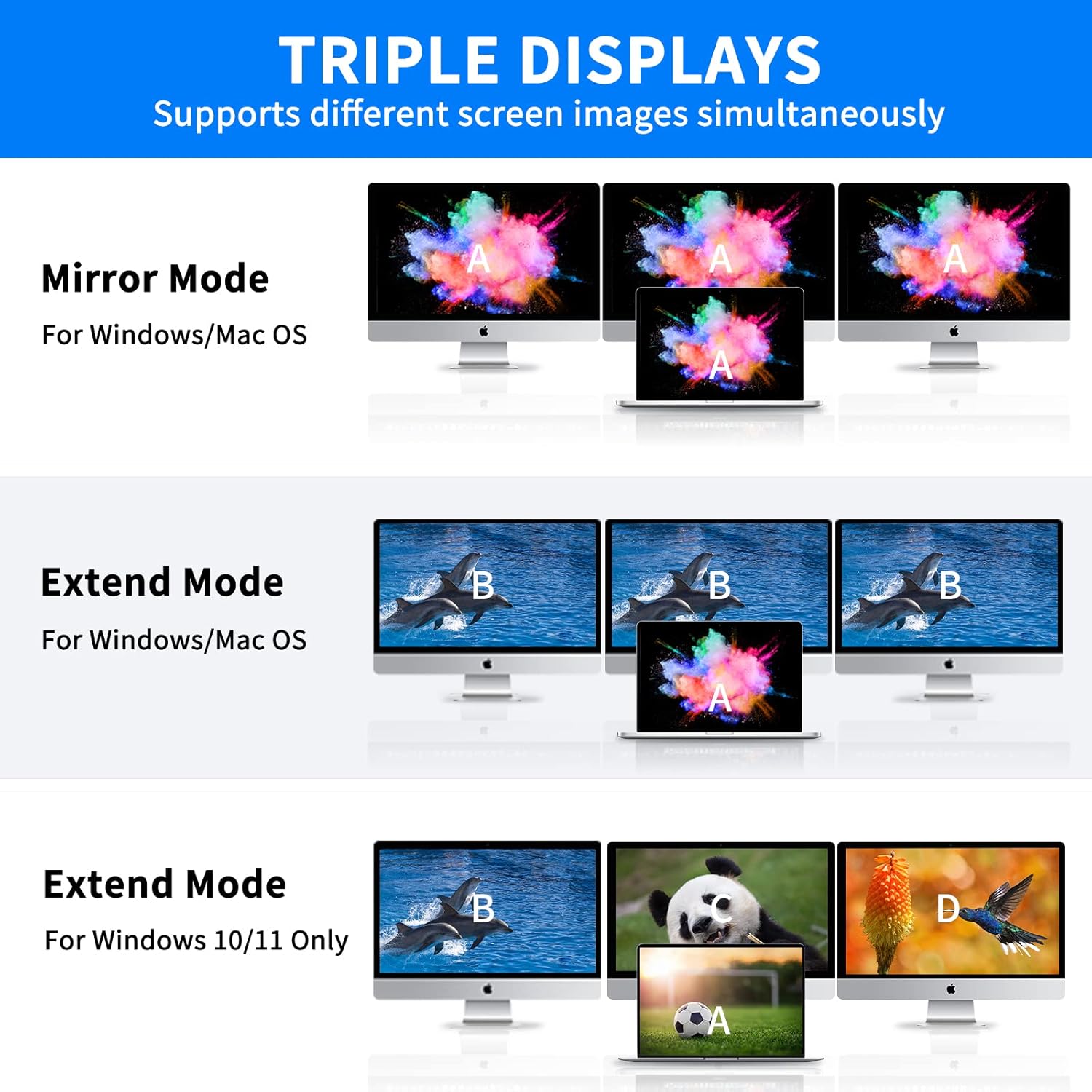
Figure 2: Visual representation of Mirror Mode and Extend Mode for both Windows and Mac OS, illustrating how screens are duplicated or extended.
4.2 Пренос података
Utilize the USB 3.0 ports for rapid data transfer with compatible devices. The SD and TF card readers also offer fast data access for memory cards.
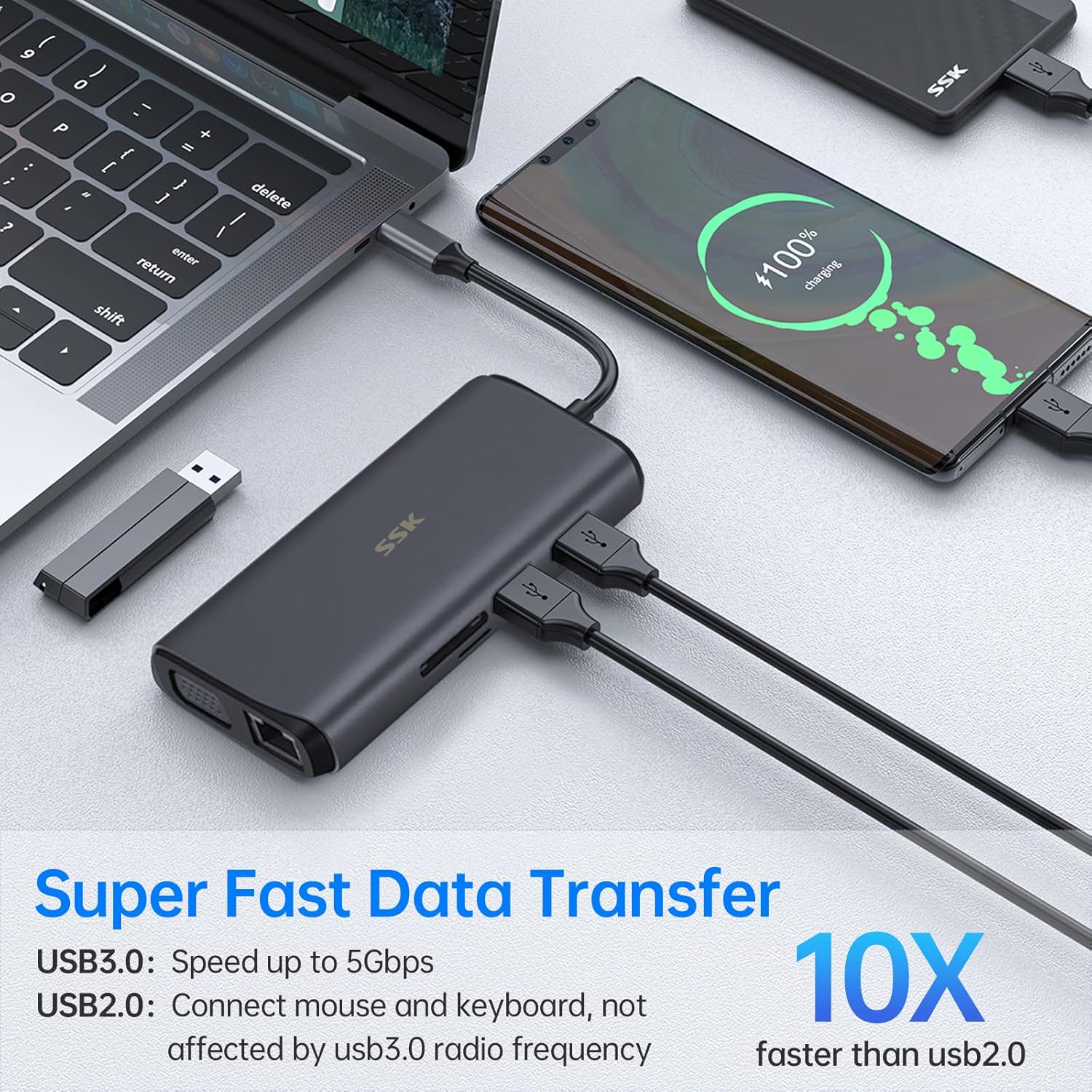
Figure 3: Illustration of the docking station facilitating super-fast data transfer via USB 3.0 ports and SD/TF card readers, connected to a laptop.
4.3 Испорука напајања
The 100W PD3.0 port allows you to charge your Type-C laptop or other compatible devices while using the docking station. This port is for power input only and does not support data transfer.

Figure 4: The docking station connected to a laptop and a power adapter, demonstrating its PD3.0 Power Delivery feature for fast charging.
5. Компатибилност
The SSK SC211 docking station is compatible with a wide range of devices and operating systems that feature a USB-C port supporting "Display Port Alternate Mode" for video output. This includes, but is not limited to:
- Лаптопови: MacBook Pro (2017-2020), MacBook Air (2018-2020), Dell XPS 13/15, Lenovo Yoga 720/910/920/930, Microsoft Surface Book 2/Surface Go/Surface Laptop 3, Dell Latitude 13 7000/E7370, and other USB-C enabled laptops.
- Таблети и паметни телефони: Devices with a full-featured USB-C port.
- Оперативни системи: Windows 10/11, Mac OS, Chrome OS, Linux, Android.
Важно: To enable HDMI and VGA functions, your laptop or phone's USB-C port must support "Display Port Alternate Mode" video output.

Figure 5: The SSK SC211 docking station shown with logos of compatible operating systems, highlighting its broad compatibility.
6. Техничке спецификације
| Феатуре | Спецификација |
|---|---|
| Број модела | СЦ211 |
| Димензије | 5 к 3 к 1 инча |
| Тежина | 5.1 унци |
| ХДМИ 1 излаз | До 4К@60Хз |
| ХДМИ 2 излаз | До 4К@30Хз |
| ВГА излаз | До 1920x1080@60Hz |
| УСБ 3.0 портови | 2 ports, 5Gbps data transfer |
| УСБ 2.0 порт | 1 port, for low-bandwidth peripherals |
| УСБ-Ц ПД порт | Up to 100W Power Delivery (input only) |
| Етхернет порт | 1000Mbps Gigabit RJ-45 |
| Читачи картица | SD and TF (Micro SD), up to 80MB/s, simultaneous use |
| Аудио Порт | 3.5mm (Mic and Audio) |
| Материјал | Алуминијумска легура цasing |
КСНУМКС. Решавање проблема
- Нема излаза на екран:
- Ensure your host device's USB-C port supports "Display Port Alternate Mode."
- Проверите све кабловске везе (USB-C до хоста, HDMI/VGA до монитора).
- Verify monitor input sources are correctly selected.
- For Mac OS, ensure DisplayLink drivers are installed if using extended mode for multiple distinct displays.
- Покушајте да поново покренете свој хост уређај.
- Повремено повезивање:
- Ensure the docking station is receiving adequate power, especially when multiple power-hungry devices are connected. Connect a PD charger to the docking station.
- Проверите да ли су спојеви лабави.
- Избегавајте постављање докинг станице у близини извора јаких електромагнетних сметњи.
- Спори пренос података:
- Ensure you are using USB 3.0 compatible devices and cables for the USB 3.0 ports.
- Verify that your host device's USB-C port supports USB 3.0 or higher speeds.
- Проблеми са наплатом:
- Confirm your USB-C PD charger and cable are compatible and capable of delivering sufficient wattage (e.g., 100W).
- Ensure the charger is connected to the docking station's dedicated PD port.
- Ethernet Not Working:
- Check the Ethernet cable connection to both the router/modem and the docking station.
- Verify network settings on your host device.
- Уверите се да су мрежни драјвери ажурирани.
8. Нега и одржавање
- Држите прикључну станицу даље од воде, ватре и корозивних течности.
- Избегавајте испуштање или излагање уређаја јаким ударима.
- Не покушавајте сами да растављате или поправљате уређај. Уколико се појаве проблеми, обратите се корисничкој подршци.
- Очистите уређај меком, сувом крпом. Не користите јаке хемикалије или абразивне материјале.
- Чувати на хладном и сувом месту када се не користи.
9. Гаранција и подршка
SSK products come with a standard manufacturer's warranty. For detailed warranty information, technical support, or service inquiries, please refer to the official SSK webсајт или контактирајте њихову службу за кориснике. Молимо вас да сачувате доказ о куповини за потребе гаранције.