
1. Увод
This manual provides detailed instructions for the Nulea Wireless Ergonomic Keyboard, Model RT05. This keyboard is designed to enhance typing comfort and efficiency through its split, splayed, and curved layout, integrated wrist rest, and versatile connectivity options. It features a 7-color adjustable backlight and convenient USB-C charging.

Figure 1.1: Nulea Wireless Ergonomic Keyboard (Model RT05)
This image displays the Nulea Wireless Ergonomic Keyboard from a top-down perspective, highlighting its split design, integrated wrist rest, and full key layout including a numeric keypad. The keyboard is black with yellow accents on the spacebar area.
2. Садржај пакета
Проверите да ли су све ставке присутне у пакету:
- Ergonomic Keyboard x1
- УСБ кабл кКСНУМКС
- Упутство за употребу к1
3. Подешавање
3.1 Почетно пуњење
Before first use, fully charge the keyboard using the provided USB-C cable. The keyboard features a 2000mAh internal battery for extended operation.
- Connect the USB-C end of the cable to the keyboard's charging port.
- Connect the USB-A end to a compatible USB power source (e.g., computer USB port, wall adapter).
- The battery indicator light will provide charging status. Recharge when the battery level is below 10% (backlight will turn off to conserve power).

Figure 3.1: USB-C Quick Charging
This image illustrates the Nulea keyboard being charged via a USB-C cable, with a graphic indicating a 2000mAh built-in rechargeable battery. The image emphasizes the convenience of USB-C charging.
3.2 Бежично повезивање
The Nulea keyboard supports both Bluetooth and 2.4G USB connectivity, allowing connection to up to three devices simultaneously.
2.4G USB веза:
- Пронађите 2.4G USB пријемник (обично се налази у одељку на тастатури).
- Укључите УСБ пријемник у слободан УСБ порт на рачунару.
- Укључите тастатуру. Требало би да се аутоматски повеже са пријемником.
Блуетоотх веза:
- Укључите тастатуру.
- Притисните тастер Fn key simultaneously with either Q (for 2.4G), W (for Bluetooth 1), or E (for Bluetooth 2) to select the desired connection channel. For Bluetooth pairing, select W or E.
- Држите изабрано Фн + В or Фн + Е комбинацију тастера 3-5 секунди док индикаторска лампица не почне брзо да трепери, што указује на режим упаривања.
- On your device (computer, smartphone, tablet), go to Bluetooth settings and search for new devices.
- Select "Nulea Keyboard" or a similar name from the list of available devices to complete the pairing process.
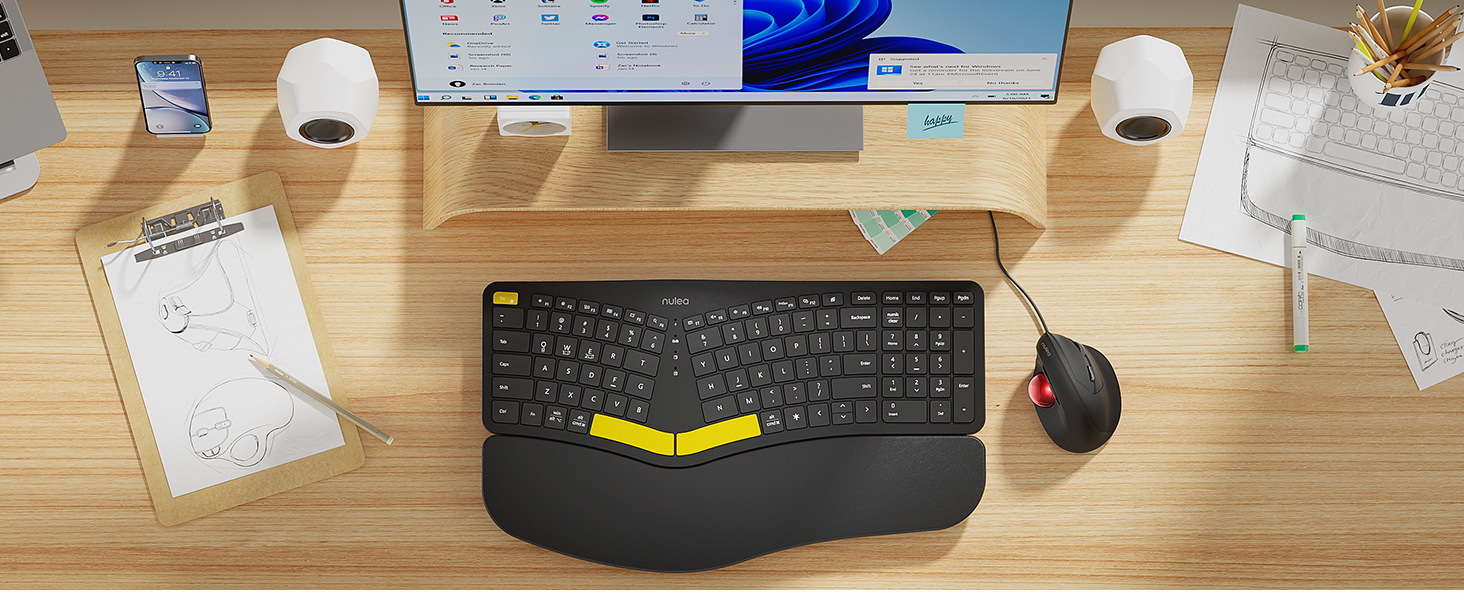
Figure 3.2: Wireless Connectivity Setup
This diagram illustrates the three connectivity options for the Nulea keyboard: 2.4G USB connection via a dongle, and two separate Bluetooth connections. It shows how to switch between devices using Fn + Q/W/E keys.
4. Упутство за употребу
4.1 Укључивање/искључивање
Locate the power switch on the keyboard (typically on the top edge or underside) and slide it to the 'ON' or 'OFF' position.
4.2 Пребацивање између повезаних уређаја
Once multiple devices are paired, you can switch between them instantly:
- Притисните Фн + К to switch to the 2.4G USB connected device.
- Притисните Фн + В да бисте прешли на Bluetooth уређај 1.
- Притисните Фн + Е да бисте прешли на Bluetooth уређај 2.

Figure 4.1: Easy Device Switching
This image shows the Nulea keyboard connected to a desktop monitor, a laptop, and a smartphone, illustrating its ability to easily switch between up to three paired devices with a single tap.
4.3 Контрола позадинског осветљења
The keyboard features a 7-color backlight with 3 brightness levels. You can customize the lighting to your preference:
- To cycle through backlight colors (blue, green, red, cyan, purple, yellow, white), press the backlight control key (refer to keyboard layout for specific key).
- To adjust brightness levels, use the dedicated brightness control keys (refer to keyboard layout).
- Note: When the battery level drops below 10%, the backlight will automatically turn off to preserve basic keyboard functionality.

Figure 4.2: Adjustable 7-Color Backlight
This image displays the Nulea keyboard in a dimly lit environment, showcasing its illuminated keys with a vibrant backlight. The image highlights the 7 available backlight colors and 3 brightness levels.
4.4 Подесиве ноге за нагиб
The keyboard is equipped with 4 adjustable tilt legs, allowing you to set the keyboard at 3 different angles for optimal wrist comfort and posture.
- Gently pull out the tilt legs located on the underside of the keyboard to adjust the angle.
- Experiment with different tilt levels to find the most comfortable position for your typing style.

Figure 4.3: Adjustable Tilt Legs
Ова слика приказује страну view of the Nulea keyboard on a desk, with its adjustable tilt legs extended to demonstrate the ergonomic angle. The image emphasizes how the tilt legs help maintain a comfortable wrist position.
4.5 Искуство са куцањем
The keyboard features spherical-dished key shapes designed to conform to your fingertips, promoting effortless and comfortable typing.

Figure 4.4: Spherical-Dished Keys
This close-up image focuses on the keys of the Nulea keyboard, highlighting their spherical-dished shape designed for comfortable and precise typing.
5. Одржавање
5.1 Чишћење
Да бисте одржали изглед и функционалност тастатуре:
- Disconnect the keyboard from all devices and power sources before cleaning.
- Користите меку крпу која не оставља длачицеampводом или благим раствором за чишћење да бисте обрисали површину.
- Избегавајте употребу јаких хемикалија, абразивних средстава за чишћење или растварача.
- Користите компримовани ваздух да уклоните прашину и остатке између тастера.
5.2 Одржавање батерије
Да бисте продужили век трајања батерије:
- Напуните тастатуру када се појави индикатор да је батерија празна.
- Избегавајте често потпуно пражњење батерије.
- If storing the keyboard for an extended period, charge it to approximately 50% before storage.
КСНУМКС. Решавање проблема
6.1 Тастатура не реагује
- Уверите се да је тастатура укључена.
- Проверите ниво батерије и напуните ако је потребно.
- For 2.4G connection, ensure the USB receiver is securely plugged into the device. Try a different USB port.
- For Bluetooth connection, ensure Bluetooth is enabled on your device and the keyboard is paired. Try re-pairing the keyboard.
- Ensure you are on the correct connection channel (Fn + Q/W/E).
6.2 Позадинско осветљење не ради
- Check the battery level. The backlight automatically turns off when the battery is below 10%. Recharge the keyboard.
- Ensure the backlight is turned on and brightness is adjusted using the dedicated keys.
6.3 Connectivity Issues / Lag
- Приближите тастатуру уређају да бисте смањили сметње.
- Avoid placing the keyboard near other wireless devices that may cause interference (e.g., Wi-Fi routers, cordless phones).
- Уверите се да су оперативни систем и драјвери за Bluetooth вашег уређаја ажурирани.
7. Спецификације
| Феатуре | Детаљ |
|---|---|
| Назив модела | РТ05 |
| Димензије производа | 41.9 x 24.4 x 3.3 цм |
| Тежина артикла | 3.5 фунте (1.59 кг) |
| Произвођач | Nulea |
| Батерије | 1 литијум-јонска батерија (укључена) |
| Технологија повезивања | 2.4G USB, Bluetooth |
| Компатибилни уређаји | Лаптоп, рачунар, паметни телефон, таблет |
| Посебне карактеристике | Backlit, Rechargeable, Split Keyset Design, Adjustable Tilt Legs |
| Боја | Црно |
8. Гаранција и подршка
For warranty information, technical support, or service inquiries, please refer to the contact information provided on the Nulea official webсајт или директно контактирајте продавца. Сачувајте рачун за куповину за потребе гаранције.
This user manual is included with your product for future reference.