
1. Увод
This manual provides instructions for the MOFII Wireless Keyboard and Mouse Combo, designed for use with various computer systems. This combo features a retro-style keyboard with round keycaps and a compact USB mouse, both operating on a 2.4GHz wireless connection. It is compatible with Windows operating systems and offers an ergonomic design for comfortable use.
2. Садржај пакета
- MOFII Wireless Keyboard
- MOFII Wireless Mouse
- 2.4 GHz USB Nano пријемник
- Упутство за употребу
3. Упутства за подешавање
- Инсталирајте батерије: Open the battery compartments on both the keyboard and the mouse. Insert the required batteries (typically AA for keyboard, AAA for mouse, not included) ensuring correct polarity.
- Повежите УСБ пријемник: Locate an available USB port on your computer (PC, Laptop, Smart TV). Insert the 2.4GHz USB Nano Receiver into the USB port.
- Уређаји за укључење: Turn on the keyboard and mouse using their respective power switches. The devices should automatically connect to the receiver.
- Тестна веза: Verify functionality by typing on the keyboard and moving/clicking the mouse. If the devices do not respond, ensure batteries are correctly installed and the receiver is securely plugged in.

4. Упутство за употребу
4.1 Употреба тастатуре
- куцање: The keyboard features a standard QWERTY layout with round keycaps for a comfortable typing experience.
- Функцијски тастери (F1-F12): These keys often have secondary functions (hotkeys) when pressed in combination with the 'Fn' key. Refer to the keycap legends for specific functions such as media control, volume adjustment, and more.
- Нумеричка тастатура: A dedicated numeric keypad is included for efficient data entry.

4.2 Употреба миша
- Кретање: Померајте миш по равној површини да бисте контролисали курсор на екрану.
- Кликом на: Користите лево и десно дугме за примарне и секундарне кликове.
- Точак за померање: The scroll wheel allows for easy navigation through documents and web странице.
5. Посебне карактеристике
- 2.4ГХз бежична веза: Provides a stable and dropout-free connection up to 33 feet (10 meters).
- Retro Design with Round Keycaps: Offers a unique aesthetic and comfortable typing feel.
- Ергономски дизајн: The keyboard features foldable stands to adjust the typing angle, promoting wrist comfort.
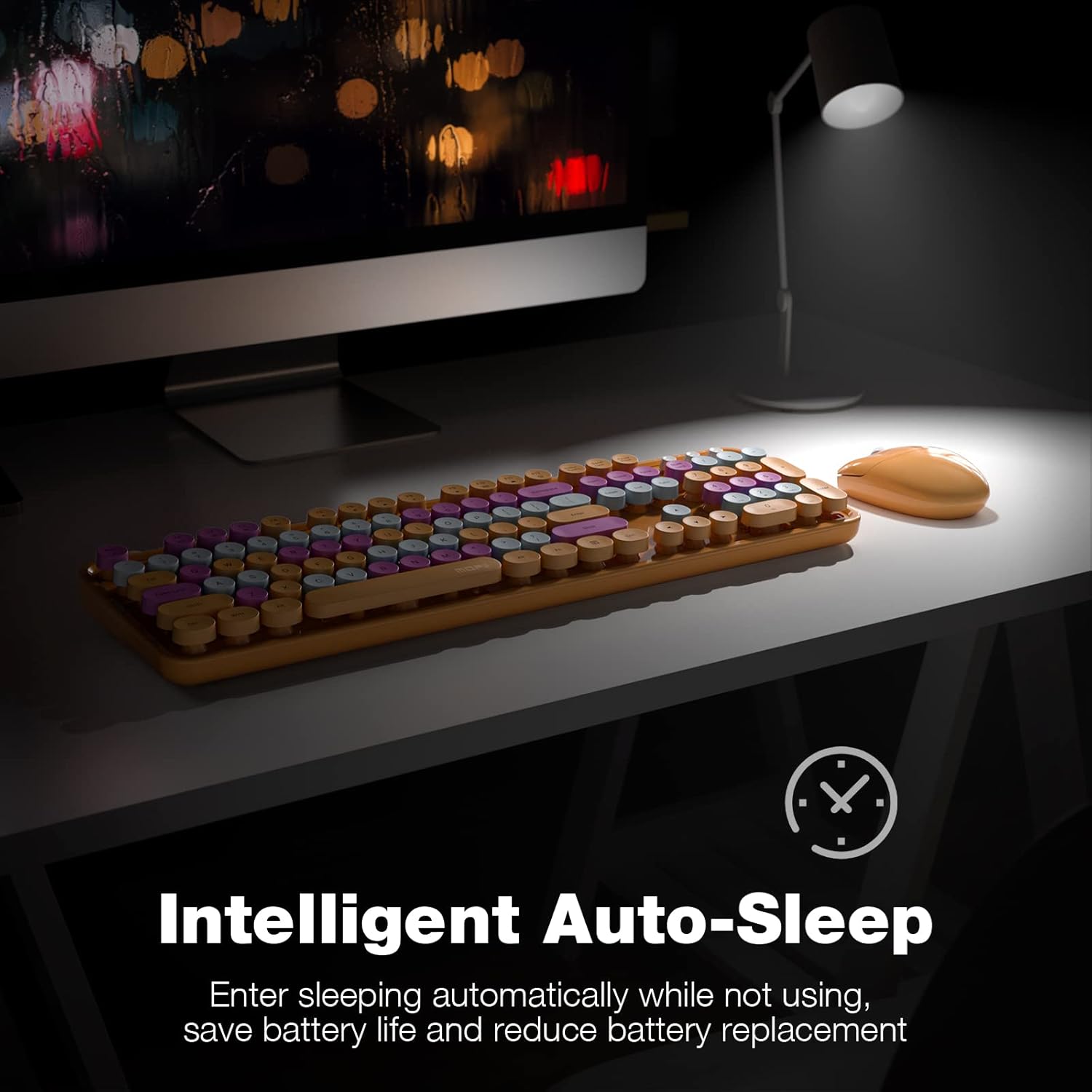
- Intelligent Auto-Sleep: Both the keyboard and mouse enter sleep mode after 5 minutes of inactivity to conserve battery life. Press any key or move the mouse to wake them up.
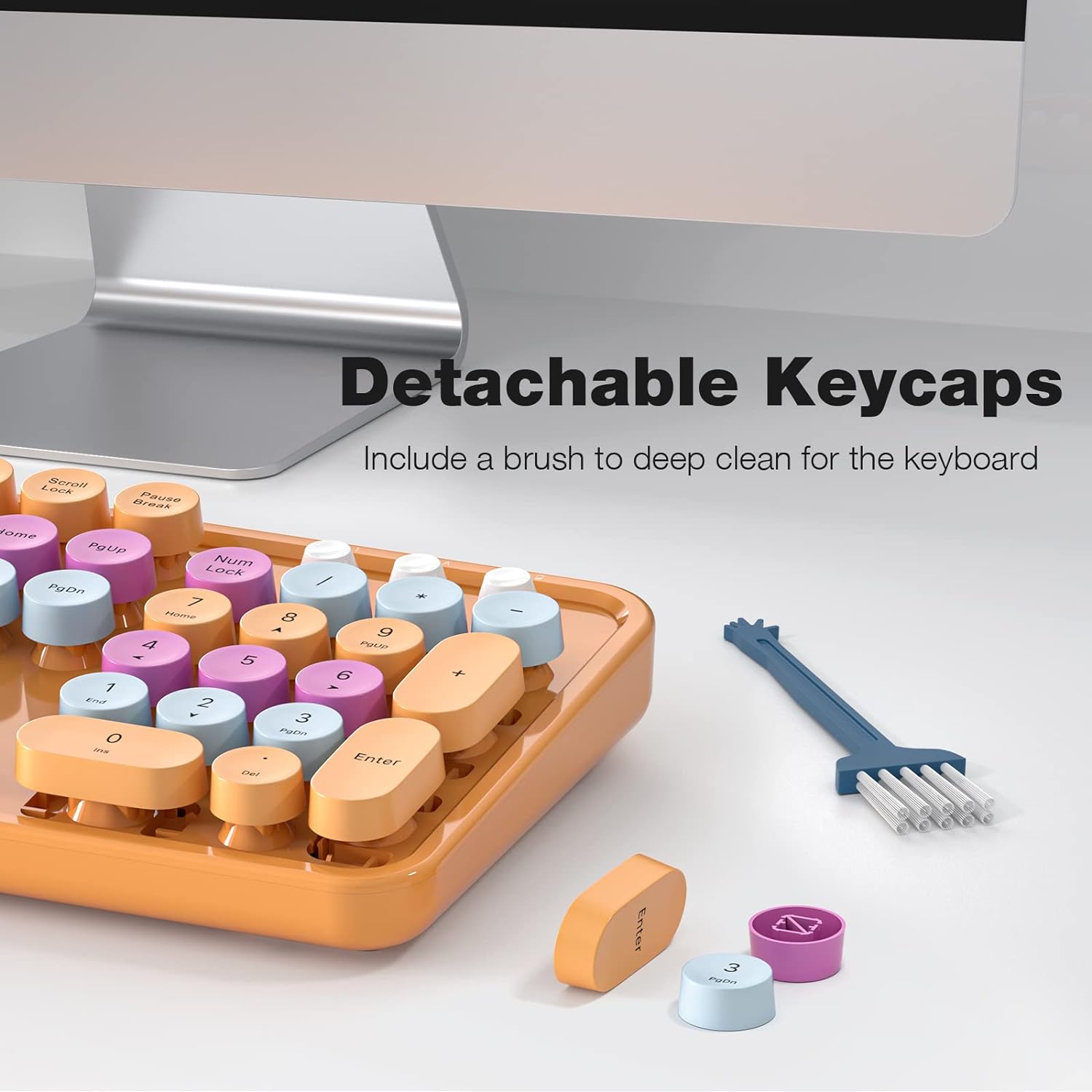
- Одвојиве капице за тастере: Facilitates easy cleaning and maintenance of the keyboard.

6. Одржавање
- Чишћење: Use a soft, dry cloth to clean the surface of the keyboard and mouse. For deeper cleaning, remove the keycaps and use a small brush or compressed air to clear debris.
- Замена батерије: Replace batteries when performance degrades. Ensure to use the correct battery type and dispose of old batteries responsibly.
- Складиштење: Чувајте уређаје на хладном и сувом месту, даље од директне сунчеве светлости и екстремних температура када се не користе дуже време.
КСНУМКС. Решавање проблема
| Иссуе | Решење |
|---|---|
| Уређаји се не повезују | 1. Ensure batteries are correctly installed and charged. 2. Verify the USB receiver is securely plugged into a working USB port. 3. Try plugging the receiver into a different USB port. 4. Power cycle both the keyboard and mouse. |
| Кашњење или повремена веза | 1. Move the devices closer to the USB receiver. 2. Avoid placing the receiver near other wireless devices (e.g., Wi-Fi routers, cordless phones) that may cause interference. 3. Ensure no large metal objects are between the devices and the receiver. |
| Keys sticking or unresponsive | 1. Clean under the keycaps to remove any debris. 2. Ensure keycaps are properly seated. |
| Курсор миша је нестабилан | 1. Clean the optical sensor on the bottom of the mouse. 2. Use the mouse on a clean, non-reflective surface. |
8. Спецификације
- Бренд: МОФИИ
- Модел: B0BJP7WNCL
- Боја: Orange Colorful
- Технологија повезивања: КСНУМКСГХз Вирелесс
- Компатибилни уређаји: PC, Laptop, Smart TV (Windows 7, 8, 10, XP/Vista). Not compatible with Apple systems.
- Keyboard Special Feature: Ergonomic, Round Keycaps
- Тежина артикла: 1.94 фунти
- Димензије пакета: 17.8 к 5.47 к 2.91 инча

9. Гаранција и подршка
For warranty information, technical support, or service inquiries, please refer to the contact information provided on the product packaging or visit the official MOFII webсајту. Сачувајте рачун о куповини за гаранције.