
Cherry JK-9100US-2
Упутство за употребу бежичне тастатуре Cherry KW 9100 Slim
Model: JK-9100US-2
1. Увод
Thank you for choosing the Cherry KW 9100 Slim Wireless Keyboard. This manual provides essential information for setting up, operating, and maintaining your new keyboard. The KW 9100 Slim is designed for both work and home office environments, offering flexible connectivity options and a comfortable typing experience with its silent SX Scissor Mechanism.

Слика 1.1: Одозго надоле view of the Cherry KW 9100 Slim Wireless Keyboard, showcasinг његов потпуни распоред и елегантан дизајн.
2. Садржај пакета
Молимо вас да проверите да ли су све ставке присутне у вашем пакету:
- Cherry KW 9100 Slim Wireless Keyboard
- USB кабл (USB-A на USB-C)
- USB Receiver (2.4 GHz RF dongle)
- Упутство за употребу (овај документ)
- Magnetic Support Bar (pre-attached or separate)
3. Кључне карактеристике
- Двоструко повезивање: Seamlessly switch between wireless RF (2.4 GHz) and Bluetooth transmission modes.
- Пуњива батерија: Built-in lithium rechargeable battery with USB-C connection for convenient charging.
- SX Scissor Mechanism: Cherry's proprietary low-profile scissor technology ensures a quiet and precise typing experience.
- Slim and Stable Design: Features a thin profile with a built-in metal plate for maximum stability and rigidity.
- Adjustable Typing Angle: Includes a removable magnetic support bar for a steeper typing angle preference.
- ЛЕД лампице статуса: Integrated LEDs for CAPS LOCK, NUM, and SCROLL keys.
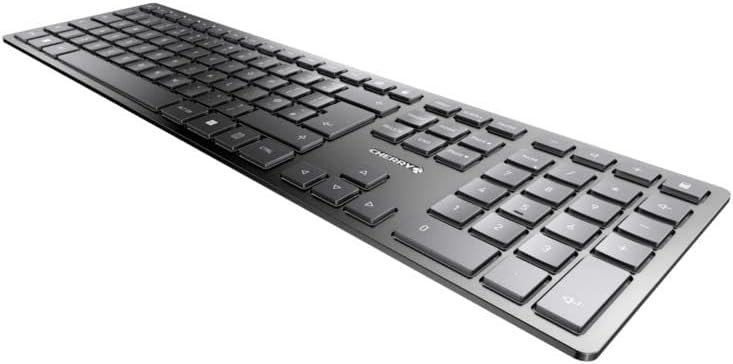
Слика 3.1: Под углом view highlighting the slim profile and key layout of the keyboard.

Слика 3.2: Крупни план view of the keys, illustrating the low-profile design and quiet SX Scissor Mechanism.
4. Подешавање и повезивање
4.1 Пуњење тастатуре
Пре прве употребе, препоручује се да потпуно напуните тастатуру.
- Connect the supplied USB-A to USB-C cable to the USB-C port on the keyboard.
- Connect the other end of the cable to a USB-A port on your computer or a compatible USB power adapter.
- The charging indicator LED will illuminate. The keyboard can be used while charging.

Figure 4.1: Location of the USB-C charging port on the Cherry KW 9100 Slim keyboard.
4.2 Connecting via 2.4 GHz RF Wireless
For a stable and fast wireless connection, use the included USB receiver.
- Locate the USB receiver (dongle) in the package.
- Прикључите УСБ пријемник у слободан УСБ-А порт на рачунару.
- On the keyboard, locate the connectivity switch (usually on the back or side) and set it to the "RF" or 2.4 GHz icon position.
- Тастатура би требало аутоматски да се повеже са рачунаром.
4.3 Повезивање преко Блуетоотх-а
The keyboard supports Bluetooth connectivity for devices with Bluetooth capabilities.
- On the keyboard, set the connectivity switch to the "Bluetooth" icon position.
- The Bluetooth indicator LED on the keyboard will start blinking, indicating it's in pairing mode.
- На рачунару или уређају отворите подешавања за Bluetooth.
- Тражи new devices and select "Cherry KW 9100 Slim" from the list.
- Пратите сва упутства на екрану да бисте довршили процес упаривања.
4.4 Attaching the Magnetic Support Bar
The keyboard comes with a magnetic support bar that can be attached to adjust the typing angle.
- Locate the magnetic support bar.
- Align the bar with the magnetic strip on the underside of the keyboard.
- The magnets will snap the bar into place, providing an elevated typing angle.
- To remove, simply pull the bar away from the keyboard.

Слика 4.2: Страна view of the keyboard demonstrating the elevated angle with the magnetic support bar attached.

Figure 4.3: Illustration of how the magnetic support bar attaches to the keyboard's underside.
5. Операција
5.1 Основна употреба
Once connected, the Cherry KW 9100 Slim functions as a standard keyboard. Type as you normally would.

Figure 5.1: A user demonstrating typing on the Cherry KW 9100 Slim keyboard in an office setting.
5.2 Функцијски тастери (Ф-тастери)
The F-keys (F1-F12) on the top row may have secondary functions accessible by pressing the Fn key simultaneously. Refer to the keycap legends for specific functions such as media control, volume adjustment, or brightness control.
5.3 Статусне ЛЕД диоде
The keyboard features indicator LEDs for:
- ТАСТЕР ЗА ВЕЛИКА СЛОВА: Illuminates when Caps Lock is active.
- NUM: Illuminates when Num Lock is active.
- СВИТАК: Illuminates when Scroll Lock is active.
- Battery/Charging: Indicates charging status or low battery.
6. Одржавање
6.1 Чишћење тастатуре
Да бисте одржали изглед и функционалност тастатуре:
- Искључите тастатуру из рачунара пре чишћења.
- Користите меку крпу која не оставља длачицеampнатопљен водом или благим раствором за чишћење.
- Избегавајте прекомерну влагу и не прскајте средства за чишћење директно на тастатуру.
- За прашину и остатке између тастера користите компримовани ваздух.
6.2 Одржавање батерије
The built-in rechargeable battery is designed for long life.
- Recharge the keyboard when the battery indicator shows low power.
- Избегавајте често потпуно пражњење батерије како бисте продужили њен век трајања.
- Store the keyboard in a cool, dry place if not used for extended periods.
КСНУМКС. Решавање проблема
| Проблем | Могући узрок | Решење |
|---|---|---|
| Keyboard not responding (RF) | USB receiver not plugged in; keyboard not in RF mode; low battery. | Ensure USB receiver is securely plugged in. Set keyboard switch to RF mode. Charge the keyboard. Try a different USB port. |
| Тастатура не реагује (Блутут) | Keyboard not in Bluetooth mode; not paired; out of range; low battery. | Set keyboard switch to Bluetooth mode. Ensure keyboard is paired with the device. Move keyboard closer to the device. Charge the keyboard. |
| Тастери су лепљиви или не реагују | Debris under keys; liquid spill. | Clean the keyboard using compressed air. If liquid spill, disconnect immediately and allow to dry completely before use. Do not attempt to disassemble. |
| Батерија се не пуни | Faulty USB cable or port; power source issue. | Try a different USB cable and/or USB port. Ensure the power source is active. |
8. Спецификације
| Феатуре | Детаљ |
|---|---|
| Број модела | JK-9100US-2 |
| Повезивање | Bluetooth, 2.4 GHz RF (with USB receiver), USB-C (for charging) |
| Опис тастатуре | Wireless, Full-size |
| Кључни механизам | SX Scissor Mechanism |
| Број кључева | 108 |
| Боја | Црно |
| Материјал | Metal (built-in plate) |
| Тежина артикла | 1.49 фунти (приближно 676 грама) |
| Димензије пакета | 18.19 к 6.69 к 1.26 инча |
| Произвођач | ТРЕШЊА |
| Компатибилни уређаји | PC |
| Препоручена употреба | Gaming, Office, Work |
9. Гаранција и подршка
For warranty information and technical support, please refer to the official Cherry website or contact Cherry customer service. Keep your proof of purchase for warranty claims.
Official Cherry Webсајт: www.cherry.de/en/
Служба за кориснике: Погледајте одељак за контакт на званичном сајту webсајт за детаље о регионалној подршци.
Ask a question about this manual
Ask about setup, troubleshooting, compatibility, parts, safety, or missing instructions. Manuals+ will review the question and use this page’s manual context to help answer it.