
1. Увод
This manual provides essential information for the safe and efficient operation of your suevery SV240ZA 24-inch 165Hz IPS Gaming Monitor. Please read this manual thoroughly before using the product and retain it for future reference. This monitor is designed for gaming, home office, and general computing tasks, offering a Full HD 1080p resolution, a high refresh rate, and fast response time for a smooth visual experience.
2. Безбедносне информације
- Не излажите монитор киши или влази како бисте спречили пожар или струјни удар.
- Не отварајте монитор цasinг. Унутра нема делова које корисник може сам да поправи. Сво сервисирање препустите квалификованом особљу.
- Поставите монитор на стабилну, равну површину како бисте спречили његов пад.
- Обезбедите одговарајућу вентилацију око монитора. Не блокирајте вентилационе отворе.
- Користите само адаптер за напајање који се испоручује са монитором.
- Искључите кабл за напајање из утичнице ако монитор неће бити коришћен дуже време.
3. Садржај пакета
Проверите да ли су све ставке присутне у пакету:
- 1 x suevery SV240ZA Monitor
- 1 x Postolje
- 1 к ХДМИ кабл
- 1 к ДисплаиПорт кабл
- 1 к Упутство за употребу
- 1 к адаптер за напајање
4. Упутства за подешавање
4.1 Састављање постоља
Attach the stand base to the monitor neck, then secure the neck to the back of the monitor. Ensure all screws are tightened securely.
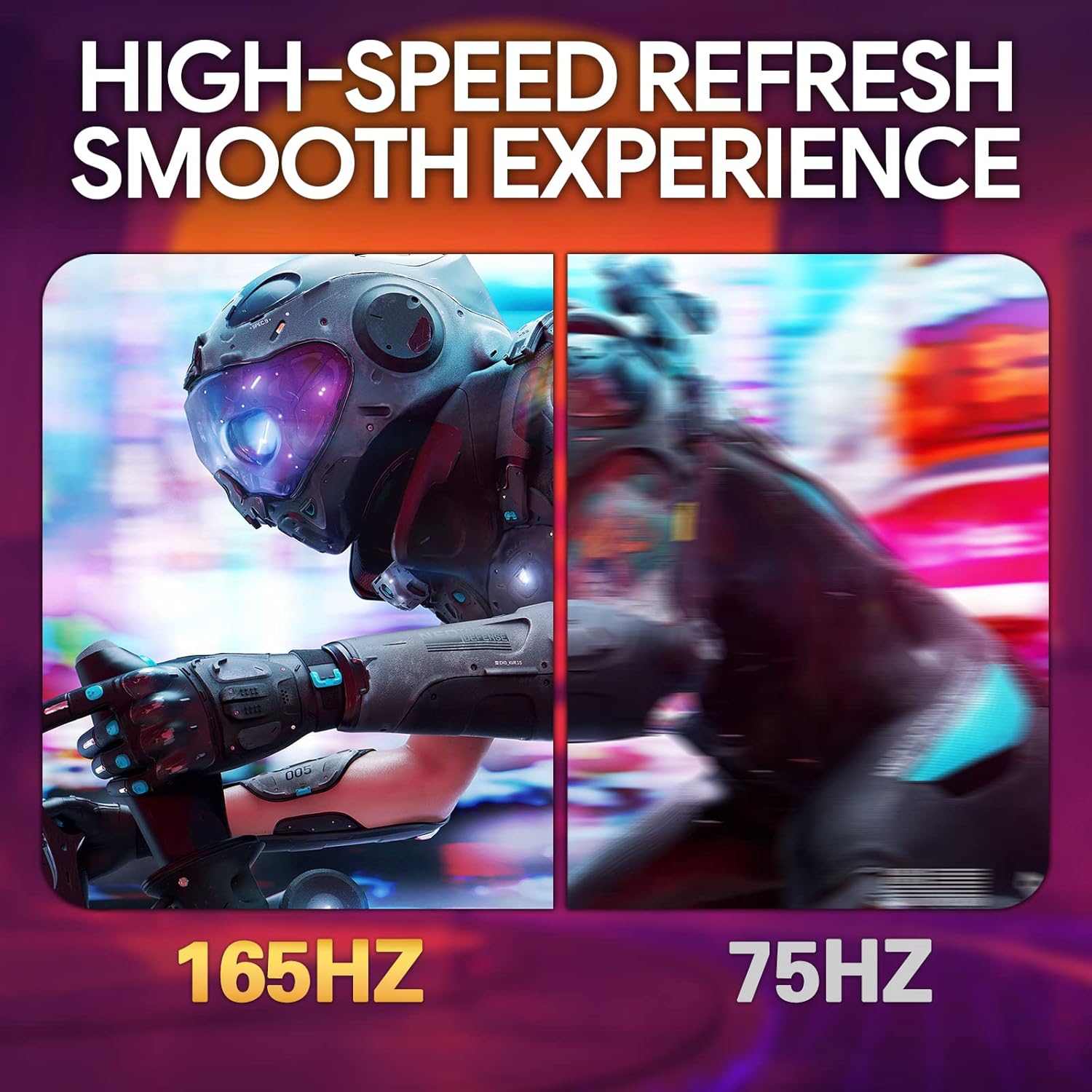
Image: The suevery SV240ZA monitor fully assembled with its desktop stand.
4.2 ВЕСА монтажа
The monitor supports VESA mounting with a 75mm x 75mm pattern. Remove the stand if attached, and use appropriate VESA screws to mount the monitor to a compatible wall mount or desk arm.

Image: Rear of the monitor illustrating the 75mm x 75mm VESA mount compatibility.
4.3 Каблови за повезивање
Connect the power adapter to the monitor and a power outlet. Use either the HDMI or DisplayPort cable to connect the monitor to your computer or gaming device. For audio output, connect headphones or external speakers to the 3.5mm audio out port.

Слика: Прекоview of the monitor's rear ports including USB, HDMI, DisplayPort, and Audio out.
4.4 Почетно укључивање
Press the power button located on the monitor to turn it on. The monitor will automatically detect the input signal. If no signal is detected, ensure your source device is powered on and connected correctly.
5. Упутство за употребу
5.1 Приказ на екрану (ОСД) мени
The OSD menu allows you to adjust various monitor settings. Typically, buttons on the back or bottom of the monitor are used to navigate and select options within the OSD.
5.2 Подешавање подешавања екрана
- Брзина освежавања: The monitor supports up to 165Hz. Ensure your graphics card settings are configured to utilize the maximum refresh rate for a smoother experience.
- Време одговора: With a 1ms GTG response time, motion blur is significantly reduced. This setting is often managed automatically or through specific OSD options.
- ФрееСинц: Enable AMD FreeSync in the OSD menu and your graphics card control panel to synchronize the monitor's refresh rate with your GPU's frame rate, eliminating screen tearing and stuttering.
- Подешавања боја: Adjust brightness, contrast, color temperature, and gamma for optimal visual quality. The IPS panel provides 99% sRGB color gamut and 8-bit color depth for rich and vibrant colors.
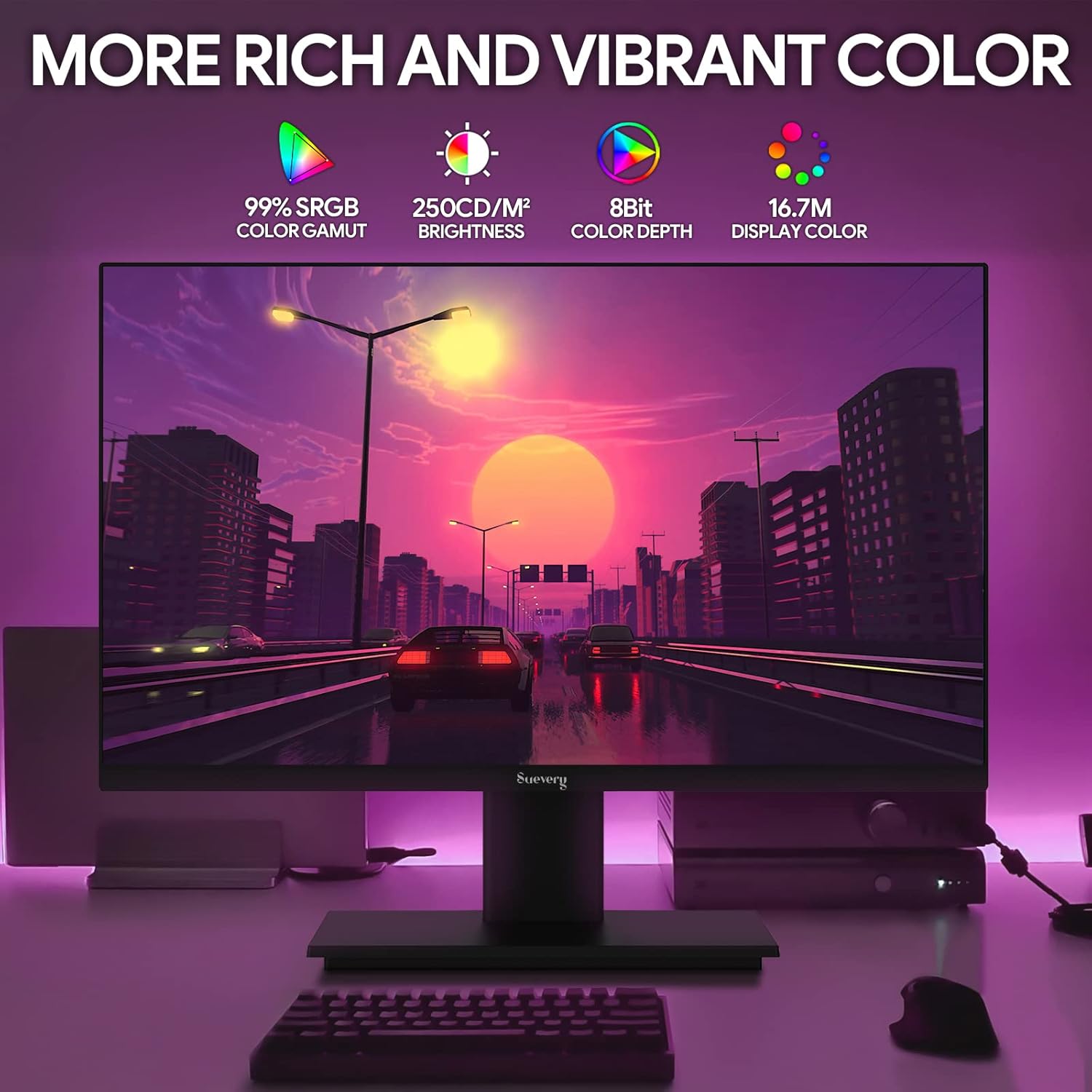
Image: The monitor's display capabilities, highlighting rich and vibrant color reproduction.
5.3 Подешавање нагиба
The monitor allows for tilt adjustment from -3 to 18 degrees. Gently adjust the screen to your preferred viewугао уласка.

Image: Illustration of the monitor's adjustable tilt feature.
5.4 Аудио излаз
Connect your headphones or external speakers to the 3.5mm audio out port for private listening or enhanced sound.

Image: User connecting headphones to the 3.5mm audio out port on the monitor.
6. Феатурес Оверview
6.1 High Refresh Rate and Fast Response Time
Experience smooth visuals with a 165Hz refresh rate and a 1ms GTG response time, reducing motion blur and ghosting in fast-paced content.

Image: Visual comparison demonstrating the smoothness of a 165Hz refresh rate versus 75Hz.

Image: Visual comparison highlighting the reduction of afterimage and ghosting with 1ms GTG response time.
6.2 Adaptive Sync Technology
AMD FreeSync support synchronizes the monitor's refresh rate with compatible graphics cards, eliminating screen tearing and stuttering for fluid gameplay.
Image: Demonstrates the smooth display experience provided by 165Hz and FreeSync technology.
6.3 IPS Panel and Full HD Resolution
The IPS panel offers wide 178-degree viewing angles and accurate color reproduction. The 1920 x 1080p Full HD resolution provides clear and detailed images.

Image: Illustrates the enhanced detail and realism of 1080p Full HD resolution compared to standard HD.
6.4 HDR Technology
HDR (High Dynamic Range) technology enhances contrast and color accuracy, bringing more lifelike images to your screen.

Image: Visual representation of how HDR technology improves image quality compared to SDR.
6.5 Broad Compatibility
Equipped with HDMI and DisplayPort, the monitor connects to various devices such as PCs, laptops, gaming consoles, and TV boxes.

Image: The monitor connected to multiple devices, demonstrating its broad compatibility.
7. Одржавање
7.1 Чишћење монитора
- Увек искључите монитор пре чишћења.
- Лагано користите меку крпу која не оставља длачице дampводом или благим, неабразивним средством за чишћење екрана.
- Не прскајте средство за чишћење директно на екран.
- Avoid using harsh chemicals like alcohol, benzene, or thinners, as they can damage the screen surface.
7.2 Општа нега
- Држите монитор даље од директне сунчеве светлости и извора топлоте.
- Избегавајте стављање тешких предмета на монитор или његове каблове.
- Не излажите монитор екстремним температурама или влази.
КСНУМКС. Решавање проблема
Ако наиђете на проблеме са монитором, погледајте следеће уобичајене кораке за решавање проблема:
| Проблем | Могући узрок | Решење |
|---|---|---|
| Нема слике на екрану | Кабл за напајање је искључен; видео кабл је искључен; изабран је погрешан улазни извор. | Check power and video cable connections. Ensure the correct input source (HDMI/DP) is selected via the OSD menu. |
| Слика трепери или је нестабилна | Видео кабл лабав или оштећен; проблем са драјвером графичке картице; неусклађеност брзине освежавања. | Secure video cable. Update graphics card drivers. Adjust refresh rate in your computer's display settings. Enable FreeSync if applicable. |
| Нема звука из аудио излаза | Headphones/speakers not connected; Volume too low; Incorrect audio output device selected on computer. | Ensure audio device is properly connected. Increase volume on monitor and computer. Select the monitor as the default audio output device in your computer's sound settings. |
| Монитор се не укључује | Power cable disconnected; Power adapter faulty. | Verify power cable is securely connected to both the monitor and a working power outlet. Test the outlet with another device. |
9. Спецификације
| Феатуре | Спецификација |
|---|---|
| Бранд | суевери |
| Модел | SV240ZA |
| Величина екрана | 24 инча |
| Резолуција | FHD 1080p (1920 x 1080 пиксела) |
| Аспецт Ратио | 16:9 |
| Панел Типе | IPS (LCD) |
| Рефресх Рате | 165 Хз |
| Време одговора | 1 Millisecond (GTG) |
| Однос контраста | 1000:1 |
| Осветљеност | 220 цд/м² |
| Viewинг Англе | 178 степени |
| Повезивање | 1 x HDMI, 1 x DisplayPort, 1 x USB (charging only), 1 x 3.5mm Audio Out |
| Адаптиве Синц | АМД ФрееСинц |
| ВЕСА Моунт | 75 мм к 75 мм |
| Подешавање нагиба | -3 до 18 степени |
| Димензије (Ш к В к Д) | 54.6 cm x 32.3 cm x 9.7 cm (approximate, without stand) |

Image: Detailed dimensions of the suevery SV240ZA monitor.
10. Гаранција и подршка
10.1 Политика гаранције
The suevery SV240ZA monitor comes with a one-year free warranty. Returns and replacements are free within 30 days of purchase for quality issues.
10.2 Корисничка подршка
For any quality issues or support inquiries regarding your monitor, please contact suevery customer support. Refer to the contact information provided with your purchase documentation or visit the official suevery webсајт за помоћ.