
1. Увод
This manual provides detailed instructions for the installation, operation, and maintenance of your Avision FB25 Flatbed Scanner. The FB25 is a high-resolution A4 color flatbed scanner designed for efficient document and ID card scanning. It features a 1200dpi Contact Image Sensor (CIS) and USB 2.0 connectivity, making it suitable for various scanning tasks. Please read this manual thoroughly before using the scanner to ensure proper operation and to maximize its performance.
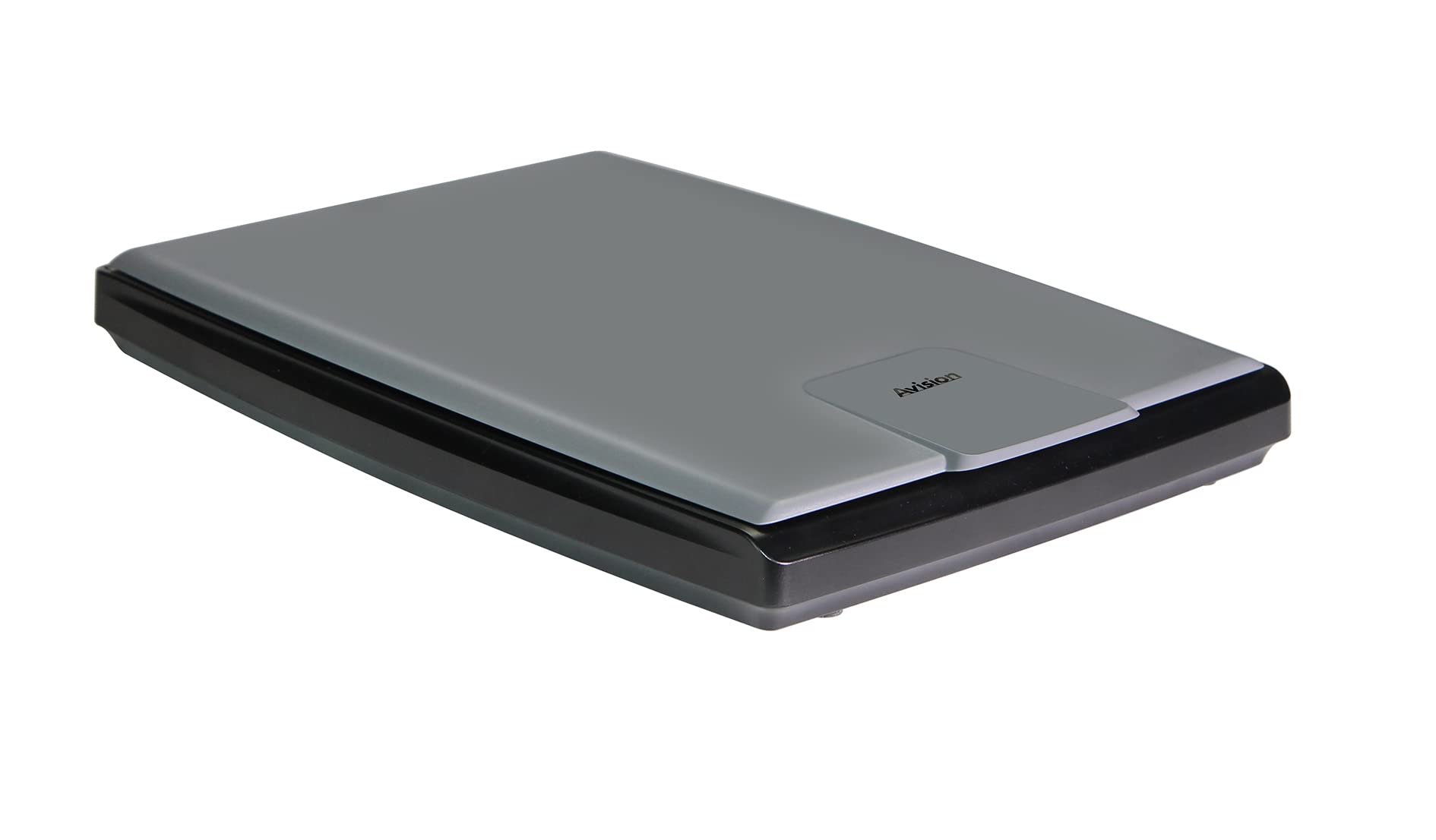
Слика 1.1: Одозго надоле view of the Avision FB25 Flatbed Scanner. The scanner features a dark gray base with a lighter gray lid, displaying the 'Avision' logo prominently on the lid's front section.
2. Безбедносне информације
- Do not expose the scanner to water or moisture.
- Не покушавајте да растављате или модификујете скенер. Сво сервисирање препустите квалификованом особљу.
- Користите само адаптер за напајање који се испоручује са скенером.
- Place the scanner on a stable, level surface to prevent damage from falling.
- Држите скенер даље од директне сунчеве светлости и извора топлоте.
- Ensure proper ventilation around the scanner to prevent overheating.
3. Садржај пакета
Проверите да ли су све ставке присутне у пакету:
- Avision FB25 Flatbed Scanner Unit
- УСБ КСНУМКС кабл
- Повер Адаптер
- Водич за брзи почетак
- Software CD (or download instructions for TWAIN Driver and PaperPort SE14)
4. Производ је готовview
The Avision FB25 is a compact flatbed scanner. Its design includes a scanning bed for documents up to A4 size, a hinged lid, and a power/data interface.

Image 4.1: The Avision FB25 Flatbed Scanner shown with its approximate dimensions: 16.77 inches in length, 13.65 inches in width, and 3.12 inches in height.
4.1 Фронт View
The front of the scanner typically features the Avision logo on the lid. There are no physical buttons on the front.
4.2 Реар View
The rear panel houses the power input port and the USB 2.0 port for connecting to your computer.
4.3 Scanning Bed
The flat glass surface where documents are placed for scanning. Ensure this surface is clean before each use.
5. Подешавање
5.1 Повезивање хардвера
- Поставите скенер на стабилну, равну површину.
- Connect the power adapter to the scanner's power input port and then plug it into an electrical outlet.
- Connect one end of the USB 2.0 cable to the scanner's USB port and the other end to an available USB port on your computer.
- Power on the scanner (if it has a power button; otherwise, it powers on automatically when connected).
5.2 Инсталација софтвера
The Avision FB25 requires driver software for proper operation. It supports Windows XP, Vista, 7, 8, 10, and 11.
- Insert the provided Software CD into your computer's CD/DVD drive. If your computer does not have a CD/DVD drive, download the latest drivers and software (TWAIN Driver and PaperPort SE14) from the official Avision support webсајту.
- Follow the on-screen instructions to install the TWAIN driver. The TWAIN driver allows the scanner to communicate with various scanning applications.
- Install PaperPort SE14, the bundled document management software. This software provides an intuitive interface for scanning, organizing, and sharing documents.
- Restart your computer after the installation is complete to ensure all drivers are properly loaded.
6. Упутство за употребу
6.1 Placing Documents
- Подигните поклопац скенера.
- Place the document face-down on the scanning glass, aligning it with the corner guide (usually top-left).
- Gently close the scanner lid. Ensure the document lies flat against the glass.
6.2 Using the TWAIN Driver
The TWAIN driver allows you to scan directly from TWAIN-compliant applications (e.g., Adobe Photoshop, Microsoft Paint, or other document management software).
- Open your preferred TWAIN-compliant application.
- Идите до 'File' menu and select 'Import' or 'Acquire Image'.
- Choose the Avision FB25 scanner from the list of available devices.
- The TWAIN driver interface will appear, allowing you to adjust scanning settings such as resolution (up to 1200dpi), color mode (color, grayscale, black & white), and scan area.
- Click 'Scan' to initiate the scanning process. The FB25 can scan an A4 color page at 300 dpi in approximately 1.5 seconds.
- The scanned image will appear in your application.
6.3 Using PaperPort SE14
PaperPort SE14 provides a user-friendly environment for scanning and managing your documents.
- Launch PaperPort SE14 from your desktop or Start menu.
- In the PaperPort interface, locate the 'Scan' button or option.
- Изаберите Avision FB25 као свој скенер.
- Adjust scanning settings as needed (e.g., resolution, color, document type).
- Click 'Scan' to begin. The scanned document will appear in your PaperPort workspace.
- You can then save the document in various formats including BMP, PNG, GIF, JPEG, Single-Page PDF, Multi-Page PDF, Multi-TIFF, TIFF, RTF, TXT, OCR, XPS, DOC, XLS, PPT, DOCS, XLSX, PPTX, and HTML.
7. Одржавање
7.1 Чишћење стакла скенера
Dust or smudges on the scanner glass can affect scan quality.
- Turn off the scanner and unplug the power adapter.
- Отворите поклопац скенера.
- Gently wipe the glass surface with a soft, lint-free cloth dampОчистите благим средством за чишћење стакла. Не прскајте средство за чишћење директно на стакло.
- Wipe dry with another clean, dry cloth.
- Close the lid and reconnect power.
7.2 Општа нега
- Keep the scanner covered when not in use to prevent dust accumulation.
- Избегавајте стављање тешких предмета на поклопац скенера.
КСНУМКС. Решавање проблема
If you encounter issues with your Avision FB25 scanner, refer to the following common problems and solutions:
| Проблем | Могући узрок | Решење |
|---|---|---|
| Рачунар није детектовао скенер. | Loose USB cable, power not connected, driver not installed. | Check USB and power connections. Ensure the scanner is powered on. Reinstall the TWAIN driver. Try a different USB port. |
| Лош квалитет скенирања (пруге, замућене слике). | Dirty scanner glass, incorrect resolution settings, document not flat. | Clean the scanner glass (refer to Section 7.1). Adjust resolution settings in the scanning software. Ensure the document is placed flat. |
| Scanning software crashes or freezes. | Outdated driver, software conflict, insufficient system resources. | Update the TWAIN driver and PaperPort SE14 to the latest versions. Close other applications. Restart the computer. |
| Скенер се не укључује. | Power adapter not connected, faulty power outlet. | Check power adapter connection to scanner and outlet. Try a different power outlet. Ensure the power adapter is functional. |
9. Спецификације
Key technical specifications for the Avision FB25 Flatbed Scanner:
- Тип скенера: Document, ID Card Flatbed
- Технологија оптичког сензора: ЦИС (сензор слике за контакт)
- Тип извора светлости: ЛЕД
- Оптичка резолуција: 1200 дпи
- Дубина боје: 48-bit input, 24-bit output
- Grayscale Depth: 16-bit input, 8-bit output
- Scan Size (Max): А4 (216 к 297 мм)
- Брзина скенирања: Approximately 1.5 seconds per A4 color page at 300 dpi (3.5 seconds including return)
- Повезивање: УСБ 2.0
- Димензије производа (Д x Ш x В): 16.93" x 13.78" x 3.15" (430 mm x 350 mm x 80 mm)
- Стандардни капацитет листова: 1 (flatbed)
- Минимални системски захтеви: Виндовс КСП, Виста, 7, 8, 10, 11
- Софтвер у пакету: TWAIN Driver, PaperPort SE14
- Подржано File Формати: BMP, PNG, GIF, JPEG, Single-Page PDF, Multi-Page PDF, Multi-TIFF, TIFF, RTF, TXT, OCR, XPS, DOC, XLS, PPT, DOCS, XLSX, PPTX, HTML
10. Гаранција и подршка
10.1 Гаранција произвођача
The Avision FB25 Flatbed Scanner comes with a 1 година гаранције произвођача. This warranty covers defects in materials and workmanship under normal use during the warranty period. Please retain your proof of purchase for warranty claims.
10.2 Техничка подршка
For technical assistance, driver updates, or further troubleshooting not covered in this manual, please visit the official Avision support website or contact their customer service department. Contact information can typically be found on the Avision webсајту или у Водичу за брзи почетак који је испоручени уз ваш производ.