
Увод
This manual provides detailed instructions for the setup, operation, and maintenance of your Earto iPad 10th Generation Keyboard Case with Touchpad. Please read this manual thoroughly to ensure proper use and to maximize the functionality of your device.
The Earto keyboard case is designed to enhance your iPad experience by providing a physical keyboard and a precision touchpad, transforming your tablet into a versatile productivity tool.
Компатибилност
Ова футрола са тастатуром је посебно дизајнирана за следеће моделе iPad-а:
- iPad 10th Generation 10.9 inch (2022)
- Бројеви модела: А2696, А2757, А2777
To verify your iPad model number, check the back of your iPad under the Apple logo.
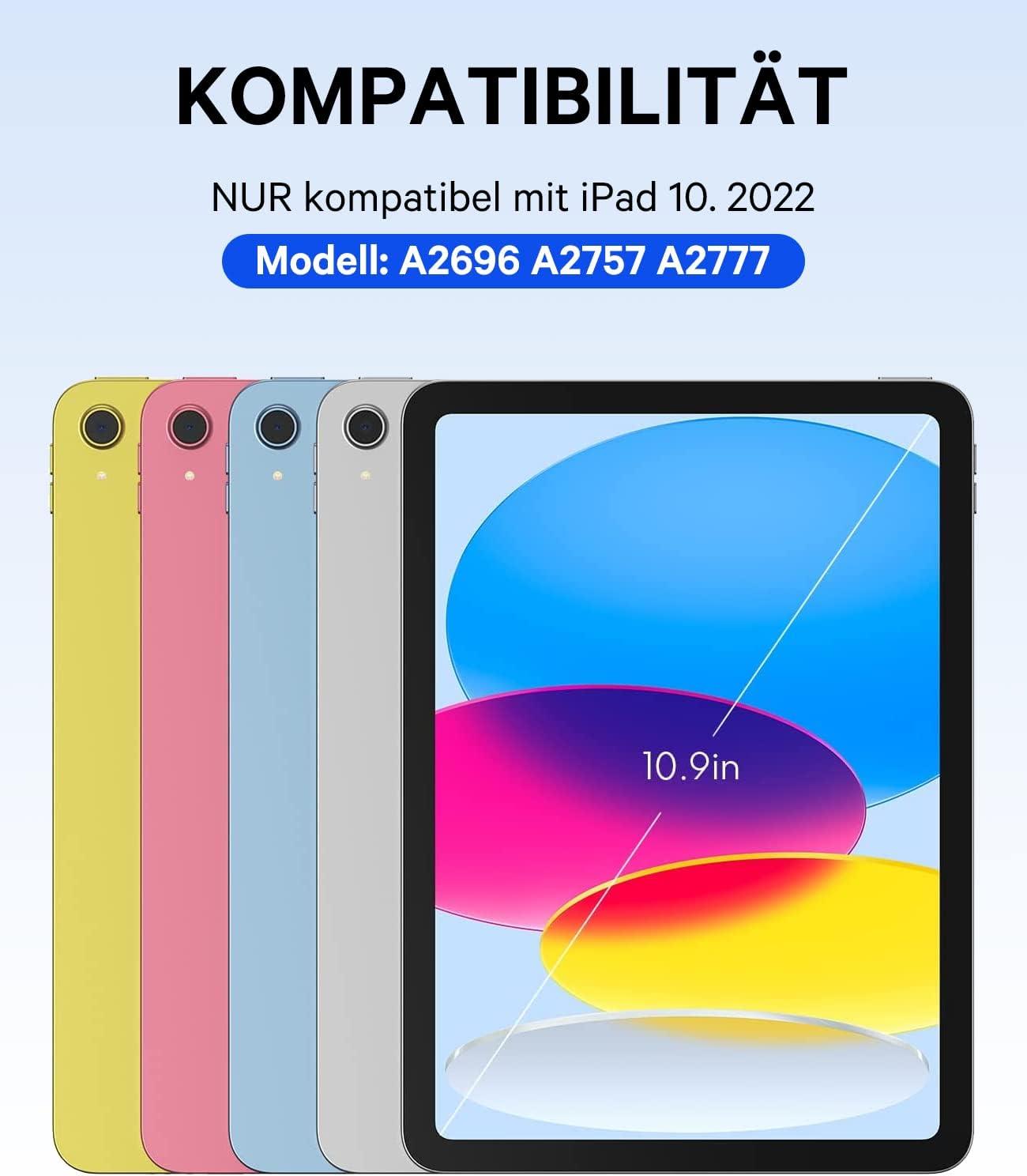
Слика 1: Visual guide for iPad 10th Generation compatibility, highlighting model numbers A2696, A2757, A2777.
Сетуп
1. Причвршћивање iPad-а на футролу
- Align your iPad 10th Generation with the case.
- Gently press the iPad into the protective frame of the case until it is securely seated.
- Ensure all ports, buttons, and cameras are accessible through the precise cut-outs.

Слика 2: The Earto keyboard case with an iPad installed, ready for use.
2. Пуњење тастатуре
The keyboard features a Type-C charging interface. Before initial use, fully charge the keyboard.
- Повежите приложени кабл за пуњење типа C са портом за пуњење на тастатури.
- Connect the other end of the cable to a USB power adapter (not included).
- A full charge typically takes 2-3 hours. The keyboard can operate continuously for up to 70 hours on a full charge under normal use.
3. Упаривање тастатуре путем Bluetooth-а
The keyboard supports two Bluetooth channels, allowing you to connect to and switch between two devices.
- Turn on the keyboard by sliding the power switch.
- Притисните и држите Фн + К keys simultaneously to activate Bluetooth Channel 1 (BT1) pairing mode. The Bluetooth indicator light will flash.
- На вашем iPad-у идите на Подешавања > Блуетоотх и укључите Блутут.
- Select "Bluetooth Keyboard" (or similar name) from the list of available devices.
- Once paired, the Bluetooth indicator light will stop flashing.
- To pair a second device, repeat steps 2-5, but press Фн + В for Bluetooth Channel 2 (BT2).
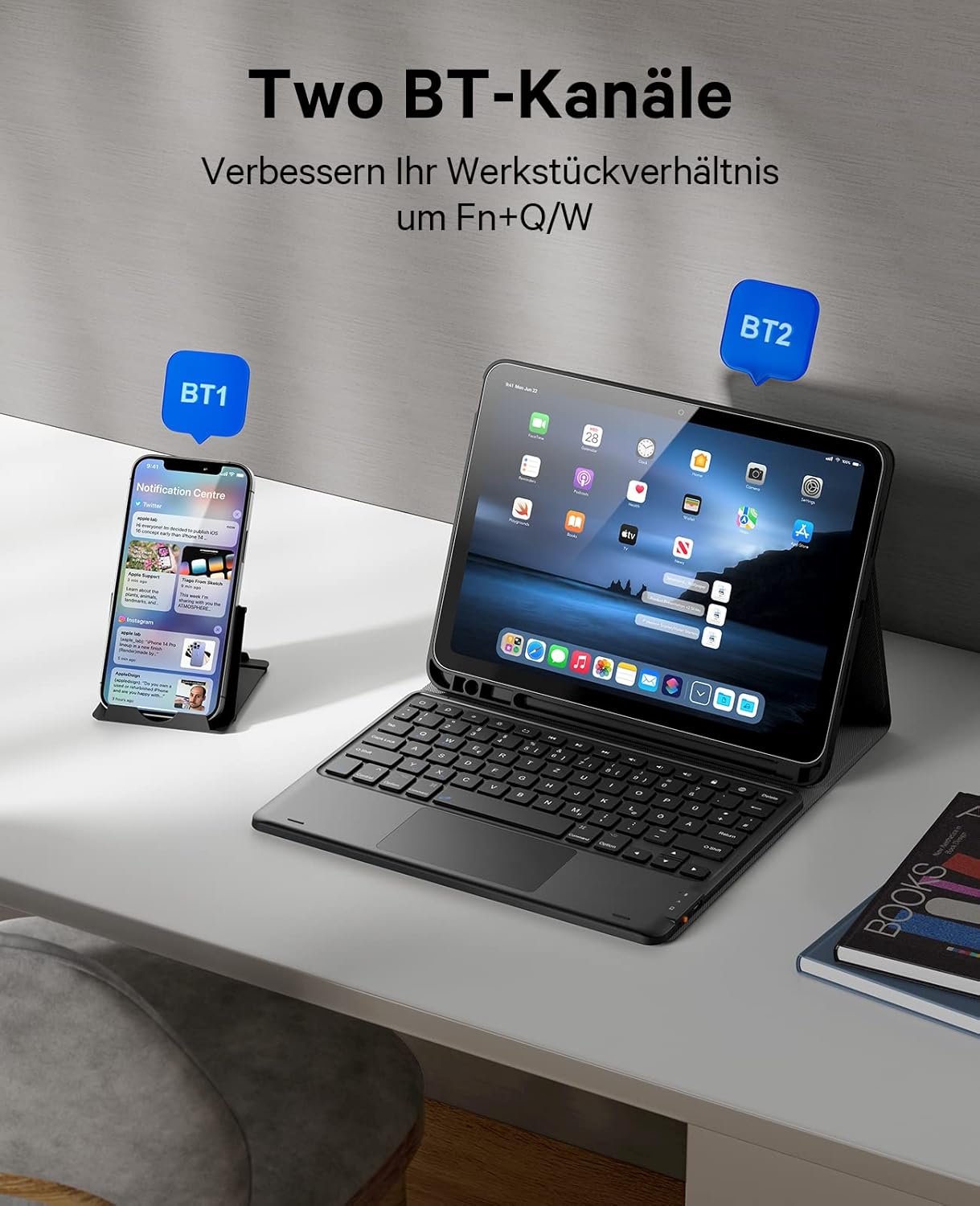
Слика 3: Connecting the keyboard to multiple devices using BT1 and BT2 channels.
Упутство за употребу
1. Using the Touchpad
The integrated precision touchpad allows for quick and accurate interaction with your iPad, supporting multi-gesture operations similar to a laptop.
- Додир једним прстом: Леви клик.
- Додир са два прста: Кликните десним тастером миша (контекстни мени).
- Померање са два прста: Померајте се горе/доле или лево/десно.
- Покрети превлачења: Support for various iPadOS gestures (e.g., swipe left/right to switch apps, swipe up to return to home screen).
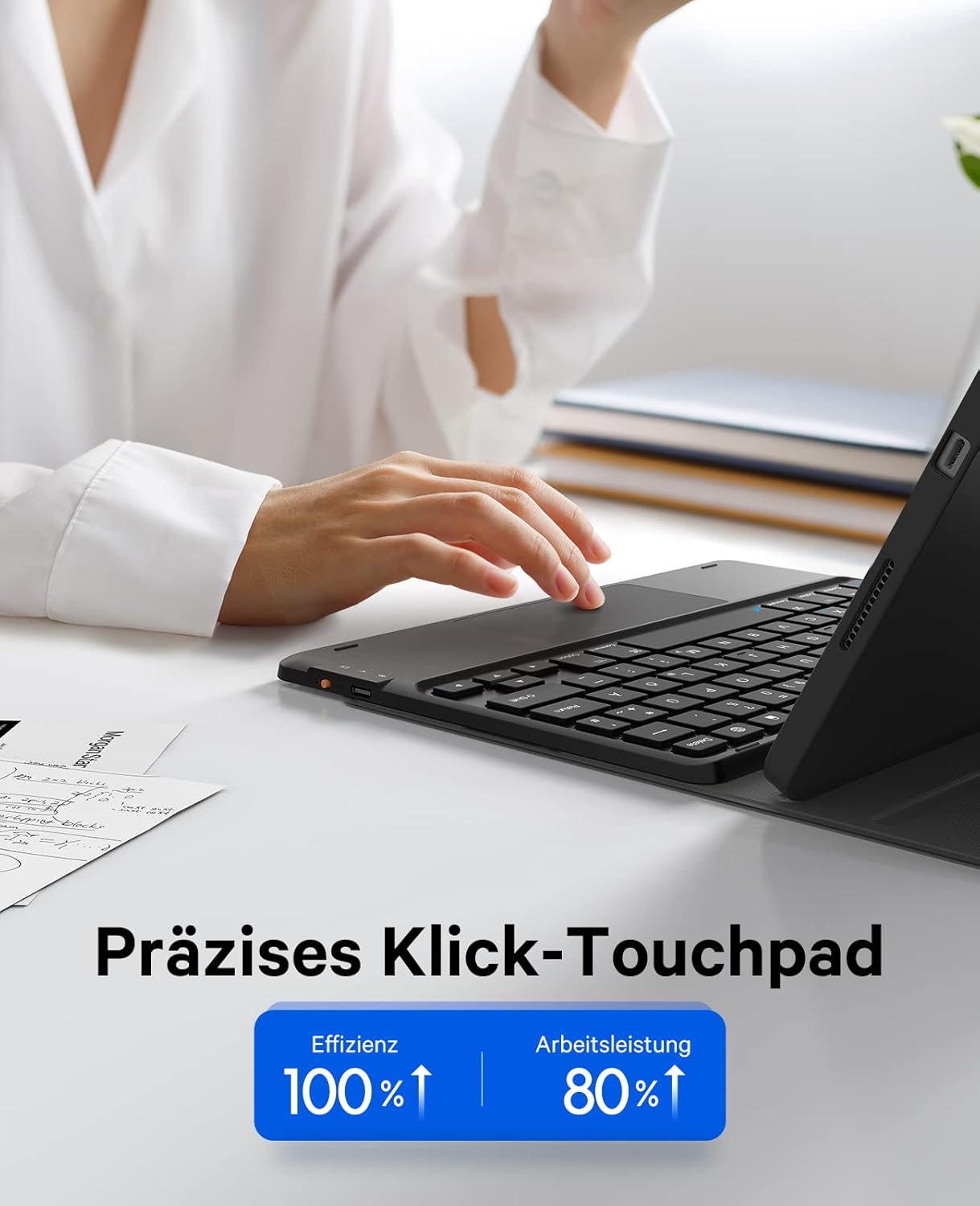
Слика 4: Demonstrating the precision touchpad for efficient navigation.
2. Enabling/Disabling the Touchpad
To conserve battery or prevent accidental input, you can enable or disable the touchpad function.
- Притисните тастер Фн + размакница keys simultaneously to toggle the touchpad function on or off.

Слика 5: Activating or deactivating the touchpad using the Fn + Spacebar shortcut.
3. Typing Experience and Multimedia Keys
The keyboard features a QWERTZ layout with a scissor-foot button design and larger keycaps for a comfortable and efficient typing experience. A full set of multimedia keys allows for easy control of various iPad functions.
- Use the dedicated multimedia keys for functions such as volume control, media playback, screen brightness, and more.
4. Detachable Magnetic Keyboard
The keyboard is magnetically attached to the case, allowing for flexible use. You can detach the keyboard for standalone use or to use the case without the keyboard.
- To detach, gently pull the keyboard away from the magnetic surface of the case.
- To reattach, align the keyboard with the magnetic area in the case, and it will snap into place.
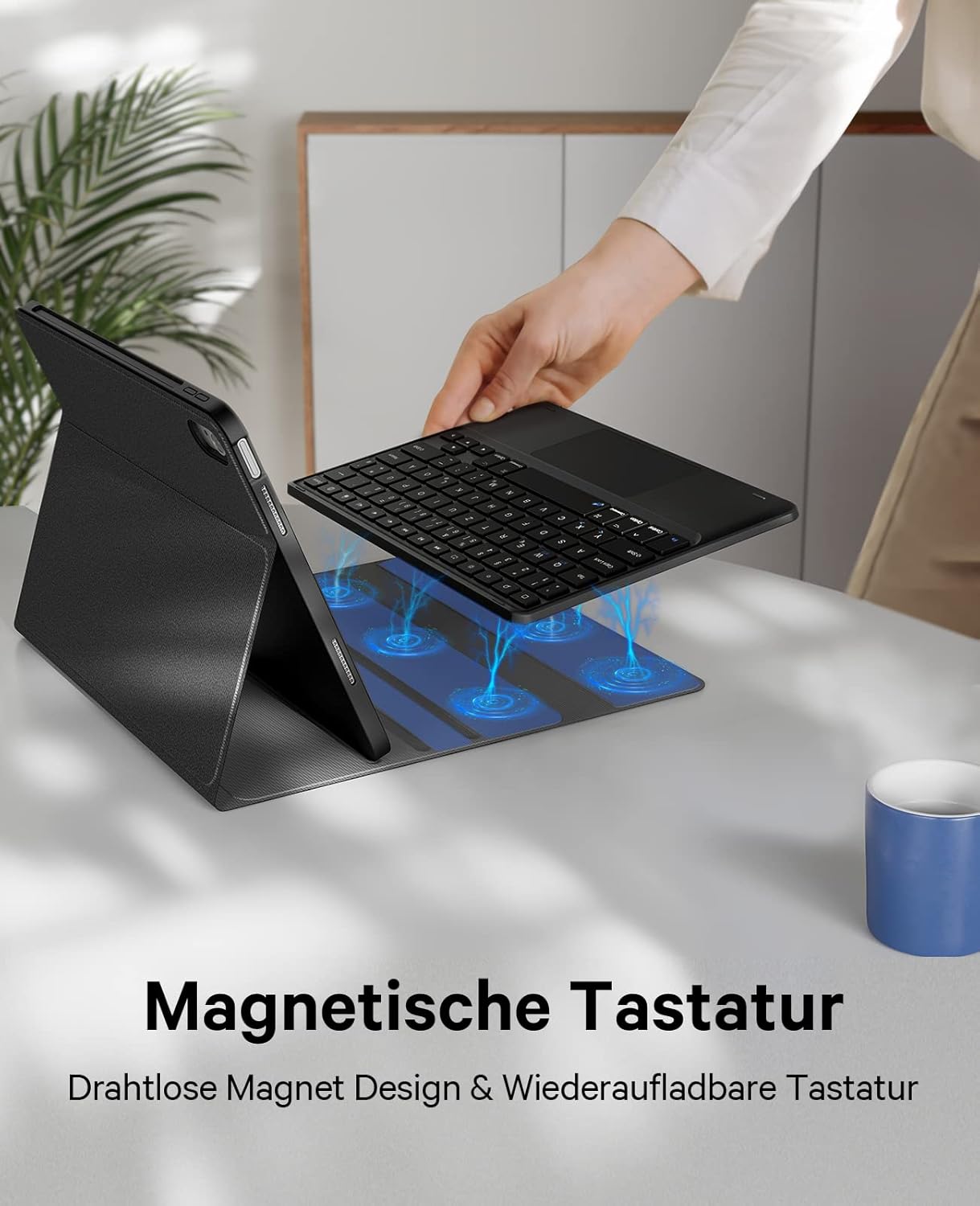
Слика 6: The magnetic attachment mechanism of the keyboard to the case.
5. Подесиво Viewинг Англес
The case features three built-in card slots that allow you to adjust the viewing angle of your iPad for optimal comfort during typing, viewње, или цртање.
- The available angles are approximately 110°, 120°, and 130°.
- Simply place the edge of your iPad into one of the grooves to set the desired angle.

Слика 7: Adjusting the iPad to different viewуглове за различите задатке.
6. Apple Pencil Holder
The case includes a built-in holder for your Apple Pencil, along with slots for the cap and adapter, ensuring your Apple Pencil is always secure and accessible.
Одржавање
- Чишћење кућишта: Wipe the PU leather surface with a soft, damp крпу. Избегавајте јаке хемикалије или абразивна средства за чишћење.
- Чишћење тастатуре: Use a soft, dry cloth to clean the keys. For dust or debris between keys, use compressed air.
- Складиштење: Када се не користи дуже време, чувајте футролу за тастатуру на хладном и сувом месту. Уверите се да је тастатура искључена да бисте продужили век трајања батерије.
- Одржавање батерије: To maintain battery health, avoid fully discharging the keyboard frequently. Charge it regularly.
Решавање проблема
| Проблем | Могући узрок | Решење |
|---|---|---|
| Тастатура се не повезује преко Блутут-а |
|
|
| Тоуцхпад не реагује |
|
|
| Тастери не реагују |
|
|
Спецификације
| Феатуре | Детаљ |
|---|---|
| Бранд | Earto |
| Модел Нумберс | А2696, А2757, А2777 |
| Компатибилни уређаји | iPad 10th Generation 10.9 inch (2022) |
| Технологија повезивања | Bluetooth (2 channels) |
| Распоред тастатуре | QWERTZ |
| Посебне карактеристике | Ergonomic, Rechargeable, Integrated Touchpad, Detachable Magnetic Keyboard, Apple Pencil Holder, Adjustable Viewing Angles (110°, 120°, 130°) |
| Тип батерије | 1 литијум-јонска батерија (укључена) |
| Интерфејс за пуњење | Типе-Ц |
| Време пуњења | 2-3 сати |
| Континуирано радно време | До 70 сати |
| Димензије производа | 25.5 к 21 к 2.5 цм |
| Тежина артикла | 830 г |
| Материјал | Acrylonitrile Butadiene Styrene (ABS), PU leather |
| Боја | Црно |
Гаранција и подршка
No specific warranty information is provided in the product details. For warranty claims or technical support, please contact Earto customer service through the retailer where the product was purchased or refer to the official Earto webсајт за контакт информације.