
Увод
This user manual provides essential information for setting up, operating, maintaining, and troubleshooting your MI Xiaomi Notebook Ultra. Please read this manual thoroughly before using your device to ensure proper function and longevity. Keep this manual for future reference.
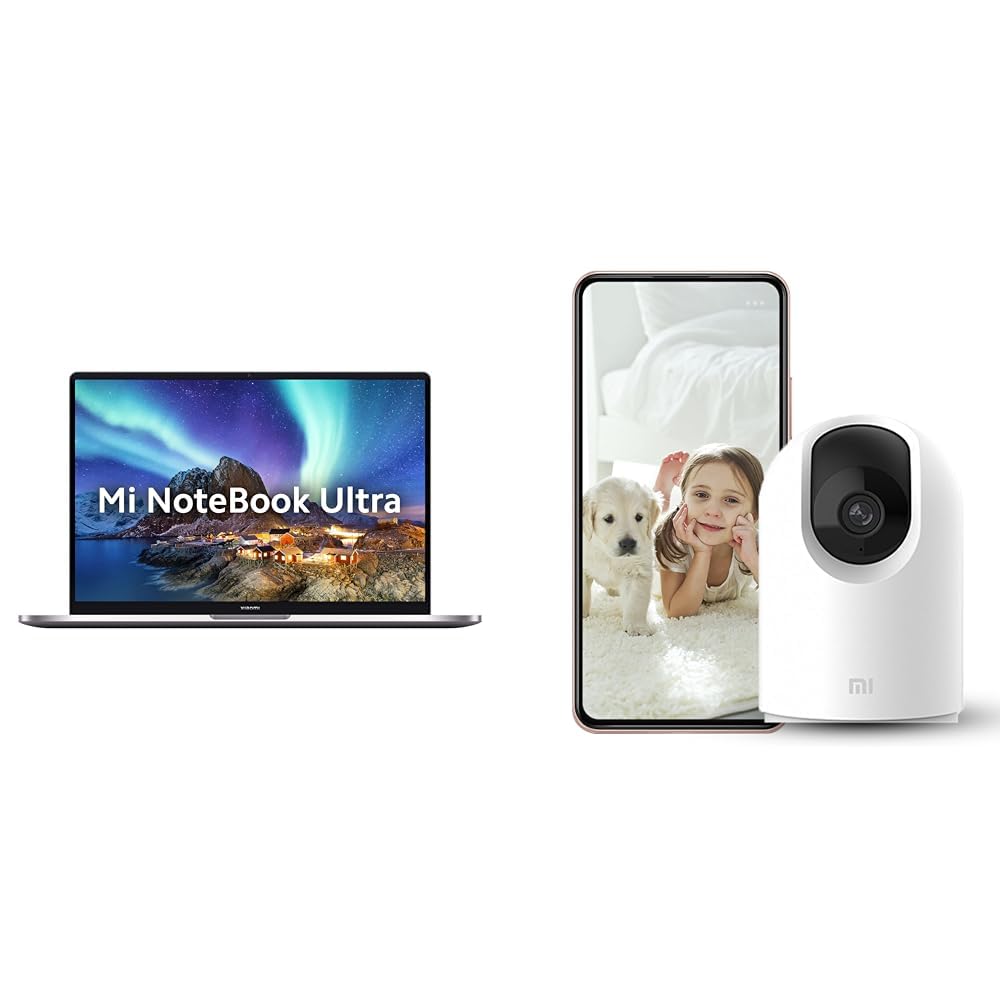
Image: The MI Xiaomi Notebook Ultra laptop, showcasing its display with a scenic wallpaper.
Производ је завршенview
The MI Xiaomi Notebook Ultra is a thin and light laptop designed for performance and portability. It features an 11th Gen Intel Core i5-11320H processor, a high-resolution 3.2K IPS display, and integrated Intel Iris Xe Graphics. This section details the main components and features of your new laptop.
Кључне карактеристике:
- процесор: 11th Gen Intel Tiger Lake Core i5-11300H processor with speeds up to 4.4 GHz, 4 cores, 8 threads, and 8 MB Cache.
- Приказ: 39.62 cm (15.6-inch) IPS 3.2K resolution (3200x2000) with 16:10 aspect ratio, 100% sRGB, 90Hz refresh rate, 241 PPI, 1500:1 contrast ratio, anti-glare, and TUV Low blue light certification.
- Меморија и складиштење: 8GB DDR4 3200 MHz RAM and 512GB PCIe NVMe M.2 SSD.
- Operating System & Software: Pre-installed Windows 11 Home and Microsoft Office Home and Student 2021.
- Графика: Integrated Intel Iris Xe graphics.
- Повезивање: Dual Band Wi-Fi and Bluetooth.
- безбедност: Fingerprint Recognition.
- Портови: Includes Thunderbolt 4 and USB Type-C ports.

Слика: Оверview of the MI Xiaomi Notebook Ultra's key features, including its 3.2K display, all-metal design, 90Hz refresh rate, 12-hour battery, thin and light profile, Thunderbolt 4, USB Type-C, Intel Core i5/i7 H35 processor, 8/16GB RAM, 512GB SSD, Wi-Fi 6, and fingerprint reader.

Слика: Сајд професионалацfile of the MI Xiaomi Notebook Ultra, highlighting the various ports including Thunderbolt 4 and USB Type-C.
Водич за подешавање
1. Распакивање и почетни преглед:
Carefully remove the laptop and all accessories from the packaging. Check for any visible damage. Ensure all components listed in the packaging are present.
2. Повезивање напајања:
- Connect the power adapter to the laptop's USB Type-C charging port.
- Укључите кабл за напајање у зидну утичницу.
- Оставите лаптоп да се пуни најмање 30 минута пре прве употребе или док индикатор батерије не покаже довољно напуњености.
3. Initial Boot and Windows Setup:
- Отворите поклопац лаптопа и притисните дугме за напајање.
- Пратите упутства на екрану да бисте завршили процес подешавања система Windows 11 Home. То укључује избор региона, језика, повезивање са Wi-Fi мрежом и креирање корисничког налога.
- Register your Microsoft account if prompted to activate Windows and Microsoft Office Home and Student 2021.
4. Повезивање периферних уређаја:
You can connect external displays, wireless keyboards, mice, webcams, and other Bluetooth/Wi-Fi enabled devices. Refer to the device's specific instructions for pairing or connecting.
- УСБ уређаји: Use the available USB Type-C or Thunderbolt 4 ports.
- Блуетоотх уређаји: Enable Bluetooth on your laptop via Windows settings and pair with your device.
- Спољашњи екран: Connect an external monitor using a compatible cable to the Thunderbolt 4 port (which supports display output).
Упутство за употребу
Управљање струјом:
- Укључено: Притисните дугме за напајање које се налази на плочи са тастатуром.
- Режим спавања: Затворите поклопац или изаберите „Спавање“ из менија „Старт“ система Windows.
- Искључи: Изаберите „Искључи“ из менија „Старт“ у оперативном систему Windows.
- Поново покрени: Изаберите „Поново покрени“ из менија „Старт“ у оперативном систему Windows.
Коришћење екрана:
Your laptop features a 3.2K IPS display with a 90Hz refresh rate. You can adjust display settings (resolution, refresh rate, brightness) through Windows Display Settings. The anti-glare coating helps reduce reflections, and TUV Low blue light certification aims to reduce eye strain.
Препознавање отиска прста:
The integrated fingerprint sensor allows for secure and quick login. To set up, navigate to Windows Settings > Accounts > Sign-in options and follow the instructions to register your fingerprint.
Тастатура и тачпед:
The laptop includes a full-sized keyboard and a precision touchpad. Customize touchpad gestures and keyboard backlight settings (if available) through Windows Settings.
аудио:
The laptop is equipped with integrated speakers. Adjust volume using the function keys or Windows sound settings.
Webкамера:
Интегрисани webcam can be used for video calls and conferences. Ensure the physical lens shield is open when using the webcam. Manage webcam privacy settings in Windows.
Одржавање
Чишћење:
- Екран: Лагано користите меку крпу која не оставља длачице дampводом или средством за чишћење екрана. Не прскајте течност директно на екран.
- Тастатура и кућиште: Користите меку, суву крпу. За тврдокорну прљавштину, благоamp Може се користити тканина. Избегавајте јаке хемикалије.
- Портови: Држите отворе чистим од прашине и остатака. Користите компримовани ваздух ако је потребно, али то радите пажљиво.
Одржавање батерије:
- Избегавајте често потпуно пражњење батерије.
- Чувајте лаптоп на хладном и сувом месту ако се не користи дуже време, са батеријом напуњеном на око 50%.
- Користите само оригинални адаптер за напајање који сте добили уз лаптоп.
Ажурирања софтвера:
Regularly update Windows, drivers, and other software to ensure optimal performance and security. You can check for updates via Windows Settings.
Решавање проблема
This section provides solutions to common issues you might encounter. If the problem persists, contact customer support.
No Power / Laptop Not Turning On:
- Уверите се да је адаптер за напајање безбедно повезан и са лаптопом и са исправном утичницом.
- Проверите да ли је утичница функционална тако што ћете укључити други уређај.
- Ако је батерија потпуно испражњена, оставите је да се пуни најмање 30 минута пре него што покушате да је укључите.
Проблеми са приказом:
- Празан екран: Try connecting an external monitor to check if the laptop is outputting video. If the external monitor works, there might be an issue with the laptop's internal display.
- Затамњени екран: Adjust brightness using the function keys or Windows Display Settings.
- Нетачна резолуција: Adjust the display resolution in Windows Display Settings.
Wi-Fi / Bluetooth Connectivity Problems:
- Ensure Wi-Fi and Bluetooth are enabled in Windows Settings.
- Поново покрените рутер/модем због проблема са Wi-Fi мрежом.
- For Bluetooth, try unpairing and re-pairing the device.
- Ажурирајте управљачке програме мрежног адаптера путем Управитеља уређаја.
Споре перформансе:
- Затворите непотребне апликације које раде у позадини.
- Проверите и инсталирајте све чекајуће надоградње за Windows.
- Run a disk cleanup and defragmentation (for HDDs, though this laptop has SSD).
- Скенирајте за злонамерни софтвер или вирусе.
Included Accessory: Mi 360° Home Security Camera 2K Pro
Your MI Xiaomi Notebook Ultra package includes a Mi 360° Home Security Camera 2K Pro. This camera offers enhanced home surveillance with 2K resolution and smart features. Please refer to the separate user manual provided with the camera for detailed setup and operation instructions.
Key Features of the Camera:
- Резолуција: 2K Video Resolution Quality.
- Повезивање: Двопојасни Wi-Fi.
- безбедност: Physical lens shield.
- аудио: Dual-microphone noise reduction.
- Паметне карактеристике: AI Human Detection, Bluetooth gateway.
- Складиштење: Cloud Storage In India.

Image: The Mi 360° Home Security Camera 2K Pro, a white spherical camera with a black lens module.

Image: An illustration of the Mi 360° Home Security Camera 2K Pro's features, including physical shield, dual-microphone noise reduction, dual-band Wi-Fi, Bluetooth gateway, AI Human Detection, and Cloud Storage.

Image: A comparison demonstrating the 2K video resolution quality of the Mi 360° Home Security Camera 2K Pro, showing a clearer image at 1296p compared to 1080p.
Спецификације
| Феатуре | Детаљ |
|---|---|
| Бранд | MI |
| Назив модела | Xiaomi Notebook Ultra |
| CPU Model Number | Интел Цоре и11-5Х 11320. генерације |
| Брзина процесора | 3.1 GHz (Base) - 4.4 GHz (Max) |
| Процесорске језгре | 4 |
| Величина екрана | 39.62 Centimetres (15.6-inch) |
| Резолуција екрана | 3200 к 2000 (3.2К) |
| Дисплаи Типе | IPS LED, Anti Glare Coating |
| Рефресх Рате | 90Хз |
| Величина инсталиране РАМ меморије | 8 GB DDR4 3200 MHz |
| Величина чврстог диска | 512 GB PCIe NVMe M.2 SSD |
| Оперативни систем | Виндовс 11 Хоме |
| Грапхицс Цопроцессор | Intel Iris Xe графика (интегрисана) |
| Бежична технологија | Bluetooth, Wi-Fi (Dual Band) |
| Биометријска безбедност | Препознавање отиска прста |
| Тежина артикла | 1.7 килограма |
| Боја | Металик |
| Укључен софтвер | Microsoft Office Home and Student 2021 |
| Тип батерије | Литхиум Полимер |
Гаранција и подршка
For warranty information and customer support, please refer to the warranty card included in your product packaging or visit the official MI support webсајт. Држите рачун о куповини и серијски број производа при руци када контактирате подршку.
Подршка на мрежи: MI India Support