
1. Увод
The PikDik Mini Portable Photo Printer PD-Q2 is a compact thermal printer designed for on-the-go printing. It connects via Bluetooth to compatible Android and iOS devices, allowing users to print photos, labels, lists, and more without the need for ink cartridges. This manual provides essential information for setting up, operating, maintaining, and troubleshooting your PD-Q2 printer.
2. Безбедносне информације
- Do not expose the printer to water or excessive moisture.
- Avoid extreme temperatures. Operate and store the printer within recommended environmental conditions.
- Користите само приложени кабл за пуњење и препоручене изворе напајања.
- Чувати ван домашаја деце.
- Do not attempt to disassemble or repair the printer yourself. Contact customer support for assistance.
3. Садржај пакета
Молимо вас да проверите пакет за следеће ставке:
- PikDik Mini Portable Photo Printer PD-Q2
- УСБ кабл за пуњење типа Ц
- Roll of Thermal Photo Paper
- Упутство за употребу
4. Производ је готовview
The PD-Q2 printer features a compact design with a single power/function button and a paper output slot. It utilizes thermal printing technology, eliminating the need for ink. The device is powered by a built-in rechargeable lithium battery.
5. Водич за подешавање
5.1 Пуњење штампача
Before first use, fully charge the printer. Connect the provided USB Type-C cable to the printer's charging port and a compatible USB power adapter. The LED indicator will show charging status.
5.2 Убацивање термалног папира
- Open the printer's paper compartment cover.
- Insert a new roll of thermal paper, ensuring the printing side faces the print head.
- Pull a small length of paper out of the slot and close the cover securely.
5.3 Инсталација апликације и Bluetooth веза
The PikDik PD-Q2 printer requires the "Meta Print" application for operation. Follow these steps to connect your device:
- Укључите штампач: Притисните и држите дугме за напајање док се индикаторска лампица не упали.
- Download and Install the "Meta Print" APP: Тражи "Meta Print" on your smartphone's app store (Google Play for Android or App Store for iOS) and install it.
- Омогући Блуетоотх: On your phone or tablet, go to your device's settings and ensure Bluetooth is turned on.
- Connect in the APP: Open the "Meta Print" app. The app will guide you to link the printer via Bluetooth. Select the PD-Q2 from the list of available devices.
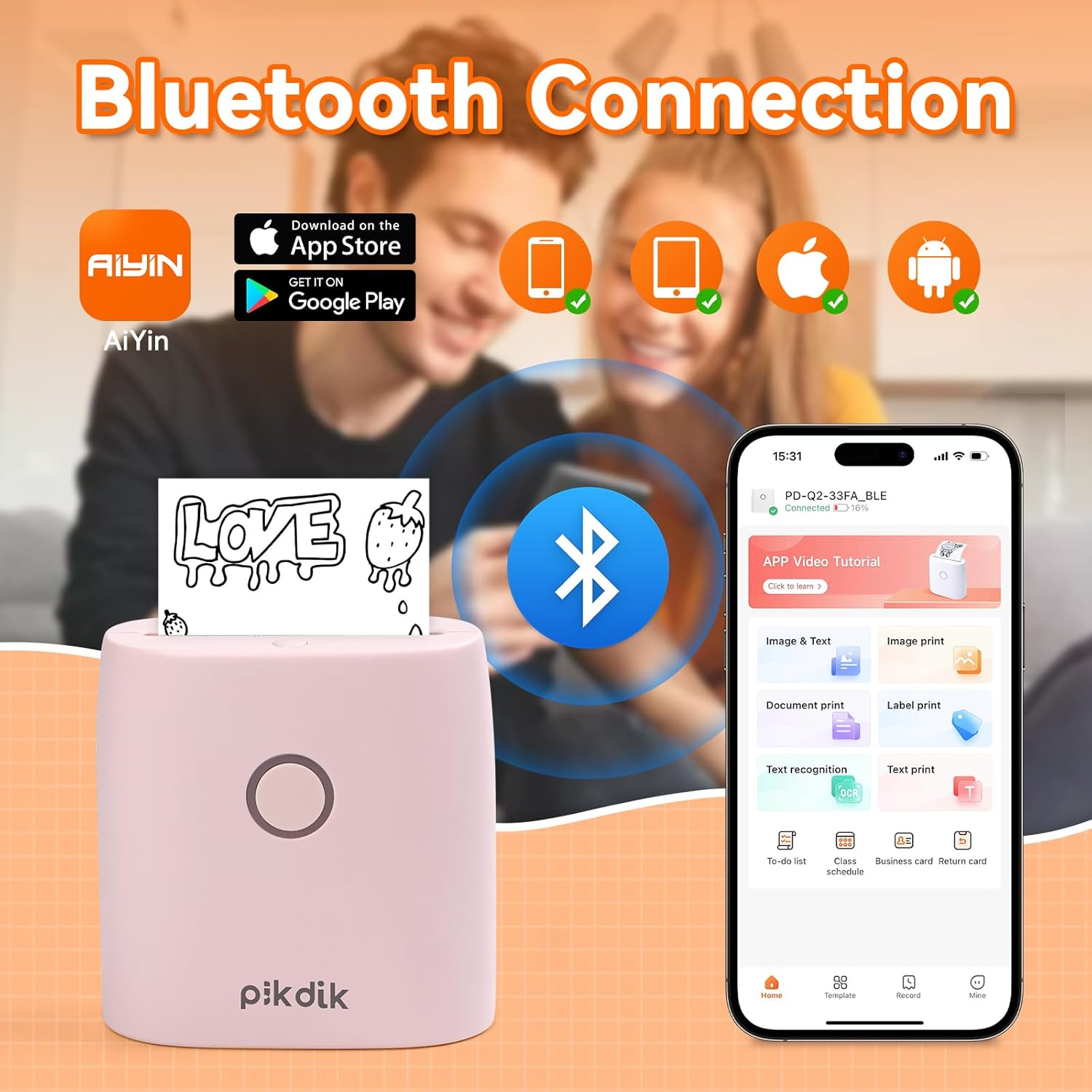
Image: The printer connects to your smartphone via Bluetooth using the Meta Print app, available on both Android and iOS.
6. Упутство за употребу
6.1 Printing Content
Once connected to the "Meta Print" app, you can select various content types for printing:
- Image & Text: Print photos, graphics, or combine them with text.
- Штампање документа: Print documents or notes.
- Label Print: Креирајте и одштампајте прилагођене етикете.
- Препознавање текста: Convert images of text into editable text for printing.
- Шаблони: Utilize pre-designed templates for to-do lists, business cards, emojis, and more.
After selecting and editing your content within the app, tap the print button to initiate printing. The printer will output the thermal paper with your printed content.

Image: The printer is suitable for various applications such as journaling, scrapbooking, printing shopping lists, and notes.
6.2 Print Quality and Limitations
The PD-Q2 printer offers a 300 DPI resolution for clear and detailed black and white prints. As a thermal printer, it does not support color printing.
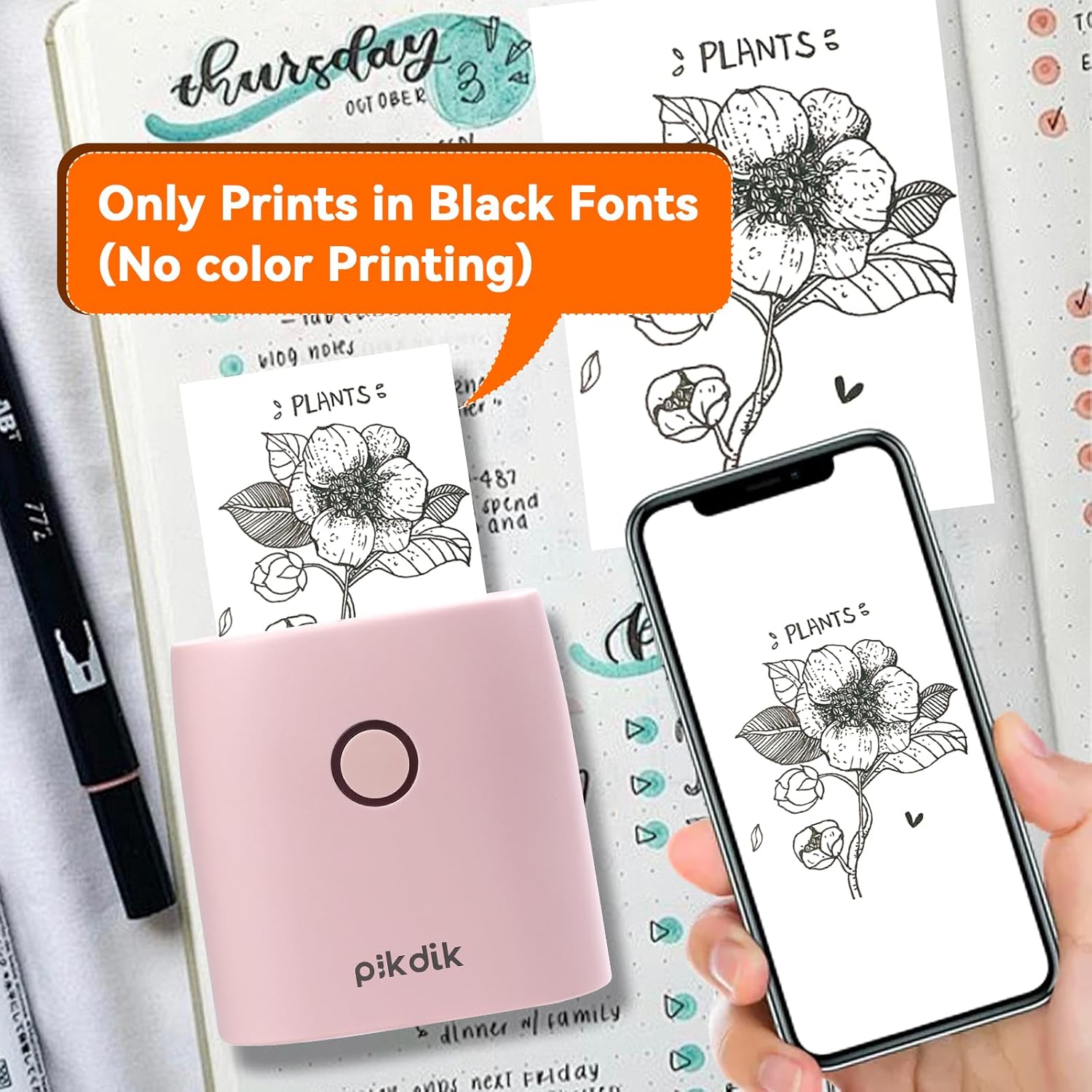
Image: The printer produces prints exclusively in black and white, as shown with a plant illustration.

Image: The 300 DPI resolution of the Q2 printer provides enhanced clarity and detail in prints compared to lower resolution alternatives.
7. Одржавање
7.1 Чишћење штампача
To maintain optimal print quality, periodically clean the print head. Use a soft, lint-free cloth lightly dampened with isopropyl alcohol. Gently wipe the print head surface. Ensure the printer is turned off and completely dry before use.
7.2 Replacing Thermal Paper
When the paper roll is depleted, replace it by following the steps in Section 5.2. Use only thermal paper compatible with the PD-Q2 printer to ensure proper function and print quality.
КСНУМКС. Решавање проблема
| Проблем | Могући узрок | Решење |
|---|---|---|
| Штампач се не укључује | Слаба батерија; Дугме за напајање није правилно притиснуто | Charge the printer; Press and hold the power button for a few seconds. |
| Повезивање преко Блуетоотх-а није могуће | Bluetooth off on phone; Printer not in pairing mode; App issue | Ensure phone Bluetooth is on; Restart printer and app; Re-pair device in app. |
| Poor print quality (faint, pixelated) | Low battery; Print head dirty; Incorrect paper type; Image resolution too low | Charge printer; Clean print head (Section 7.1); Use correct thermal paper; Use higher resolution images. |
| Застој папира | Paper not loaded correctly; Foreign object in paper path | Open cover, remove jammed paper, reload correctly; Check for obstructions. |
| Штампач не реагује | Системска грешка | Perform a soft reset by turning the printer off and on again. If issue persists, contact support. |
9. Спецификације
| Феатуре | Детаљ |
|---|---|
| Модел | Q2 |
| Димензије (Д к Ш к В) | КСНУМКС к КСНУМКС к КСНУМКС цм (КСНУМКС к КСНУМКС к КСНУМКС инча) |
| Тежина | 0.57 фунте (приближно 258.55 г) |
| Технологија штампе | Тхермал |
| Резолуција штампања | 300 DPI (Monochrome) |
| Повезивање | Блуетоотх |
| Компатибилни уређаји | Паметни телефони, таблети (Андроид, иОС) |
| Максимална величина медија | 2 инча |
| Извор напајања | Built-in Lithium Polymer Battery (Rechargeable via USB Type-C) |
| Назив апликације | Meta Print |
10. Гаранција и подршка
For warranty information and technical support, please refer to the warranty card included with your product or contact PikDik customer service directly. Keep your purchase receipt as proof of purchase.