
1. Увод
Welcome to the user manual for your Havit Gaming Mouse MS1032. This document provides essential information for setting up, operating, maintaining, and troubleshooting your device. Please read it carefully to ensure optimal performance and longevity of your mouse.
The Havit MS1032 is a gaming mouse featuring six adjustable DPI settings, a comfortable ergonomic design, and a non-slip surface. It is engineered for smooth and quiet operation, aiming to reduce fatigue during extended use.
2. Подешавање
2.1 Садржај пакета
- Havit Gaming Mouse MS1032
- Упутство за употребу
2.2 Системски захтеви
- Оперативни систем: Windows XP, Windows 7, Linux
- Доступан УСБ порт
2.3 Повезивање миша
- Unpack the Havit Gaming Mouse MS1032 from its packaging.
- Пронађите слободан УСБ порт на рачунару.
- Уметните УСБ конектор миша у УСБ порт.
- Ваш оперативни систем би требало аутоматски да детектује и инсталира потребне драјвере. Овај процес може потрајати неколико тренутака.
- Once installation is complete, the mouse is ready for use.
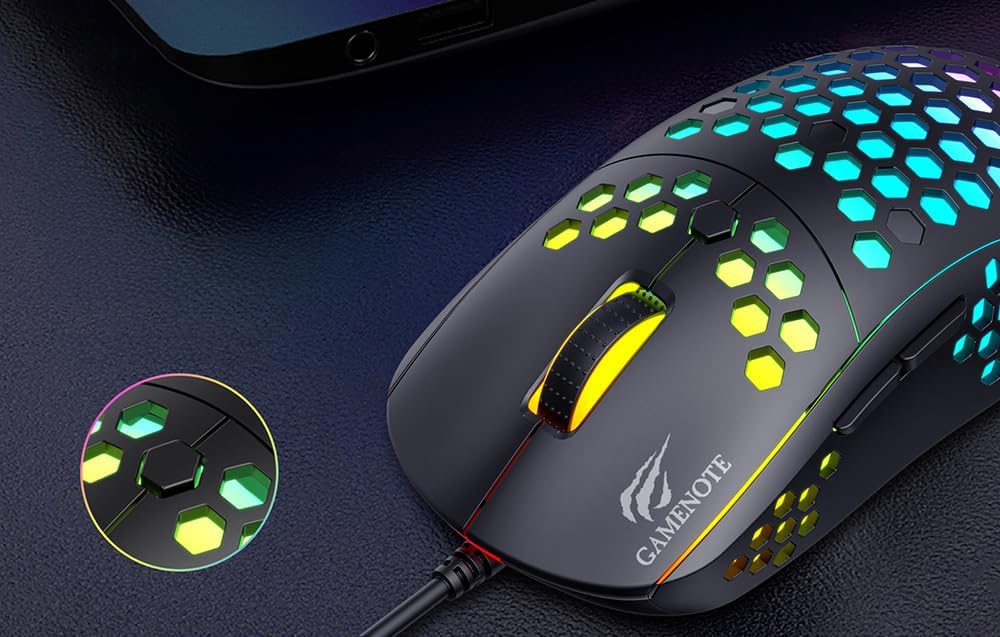
Figure 1: Havit MS1032 Gaming Mouse connected via USB.
3. Упутство за употребу
3.1 Основне функције
- Леви клик: Primary action, selection, activation.
- Десни клик: Opens context menus, performs secondary actions.
- Точак за померање: Scrolls up/down documents or web странице. Такође се може притиснути за функцију клика средњим тастером миша.
- Бочна дугмад: Typically used for forward/backward navigation in web browsers or custom functions in games.
3.2 ДПИ подешавање
The Havit MS1032 features six adjustable DPI (Dots Per Inch) settings, allowing you to change the mouse sensitivity on the fly. This is useful for adapting to different tasks, such as precise aiming in games or fast navigation across multiple monitors.
To adjust the DPI, locate the DPI button, typically positioned behind the scroll wheel. Press this button to cycle through the available DPI settings. The LED lighting on the mouse may change to indicate the current DPI level, providing visual feedback for your selection.
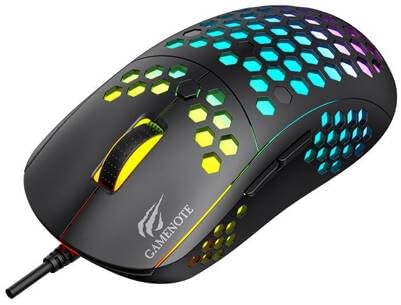
Figure 2: Location of the DPI button (behind the scroll wheel).
4. Одржавање
4.1 Чишћење
Да бисте одржали оптималне перформансе и изглед, редовно чистите миш:
- Искључите миш из рачунара пре чишћења.
- Користите меку крпу која не оставља длачицеampопрати водом или благим, неабразивним раствором за чишћење.
- Gently wipe the surface of the mouse.
- For crevices and the optical sensor, use a cotton swab or compressed air to remove dust and debris.
- Avoid using harsh chemicals, abrasive cleaners, or excessive moisture, as these can damage the mouse's finish or internal components.
4.2 Складиштење
When not in use, store the mouse in a clean, dry environment away from direct sunlight and extreme temperatures to prevent damage.
4.3 Општа нега
- Avoid dropping the mouse or subjecting it to strong impacts.
- Do not attempt to disassemble the mouse, as this will void the warranty and may cause irreparable damage.
- Keep the mouse away from liquids to prevent electrical damage.
КСНУМКС. Решавање проблема
If you encounter issues with your Havit Gaming Mouse MS1032, please refer to the following common solutions:
5.1 Миш не реагује
- Проверите УСБ везу: Уверите се да је USB кабл безбедно прикључен у исправан USB порт на рачунару. Покушајте са другим USB портом.
- Поново покрените рачунар: Sometimes a simple computer restart can resolve connectivity issues.
- Тестирајте на другом рачунару: If possible, test the mouse on another computer to determine if the issue is with the mouse or your computer's setup.
5.2 Кретање курсора је неправилно или скачкасто
- Очистите сензор: Уверите се да је оптички сензор на дну миша чист и без прашине или прљавштине.
- Проверите површину: Use the mouse on a clean, non-reflective, and uniform surface (e.g., a mouse pad). Avoid glass or highly reflective surfaces.
- Подесите DPI: If the cursor is too fast or too slow, adjust the DPI setting using the DPI button.
5.3 Buttons Not Working
- Проверите да ли има препрека: Уверите се да се испод дугмади не заглављују остаци.
- Сукоб софтвера: If you have custom mouse software installed, try uninstalling it temporarily to see if it resolves the issue.
5.4 ЛЕД светла не раде
- Проверите везу: Ensure the mouse is properly connected to the computer.
- Циклус напајања: Disconnect and reconnect the mouse to reset its power.
6. Спецификације

Figure 3: Havit MS1032 Gaming Mouse design overview.
| Феатуре | Детаљ |
|---|---|
| Модел | МС1032 |
| Бранд | Хавит |
| Димензије | 15 к 8 к 5.2 цм |
| Тежина | 200г |
| ДПИ подешавања | 6 подесива нивоа |
| Оперативни системи | Линукс, Виндоус 7, Виндоус XP |
| Повезивање | Жичани УСБ |
| Батерије су потребне | бр |
7. Гаранција и подршка
For detailed warranty information and technical support, please refer to the official Havit website or contact your local retailer where the product was purchased. It is recommended to keep your purchase receipt as proof of purchase for any warranty claims.
Произвођач: Хавит
Број модела: МС1032