
1. Увод
This manual provides detailed instructions for the assembly, installation, operation, and maintenance of your AMANSON H07 ATX Mid Tower PC Case. Please read this manual thoroughly before beginning installation to ensure proper setup and safe operation. Keep this manual for future reference.

Figure 1.1: AMANSON H07 ATX Mid Tower PC Case with illuminated internal components.
2. Безбедносне информације
- Always disconnect the power supply from the wall outlet before performing any installation or maintenance inside the PC case.
- Пажљиво рукујте свим компонентама како бисте спречили оштећења.
- Носите антистатичку наруквицу за зглоб како бисте спречили оштећење осетљивих електронских компоненти услед електростатичког пражњења (ESD).
- Држите мале делове и материјал за паковање ван домашаја деце.
- Ensure proper ventilation around the PC case to prevent overheating.
3. Садржај пакета
Проверите да ли су све ставке присутне у пакету:
- AMANSON H07 ATX Mid Tower PC Case
- Кутија са додатном опремом (шрафови, одстојници, кабловске везице итд.)
- Кориснички приручник (овај документ)
4. Цомпонент Оверview
The AMANSON H07 PC case features a panoramic design with tempered glass panels for full visibility of your internal components. It supports various motherboard sizes and extensive cooling configurations.

Figure 4.1: Top I/O Panel with power button, USB 3.0, USB 2.0, and audio ports.
The top I/O panel includes:
- Дугме за напајање
- Дугме за ресетовање
- 2к УСБ 2.0 порта
- 1к УСБ 3.0 порт
- Audio In/Out Jacks
5. Подешавање и инсталација
5.1. Припрема случаја
The AMANSON H07 features tool-less hinged tempered glass side panels for easy access. Gently open the side panel by pulling it from the rear edge. The panels can also be removed by lifting them off their hinges for full access during installation.

Figure 5.1: Hinged tempered glass side panel for easy access.
5.2. Инсталација матичне плоче
The H07 supports E-ATX, ATX, Micro-ATX, and ITX motherboards. Install the necessary standoffs for your motherboard form factor. Carefully align your motherboard with the standoffs and I/O shield, then secure it with screws.
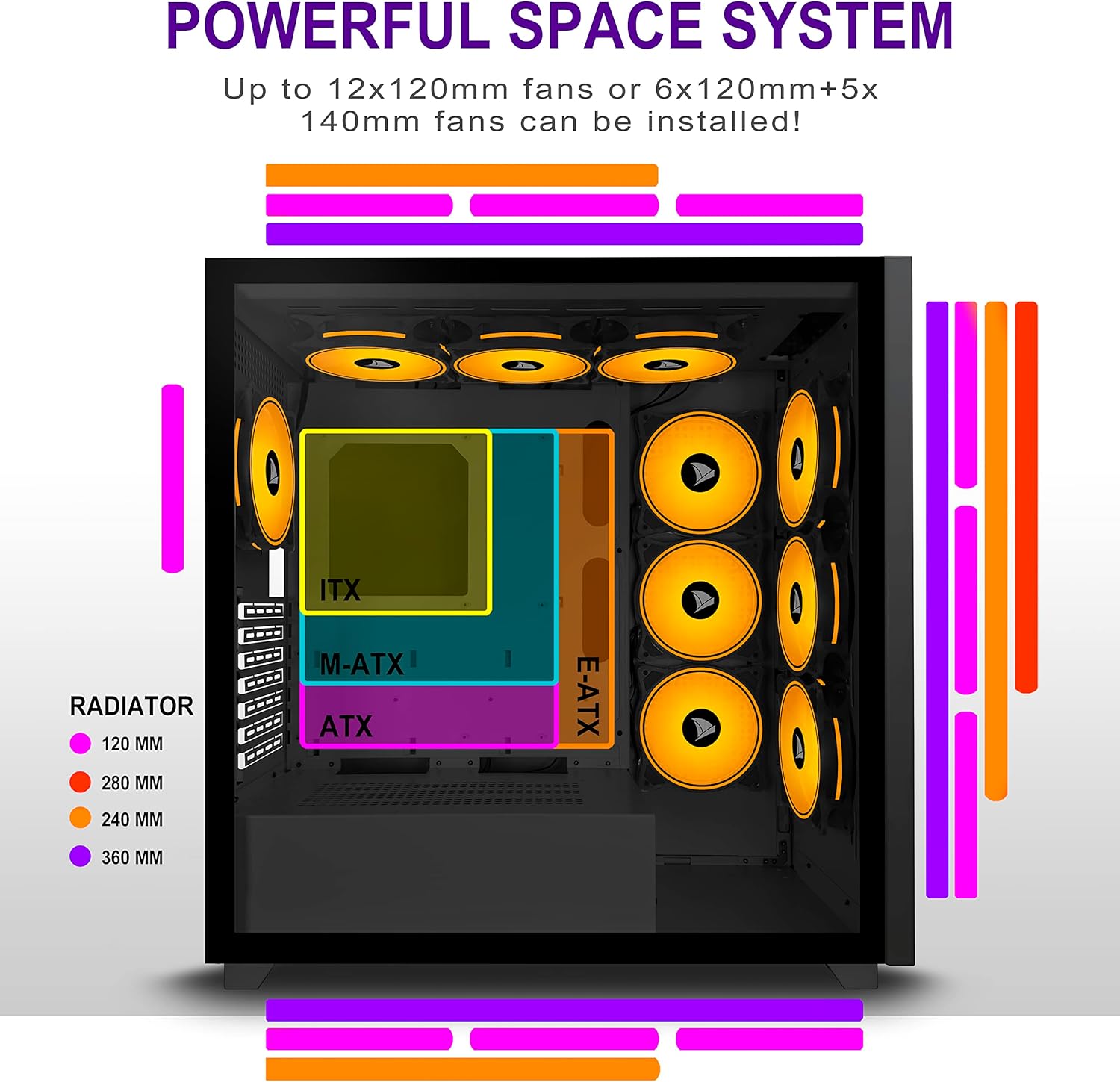
Figure 5.2: Motherboard and cooling component placement options.
5.3. Инсталација напајања
Install your power supply unit (PSU) into the dedicated compartment at the bottom rear of the case. Secure it with screws from the rear of the case.
5.4. Инсталација уређаја за складиштење
The case provides multiple mounting points for storage devices. Install your 3.5" HDDs and 2.5" SSDs into the designated trays and mounting locations. Refer to the case diagram for specific locations.

Figure 5.3: Storage drive mounting options for HDDs and SSDs.
5.5. Инсталација картице за проширење (GPU)
Remove the necessary PCI-E slot covers from the rear of the case. Insert your graphics card or other expansion cards into the motherboard's PCI-E slots and secure them with screws.
5.6. Менаџмент каблова
Utilize the cable routing cutouts and tie-down points behind the motherboard tray to manage cables. This improves airflow and maintains a clean aesthetic.
6. Упутство за употребу
6.1. Укључивање/искључивање
Press the power button located on the top I/O panel to turn on your PC. To shut down, use the operating system's shutdown function or press and hold the power button for several seconds.
6.2. Using Front I/O Ports
Connect USB devices to the USB 2.0 or USB 3.0 ports. Use the audio jacks for headphones, microphones, or speakers.
7. Одржавање
7.1. Чишћење
Редовно чистите спољашњост кућишта меком,amp cloth. For internal cleaning, use compressed air to remove dust from fans and components. Ensure the PC is powered off and unplugged before cleaning.
7.2. Филтери за прашину
The AMANSON H07 may include removable dust filters. Clean these filters periodically to maintain optimal airflow and cooling performance.
КСНУМКС. Решавање проблема
- PC does not power on: Check all power connections, including the PSU to the wall, the PSU to the motherboard, and the front panel power switch cable to the motherboard.
- Overheating issues: Ensure all fans are properly installed and functioning. Verify that dust filters are clean and not obstructing airflow. Check thermal paste application on CPU cooler.
- USB портови не раде: Confirm that the front panel USB cables are correctly connected to the motherboard headers.
- Audio jacks not working: Verify that the front panel audio cable is correctly connected to the motherboard's audio header.
9. Спецификације
Below are the technical specifications for the AMANSON H07 PC Case:
| Феатуре | Детаљ |
|---|---|
| Модел | Х07 |
| Тип случаја | Мид Товер |
| Компатибилност матичне плоче | E-ATX, ATX, Micro ATX, ITX |
| Материјал | Каљено стакло |
| Димензије производа (ДкШкВ) | 19.69 к 13.78 к 19.69 инча (500 к 350 к 500 мм) |
| Тежина артикла | 24.2 фунти |
| Број УСБ 2.0 портова | 2 |
| Број УСБ 3.0 портова | 1 |
| Number of Expansion Slots | 8 |
| Метод хлађења | Ваздух |
| Тип монтаже напајања | Боттом Моунт |

Figure 9.1: AMANSON H07 PC Case dimensions (520mm height, 510mm length, 250mm width).
10. Информације о гаранцији
Please refer to the product packaging or the official AMANSON webсајт за конкретне услове гаранције. Сачувајте доказ о куповини за потребе подношења захтева за гаранцију.
11. Подршка
For technical assistance or customer support, please visit the official AMANSON website or contact their customer service department. Contact details can typically be found on the product packaging or the brand's webсајту.