
HyperX 6N0A8AA
HyperX Pulsefire Haste 2 Wired Gaming Mouse User Manual
Model: 6N0A8AA
Производ је завршенview
The HyperX Pulsefire Haste 2 is a wired gaming mouse designed for high-performance gaming. It features an ultra-lightweight design, a high-precision sensor, and durable switches, optimized for speed and responsiveness.
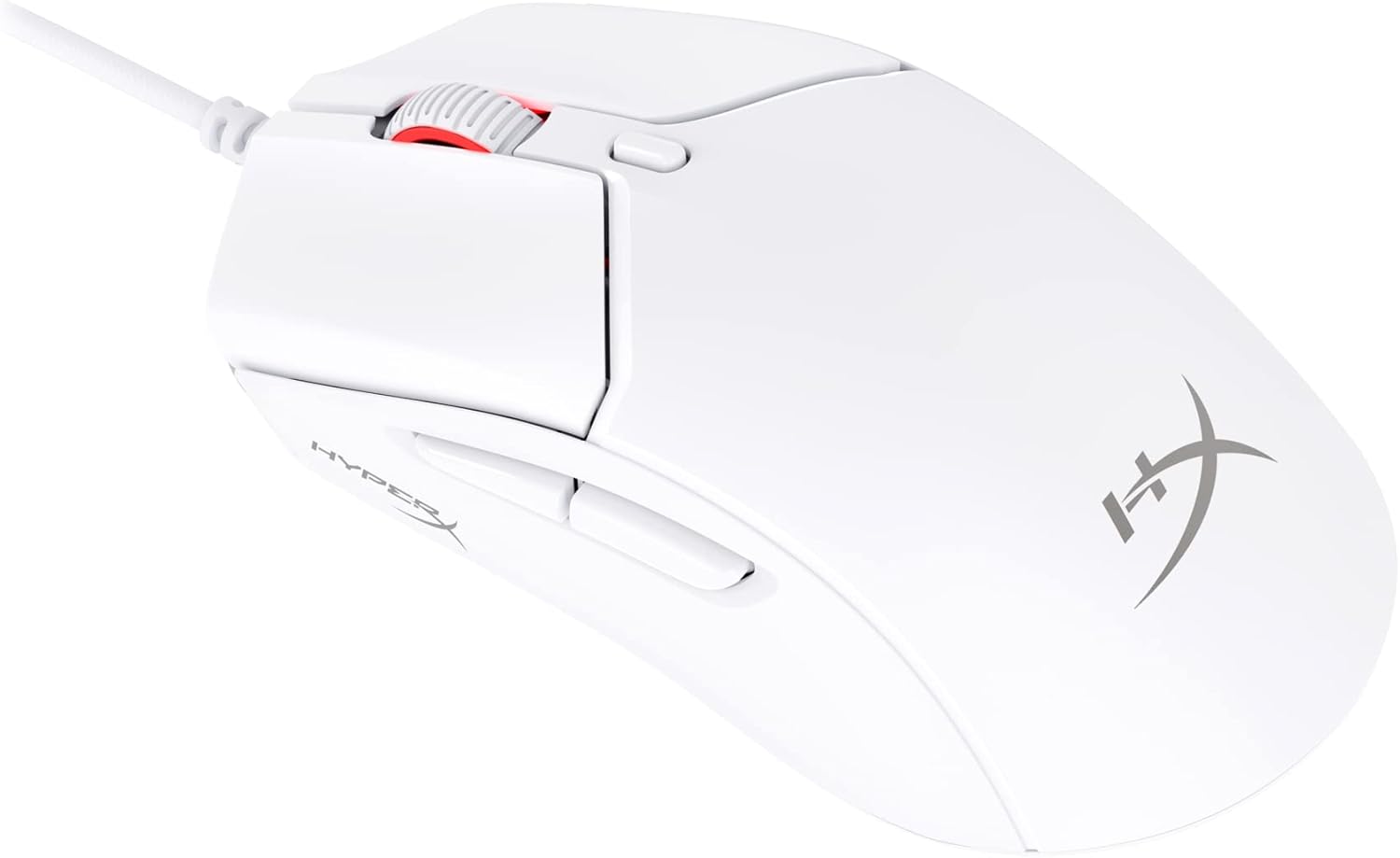
Figure 1: HyperX Pulsefire Haste 2 Wired Gaming Mouse (White)
Садржај пакета
Проверите да ли су све ставке присутне у пакету:
- HyperX Pulsefire Haste 2 Wired Gaming Mouse
- HyperX Grips (pre-applied or in package)
- Extra PTFE Skates
- Quick Start Guide (refer to the official PDF user guide for full details: Упутство за употребу ПДФ)
Сетуп
Повезивање миша
- Пронађите слободан УСБ порт на рачунару.
- Plug the USB connector of the HyperX Pulsefire Haste 2 mouse into the USB port.
- The mouse is plug-and-play and should be recognized automatically by your operating system (Windows, macOS, Linux).
Applying Grip Tape (Optional)
The mouse includes optional grip tape for enhanced control and comfort. To apply:
- Ensure the mouse surface is clean and dry.
- Carefully peel the backing from the grip tape pieces.
- Align and firmly press the grip tape onto the designated areas (left/right mouse buttons, left/right sides of the mouse).

Figure 2: Anti-Slip Grip Tape Application Area
Управљање мишем
Основне функције
The HyperX Pulsefire Haste 2 features standard mouse buttons and a scroll wheel:
- Леви клик: Примарна акција.
- Десни клик: Секундарни радни/контекстни мени.
- Точак за померање: Померање горе/доле, клик средњим тастером миша.
- Бочна дугмад: Обично се користи за навигацију напред/назад у web browsers or customizable functions.
- Дугме ДПИ: Located behind the scroll wheel, cycles through preset DPI (sensitivity) levels.
Софтвер ХиперКс НГЕНУИТИ
To unlock the full potential of your Pulsefire Haste 2, download and install the HyperX NGENUITY software. This software allows for:
- Customizing DPI settings (up to 26,000 DPI).
- Programming the 6 buttons with macros or custom functions.
- Personalizing RGB lighting effects.
- Adjusting polling rate (up to 8000Hz).

Figure 3: HyperX NGENUITY Software Interface
For software download and detailed instructions, visit the official HyperX webсајту.
Одржавање
Чишћење миша
- Искључите миш из рачунара пре чишћења.
- Користите меку крпу која не оставља длачицеampводом или благим раствором за чишћење да бисте обрисали површину.
- Избегавајте употребу јаких хемикалија, абразива или растварача.
- For the sensor area, use a cotton swab or compressed air to gently remove dust and debris.
Replacing PTFE Skates
The HyperX Pulsefire Haste 2 comes with extra PTFE skates. If the original skates show significant wear, they can be replaced for optimal glide performance.
- Carefully peel off the old PTFE skates using a thin, non-abrasive tool.
- Ensure the mouse's underside is clean and free of adhesive residue.
- Peel the backing from the new PTFE skates and align them precisely with the recesses on the mouse's bottom.
- Чврсто притисните да бисте осигурали правилно приањање.

Figure 4: Mouse Underside with PTFE Skates
Решавање проблема
| Проблем | Могући узрок | Решење |
|---|---|---|
| Миш не реагује | Лабава УСБ веза, неисправан УСБ порт, проблем са драјвером. |
|
| Покрет курсора је неправилан или скачкав | Прљави сензор, неодговарајућа површина подлоге за миш. |
|
| Дугмад или точкић за скроловање не раде | Software conflict, physical obstruction. |
|
| РГБ осветљење не функционише | Software settings, power issue. |
|
Спецификације
| Феатуре | Детаљ |
|---|---|
| Назив модела | HyperX Pulsefire Haste 2 Wired Gaming Mouse |
| Број модела | 6Н0А8АА |
| Повезивање | Жичани УСБ |
| Сензор | ХиперКс 26К сензор |
| ДПИ | Up to 26,000 (native) |
| Брзина праћења | До 650 ИПС |
| Поллинг Рате | До 8000Хз |
| Дугмад | 6 Програмабилна дугмад |
| Прекидачи | HyperX Switches (rated for 100 million clicks) |
| Кабл | HyperFlex 2 Cable (Paracord) |
| Клизаљке | Virgin PTFE Skates |
| Тежина | Approx. 53g (mouse only) |
| Димензије (ДкШкВ) | 124 к 67 к 38 мм (4.9 к 2.6 к 1.5 инча) |
| Компатибилност оперативног система | Виндовс, мацОС, Линук |

Figure 5: HyperX Pulsefire Haste 2 Dimensions and Weight
Гаранција и подршка
HyperX products are backed by a limited warranty. For specific warranty terms and conditions, please refer to the warranty information included with your product or visit the official HyperX webсајту.
For technical support, driver downloads, and frequently asked questions, please visit the HyperX support page:
You can also refer to the official PDF user guide for additional details: Упутство за употребу ПДФ
Ask a question about this manual
Ask about setup, troubleshooting, compatibility, parts, safety, or missing instructions. Manuals+ will review the question and use this page’s manual context to help answer it.