
1. Увод
This manual provides detailed instructions for the HAOVM M8 PLUS 8-inch Android Tablet. Please read this manual thoroughly before using your device to ensure proper operation and to maximize its features. Keep this manual for future reference.
2. Шта је у кутији
Upon opening your HAOVM M8 PLUS tablet package, you should find the following items:
- 1x HAOVM Android Tablet
- 1к адаптер за напајање (5В2А)
- 1x USB 2.0 Cable (Type-C)
- КСНУМКСк водич за брзи почетак
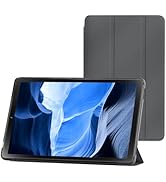
Image: Included accessories with the HAOVM M8 PLUS tablet.
3. Производ је готовview
The HAOVM M8 PLUS is an 8-inch Android tablet designed for versatile use. It features a sleek design and intuitive controls.

Слика: Фронт view of the HAOVM M8 PLUS tablet.
3.1. Физичке карактеристике
- Приказ: 8-inch IPS HD (1280x800)
- камере: Front camera, 8MP Rear camera
- Портови: USB Type-C for charging and data transfer, 3.5mm Headphone Jack
- Дугмад: Power On/Off, Volume Up/Down
- говорници: Дуал Спеакерс
- Слотови за картице: MicroSD card slot (expandable up to 1TB), SIM card slot (for cellular data/calls)
Видео: Кратак прегледview of the tablet's physical design, including the case and SIM card tray.
4. Подешавање
4.1. Прво укључивање
- Press and hold the Power On/Off button located on the side of the tablet until the screen lights up.
- Пратите упутства на екрану да бисте изабрали језик, повезали се са Wi-Fi мрежом и подесили свој Google налог.
4.2. Пуњење таблета
Before first use, it is recommended to fully charge the tablet. Use the provided USB Type-C cable and power adapter.
- Повежите USB Type-C кабл са портом за пуњење таблета.
- Укључите адаптер за напајање у зидну утичницу.
- The charging indicator will appear on the screen. A full charge typically takes less than 3 hours.

Image: Battery and charging features of the tablet.
Video: Demonstrating the tablet's charging process and included accessories.
4.3. Уметање MicroSD картице (опционо)
To expand storage, you can insert a MicroSD card (up to 1TB, sold separately).
- Пронађите слот за MicroSD картицу са стране таблета.
- Use the provided SIM ejector tool (or a small paperclip) to gently press into the small hole next to the slot to eject the tray.
- Place the MicroSD card onto the tray with the gold contacts facing down.
- Пажљиво вратите лежиште у отвор док не кликне на своје место.
4.4. Inserting a SIM Card (Optional)
For cellular data and calls, you can insert a SIM card (sold separately).
- Follow the same steps as for inserting a MicroSD card to open the tray.
- Place your SIM card onto the designated slot on the tray.
- Carefully reinsert the tray into the slot.
5. Упутство за употребу
5.1. Navigating the Android OS
The tablet runs on a native Android OS, providing full access to the Google Play Store and a familiar user interface.
- Почетни екран: Swipe left or right to access different app pages.
- Обавештења: Превуците надоле од врха екрана до view обавештења и брза подешавања.
- Фиока апликација: Превуците прстом нагоре од дна екрана да бисте приступили свим инсталираним апликацијама.

Image: Full access to the Google Play Store for various applications.
5.2. Режими приказа
The IPS HD display offers various modes for enhanced viewутеха:
- нормалан режим: Provides crisp, clear details and vivid colors.
- Режим читања: Optimizes the display for comfortable reading, similar to paper.
- Eye Comfort Function: Filters blue light to reduce eye fatigue, especially useful at night.

Image: Different display modes for optimal viewинг.
5.3. Повезивање
- Ви-Фи: Supports ultra-fast 2.4Ghz and 5Ghz Wi-Fi for internet access.
- Блуетоотх: Connect wireless accessories like headphones or speakers.
- ФМ радио: Слушајте своје омиљене радио станице.
- ГПС: Built-in GPS for offline navigation. Download maps before traveling.
- Cellular (with SIM card): Make calls, send texts, and use mobile data.

Image: Tablet demonstrating GPS navigation capabilities.
5.4. Функције камере
The tablet is equipped with a front camera and an 8MP rear camera.
- Фотографисање: Open the Camera app and tap the shutter button.
- Снимање видео записа: Switch to video mode in the Camera app and tap the record button.
- Видео позиви: Use the front camera for video calls through compatible applications.

Image: Tablet features including camera, speakers, and connectivity.
5.5. Родитељски надзор
The tablet includes parental control features to manage content and usage for children.
- Access parental controls through the device settings to set limits, filter content, and monitor activity.
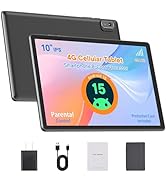
Image: Tablet designed with parental controls for kid-friendly content.
6. Спецификације
| Феатуре | Детаљ |
|---|---|
| Назив модела | М8ПЛУС |
| Величина екрана | 8 инча |
| Резолуција екрана | 1280x800 (IPS HD) |
| Процесор | MediaTek 2 GHz Octa-core (MT8183) |
| РАМ | 4 GB SDRAM DDR4 |
| Интерна меморија | 64 ГБ |
| Екпандабле Стораге | Up to 1 TB via TF card (MicroSD) |
| Капацитет батерије | 5100 мАх |
| Просечно трајање батерије | Up to 12 Hours (mixed-use) |
| Оперативни систем | Андроид |
| Вирелесс Типе | 802.11ac (2.4Ghz & 5Ghz WiFi) |
| Блуетоотх | Да |
| ГПС | Built-in GPS, GLONASS, Galileo |
| Позади Webцам Ресолутион | 8 МП |
| Тежина артикла | 13 унци |
| Димензије производа | 8.3 к 4.96 к 0.35 инча |

Image: Tablet's processor and connectivity details.

Image: Tablet's memory and storage capabilities.
7. Одржавање
- Чишћење: Користите меку крпу која не оставља влакна за чишћење екрана и кућишта. Избегавајте абразивна средства за чишћење.
- Складиштење: Таблет чувати на хладном и сувом месту, заштићено од директне сунчеве светлости и екстремних температура.
- Одржавање батерије: To prolong battery life, avoid fully discharging the tablet frequently. Charge it regularly.
- Ажурирања софтвера: Редовно проверавајте и инсталирајте системска ажурирања како бисте осигурали оптималне перформансе и безбедност.
КСНУМКС. Решавање проблема
- Таблет се не укључује: Уверите се да је таблет напуњен. Прикључите га на пуњач и сачекајте неколико минута пре него што покушате да га поново укључите.
- Екран не реагује: Try restarting the tablet by holding down the power button for about 10-15 seconds.
- Проблеми са Wi-Fi повезивањем: Check if Wi-Fi is enabled in settings. Restart your router and the tablet.
- Рушење апликација: Ensure apps are updated to their latest versions. Clear the app's cache or reinstall it if issues persist.
- Споре перформансе: Close unused applications, clear cache, or consider a factory reset if performance significantly degrades. Back up your data before a factory reset.
9. Гаранција и подршка
HAOVM provides comprehensive service and a 1-year manufacturer warranty for this product.
- Гарантни период: 1 година од датума куповине.
- Контактирајте подршку: For technical assistance, warranty claims, or any product-related inquiries, please refer to the contact information provided in your Quick Start Guide or visit the official HAOVM webсајту.
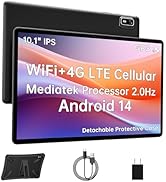
Image: HAOVM customer support and warranty details.