
1. Увод
This manual provides detailed instructions for the setup, operation, maintenance, and troubleshooting of your Volcora 80mm Thermal Receipt Printer. This printer is designed for Point-of-Sale (POS) applications, offering fast and efficient thermal printing with an auto-cutter. It supports USB and Ethernet connectivity and is compatible with Android, Windows, and Linux operating systems.
2. Безбедносне информације
- Ensure the printer is connected to a grounded power outlet.
- Не излажите штампач води или прекомерној влажности.
- Избегавајте постављање штампача на директну сунчеву светлост или близу извора топлоте.
- Користите само адаптер за напајање који је испоручени са штампачем.
- Држите штампач ван домашаја деце.
- Do not attempt to disassemble or repair the printer yourself. Contact customer support for assistance.
3. Садржај пакета
Проверите да ли су све ставке присутне у пакету:
- Volcora 80mm Thermal Receipt Printer
- Повер Цорд
- УСБ кабл
- Test Paper Roll
- ЦД за инсталацију

Figure 3.1: Package Contents. The image displays the Volcora Thermal Receipt Printer along with its accessories: a power cord, a USB cable, a roll of test paper, and an installation CD.
4. Производ је готовview
4.1. Портови и дугмад
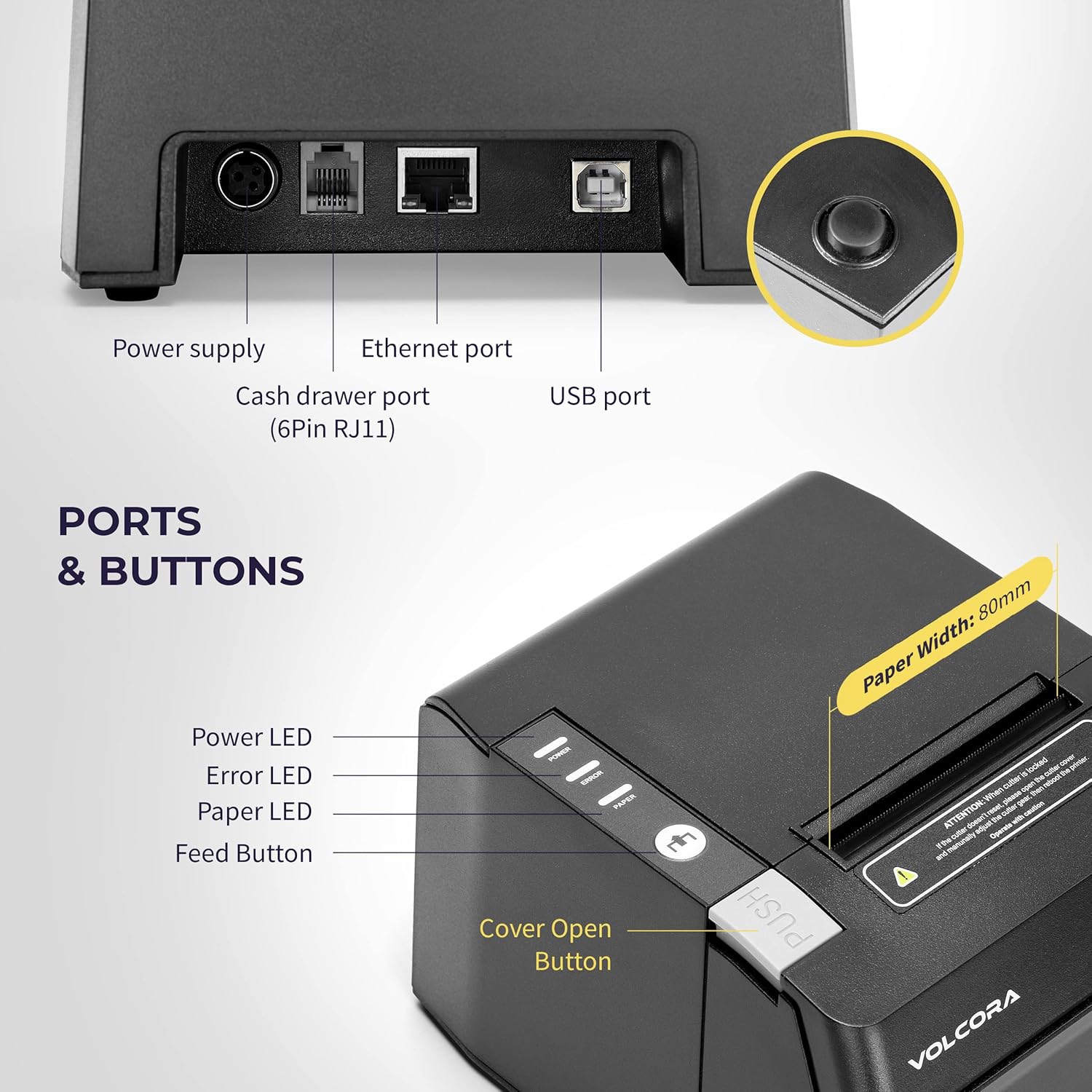
Figure 4.1: Printer Ports and Buttons. This image illustrates the rear ports including Power Supply, Ethernet Port, Cash Drawer Port (6Pin RJ11), and USB Port. It also shows the front panel with Power LED, Error LED, Paper LED, Feed Button, and Cover Open Button.
- Порт за напајање: Повезује се на адаптер за напајање.
- Етхернет порт: For network connectivity (LAN).
- Cash Drawer Port (6Pin RJ11): Connects to a cash drawer.
- УСБ порт: За директно повезивање са рачунаром.
- ЛЕД за напајање: Означава статус напајања.
- ЛЕД за грешку: Indicates printer errors.
- Paper LED: Indicates paper status (e.g., low paper).
- Дугме за унос: Manually feeds paper.
- Cover Open Button: Releases the printer cover to access the paper roll.

Слика 4.2: Вишеструко views of the Volcora Thermal Receipt Printer, showing its compact design and various connection points.
5. Подешавање
5.1. Unboxing and Connecting
- Отпакујте штампач и уклоните сав материјал за паковање.
- Connect the power adapter to the printer and then to a power outlet.
- Connect the printer to your Windows PC using the provided USB cable.
Video 5.1: Getting Started with Volcora Thermal Receipt Printer. This video demonstrates the unboxing, connecting the printer to power and a Windows PC via USB, and performing a self-test.
5.2. Инсталација ролне папира
- Press the Cover Open Button to open the printer cover.
- Insert the thermal paper roll with the printing side facing up.
- Pull a small length of paper out past the cutter.
- Чврсто затворите поклопац штампача док не кликне на своје место.
5.3. Driver Installation (Windows)
- Download the latest driver for Windows from the Volcora support webсајт: volcora.com/support.
- Распакујте преузето file и покрените програм за инсталацију драјвера.
- Follow the on-screen prompts, agreeing to the license and selecting your printer model (e.g., 500108).
- Ensure the printer is connected via USB during installation.
- After successful installation, the printer should be recognized in your computer's "Printers & scanners" settings.

Figure 5.2: Easy Installation Steps. This diagram outlines the four main steps: Download drivers, Install drivers, Connect the printer, and Test print.
5.4. Network Configuration (Ethernet)
If you are using the Ethernet connection, you may need to configure the printer's IP address to match your network's subnet. This can be done using the Setting Tool software.
- First, identify your PC's IP address and subnet mask.
- Perform a printer self-test (see Section 6.2) to get the printer's current IP address.
- If the printer's IP is not in the same subnet as your PC, you will need to adjust either the PC's IP or the printer's IP.
- Open the Setting Tool software (available from volcora.com/support).
- Select the printer model and choose 'NET' for the port type.
- Enter the printer's current IP address and click 'Get Param' to retrieve its network settings.
- Modify the IP address, subnet mask, and gateway to align with your network configuration.
- Click 'Set' to apply the new settings to the printer.
- Perform another self-test to confirm the IP address has been updated.
Video 5.2: How to Modify LAN IP Address of Volcora Receipt Printer. This video guides you through identifying current IP addresses, changing PC host IP, and using the Setting Tool to configure the printer's IP address for Ethernet connectivity.
5.5. Опције пласмана

Figure 5.3: Multiple Use & Placement. The printer can be wall-mounted for kitchen use or placed on a counter for receipt printing.
6. Упутство за употребу
6.1. Основно штампање
Once the printer is connected and drivers are installed, you can print receipts from your POS software or any application that supports printing. The printer features a 203 dpi resolution for clear prints and an auto-cutter for efficient receipt handling.

Figure 6.1: Efficient Printing. This image highlights the printer's fast print speed, low noise operation, and clear 203 dpi output, showing a receipt with a QR code and a barcode.
The printer supports various barcode types including UPC-A, UPC-E, EAN13, EAN8, CODE39, ITF25, CODABAR, CODE93, CODE128, QRCODE, PDF417, and Data matrix.
6.2. Printer Self-Test
A self-test prints the printer's configuration, including its IP address (if connected via Ethernet), and confirms basic functionality.
- Уверите се да је штампач искључен.
- Press and hold the "Feed" button.
- While holding the "Feed" button, power on the printer.
- Continue holding the "Feed" button for approximately 5 seconds until the self-test page begins to print.
6.3. Компатибилност
The Volcora Thermal Receipt Printer is compatible with various POS systems and operating environments. It supports ESC/POS commands.

Figure 6.2: Printer Compatibility. This chart lists compatible POS systems such as Loyverse, SumUp, Gloria Food, FoodZaps, TabShop POS, POSAPP.vn POS, Olsera POS, and KaHero POS. It also lists systems that are not compatible, including Square, Toast, Ubereats, Grubhub, Doordash, Postmates, Clover, and Shopify.
Компатибилни оперативни системи: Android, Windows, Linux. (Note: A software development kit (SDK) is required for custom application development on Ethernet-supported systems, including Windows, Linux, and MAC.)
Није компатибилно са: Delivery platforms or POS applications such as Ubereats, Grubhub, Doordash, Postmates, Square, Clover, or Shopify. Does not offer Bluetooth or WiFi printing options.

Figure 6.3: Detailed Compatibility Table. This table shows compatibility for USB and Serial connections across various operating systems (Windows, Mac OS, Linux, Android, iOS) and notes about SDK and ESC/POS commands.
7. Одржавање
7.1. Чишћење
- Regularly clean the printer's exterior with a soft, damp тканина.
- To clean the thermal print head, use an alcohol swab. Ensure the printer is off and cool before cleaning.
- Уклоните прашину или остатке папира са путање папира.
КСНУМКС. Решавање проблема
8.1. Уобичајени проблеми и решења
| Проблем | Могући узрок | Решење |
|---|---|---|
| Штампач не реагује | Power issue, loose cable, driver not installed. | Check power connection. Ensure USB/Ethernet cable is securely connected. Verify driver installation (Section 5.3). |
| Blank pages or faint print | Thermal paper loaded incorrectly, print head dirty. | Reload paper with the thermal side facing up. Clean the thermal print head (Section 7.1). |
| Застој папира | Incorrect paper loading, foreign object. | Open the cover, remove jammed paper, and ensure proper loading. Remove any obstructions. |
| Проблеми са етернет везом | Incorrect IP address configuration. | Perform a self-test to check the printer's IP. Use the Setting Tool to configure the IP address to match your network (Section 5.4). |
| Printer not compatible with POS software | Software not supported. | Refer to the compatibility list (Section 6.3). Contact your POS software provider for compatibility information. |
For further assistance, refer to the Volcora support center or contact customer service.
9. Спецификације
| Феатуре | Детаљ |
|---|---|
| Бранд | Волцора |
| Број модела | 500108 |
| Технологија штампе | Тхермал |
| Брзина штампања | Do 220 mm/s |
| Резолуција штампања | 203 дпи |
| Папер Видтх | 80mm (3 1/8") |
| Принт Видтх | 72мм |
| Интерфејс | USB, Ethernet (LAN), Cash Drawer (RJ11) |
| Трајање аутоматског резача | 1.5 милиона резова |
| Инпут Повер | АЦ 110В/240В, 50-60Хз |
| Излазна снага | ДЦ 24В/2А |
| Димензије производа | 7"D x 6"W x 4.5"H (approx. 16 x 4 x 16 inches as per some specs) |
| Тежина артикла | 3.76 фунти |
| Подржани баркодови | UPC-A, UPC-E, EAN13, EAN8, CODE39, ITF25, CODABAR, CODE93, CODE128, QRCODE, PDF417, Data matrix |
| Команда штампача | ЕСЦ/ПОС |
10. Гаранција
This Volcora Thermal Receipt Printer comes with a Ограничена гаранција. Please refer to the warranty card included in your package or visit the Volcora support webсајт за детаљне услове и одредбе.
11. Корисничка подршка
For additional assistance, troubleshooting, or to download drivers and tools, please use the following resources:
- Volcora Help Portal: https://help.volcora.com
- Download Support Center: https://volcora.com/support
- Е -пошта за корисничку подршку: суппорт@волцора.цом
Our U.S. based customer support team is available to assist with any integration issues.